
If you’ve ever asked your Google Home to set a timer, play music, or check the weather—only to hear it repeat what you just said in a robotic voice—you’re not alone. This unexpected echoing of commands can be startling, annoying, and even make you question whether your device is malfunctioning. While Google Assistant is designed to respond clearly and concisely, certain conditions can cause it to repeat back your words unnecessarily. Understanding why this happens—and how to fix it—is essential for restoring a smooth, natural interaction with your smart speaker.
The root causes vary from accidental voice triggers to misconfigured settings, background noise interference, or even software glitches. In most cases, the issue isn’t permanent and can be resolved without technical expertise. This guide breaks down the common reasons behind command echoing, provides step-by-step solutions, and offers preventative strategies so your Google Home works as intended: intelligently, quietly, and efficiently.
Understanding How Google Home Processes Voice Commands
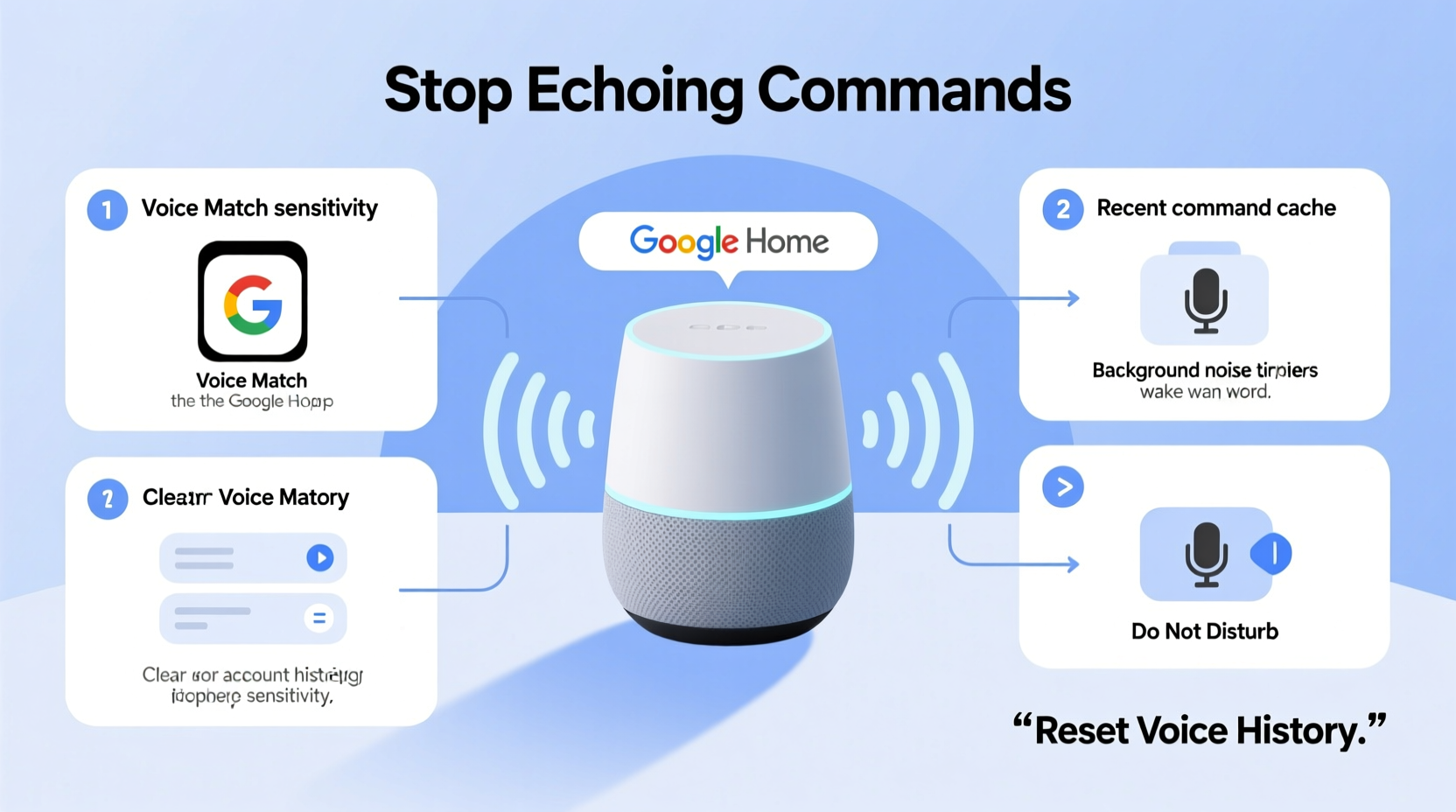
Google Home devices rely on advanced speech recognition and natural language processing to interpret user input. When you say “Hey Google,” the device activates its microphone and sends your audio to Google’s servers for analysis. The system then determines your intent and formulates a response—whether that’s turning on lights, answering a question, or playing a podcast.
Under normal circumstances, Google Home only speaks when providing useful feedback. For example, if you ask, “What’s the weather today?” it will respond with the forecast—not repeat your question. However, in some scenarios, the assistant may appear to “echo” your command by repeating your exact words before or instead of delivering a proper response.
This behavior typically stems from one of several underlying mechanisms:
- Confirmation mode: Some actions trigger verbal confirmations, especially those involving timers, alarms, or smart home controls.
- Voice matching errors: If the device misidentifies a sound as “Hey Google,” it may begin recording and attempt to process unrelated speech.
- Feedback loops: Playing audio near the device while speaking can confuse the microphone, leading to unintended reactivation.
- Firmware bugs: Occasionally, software updates introduce temporary glitches affecting voice output logic.
Before jumping to conclusions about hardware failure, consider these more common and correctable explanations.
Common Causes of Command Echoing and How to Diagnose Them
Not all instances of echoing are the same. Identifying the specific pattern helps pinpoint the source and apply the right fix. Below are five frequent culprits behind repeated command playback.
1. Accidental Wake Word Triggers
Background conversations, TV shows, or ads containing phrases like “Hey Google” or “OK Google” can unintentionally activate your device. Once triggered, the assistant listens and attempts to respond—even if no real command follows. This often results in the device saying something like, “I didn’t catch that,” or repeating part of what was said.
2. Overlapping Audio Feedback
Sometimes, after completing a task (e.g., setting an alarm), Google Home confirms the action verbally. If you immediately speak again—perhaps thanking the device or giving another instruction—the new utterance might get picked up mid-response, causing the assistant to reactivate and echo your words.
3. Poor Microphone Sensitivity Settings
Devices placed near reflective surfaces (like glass tables or walls) or in noisy environments may struggle to distinguish between intended commands and ambient noise. High sensitivity increases the chance of partial phrase detection, which can lead to fragmented or echoed responses.
4. Device Group Conflicts
If multiple Google Home devices are grouped together (e.g., for multi-room audio), one device may respond while others pick up the response as a new command. This creates a loop where each unit repeats the other’s output.
5. Software Glitches After Updates
While rare, recent firmware updates have occasionally caused abnormal voice behaviors. Users have reported post-update issues such as delayed replies, duplicated responses, or mechanical repetition of phrases without context.
“Voice assistants operate best when environmental variables are controlled. Unwanted echoes are rarely a hardware defect—they're usually a signal-processing mismatch.” — Dr. Alan Reyes, Senior UX Researcher at SmartHome Labs
Step-by-Step Guide to Stop Google Home From Echoing Commands
Follow this structured troubleshooting sequence to eliminate unwanted command repetition. Start with basic checks and progress to advanced configurations if needed.
- Restart Your Google Home Device
Unplug the device for 30 seconds, then plug it back in. A reboot clears temporary memory and resets active connections, often resolving minor software hiccups. - Check for Firmware Updates
Open the Google Home app → Tap your device → Scroll to “Device information” → Look for “Firmware version.” If an update is pending, install it immediately. - Adjust Microphone Sensitivity
In the Google Home app:
- Go to Device Settings
- Select “Microphone sensitivity”
- Lower the setting slightly if you live in a loud environment or notice frequent false triggers.
Note: Reducing sensitivity too much may impair legitimate command recognition. - Disable Unnecessary Voice Match Features
Voice Match personalizes responses based on who speaks. But inaccurate voice profiles can cause erratic behavior.
To disable:
- Open Google Home app
- Navigate to Settings > Voice Match
- Turn off “Unlock with Voice” or remove voice models you don’t use. - Review Routine Configurations
Custom routines sometimes include redundant verbal confirmations. Edit any routine that includes “Say” actions duplicating your input.
Example: A routine that says “Turning on the bedroom light” after you say “Turn on the bedroom light” adds unnecessary repetition. - Separate Multi-Device Groups Temporarily
To test if group syncing is causing echo loops:
- Ungroup all speakers in the Google Home app
- Use individual devices for 24 hours
- Reintroduce grouping gradually, monitoring for recurrence. - Perform a Factory Reset (Last Resort)
If all else fails:
- Press and hold the mute button on the back for 15 seconds
- Wait for the LED to turn orange, then white
- Set up the device again via the app
Warning: This erases all preferences, Wi-Fi credentials, and routines.
Do’s and Don’ts: Best Practices to Prevent Future Echoing
Maintaining optimal performance requires ongoing attention to placement, usage habits, and settings management. Refer to the table below for quick guidance.
| Do | Don't |
|---|---|
| Place your device away from TVs, radios, or speakers broadcasting voice content | Position it directly against walls or corners that amplify sound reflection |
| Use voice labels to distinguish between similar-sounding household members | Allow untrained users to enroll voices without verification |
| Update firmware regularly through the Google Home app | Ignore update notifications for extended periods |
| Test microphone function monthly using “Hey Google, record a voice message” | Cover the microphone array with objects or fabrics |
| Limit overlapping commands during multi-user interactions | Yell commands across rooms with poor acoustics |
Real-World Example: Solving Persistent Echoing in a Busy Household
Sarah, a mother of two in Austin, Texas, noticed her Google Nest Hub kept repeating phrases like “play kids’ songs” and “turn off the kitchen light” even when no one was speaking. At first, she assumed the device was broken. After reading online forums, she suspected false triggers but wasn’t sure how to verify them.
She followed a diagnostic process: unplugged nearby electronics, lowered microphone sensitivity, and reviewed her routines. Nothing worked. Then, she discovered that a morning cartoon airing on her living room TV contained a character shouting, “Hey Google, dance party!” every 10 minutes. The show had trained her device to wake up repeatedly, capturing fragments of dialogue and attempting responses.
Solution: Sarah disabled Voice Match temporarily and moved the device farther from the TV. She also created a schedule in the Google Home app to automatically mute the microphone during cartoon hours. Within a day, the echoing stopped completely.
This case illustrates how external media—not user error—can drive persistent echoing. Awareness of content exposure is critical in homes with children or shared entertainment spaces.
FAQ: Common Questions About Google Home Echoing
Why does my Google Home repeat everything I say?
It likely isn’t repeating *everything*—but rather reacting to partial wake words or background noise. False triggers caused by TV audio, overlapping speech, or high microphone sensitivity are the most common causes. Adjust settings and evaluate your environment to reduce false activations.
Can someone remotely access my Google Home and make it talk?
No. Google Home cannot be remotely accessed by third parties to initiate unsolicited speech. All voice outputs result from either local commands, scheduled routines, or authenticated app interactions. If you suspect unauthorized access, review your account activity in the Google Home app and enable two-factor authentication.
Will resetting my device delete my smart home integrations?
A factory reset removes saved Wi-Fi networks, routines, and voice models—but not linked accounts. You’ll need to reconnect services like Philips Hue or Nest, but you won’t have to re-authorize permissions unless you sign out manually.
Final Checklist: Eliminate Echoing for Good
- ✅ Restart the device and check for updates
- ✅ Lower microphone sensitivity if in a noisy area
- ✅ Disable Voice Match if accuracy is poor
- ✅ Audit custom routines for redundant “say” actions
- ✅ Separate speaker groups to test for feedback loops
- ✅ Relocate the device away from audio sources (TV, stereo)
- ✅ Perform factory reset only if all else fails
Conclusion: Regain Control of Your Voice Experience
Your Google Home should enhance daily life—not disrupt it with confusing echoes. By understanding the triggers behind repeated commands and applying targeted fixes, you can restore clarity and confidence in your smart assistant. Most issues stem from environmental factors or overlooked settings, not hardware defects. With careful configuration and regular maintenance, your device can return to seamless, intelligent interaction.




 浙公网安备
33010002000092号
浙公网安备
33010002000092号 浙B2-20120091-4
Comments
No comments yet. Why don't you start the discussion?