
If you've ever asked your Google Home a question only to hear the same answer repeated twice—once from the speaker and again as an echo—it’s not just your imagination. Audio overlap, where responses are duplicated or seem to “echo,” is a surprisingly common issue among Google Assistant users. While it doesn’t happen all the time, when it does, it can be distracting and frustrating. The good news? In most cases, this problem has simple explanations and even simpler fixes.
This guide breaks down the root causes behind Google Home echoing responses, walks through effective troubleshooting methods, and provides practical tips to prevent recurrence. Whether you’re using a Nest Mini, Nest Hub, or another model in the Google Home lineup, the solutions here apply across devices.
Understanding the Echo Effect: What’s Really Happening?
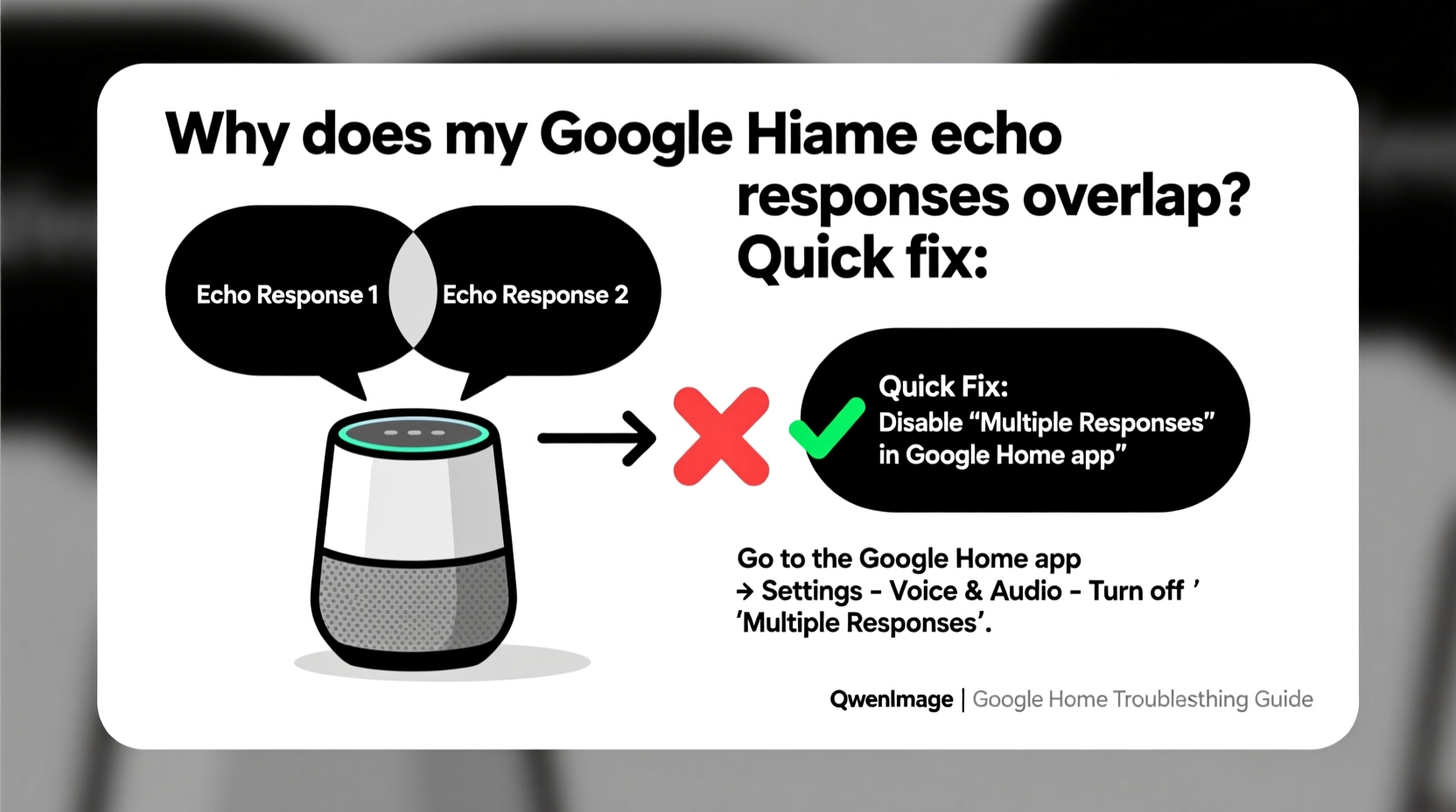
The term “echo” in this context doesn’t refer to Amazon’s smart speaker brand—it describes a playback anomaly where your Google Home repeats its own response, sometimes with a slight delay. This isn’t the device malfunctioning in the traditional sense; rather, it’s often the result of environmental interference, software glitches, or unintended interactions between multiple devices.
Google Home uses far-field microphones to detect voice commands. When you say “Hey Google,” the device activates, processes your request, and speaks the response aloud. Under normal conditions, it should respond once. However, under certain circumstances, the assistant may misinterpret its own output as a new command, triggering a second response.
This self-triggering loop typically occurs due to:
- Acoustic feedback (the speaker's output being picked up by its microphone)
- Multiple Google devices responding to the same wake word
- Background noise confusion or voice recognition errors
- Firmware bugs or outdated software
Before jumping into complex fixes, it’s important to determine whether the echo is caused by hardware setup, user environment, or internal processing issues.
Common Causes of Response Overlap and How to Diagnose Them
Not every echo issue stems from the same cause. Identifying the root reason is key to applying the right fix. Below are the most frequent culprits and how to diagnose each one.
1. Multiple Devices Responding Simultaneously
In homes with several Google Home speakers, it’s common for more than one device to hear “Hey Google” and attempt to respond. Even if only one replies audibly at first, secondary devices might activate silently and later repeat the response due to processing delays or network lag.
How to test: Say a simple command like “What time is it?” and observe which devices light up. If multiple units react, that’s likely contributing to the echo effect.
2. Acoustic Reflection and Room Acoustics
Hard surfaces like tile floors, glass windows, and bare walls reflect sound. When your Google Home plays a response, those reflections can bounce back into the microphone, tricking the device into thinking you said “Hey Google” again.
This is especially common in small, echo-prone rooms such as kitchens or bathrooms. Devices placed near walls or corners are more susceptible.
3. Speaker Volume Too High
When the speaker volume is turned up high, the assistant’s own voice becomes louder—and more likely to be picked up by its microphone. This creates a feedback loop: the device hears itself speaking, thinks it detected a wake phrase, and responds again.
4. Software Glitches or Outdated Firmware
Like any smart device, Google Home runs on firmware that receives periodic updates. Bugs in older versions may cause unexpected behavior, including double responses. Similarly, temporary glitches after a reboot or Wi-Fi dropout can trigger erratic performance.
5. Third-Party Integrations or Routines
Custom routines or linked services (like IFTTT or smart home automations) can inadvertently trigger duplicate actions. For example, a routine set to announce weather on multiple devices might play the same message twice if misconfigured.
“Echoing responses are rarely a hardware defect. Most cases stem from environmental factors or multi-device coordination issues.” — David Lin, Smart Home Systems Engineer
Step-by-Step Guide to Fix Google Home Echo Quickly
Follow this structured troubleshooting sequence to eliminate response overlap efficiently. Start with basic checks and progress to advanced settings if needed.
- Isolate the Device
Turn off or unplug all other Google Home devices in your home. Test the problematic unit alone. If the echo stops, the issue is multi-device interference. - Lower the Speaker Volume
Reduce the volume by saying, “Hey Google, lower volume by 20%.” Test with a few commands. Lower volume reduces the chance of self-feedback. - Reposition the Device
Move the Google Home away from walls, mirrors, or hard surfaces. Place it on a soft surface like a fabric coaster or shelf liner to dampen vibrations. - Restart the Device
Unplug it for 30 seconds, then plug it back in. This clears temporary memory and resets active connections. - Check for Updates
Open the Google Home app > select your device > tap Settings (gear icon) > scroll to “Device information.” If a firmware update is pending, install it. - Disable Voice Match Temporarily
Go to Google Home app > Settings > Voice Match > turn off “Hey Google” detection. Wait 1 minute, then re-enable it. This resets voice recognition sensitivity. - Review Active Routines
Navigate to Routines in the app. Look for any automation that might trigger the same action across multiple devices. Edit or delete conflicting routines. - Reset Microphone Sensitivity (Advanced)
While there’s no direct setting, you can recalibrate by performing a factory reset (see next section), which forces re-learning of ambient noise patterns.
Do’s and Don’ts: Best Practices for Preventing Echo
| Do | Don’t |
|---|---|
| Place devices in open areas away from reflective surfaces | Put Google Home directly against a wall or inside a cabinet |
| Use speaker groups wisely—assign primary responders per room | Enable all devices to respond to every command |
| Keep firmware updated automatically | Ignore update notifications in the Google Home app |
| Test changes after each adjustment | Make multiple changes at once without testing |
| Use physical mute buttons when privacy or silence is needed | Rely solely on voice commands to disable listening |
Factory Reset: Last Resort Solution
If none of the above steps resolve the echo, a factory reset may be necessary. This wipes all settings and returns the device to its original state, which can clear deep-seated software conflicts.
To perform a factory reset:
- Locate the reset button (usually a small pinhole on the bottom or back).
- Press and hold it with a paperclip for about 12 seconds until the light ring turns red.
- Wait for the device to restart—this takes up to 2 minutes.
- Reconnect it via the Google Home app as if it were new.
After resetting, avoid restoring backups immediately. Set it up fresh and test for echo before re-enabling routines or linking accounts.
Mini Case Study: Solving Echo in a Multi-Room Setup
Sarah, a remote worker living in a two-story townhouse, installed four Google Nest devices to manage lights, music, and calendars. She began noticing that asking for the weather would often result in two identical responses—one from her kitchen speaker, another delayed by a second from the upstairs bedroom unit.
She assumed it was a bug and nearly returned one device. Instead, she followed diagnostic steps: first silencing all but the kitchen speaker, confirming the echo disappeared. Then, checking her routines, she discovered a custom automation labeled “Morning Update” that triggered announcements on two devices simultaneously.
By editing the routine to use only one speaker and adjusting microphone sensitivity in the bedroom (which had hardwood floors and high ceilings), Sarah eliminated the overlap completely. The fix took less than 20 minutes and preserved her smart home functionality.
FAQ: Common Questions About Google Home Echo Issues
Can Wi-Fi interference cause response duplication?
Indirectly, yes. Poor Wi-Fi can delay command processing, causing one device to respond while another retries the same action due to timeout. Ensure strong signal strength and consider using a mesh network for large homes.
Does background music contribute to echoing?
Yes. If music is playing loudly, Google Home may struggle to distinguish between ambient sound and voice commands. It might also mishear its own response over the music, leading to false triggers. Lower volume or pause audio before issuing critical commands.
Is there a way to make only one Google Home respond at a time?
Absolutely. Use the “Default speaker” feature in the Google Home app. Go to Settings > Assistant > Default music speaker. You can also disable “Hey Google” detection on secondary devices in shared zones.
Checklist: Eliminate Google Home Echo in 7 Steps
- ✅ Turn off all but one Google Home device to test isolation
- ✅ Lower speaker volume to 50–60%
- ✅ Reposition device away from walls and reflective surfaces
- ✅ Restart the device by unplugging for 30 seconds
- ✅ Check for firmware updates in the Google Home app
- ✅ Review and clean up conflicting Routines
- ✅ Perform a factory reset if the issue persists
Conclusion: Take Control of Your Smart Speaker Experience
Experiencing echoed responses from your Google Home doesn’t mean your device is broken—it usually means the environment or configuration needs fine-tuning. With a methodical approach, most echo problems can be resolved in under an hour. The key is understanding that smart speakers operate in dynamic acoustic and network environments, and small adjustments can yield significant improvements.
Start with simple fixes like lowering volume or repositioning the device, then move to software and settings if needed. Once optimized, your Google Home will deliver crisp, single-response interactions that enhance convenience instead of disrupting it.




 浙公网安备
33010002000092号
浙公网安备
33010002000092号 浙B2-20120091-4
Comments
No comments yet. Why don't you start the discussion?