
Google Home devices use colored light rings as a non-verbal communication system. These visual cues help users understand the device’s status, detect issues, or receive feedback during interactions. However, when the lights flash in unexpected patterns or unfamiliar colors, it can be confusing — even concerning. Understanding what each color and animation means allows you to troubleshoot effectively, optimize performance, and ensure your smart home ecosystem runs smoothly.
The ring of light around your Google Home isn’t just decorative; it’s functional. From indicating voice detection to signaling software updates, each pulse, glow, or blink serves a purpose. But when the behavior deviates from the norm — such as sudden red flashes, persistent purple glows, or erratic multicolor flickering — users often wonder if something is wrong. This guide decodes those signals, explains their causes, and provides actionable steps to resolve anomalies.
Understanding Google Home Light Indicators
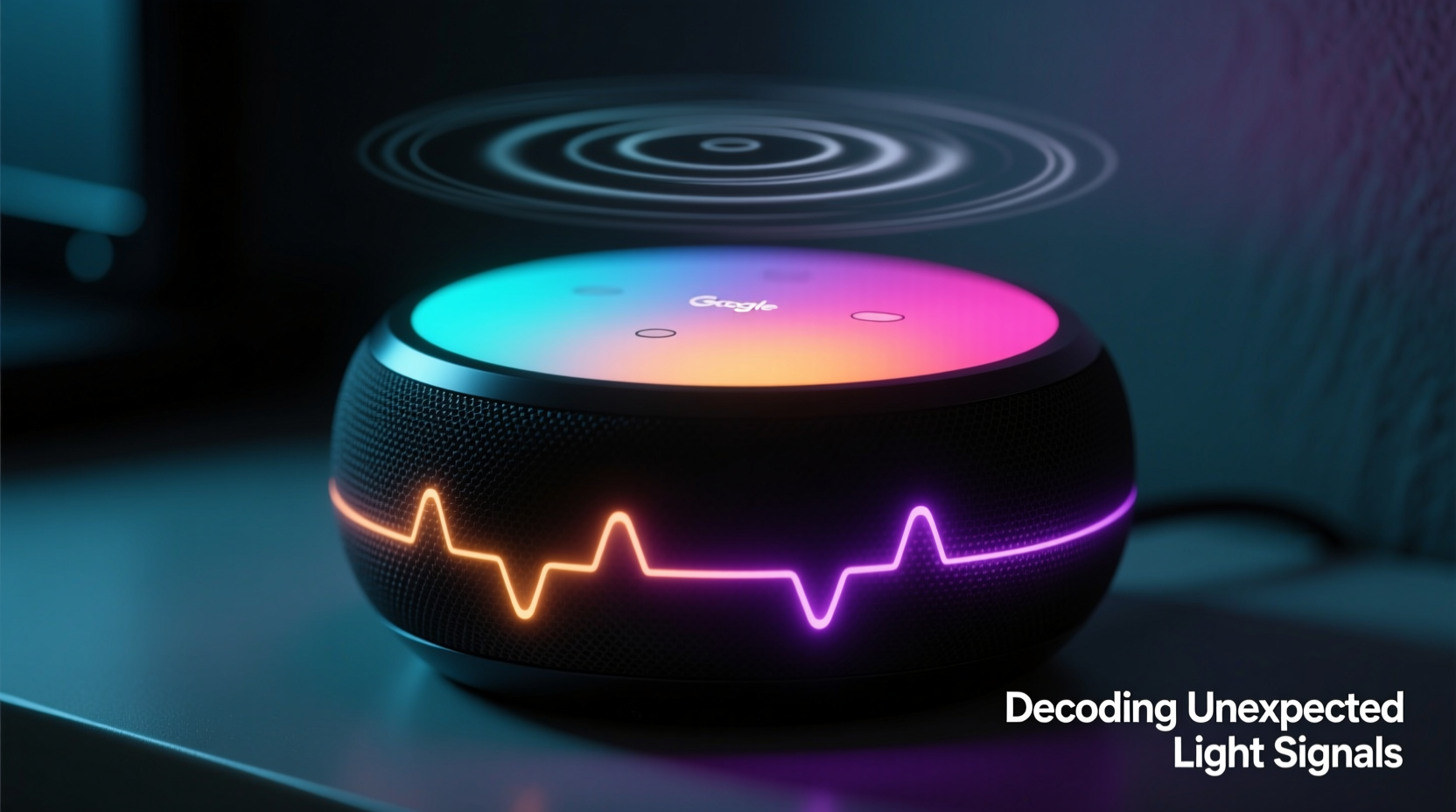
Every Google Home model — whether it’s a Nest Mini, Nest Audio, or full-sized Home Max — uses an LED ring to communicate its current state. The color, intensity, and motion of the light convey specific information without requiring audio feedback. These indicators are especially useful when the device is muted or placed in a room where sound might not be heard clearly.
Here’s a breakdown of standard light behaviors:
- Blue (clockwise swirl): Listening — the device has detected \"Hey Google\" or the press of the microphone button.
- White (pulsing): Ready for input — Google Assistant is active and awaiting a command.
- Green (spinning or pulsing): Incoming call or ongoing conversation via Google Duo or Meet.
- Yellow (pulsing): A notification or reminder has been delivered.
- Red (solid or flashing): Microphone is off, or there’s a hardware issue.
- Cyan (brief flash): Successfully cast media to a display or speaker.
- Purple (flashing): A Wi-Fi or setup problem has occurred.
- Orange (rotating): Device is in Bluetooth pairing mode.
While most of these are expected, confusion arises when colors appear unexpectedly or persist longer than normal. For example, a brief purple flash during initial setup is normal, but repeated purple pulses after months of stable operation suggest connectivity problems.
Common Causes of Unexpected Color Flashes
When your Google Home flashes colors outside of routine operations, several underlying factors may be responsible. Identifying the root cause helps determine whether intervention is needed.
Wi-Fi Connectivity Issues
A flashing purple light is one of the most common indicators of network instability. If your Google Home loses connection to your router or fails to reconnect after a power cycle, it may enter a recovery loop that triggers intermittent purple flashes. This often happens after router reboots, IP conflicts, or changes in network security settings.
Firmware or Software Glitches
Google regularly pushes over-the-air updates to improve functionality and security. During installation, your device may display unusual light patterns — such as alternating blue-white pulses or rapid blinking. While typically temporary, failed updates can leave the device in a limbo state, causing erratic behavior.
Misinterpreted Voice Commands
If background noise, TV dialogue, or another person triggers the wake word unintentionally, the device may activate and respond with a blue swirl followed by silence or an incorrect action. In some cases, this leads to cascading commands that result in multiple light sequences within a short time.
Hardware Malfunctions
Physical damage, overheating, or component failure can lead to abnormal lighting. A red flash, for instance, could indicate a failing microphone array or internal error, even if the mute switch is engaged.
Interference from Other Devices
Bluetooth speakers, wireless cameras, or other smart home gadgets operating on the same frequency band can interfere with Google Home’s ability to maintain stable connections, sometimes triggering diagnostic light patterns.
“Visual feedback systems like LED indicators are crucial for user-device interaction in voice-first environments. When they behave unpredictably, it undermines trust in automation.” — Dr. Lena Torres, Human-Computer Interaction Researcher at MIT Media Lab
Step-by-Step Guide to Diagnose and Fix Abnormal Light Signals
Follow this structured process to identify and resolve unexpected color flashes on your Google Home.
- Observe the color and pattern. Note whether the light is pulsing, spinning, flashing rapidly, or static. Record the duration and frequency.
- Check the Google Home app. Open the app, select your device, and review the status section. Look for alerts about connectivity, updates, or errors.
- Restart the device. Unplug it for 10 seconds, then plug it back in. Watch the boot-up sequence — a slow white pulse followed by a solid white glow indicates normal startup.
- Verify Wi-Fi connection. Ensure your router is online and other devices can connect. Try moving the Google Home closer to the router or rebooting the modem.
- Reset network settings. In the Google Home app, go to Settings > Network & Internet > Reset Wi-Fi. Reconnect the device to your network.
- Update firmware manually. Although updates are automatic, ensuring your app is up-to-date increases the likelihood of receiving pending patches.
- Perform a factory reset. If issues persist, hold the microphone mute button for 15 seconds until you hear a tone. This erases all settings and returns the device to default.
- Reconfigure the device. After resetting, set it up again through the app as if it were new.
Troubleshooting Table: Color Codes and Actions
| Color | Pattern | Meaning | Recommended Action |
|---|---|---|---|
| Purple | Flashing | Wi-Fi connection failed | Reboot router, re-enter password in app |
| Red | Solid or flashing | Microphone disabled or hardware fault | Toggle mute switch; check for physical damage |
| Orange | Rotating | In Bluetooth pairing mode | Cancel pairing or complete connection |
| Cyan | Brief flash | Media successfully cast | No action needed unless unintended |
| Yellow | Pulsing | Pending notification | Ask “What did I miss?” or check app |
| Green | Spinning | Incoming call | Respond verbally or disable calling in settings |
Real Example: Persistent Purple Flash Resolved
Sarah, a remote worker in Austin, noticed her Google Nest Mini began flashing purple every few minutes despite having worked flawlessly for over a year. She initially assumed it was broken and considered replacing it. Instead, she followed diagnostic steps: first checking her internet, then restarting the device. When the issue continued, she opened the Google Home app and discovered that her router had assigned a new IP address range after a recent firmware update, which the device couldn’t automatically adapt to.
She reset the Wi-Fi settings in the app and reconnected the speaker. The purple flashes ceased immediately, and the device returned to normal operation. This case highlights how seemingly alarming signals often stem from correctable network misconfigurations rather than hardware defects.
Frequently Asked Questions
Why does my Google Home flash red when the mute button is off?
A red light usually means the microphone is disabled. If it appears when the mute switch is toggled off, try pressing the button again firmly. Sometimes the mechanical switch sticks or doesn’t register properly. If the red light persists, restart the device or perform a factory reset.
Is a flashing cyan light dangerous?
No, a brief cyan flash simply confirms that content (like music or video) has been successfully cast to a compatible screen or speaker. It’s not a warning or error. If it occurs repeatedly without user initiation, check connected apps for automated casting rules.
Can I turn off the light ring completely?
Yes. In the Google Home app, go to your device settings > Lights > Brightness, and select “Off.” Note that disabling the lights removes all visual feedback, including notifications and voice detection cues.
Preventive Checklist for Stable Performance
- ✅ Place your Google Home in a central location with minimal signal obstruction.
- ✅ Keep router firmware updated to avoid compatibility issues.
- ✅ Regularly restart your Google Home (once a month) to clear memory leaks.
- ✅ Disable unused features like calling or notifications if they trigger unwanted lights.
- ✅ Use a surge protector to prevent electrical spikes from damaging internal components.
- ✅ Monitor for unintended voice triggers caused by TV shows or podcasts.
- ✅ Enable “Do Not Disturb” during sleep hours to reduce unnecessary light activity.
Conclusion: Take Control of Your Smart Home Experience
Your Google Home’s light signals are designed to enhance usability, not create confusion. By learning to interpret these visual cues accurately, you gain greater insight into your device’s health and behavior. Most unexpected flashes have simple explanations — from network hiccups to accidental voice activations — and can be resolved without technical expertise.
Don’t ignore persistent anomalies, but also don’t assume the worst. With systematic troubleshooting and proactive maintenance, you can keep your Google Home functioning reliably and silently — except when you want it to speak. Stay informed, stay observant, and make the most of your voice assistant’s full capabilities.




 浙公网安备
33010002000092号
浙公网安备
33010002000092号 浙B2-20120091-4
Comments
No comments yet. Why don't you start the discussion?