
Google Maps has become an indispensable tool for millions navigating cities, highways, and backroads every day. Its real-time traffic updates, route optimization, and voice-guided directions have redefined modern travel. Yet, even the most reliable tools can frustrate users—especially when your screen suddenly flashes a new route for no apparent reason. If you’ve ever found yourself asking, “Why does my Google Maps keep rerouting me?” you’re not alone. Frequent, unexpected reroutes can disrupt commutes, waste time, and even lead you down unfamiliar or dangerous roads. The good news is that most of these issues stem from predictable causes—and many are easy to fix.
Understanding Why Google Maps Reroutes You
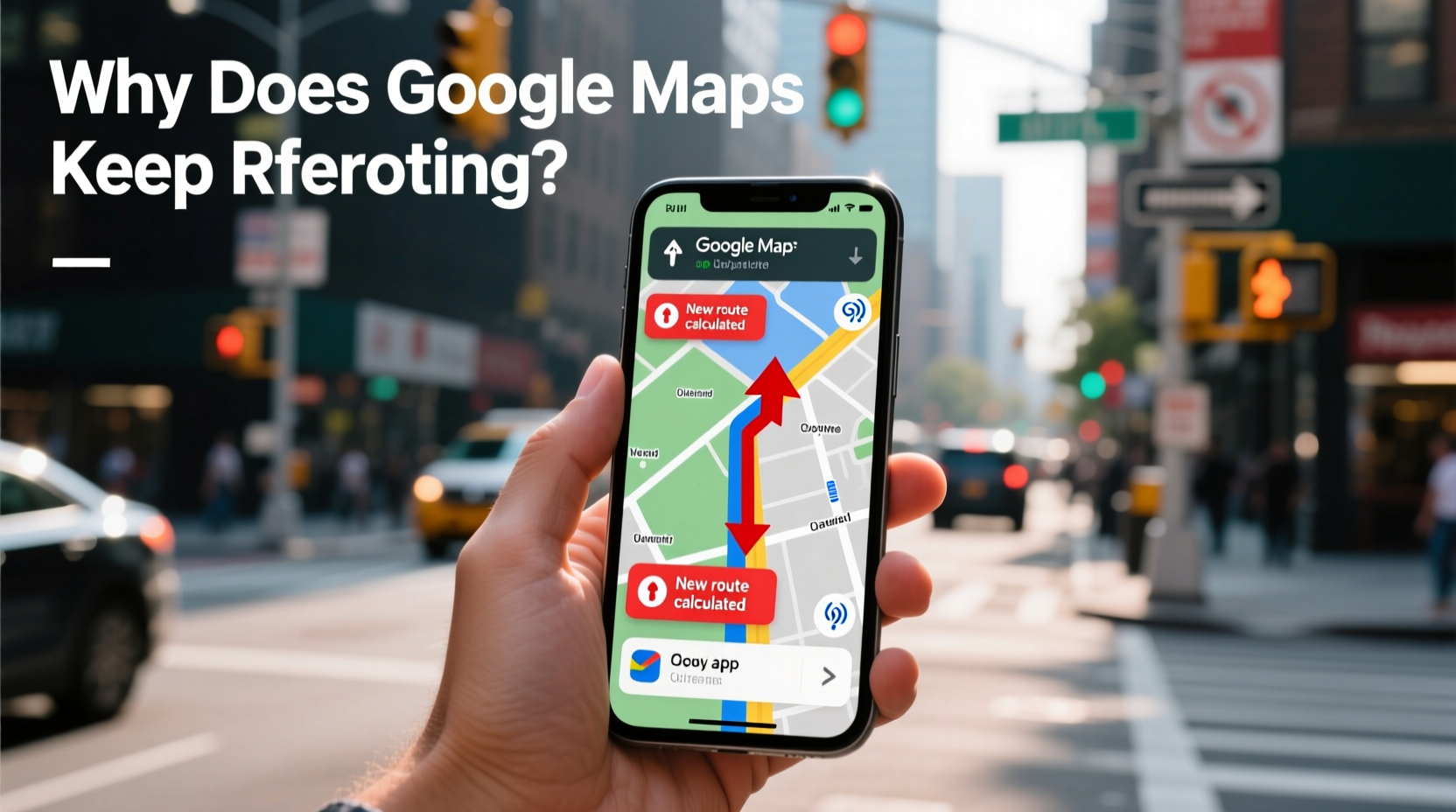
At its core, Google Maps aims to get you to your destination as efficiently as possible. It uses live traffic data, historical patterns, road closures, construction reports, and GPS signals to calculate the best path in real time. When conditions change—like a sudden accident or congestion—the app recalculates your route to avoid delays. This dynamic rerouting is often helpful, but it becomes problematic when:
- Reroutes happen too frequently, even on short trips.
- The new route isn’t faster or safer than the original.
- Reroutes occur without any visible traffic disruption.
- The app suggests illogical detours (e.g., looping around blocks).
These behaviors usually point to either a technical glitch or misinterpretation of your environment by the app’s algorithms.
Common Causes of Constant Rerouting
Several factors contribute to erratic behavior in Google Maps. Understanding them helps pinpoint whether the issue lies with your device, settings, location accuracy, or external data sources.
1. Unstable GPS Signal
Your phone relies on GPS satellites, Wi-Fi triangulation, and cellular networks to determine your position. In urban canyons, tunnels, or areas with poor signal coverage, your location may \"jump\" between points. Google Maps interprets this as rapid movement or deviation from the route, triggering unnecessary reroutes.
2. Outdated App Version
An older version of Google Maps may lack critical bug fixes or updated routing logic. Developers regularly patch performance issues related to navigation stability. Running outdated software increases the risk of glitches.
3. Aggressive Traffic Prediction Algorithms
Google's AI-driven traffic model predicts congestion based on real-time data from other users. Sometimes, it overreacts to minor slowdowns or anticipates bottlenecks that never materialize. This leads to premature rerouting—even if your current path remains clear.
4. Background Data Restrictions
If your device limits background data usage for Google Maps, the app might fail to receive timely updates. When connectivity resumes, it floods with delayed information, causing abrupt route recalculations.
5. Incorrect Mode Selection
Selecting the wrong travel mode—like biking instead of driving—can result in misleading reroutes. Each mode uses different road networks and restrictions. A mismatch here confuses the system about which routes are valid.
6. Cached Location Errors
Occasionally, Google Maps caches incorrect starting positions or cached traffic data. This residual information skews route calculations until refreshed.
“Google Maps recalculates routes up to several times per minute when live data suggests a significant time savings. But signal noise or prediction errors can make this feature feel erratic.” — Dr. Lena Torres, Senior UX Researcher at Mobility Labs
Step-by-Step Guide to Fix Rerouting Glitches
Before assuming the worst, try this systematic troubleshooting process. Most rerouting problems resolve within minutes using these steps.
- Check Your Internet Connection
Ensure you have stable mobile data or Wi-Fi. A spotty connection delays traffic updates and causes delayed route adjustments. - Update Google Maps
Go to your device’s app store and verify that Google Maps is up to date. Updates often include fixes for navigation bugs. - Enable High-Accuracy Location Mode
On Android: Settings > Location > Mode > Select “High Accuracy” (uses GPS, Wi-Fi, and Bluetooth).
On iOS: Settings > Privacy > Location Services > Google Maps > Set to “While Using.” - Clear Cache and Data
Android: Settings > Apps > Google Maps > Storage > Clear Cache (and Clear Data if needed).
iOS: Offload the app via Settings > General > iPhone Storage > Google Maps > Offload App, then reinstall. - Restart Your Device
A reboot resets network connections and clears temporary memory glitches affecting GPS performance. - Disable Battery Optimization for Google Maps
Some phones aggressively kill background processes. Allow Google Maps to run freely in the background to maintain continuous location tracking. - Test with Another Navigation App
Try Waze, Apple Maps, or Sygic to see if the issue persists. If so, the problem may be hardware-related (e.g., faulty GPS chip).
Do’s and Don’ts: Best Practices for Stable Navigation
| Do’s | Don’ts |
|---|---|
| Keep Google Maps updated regularly | Ignore app update notifications |
| Use a phone mount near the windshield for better GPS reception | |
| Download offline maps for rural or low-signal areas | Assume GPS will work perfectly underground or in dense forests |
| Verify your selected travel mode before starting | Switch modes mid-route without resetting the destination |
| Allow Google Maps full location access while navigating | Restrict background location permissions |
Real-World Example: Commuter Frustration Resolved
Take the case of Marcus, a logistics manager in Chicago who drives 45 minutes daily from Naperville to downtown. Over two weeks, he noticed Google Maps rerouted him four times during each commute—sometimes suggesting U-turns on busy expressways. Initially, he assumed traffic was worsening. But after reviewing his route history, he realized there were no actual accidents or jams.
He followed the troubleshooting steps above. First, he discovered his phone was set to “Battery Saving” location mode, which relied only on Wi-Fi and cell towers—not GPS. After switching to “High Accuracy,” the rerouting stopped immediately. Additionally, he had neglected to update Google Maps in over a month. Once updated, the app’s route predictions stabilized significantly.
Marcus now keeps his app updated weekly and uses a dashboard mount to ensure optimal satellite signal. His morning drive is smoother, and reroutes only occur when genuinely necessary—like during a recent snowstorm when I-290 slowed to 20 mph.
When to Trust (or Ignore) a Reroute
Not all reroutes are bad. Some save valuable time. The key is learning when to follow them and when to stay the course.
Consider accepting a reroute if:
- Traffic ahead shows red or dark orange on the map.
- The estimated arrival time improves by more than 5 minutes.
- There’s a verified incident report (accident, closure, construction).
Resist rerouting if:
- The suggested detour takes you through narrow residential streets or unpaved roads.
- You’re already on a familiar, efficient route with no visible congestion.
- The new route adds distance without meaningful time savings.
In high-stakes situations—like emergency medical transport or delivery deadlines—manually locking your route can prevent disruptive changes. While Google Maps doesn’t offer a “lock route” button, you can simulate this by choosing restrictive options like “Avoid Tolls” or “Avoid Highways” even if they aren’t ideal, just to stabilize routing logic.
Frequently Asked Questions
Why does Google Maps reroute me even when traffic looks fine?
This often happens due to predictive modeling. Google anticipates future congestion based on historical patterns or anonymized user slowdowns. Even if traffic appears smooth now, the system expects it to worsen ahead. However, false positives occur, especially during off-peak hours or light traffic days.
Can I stop Google Maps from rerouting automatically?
There’s no direct setting to disable rerouting, but you can reduce it by downloading offline maps, ensuring strong GPS signal, and avoiding areas with known interference. You can also use alternative apps like HERE WeGo that allow manual route locking.
Does restarting Google Maps help with constant rerouting?
Yes. Closing and reopening the app forces a fresh location sync and clears temporary data glitches. Combine this with a device restart for best results.
Conclusion: Take Control of Your Navigation Experience
Constant rerouting in Google Maps isn’t inevitable—it’s often a symptom of correctable settings, outdated software, or environmental interference. By understanding how the app interprets location and traffic data, you gain the power to minimize disruptions and navigate with confidence. Simple actions like updating the app, enabling high-accuracy GPS, and clearing cache can transform a frustrating drive into a seamless journey.
Technology should serve you, not confuse you. With the right setup, Google Maps remains one of the most powerful navigation tools available. Apply these fixes today, and reclaim control over your route.




 浙公网安备
33010002000092号
浙公网安备
33010002000092号 浙B2-20120091-4
Comments
No comments yet. Why don't you start the discussion?