
If you’ve ever opened Instagram only for the app to freeze, close unexpectedly, or fail to load stories and reels, you’re not alone. Millions of users report frequent crashes across both iOS and Android devices. While reinstalling might seem like the obvious solution, it’s often unnecessary—and inconvenient if you have unsaved drafts, cached memories, or a slow internet connection. The good news? Most crashes stem from preventable issues that can be resolved with simple troubleshooting steps.
Instagram is a resource-heavy app. It streams video, loads high-resolution images, runs background processes, and syncs data in real time. When device performance, network conditions, or app settings aren’t optimized, instability follows. Understanding the root causes empowers you to apply targeted fixes—without losing your account data or starting over.
Common Causes of Instagram Crashes
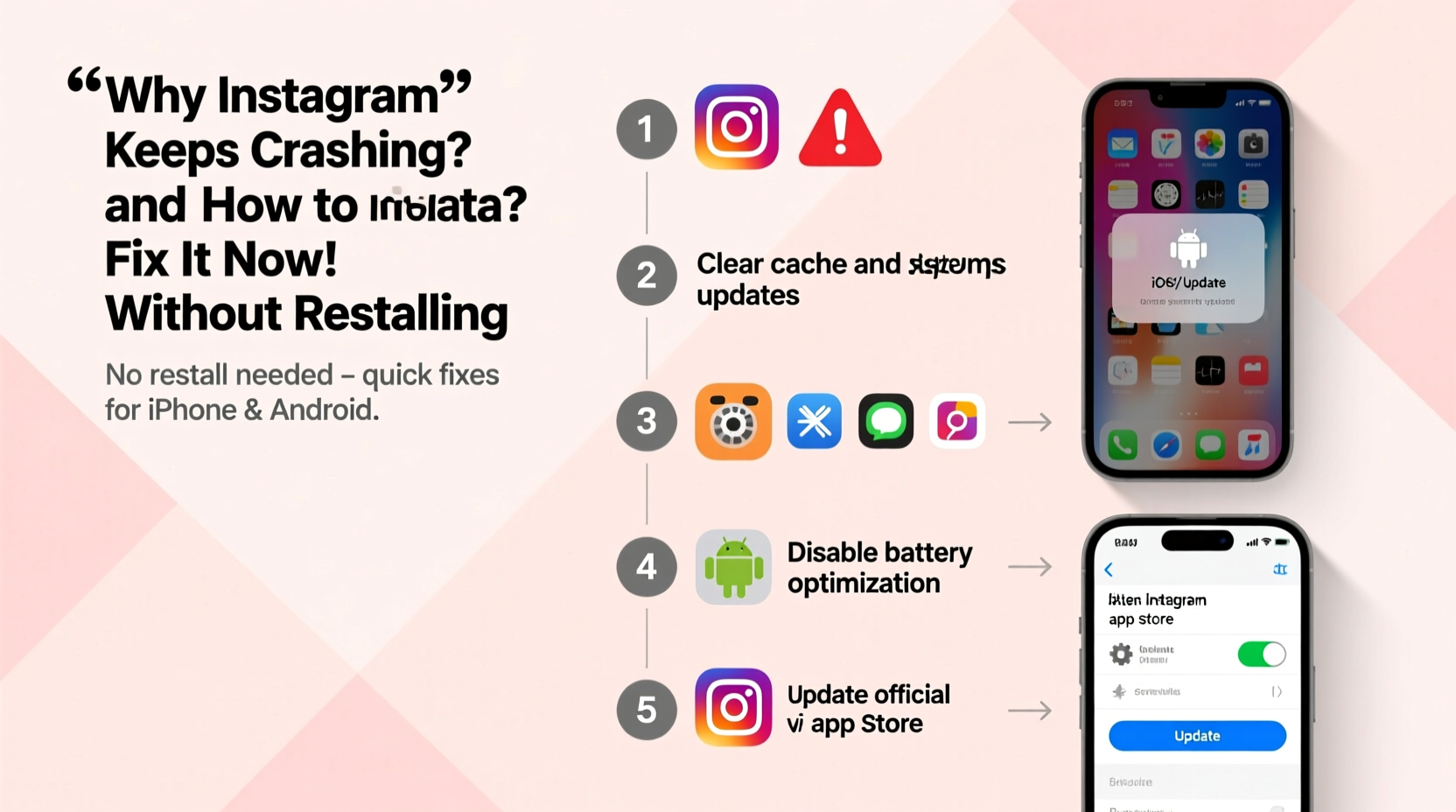
Before diving into solutions, it helps to understand what’s likely behind the malfunction. Instagram doesn’t crash randomly; each failure usually traces back to one or more identifiable factors.
- Outdated App Version: Running an older version of Instagram may introduce compatibility bugs with your operating system or new server-side features.
- Insufficient Device Storage: When your phone runs low on space, apps struggle to cache data and run smoothly.
- Corrupted Cache Data: Over time, temporary files can become fragmented or overloaded, leading to app instability.
- Poor Internet Connection: An unstable or slow network prevents proper content loading, causing timeouts and forced closures.
- Background App Conflicts: Other apps using excessive memory or interfering with permissions can destabilize Instagram.
- Operating System Incompatibility: Older OS versions may lack support for current app requirements.
- Buggy Updates: Occasionally, Instagram releases flawed updates that cause widespread crashes until patched.
Addressing these underlying issues systematically increases your chances of restoring smooth functionality—without uninstalling.
Step-by-Step Fixes Without Reinstalling
The following sequence outlines proven methods to stabilize Instagram. Start at the top and work down—many users find success within the first few steps.
1. Force Stop and Restart the App
A frozen process or stuck thread can cause immediate crashes. Closing the app completely resets its state.
- On iPhone: Swipe up from the bottom (or double-click the Home button) to view open apps. Swipe Instagram away.
- On Android: Go to Settings > Apps > Instagram > Force Stop.
- Wait 10 seconds, then relaunch the app.
This clears active memory usage and stops any rogue processes. Often, this alone resolves temporary glitches.
2. Clear Instagram’s Cache (Android Only)
iOS manages cache differently and doesn’t allow direct clearing through settings, but Android users can manually remove accumulated junk files.
- Navigate to Settings > Apps > Instagram > Storage.
- Tap “Clear Cache” (not “Clear Data”—that erases login info).
- Restart the app.
Clearing cache removes temporary media, thumbnails, and logs built up during use. This reduces strain on the app without affecting your account.
3. Check for App and System Updates
Developers patch bugs regularly. If you're running an outdated version, you may be experiencing a fixed issue.
- Update Instagram: Open Google Play Store (Android) or App Store (iOS). Search “Instagram” and tap Update if available.
- Update Your OS: Outdated iOS or Android versions may lack critical security patches or APIs needed by the latest app build.
Apple recommends keeping iOS updated for optimal app performance. Similarly, Android manufacturers release monthly stability improvements.
4. Reset Network Settings or Switch Connections
Instagram relies heavily on consistent connectivity. A weak or erratic signal can trigger repeated crashes, especially when loading Reels or Stories.
Try the following:
- Switch from Wi-Fi to mobile data (or vice versa).
- Restart your router if Wi-Fi seems slow.
- On iPhone: Go to Settings > General > Transfer or Reset iPhone > Reset > Reset Network Settings.
- On Android: Settings > System > Reset options > Reset Wi-Fi, mobile & Bluetooth.
Note: This will erase saved Wi-Fi passwords, so have them ready.
5. Disable Battery Saver and Background Restrictions
Power-saving modes limit CPU usage and background activity. While helpful for extending battery life, they can interfere with app responsiveness.
- Disable Battery Saver mode temporarily.
- Ensure Instagram is allowed to run in the background:
- iOS: Settings > Instagram > Background App Refresh – set to “Wi-Fi & Cellular.”
- Android: Settings > Apps > Instagram > Battery > Unrestricted.
Restrictive power management can interrupt syncing processes, leading to app termination.
6. Log Out and Back In (Without Uninstalling)
Authentication glitches or corrupted session tokens sometimes cause silent failures. Logging out refreshes your connection to Instagram’s servers.
- Open Instagram > Profile > Menu (three lines) > Settings > Security > Log Out.
- Wait 30 seconds, then log back in with your credentials.
This forces a fresh authentication handshake and re-syncs your account data. It often resolves persistent freezing during feed loading or DM access.
Troubleshooting Table: What to Try Based on Symptoms
| Symptom | Most Likely Cause | Action to Take |
|---|---|---|
| App opens then immediately closes | Corrupted cache or background conflict | Force stop + clear cache (Android), restart phone |
| Crashes only when opening Reels or Stories | Network lag or media buffer overload | Switch networks, clear cache, disable auto-play videos |
| Freezes during upload | Unstable connection or large file size | Reduce video resolution, switch to strong Wi-Fi |
| Crashes after recent update | Buggy app release | Wait for patch, roll back via APK (Android), or use web version temporarily |
| Only crashes on certain profiles or hashtags | Problematic content triggering bug | Report the post, avoid searching that term until fixed |
Mini Case Study: Sarah’s Persistent Crash Issue
Sarah, a small business owner who uses Instagram daily to promote handmade jewelry, began experiencing crashes every time she tried to upload a product video. She was frustrated—her sales relied on timely posts. Initially, she assumed her phone was too old (a three-year-old iPhone XR), but friends with newer models reported similar issues.
Instead of reinstalling, she followed a structured approach:
- She force-closed the app and restarted her phone—no change.
- She checked for updates: iOS was current, but Instagram had a pending update in the App Store.
- After updating, the app still froze during uploads.
- She switched from her home Wi-Fi (which had spotty coverage in her studio) to her mobile hotspot.
- Voilà—the next upload completed without issue.
Further testing confirmed that her router’s intermittent signal was causing timeouts. She reset her network settings and upgraded her router firmware. Since then, Instagram has remained stable. Her experience highlights how environmental factors—not just software—can impact app performance.
“Many app crashes aren’t about the app itself, but the ecosystem around it: storage, network, permissions, and device health.” — Marcus Lin, Mobile Application Analyst at TechPulse Insights
Expert Tips and Best Practices
Maintaining long-term app stability requires ongoing care. These habits reduce the likelihood of future crashes:
- Monitor Storage Regularly: Keep at least 1–2 GB of free space on your device. Full storage slows all apps, not just Instagram.
- Limit Background Apps: Close unused apps that consume RAM and processing power.
- Use Official App Versions: Avoid third-party mods or download tools—they can inject malware or break app integrity.
- Enable Auto-Updates: Let your device automatically install app and OS updates to stay protected against known bugs.
- Log Out Periodically: Doing so every few months clears stale sessions and refreshes your login token.
Frequently Asked Questions
Can Instagram crash because of too many saved drafts?
Yes. Saved drafts store video and image data locally. If you have multiple high-resolution drafts, they can overload the app’s internal storage handler, especially on devices with limited RAM. Delete old or unused drafts via the camera screen (tap the tray icon) to free up space.
Why does Instagram crash only when I use filters or Reels?
Filters and AR effects require significant GPU and CPU resources. Older or budget phones may struggle to render these in real time, leading to forced closures. Try disabling advanced effects or using simpler templates. Also, ensure your device isn’t overheating, as thermal throttling can trigger shutdowns.
Is it safe to use Instagram on public Wi-Fi?
While technically possible, public networks are often slow and insecure. Poor bandwidth can cause loading failures, while unsecured connections increase the risk of session hijacking. For reliability and safety, use trusted networks or cellular data when actively posting or managing your account.
Final Checklist: Quick Fix Routine
Keep this checklist handy for future troubleshooting:
- ✅ Force stop and restart Instagram
- ✅ Check for app and OS updates
- ✅ Clear app cache (Android)
- ✅ Switch between Wi-Fi and mobile data
- ✅ Restart your smartphone
- ✅ Disable battery saver temporarily
- ✅ Log out and back into your account
- ✅ Verify sufficient storage space (at least 1 GB free)
Following these steps resolves the majority of non-hardware-related crashes. Only consider reinstalling if all else fails—and even then, try the web version first to confirm the issue isn't broader.
Conclusion: Regain Control Without Starting Over
Instagram crashes don’t have to mean lost data or a fresh start. By understanding the technical triggers and applying systematic fixes, you can restore stability quickly and efficiently. The key is to treat the app as part of a larger digital ecosystem—one influenced by network quality, device health, and software hygiene.
Next time Instagram misbehaves, skip the reinstallation rush. Work through the steps methodically. You’ll not only solve the problem but also gain insight into your device’s performance patterns. Small adjustments today can prevent hours of frustration tomorrow.




 浙公网安备
33010002000092号
浙公网安备
33010002000092号 浙B2-20120091-4
Comments
No comments yet. Why don't you start the discussion?