
If you're an Android user who relies on Instagram for staying connected, sharing moments, or managing a personal or business account, frequent app crashes can be more than frustrating—they can disrupt your routine and even impact your online presence. You're not alone. Many Android users report that Instagram suddenly stops working, freezes, or closes unexpectedly during scrolling, posting, or using Stories. While the exact cause may vary, most crashes stem from common technical issues that are often easy to resolve with the right approach.
This guide dives into the root causes of Instagram crashes on Android devices and provides actionable, step-by-step solutions. From clearing cache to checking system compatibility, we’ll walk through practical fixes that don’t require advanced tech knowledge. Whether you’re using a Samsung Galaxy, Google Pixel, or another Android model, these strategies are designed to get your app running smoothly again—fast.
Common Causes of Instagram Crashes on Android
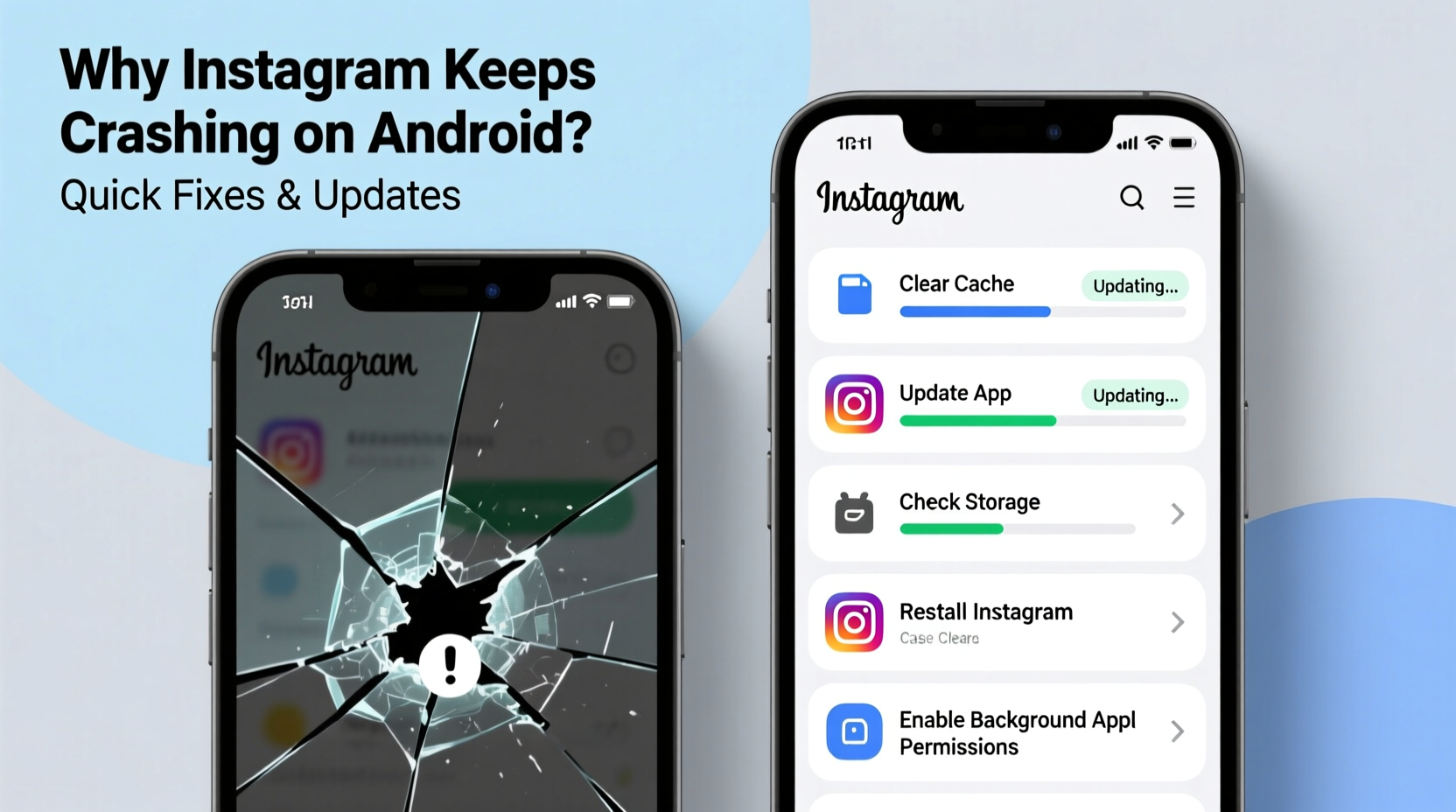
Before jumping into fixes, it helps to understand why Instagram might be malfunctioning. Unlike iOS, Android runs on a wide range of hardware and software configurations, making app performance less predictable. Instagram, being a resource-heavy app with constant background processes, is particularly sensitive to device-specific conditions.
- Bug-ridden app updates: New versions sometimes introduce glitches that affect certain devices disproportionately.
- Insufficient storage space: When your phone is nearly full, apps struggle to write temporary files and cache data.
- Outdated operating system: Older Android versions may lack support for newer app features or security protocols.
- Corrupted cache or app data: Accumulated junk files can interfere with normal app operations.
- Conflicting third-party apps: Some battery savers, antivirus tools, or launchers interfere with Instagram’s background services.
- Network instability: Poor Wi-Fi or cellular connections can cause timeouts and force-close errors.
Understanding these triggers allows you to diagnose the issue more efficiently. The good news is that most problems can be resolved without factory resetting your phone or deleting your account.
Step-by-Step Guide to Fix Instagram Crashes
Follow this logical sequence of troubleshooting steps. Start with the simplest and least invasive methods before moving to deeper interventions. In many cases, the first few fixes resolve the issue immediately.
- Restart the Instagram app. Close it completely from the recent apps menu and reopen it. This clears temporary memory glitches.
- Reboot your Android device. A full restart clears RAM and resets active processes, often resolving unexplained app behavior.
- Check for Instagram updates. Open the Google Play Store, search for “Instagram,” and tap “Update” if available. Developers release patches frequently to fix known bugs.
- Clear the app cache. Go to Settings > Apps > Instagram > Storage > Clear Cache. This removes temporary files without affecting your login or saved data.
- Clear app data (if needed). If clearing cache doesn’t help, try Clear Data. Note: This will log you out and erase local drafts and preferences.
- Uninstall and reinstall Instagram. This ensures a clean installation free of corrupted files. Re-download from the official Play Store.
- Update your Android OS. Go to Settings > System > System Update. Installing the latest OS version can resolve compatibility issues.
- Check available storage. Ensure you have at least 500MB–1GB of free space. Delete unused apps, photos, or downloads if necessary.
- Disable battery optimization for Instagram. Some phones aggressively kill background apps to save power. Whitelist Instagram in Battery settings.
- Test on a different network. Switch between Wi-Fi and mobile data to rule out connectivity-related crashes.
Troubleshooting Checklist
Use this checklist to methodically address potential issues. Mark each item as you complete it:
- ✅ Restarted Instagram and device
- ✅ Checked for app update in Play Store
- ✅ Cleared Instagram cache
- ✅ Cleared Instagram app data (if cache didn’t work)
- ✅ Uninstalled and reinstalled Instagram
- ✅ Updated Android OS to latest version
- ✅ Freed up storage space (deleted unnecessary files)
- ✅ Disabled battery optimization for Instagram
- ✅ Tested app on stable Wi-Fi and mobile data
- ✅ Verified account isn't restricted or banned (check via web browser)
If the app still crashes after completing this list, the issue may be tied to your specific device model or firmware. Continue reading for deeper insights and alternative solutions.
Do’s and Don’ts: Best Practices for Stable App Performance
| Do’s | Don’ts |
|---|---|
| Keep Instagram updated regularly | Ignore app update notifications |
| Clear cache monthly as maintenance | Delete app data unnecessarily (you’ll lose drafts) |
| Use official app from Google Play Store | Install APKs from third-party websites |
| Ensure sufficient storage (at least 1GB free) | Run too many background apps simultaneously |
| Add Instagram to battery optimization whitelist | Use aggressive task killers or RAM boosters |
| Report crashes via Play Store feedback | Assume the problem is permanent without reporting |
Following these best practices not only improves Instagram’s reliability but also enhances overall device performance. Regular maintenance prevents small issues from escalating into major disruptions.
Real Example: How Sarah Fixed Her Crashing Instagram App
Sarah, a small business owner in Austin, uses Instagram daily to promote her handmade jewelry line. One Monday morning, she noticed her app kept closing when she tried to upload a new product photo. She attempted multiple restarts, but the crash persisted. Frustrated, she almost considered switching to her desktop—but decided to troubleshoot first.
She started by checking for updates and found that Instagram had a pending update. After installing it, the app still crashed. Next, she cleared the cache, which didn’t help. Then, remembering a recent tip, she went to Settings > Apps > Instagram > Battery and disabled optimization. Upon reopening the app, it loaded smoothly and stayed open. Later, she realized a recent system update had reset her battery permissions, causing the app to be throttled in the background.
Sarah’s experience highlights how a single overlooked setting can derail functionality—and how systematic troubleshooting leads to quick resolution without drastic measures.
Expert Insight on App Stability
“Mobile apps like Instagram depend heavily on background processes for notifications, media loading, and syncing. On Android, where manufacturers customize the OS differently, these processes can be interrupted by default power-saving features. Users should treat app crashes not as random glitches but as signals that something in the system interaction needs adjustment.” — Dr. Raj Mehta, Mobile Software Engineer and Android Optimization Specialist
This perspective shifts the focus from blaming the app to understanding the ecosystem it operates in. Instagram may function perfectly on one Android device but fail on another due to firmware-level differences in memory management or background execution limits.
Frequently Asked Questions
Why does Instagram crash only when I open Reels or Stories?
This typically happens because Reels and Stories are high-demand features that load video content in real time. If your internet connection is slow or unstable, or if your device has limited RAM, the app may struggle to render media and crash. Try lowering video quality in Instagram settings or using a stronger network.
Will clearing app data delete my photos and messages?
No, your photos, DMs, and account information are stored on Instagram’s servers, not locally on your device. Clearing app data only removes cached files, login tokens, and temporary preferences. You’ll need to log back in, but none of your content will be lost.
Is it safe to download Instagram from sources other than the Play Store?
No. Third-party APKs may contain malware or outdated code that increases crash risks and security vulnerabilities. Always install Instagram from the official Google Play Store or directly from Meta’s website if needed.
When to Contact Support or Consider Alternatives
If you’ve exhausted all troubleshooting options and Instagram continues to crash, consider reaching out to Meta Support. You can submit a report directly through the app (if accessible) or via the Help Center on Instagram’s website. Include details like your device model, Android version, and a description of the issue.
In rare cases—especially with older or unsupported devices—you may need to rely on the mobile web version (instagram.com) as a temporary workaround. While it lacks some features like Stories creation or offline access, it’s stable and secure.
Also, check community forums like Reddit’s r/Instagram or Android subreddit to see if others with your device model are experiencing similar issues. Sometimes, widespread bugs prompt faster responses from developers.
Conclusion: Regain Control of Your Instagram Experience
Instagram crashes on Android don’t have to be a recurring headache. With the right knowledge and a structured approach, most issues can be resolved in under 15 minutes. The key is to act methodically—start with simple fixes like restarting and updating, then progress to deeper solutions like reinstalling the app or adjusting system settings.
Maintaining app stability isn’t just about convenience; it’s about protecting your digital workflow, whether you’re sharing memories or growing a brand. By following the steps outlined here, you’re not just fixing a crash—you’re building resilience into your daily tech use.




 浙公网安备
33010002000092号
浙公网安备
33010002000092号 浙B2-20120091-4
Comments
No comments yet. Why don't you start the discussion?