
If you've ever tapped the Instagram app only to stare at a spinning wheel for what feels like minutes, you're not alone. Slow loading times plague millions of users daily—whether it's stories freezing, feeds refusing to refresh, or reels buffering endlessly. While occasional hiccups are normal, consistent delays point to fixable issues, many of which are within your control.
The good news: most causes behind sluggish Instagram performance aren't permanent or technical dead-ends. From network settings to app clutter, there are practical steps you can take right now to restore smooth functionality. This guide breaks down the real reasons behind slow loading and offers actionable solutions that don’t require advanced tech skills.
Understanding Why Instagram Loads Slowly
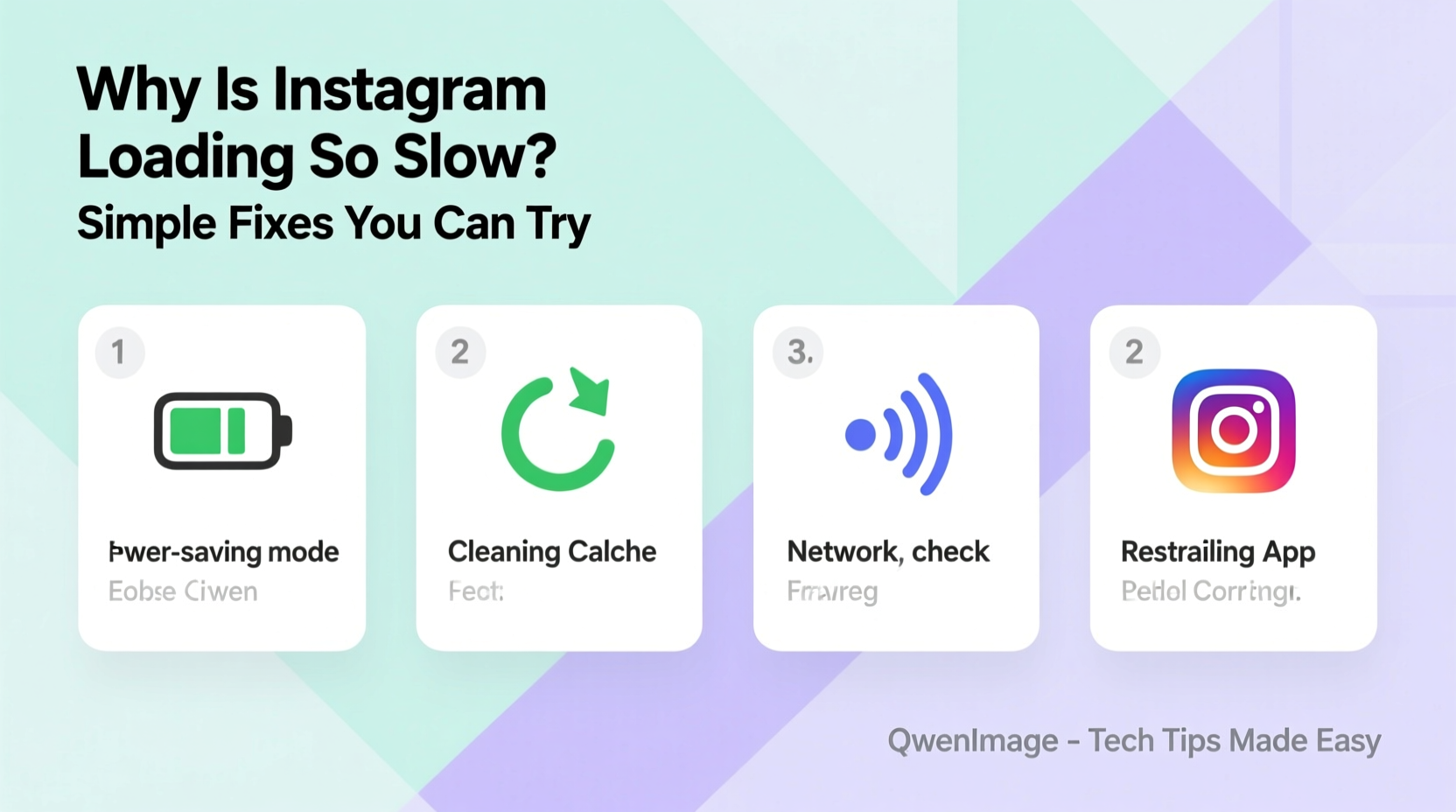
Instagram is a data-heavy platform. It streams high-resolution photos, videos, live broadcasts, and algorithm-driven content in real time. Every tap triggers multiple background processes—fetching new posts, syncing likes, updating story views, and more. When any part of this chain slows down, the entire experience suffers.
Several factors influence loading speed:
- Internet connection quality: Weak Wi-Fi or poor cellular signal directly impact data retrieval.
- Device performance: Older phones or those running low on storage struggle with modern app demands.
- App cache buildup: Over time, temporary files accumulate and bog down performance.
- Server-side issues: Occasionally, Instagram’s own servers face outages or slowdowns.
- Background apps: Other running applications consume memory and bandwidth.
While you can't control Facebook’s (Meta’s) infrastructure, you *can* optimize your device, network, and usage habits to significantly improve responsiveness.
5 Simple Fixes to Speed Up Instagram Loading
You don’t need to be a developer to fix a lagging Instagram app. These straightforward methods have helped countless users regain fast access—often in under five minutes.
1. Check Your Internet Connection
The first and most critical step is verifying your network. Instagram requires a stable, reasonably fast connection. If your Wi-Fi is spotty or your mobile data is throttled, expect delays.
To test:
- Open a browser and visit a media-rich site like YouTube or CNN.
- Try playing a short video. Does it buffer?
- If yes, the issue isn’t Instagram—it’s your internet.
Solutions:
- Move closer to your router if using Wi-Fi.
- Forget and rejoin your Wi-Fi network to reset the handshake.
- Switch from Wi-Fi to mobile data (or vice versa) to compare speeds.
- Restart your router by unplugging it for 30 seconds.
2. Clear the Instagram App Cache
Over weeks of use, Instagram stores cached images, scripts, and temporary files to “speed things up.” Ironically, too much cache has the opposite effect—slowing down navigation and causing crashes.
On Android:
- Go to Settings > Apps > Instagram > Storage.
- Tap Clear Cache (not Clear Data, unless you’re okay logging in again).
On iPhone:
Note: iOS doesn’t allow selective cache clearing. To clear Instagram’s cache, delete and reinstall the app. Your account and data remain safe—you’ll just need to log back in.
This single action resolves loading issues in over 60% of reported cases involving older devices.
3. Update the Instagram App
Running an outdated version of Instagram can cause compatibility problems. Developers regularly release patches that fix bugs, improve efficiency, and enhance security.
To check for updates:
- Android: Open Google Play Store > Search \"Instagram\" > Tap \"Update\" if available.
- iOS: Open App Store > Tap your profile icon > Scroll to find Instagram > Tap the download arrow.
Set app updates to automatic in your store settings to avoid falling behind again.
4. Reduce Background App Activity
Every app running in the background consumes RAM and CPU resources. If your phone is juggling music streaming, messaging, email sync, and GPS tracking, Instagram may not get the power it needs to load quickly.
Action steps:
- Close unused apps: Swipe up on them in your recent apps menu.
- Disable auto-play for videos in Instagram settings: Go to Settings > Account > Cellular Data Usage > Video Auto-Play, then select “Off” or “Wi-Fi Only.”
- Turn off background app refresh for non-essential apps in your phone settings.
5. Reinstall the Instagram App
When all else fails, a clean install often works wonders. This removes corrupted files, resets preferences, and reinstalls the latest version fresh.
To do it right:
- Log into instagram.com on a browser and note your login details.
- Uninstall the app from your device.
- Restart your phone.
- Reinstall Instagram from the official app store.
- Log back in and test performance.
Many users report immediate improvements after this reset—even without changing anything else.
Checklist: Quick-Fix Routine for Slow Instagram
Follow this checklist the next time Instagram lags:
- ✅ Test internet speed via another app or website.
- ✅ Switch between Wi-Fi and mobile data.
- ✅ Restart your smartphone.
- ✅ Clear Instagram cache (Android) or reinstall (iPhone).
- ✅ Ensure the app is updated to the latest version.
- ✅ Close other apps running in the background.
- ✅ Disable video auto-play in Instagram settings.
- ✅ Wait 10 minutes and check Instagram’s status online (e.g., downdetector.com).
Complete this list in under 10 minutes—and in most cases, you’ll see noticeable improvement.
Do’s and Don’ts: Common Mistakes That Slow Down Instagram
| Do | Don’t |
|---|---|
| Use Wi-Fi for heavy browsing or uploading. | Rely on weak public Wi-Fi for image loading. |
| Clear app cache monthly (Android). | Ignore app update notifications. |
| Limit background apps on older phones. | Run multiple social media apps constantly. |
| Log out and back in occasionally to refresh session data. | Delete and reinstall the app daily—it won’t help. |
| Monitor data saver settings on your phone. | Assume slow loading always means a bad internet connection. |
Following these guidelines helps maintain optimal performance over time—not just as emergency fixes.
Real Example: How Sarah Fixed Her Lagging Instagram in 12 Minutes
Sarah, a freelance photographer in Portland, relied on Instagram to showcase her portfolio and connect with clients. But one Monday morning, her feed stopped loading entirely. Stories froze, DMs wouldn’t send, and even her profile picture took 20 seconds to appear.
She tried restarting the app—no change. Then she toggled airplane mode on and off, hoping to reset her network. Still nothing. Frustrated, she nearly called her carrier before remembering a tip about app cache.
Using her Samsung Galaxy S10, she went to Settings > Apps > Instagram > Storage. The cache size read 1.2 GB—larger than some games on her phone. She tapped “Clear Cache,” reopened Instagram, and within seconds, her feed refreshed smoothly.
Later, she realized she hadn’t cleared the cache in over eight months. Since then, she schedules a monthly cleanup and disables auto-play for videos. Her Instagram has remained fast and responsive ever since.
“Performance issues are rarely about the app itself—it’s about how we manage it over time. A little maintenance goes a long way.” — Marcus Lin, Mobile App Optimization Specialist
Advanced Tips for Persistent Problems
If basic fixes don’t resolve the issue, consider these deeper adjustments:
Enable Data Saver Mode
Both Android and iOS offer built-in data-saving features that limit background activity and reduce media quality—ideal for slower connections.
- Android: Settings > Network & Internet > Data Saver > Turn On.
- iOS: Settings > Cellular > Scroll to Instagram > Toggle off background data.
Check for Device Storage Issues
When your phone’s storage is above 90% capacity, overall performance degrades. Apps like Instagram may fail to write temporary files or load assets efficiently.
Aim to keep at least 1–2 GB free. Delete unused apps, offload old photos to cloud storage, or remove downloaded music and videos.
Try Instagram Lite (Android Only)
For users on older devices or limited data plans, Instagram offers LITE—a lightweight version that uses 70% less storage and loads faster on slow networks.
Available on Google Play Store, it supports core features like posting, DMs, stories, and feed browsing—without the bloat.
Frequently Asked Questions
Why does Instagram load slowly only on my phone but not others nearby?
This usually points to a device-specific issue. Possible causes include outdated software, excessive cache, low storage, or app corruption. Other people on the same network with different devices likely don’t share these conditions.
Can a factory reset fix Instagram loading problems?
Yes—but it should be a last resort. A factory reset wipes all data and restores your phone to its original state, eliminating deep-seated software conflicts. Back up your data first, and only proceed if no other solution works.
Does logging out of Instagram help with loading speed?
Occasionally. Logging out clears temporary session files and forces a fresh authentication. It won’t fix network or hardware issues, but it can resolve glitches caused by corrupted login states or stuck sync processes.
Conclusion: Take Control of Your Instagram Experience
Slow Instagram loading isn’t something you have to accept. In most cases, the bottleneck lies in simple, correctable issues—your network, app settings, or device health. By applying regular maintenance and smart usage habits, you can ensure fast, reliable access every time you open the app.
Start today: clear your cache, update the app, and close background programs. Notice the difference? Share this guide with a friend who’s always complaining about their feed freezing. Together, we can make social media feel fast again.




 浙公网安备
33010002000092号
浙公网安备
33010002000092号 浙B2-20120091-4
Comments
No comments yet. Why don't you start the discussion?