
If you've ever opened Instagram expecting a quick scroll through friends' stories only to be met with spinning circles and buffering screens, you're not alone. Slow-loading stories are one of the most common frustrations among Instagram users. While the app is designed for fast, seamless media consumption, real-world performance often falls short—especially when network conditions, device limitations, or hidden settings interfere.
The delay isn’t always about your internet speed. Multiple factors—from background processes to outdated software—can contribute to sluggish story loading. Understanding the root causes and applying targeted fixes can dramatically improve your experience. This guide breaks down the technical and practical reasons behind slow Instagram story loading and delivers actionable solutions that work across iOS and Android devices.
Common Causes of Slow Instagram Story Loading
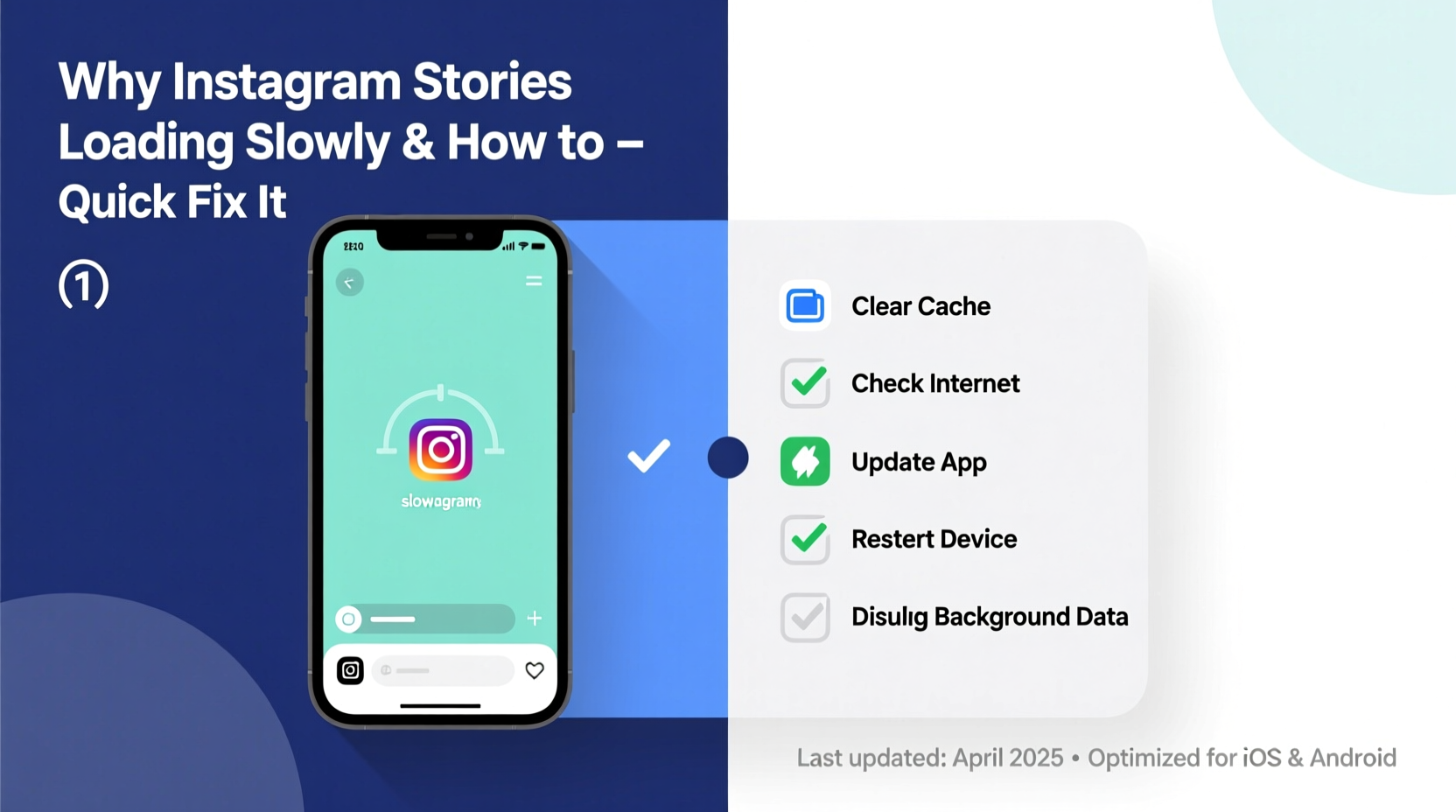
Before jumping into fixes, it’s essential to understand what’s actually slowing things down. Instagram stories are video-heavy, auto-playing content that demands consistent bandwidth and efficient app performance. When any part of this system falters, delays occur.
- Poor or unstable internet connection: Whether Wi-Fi or mobile data, inconsistent signal strength leads to buffering.
- Outdated app version: Older versions may lack performance optimizations and bug fixes.
- Full cache or storage: A cluttered app cache can degrade responsiveness over time.
- Background apps consuming resources: Other apps running in the background can hog memory and bandwidth.
- Server-side issues from Instagram: Occasionally, Meta's servers experience outages or slowdowns.
- Device hardware limitations: Older phones may struggle with high-resolution media streaming.
Step-by-Step Guide to Fix Slow Instagram Story Loading
Follow this systematic approach to diagnose and resolve the issue. Each step targets a specific potential cause, helping you isolate and eliminate bottlenecks.
- Check Your Internet Connection
Open a browser and visit a video site like YouTube. Try playing a short clip. If it buffers or loads slowly, the issue starts with your network. Restart your router or switch between Wi-Fi and cellular data to compare performance. - Restart the Instagram App
Close Instagram completely from your app switcher (double-click Home or swipe up and hold), then reopen it. This clears temporary glitches and resets active connections. - Update the Instagram App
Outdated versions often have known bugs affecting media playback. Go to the App Store (iOS) or Google Play Store (Android), search for Instagram, and tap \"Update\" if available. - Clear Instagram Cache (Android Only)
On Android, go to Settings > Apps > Instagram > Storage > Clear Cache. This removes temporary files without deleting login info or saved posts. Note: iOS doesn’t allow direct cache clearing; you must offload the app or delete and reinstall it. - Reinstall Instagram
If clearing cache doesn’t help, uninstall Instagram, restart your phone, then reinstall it from the official store. This ensures a clean installation free of corrupted files. - Reduce Background App Activity
Close unused apps running in the background. On iOS, disable automatic downloads under Settings > General > iPhone Storage. On Android, limit background data usage via Data Usage settings. - Toggle Airplane Mode
Turn on Airplane Mode for 10 seconds, then turn it off. This forces your phone to re-establish a fresh network connection, often resolving IP or DNS hiccups.
Advanced Fixes for Persistent Issues
If basic troubleshooting fails, consider these deeper interventions:
- Change DNS Settings: Switching to a public DNS like Google (8.8.8.8) or Cloudflare (1.1.1.1) can improve connection reliability and speed.
- Reset Network Settings: Found in phone settings, this wipes saved Wi-Fi passwords and Bluetooth pairings but often resolves deep-seated connectivity issues.
- Disable Auto-Brightness and Battery Saver: Some power-saving modes throttle CPU and network performance, indirectly affecting app responsiveness.
Do’s and Don’ts When Troubleshooting Instagram Performance
| Do’s | Don’ts |
|---|---|
| Use Wi-Fi instead of mobile data when possible for more stable streaming | Ignore app update notifications—delayed updates can lead to compatibility issues |
| Regularly clear cache (on Android) to maintain app efficiency | Run too many apps simultaneously while using Instagram |
| Test multiple networks to isolate the source of slowness | Assume the problem is always Instagram—verify with other apps first |
| Keep your phone’s OS updated for optimal app compatibility | Use third-party Instagram mods or “boosters”—they’re unsafe and often worsen performance |
Real-World Example: How Sarah Fixed Her Story Loading Delays
Sarah, a digital marketer in Chicago, relied on Instagram daily for client monitoring and trend research. For weeks, her stories took up to 15 seconds to load—even at home on Wi-Fi. Frustrated, she assumed her phone was too old (an iPhone XR). She tried restarting the app repeatedly, but the lag persisted.
After reading about DNS impacts on app performance, she decided to test her network. Using a speed test app, she found her download speed was normal, but latency was unusually high. She changed her router’s DNS to 1.1.1.1 (Cloudflare) and noticed an immediate improvement. Stories began loading in under two seconds.
The issue wasn’t her phone or Instagram—it was her ISP’s default DNS server, which had been routing traffic inefficiently. By making one small network adjustment, Sarah restored full functionality without reinstalling apps or upgrading hardware.
“Network-level issues are often invisible but can cripple app performance. Simple DNS changes can yield dramatic improvements.” — David Lin, Network Infrastructure Engineer at NetSignal Labs
Optimize Instagram Settings for Faster Story Playback
Beyond external factors, Instagram itself has settings that influence how quickly stories load. Tweaking these can reduce strain on your connection and device.
Enable Data Saver Mode
Instagram includes a built-in Data Saver feature that reduces preloading of stories and reels. While this saves bandwidth, it can paradoxically make stories feel slower because they aren’t buffered in advance. For users with strong connections, disabling Data Saver may improve perceived speed.
To adjust:
Settings > Data Usage and Storage > Use Less Data for Stories
Toggle off to enable preloading.
Limit Story Preloading (Advanced Users)
If you’re on a metered connection but still want some responsiveness, set preloading to “Wi-Fi Only.” This balances speed and data conservation.
Turn Off Automatic Video Playback
While not directly related to stories, disabling autoplay in feeds frees up memory and bandwidth for active story viewing.
Checklist: Quick-Fix Routine for Instant Improvement
Use this checklist whenever Instagram stories start lagging. Most issues can be resolved in under five minutes.
- ✅ Check Wi-Fi or cellular signal strength
- ✅ Toggle airplane mode on and off
- ✅ Close and reopen Instagram
- ✅ Ensure Instagram is updated to the latest version
- ✅ Clear app cache (Android) or offload/reinstall (iOS)
- ✅ Disable battery saver or performance-limiting modes
- ✅ Restart your smartphone
- ✅ Test another video app to confirm network health
Frequently Asked Questions
Why do Instagram stories load slowly even with good Wi-Fi?
Even with strong signal bars, network congestion, router distance, or interference from other devices can degrade actual throughput. Additionally, Instagram may be throttling media delivery due to app settings or temporary server issues. Try restarting your router or switching to 5GHz Wi-Fi if available.
Does clearing Instagram cache delete my saved stories or DMs?
No. Clearing the cache only removes temporary files like thumbnails and buffered videos. Your saved posts, messages, login status, and account data remain intact. However, after clearing cache, the app may take slightly longer to load initially as it rebuilds temporary files.
Can a factory reset fix Instagram loading problems?
A factory reset can resolve deep software conflicts, but it should be a last resort. It erases all data and requires reinstallation of apps and restoration of backups. Try all other fixes first. If you proceed, back up your phone and ensure you remember all account credentials.
Conclusion: Take Control of Your Instagram Experience
Slow-loading Instagram stories don’t have to be a daily annoyance. With the right knowledge, you can identify whether the bottleneck lies in your network, device, app configuration, or external service issues. Most fixes are simple, fast, and don’t require technical expertise. From clearing cache to adjusting DNS settings, each step brings you closer to smooth, uninterrupted story browsing.
Instagram is meant to be fast and engaging. When it isn’t, the experience loses its appeal. By applying the strategies outlined here—testing connections, updating software, managing settings, and learning from real cases—you regain control over your digital routine. Don’t settle for endless buffering. Implement these solutions today and enjoy the platform as it was intended: instantly, smoothly, and reliably.




 浙公网安备
33010002000092号
浙公网安备
33010002000092号 浙B2-20120091-4
Comments
No comments yet. Why don't you start the discussion?