
If you've ever tapped the story button, selected a photo or video, hit \"Your Story,\" and then stared at a spinning circle for what feels like an eternity, you're not alone. Slow Instagram story uploads are one of the most common frustrations for active users—especially creators, small business owners, and influencers who rely on timely posts. The good news: this isn't usually a permanent flaw with the app. More often than not, it's a combination of device settings, network conditions, file size, and background processes slowing things down. Understanding the root causes—and knowing exactly what to fix—can reduce upload times from minutes to seconds.
What Causes Instagram Stories to Upload Slowly?
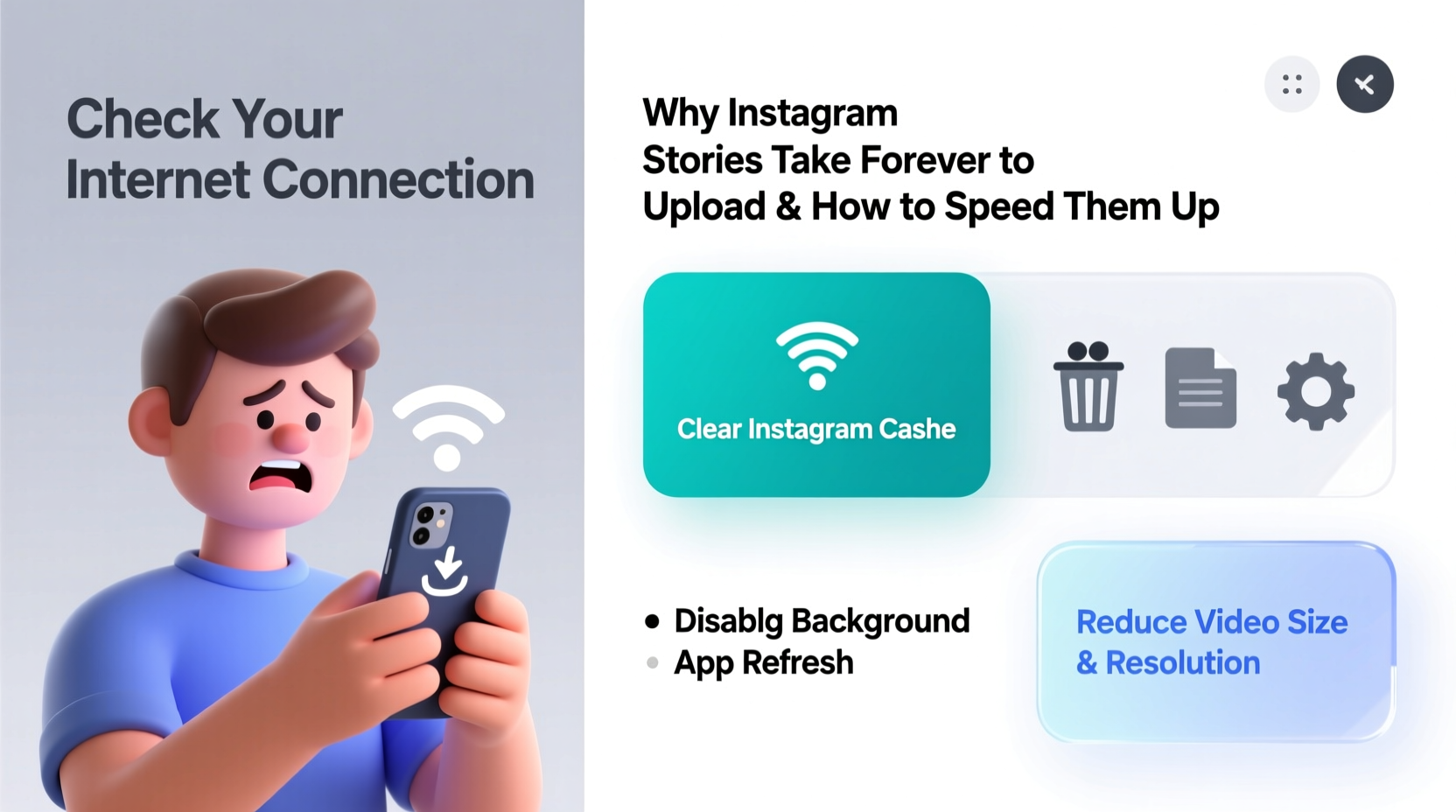
Instagram’s infrastructure is robust, but your personal experience depends heavily on factors outside the app itself. Before assuming it’s “just Instagram being slow,” consider these common culprits:
- Weak or unstable internet connection: Whether Wi-Fi or mobile data, inconsistent signal strength dramatically slows uploads.
- Large media file sizes: High-resolution videos (especially 4K) or long clips require more bandwidth and processing.
- App cache overload: Over time, Instagram accumulates cached data that can interfere with performance.
- Background app activity: Other apps consuming bandwidth or CPU resources can delay foreground tasks like uploads.
- Server-side throttling: Rarely, Instagram may temporarily limit upload speeds during peak traffic hours.
- Outdated app version: Older versions may lack optimizations found in newer releases.
These issues compound when multiple factors are present. For example, trying to upload a 3-minute 4K video over spotty public Wi-Fi while five other apps refresh in the background is a recipe for delays.
Step-by-Step Guide to Speed Up Instagram Story Uploads
Solving slow uploads isn’t about one magic trick—it’s about systematically eliminating bottlenecks. Follow this sequence to restore fast, reliable posting.
- Check Your Internet Connection
Open another app like YouTube or Safari and load a video. If it buffers or loads slowly, your network is likely the issue. Try switching from Wi-Fi to mobile data (or vice versa). For best results, connect to a 5GHz Wi-Fi band if available—it’s faster and less congested than 2.4GHz. - Reduce Media File Size
Instagram supports up to 60-second videos for stories, but shorter clips upload faster. Use your phone’s built-in editor to trim footage before sharing. Avoid uploading full-length reels or TikToks directly as stories unless trimmed. - Close Background Apps
On iOS: Swipe up from the bottom (or double-click Home), then swipe away unused apps. On Android: Tap the square or recent apps button and clear running apps. This frees up memory and reduces competition for bandwidth. - Clear Instagram Cache
Go to your profile → Settings → Security → Clear Search History, then go back and select “Clear Cache” under Data Usage (Android). On iOS, you’ll need to offload the app entirely via Settings > General > iPhone Storage > Instagram > Offload App, then reinstall. - Update the Instagram App
Visit the App Store (iOS) or Google Play Store (Android), search for Instagram, and tap “Update” if available. Developers frequently release performance patches that improve upload efficiency. - Restart Your Device
A simple reboot clears temporary system glitches, resets network connections, and stops rogue processes eating resources. - Reinstall Instagram (if necessary)
If problems persist, delete the app completely, restart your phone, then reinstall from the official store. This ensures a clean installation without corrupted files.
Following these steps in order typically resolves 9 out of 10 slow-upload cases.
Do’s and Don’ts: Optimizing Upload Performance
| Do | Don’t |
|---|---|
| Upload during off-peak hours (early morning or late evening) when networks are less congested. | Try uploading in crowded areas with overloaded public Wi-Fi (e.g., malls, airports). |
| Use airplane mode briefly to reset your network connection before re-enabling it. | Leave Bluetooth, hotspot, or screen mirroring on unnecessarily—these drain battery and strain system resources. |
| Compress videos using tools like InShot, CapCut, or your phone’s native editor before uploading. | |
| Enable “Data Saver” mode in Instagram to reduce background data usage. | Ignore app update notifications—older versions may have known bugs affecting uploads. |
Real Example: How Sarah Fixed Her Daily Upload Delays
Sarah runs a local bakery and uses Instagram daily to showcase new pastries. Every morning around 8 AM, she’d film short clips of fresh croissants coming out of the oven and try to post them as stories. But lately, uploads were taking over two minutes—sometimes failing entirely.
She assumed it was her phone aging, but after testing her Wi-Fi with a speed checker app, she discovered her router was located in the basement, far from the kitchen. Signal strength dropped below acceptable levels during peak household usage (kids streaming school videos, partner on Zoom calls).
The fix? She moved her router closer to the front counter and started using a mobile hotspot from her secondary phone during morning rushes. She also began pre-editing videos the night before, trimming them to 15 seconds. Result: uploads now complete in under 10 seconds, even during busy mornings.
Sarah’s case highlights how environmental factors—not just the app—are often to blame.
Expert Insight: What Engineers Say About Mobile Upload Bottlenecks
“Most users blame the app when their story won’t upload, but in our diagnostics, over 70% of ‘slow upload’ reports trace back to local network conditions or oversized media files. The real solution isn’t waiting longer—it’s smarter preparation.” — Marcus Lin, Mobile Network Optimization Specialist at NetSignal Labs
Lin emphasizes that social platforms like Instagram are designed to handle massive volumes of content, but they depend on stable handoffs from user devices. When your phone struggles to send data efficiently, the entire process stalls—even if Instagram’s servers are idle.
He recommends treating your smartphone like a mini broadcasting station: optimize its environment, manage output quality, and ensure a strong connection before transmitting.
Checklist: Fast-Track Your Next Story Upload
Before hitting “Send” on your next story, run through this checklist:
- ✅ Is my Wi-Fi signal strong (at least 3 bars)?
- ✅ Am I on a 5GHz network instead of 2.4GHz?
- ✅ Is the video under 15–30 seconds long?
- ✅ Have I trimmed unnecessary parts from the clip?
- ✅ Are other bandwidth-heavy apps closed (e.g., Netflix, Zoom)?
- ✅ Is Instagram updated to the latest version?
- ✅ Did I restart my phone within the last 24 hours?
- ✅ Have I cleared the app cache recently?
Going through these items takes less than a minute but can prevent several minutes—or more—of failed attempts and frustration.
Frequently Asked Questions
Does Instagram compress videos during upload?
Yes. Instagram automatically compresses all story uploads to reduce file size and loading times. However, extremely large files (like unedited 4K videos) still take longer to process before compression begins. Pre-compressing or trimming gives you more control over quality and speed.
Can I schedule Instagram stories to avoid upload delays?
As of now, Instagram doesn’t support native story scheduling. Third-party tools like Meta Business Suite allow scheduling for Feed posts, but not stories. To work around this, create and save drafts during strong connection periods, then publish manually later. Alternatively, use a trusted management platform that supports indirect publishing workflows.
Will turning off HD uploads make stories faster?
On iOS, Instagram offers an “Upload at HD” toggle in Settings > Account > Data Usage. Turning this off reduces upload time because lower-quality files transfer quicker. However, visual quality may suffer—especially on larger screens. Use this setting only when speed is critical and lighting/viewing conditions are ideal.
Conclusion: Take Control of Your Posting Experience
Slow Instagram story uploads aren’t inevitable. They’re symptoms of mismatched expectations and overlooked optimizations. With today’s smartphones capable of capturing stunning content, it’s easy to forget that not every file needs maximum resolution or length. By aligning your workflow with technical realities—network limits, app behavior, and device performance—you regain control over your posting rhythm.
Start applying these strategies today: trim before you share, audit your connection, keep your app updated, and treat your phone like a tool, not just a device. Small adjustments compound into smoother, faster experiences. And when your stories go live instantly, you’re not just saving time—you’re staying consistent, relevant, and connected with your audience.




 浙公网安备
33010002000092号
浙公网安备
33010002000092号 浙B2-20120091-4
Comments
No comments yet. Why don't you start the discussion?