
Video calls have become a cornerstone of modern communication—whether for remote work, virtual classrooms, or staying in touch with family across time zones. Yet few things are more frustrating than being mid-sentence when your screen freezes, your voice cuts out, or you’re abruptly disconnected. It’s not just annoying; it can damage professional credibility, disrupt learning, and strain relationships. The root cause is rarely as simple as “bad Wi-Fi.” Behind the scenes, multiple technical and environmental factors can destabilize your connection. Understanding what’s really happening—and how to fix it—is essential for anyone relying on digital communication.
Understanding the Root Causes of Connection Drops
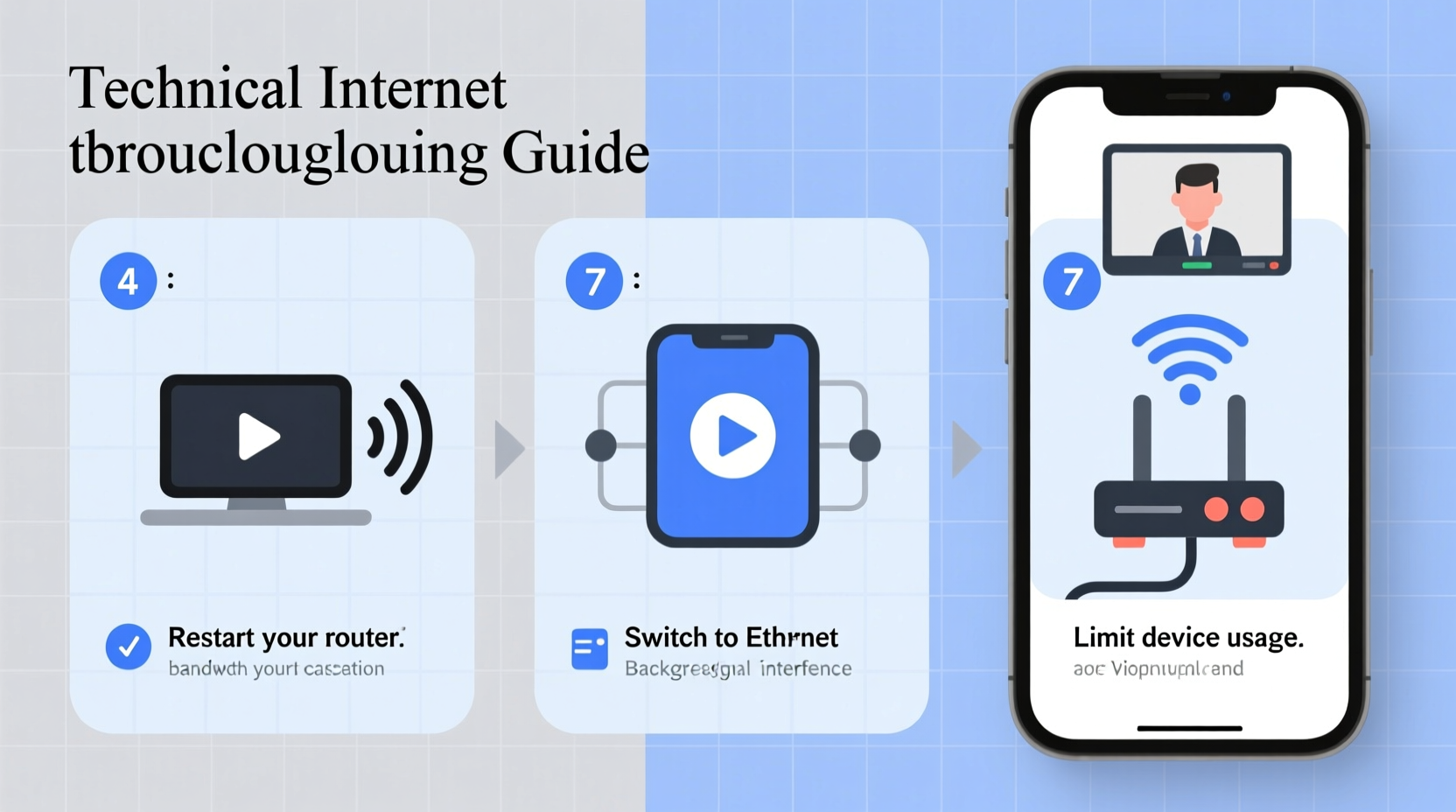
When your internet cuts out during a video call, it’s typically due to instability in one or more layers of your network environment. Video conferencing platforms like Zoom, Microsoft Teams, and Google Meet require consistent upload and download speeds, low latency (response time), and minimal packet loss (data that fails to reach its destination). Any disruption in these areas can result in freezing, audio glitches, or complete disconnection.
Common culprits include:
- Bandwidth congestion: Too many devices using the same network simultaneously.
- Wi-Fi interference: Physical obstacles, neighboring networks, or household electronics disrupting signals.
- Router limitations: Older or low-end routers struggling to manage modern traffic demands.
- ISP throttling or outages: Your internet service provider may limit bandwidth during peak hours or experience infrastructure issues.
- Device performance: Background apps consuming resources or outdated network drivers.
Unlike browsing or streaming, video calls are particularly sensitive because they involve two-way real-time data transfer. Even brief interruptions can break synchronization between audio and video streams, leading to dropped packets and eventual disconnection.
How to Diagnose Your Internet Stability
Before applying fixes, confirm where the problem lies. A systematic diagnosis helps avoid unnecessary upgrades or wasted effort.
- Test your speed at different times: Use tools like Speedtest.net or Fast.com to measure download, upload, and ping. Run tests during off-peak hours (early morning) and peak usage (evening). Consistent drops during busy times suggest network congestion.
- Check for packet loss: Open Command Prompt (Windows) or Terminal (Mac), then type
ping google.com -t. Let it run for a minute during a video call. If you see \"Request timed out\" messages, packet loss is occurring. - Monitor device-specific performance: Close all non-essential programs and restart your computer. Rejoin the call to see if stability improves. High CPU or memory usage can impair network processing.
- Test on another device: Try joining the same call from a phone on cellular data. If it works smoothly, the issue likely lies with your home network or primary device.
- Inspect router logs (if available): Some advanced routers show connection drops, DHCP errors, or signal strength fluctuations over time.
A stable video call typically requires at least 3 Mbps upload and download speed, under 50 ms ping, and less than 1% packet loss. Falling below these thresholds increases the risk of disconnections.
Proven Fixes to Prevent Disconnections
Once you’ve identified potential weaknesses, implement targeted solutions. These steps address both immediate symptoms and long-term reliability.
1. Prioritize Your Device on the Network
If multiple people are streaming, gaming, or downloading large files while you're on a call, your connection will suffer. Modern routers support Quality of Service (QoS) settings, which let you assign higher priority to specific devices or applications.
To enable QoS:
- Log into your router’s admin panel (usually via 192.168.1.1 or 192.168.0.1).
- Navigate to QoS or Traffic Management.
- Select your computer or device and set it to high priority.
- Some routers allow prioritizing by application—choose Zoom, Teams, etc., if available.
2. Switch to a Wired Connection
Wi-Fi is convenient but inherently less stable than Ethernet. Walls, appliances, and even microwave ovens can interfere with wireless signals. A wired connection eliminates most interference and provides consistent latency and throughput.
3. Upgrade Your Router or Use Wi-Fi Extenders
Routers older than 3–5 years may not support modern standards like Wi-Fi 5 (802.11ac) or Wi-Fi 6 (802.11ax). Newer models handle multiple devices better and offer improved beamforming and dual-band support.
If upgrading isn’t feasible:
- Reposition your router centrally, away from metal objects and thick walls.
- Use a Wi-Fi extender or mesh system (e.g., Google Nest Wi-Fi, Eero) to eliminate dead zones.
- Switch to the 5 GHz band instead of 2.4 GHz for faster, less crowded connections (though range is shorter).
4. Limit Background Network Usage
Automatic updates, cloud backups, and streaming services consume bandwidth silently. Schedule these tasks outside of work hours.
On Windows:
- Go to Settings > Update & Security > Windows Update > Change active hours.
- Disable automatic downloads in apps like Steam, Dropbox, or OneDrive during meetings.
On macOS:
- System Settings > General > Software Update > Automatic Updates — uncheck background installs.
- Use Activity Monitor to identify apps using high network activity.
5. Restart Equipment Regularly
Routers and modems can develop memory leaks or connection table overloads after running continuously for days. A simple reboot clears temporary issues.
“We recommend rebooting your modem and router at least once a week. It resolves up to 70% of intermittent connectivity issues reported by users.” — Carlos Mendez, Senior Network Engineer at NetSecure Systems
Step-by-Step Guide to a Stable Video Call Setup
Follow this sequence before every important meeting to minimize risks:
- 30 minutes before: Close unused browser tabs, apps, and file-sharing services.
- 15 minutes before: Reboot your router and modem. Wait two minutes for full initialization.
- 10 minutes before: Connect via Ethernet if possible. Otherwise, move closer to the router.
- 5 minutes before: Run a speed test. Confirm upload speed is above 3 Mbps.
- Right before joining: Disable camera briefly to test audio-only stability. If stable, turn video back on.
- During the call: Avoid switching tabs to heavy websites or downloading files.
This routine takes less than five minutes but significantly reduces the odds of a drop-out.
Do’s and Don’ts: Quick Reference Table
| Do | Don’t |
|---|---|
| Use Ethernet whenever possible | Rely solely on distant Wi-Fi |
| Enable QoS on your router | Let family members stream 4K during your meeting |
| Restart your router weekly | Leave outdated firmware unpatched |
| Close background apps | Run cloud backups mid-call |
| Test connection beforehand | Wait until the call starts to troubleshoot |
Real Example: Fixing Chronic Dropouts in a Remote Team
Sarah, a project manager at a distributed tech startup, struggled with daily disconnections during stand-up meetings. Her team assumed it was her ISP, but investigations revealed otherwise.
She lived in an apartment with shared walls, surrounded by 12 other Wi-Fi networks on the same 2.4 GHz channel. Her five-year-old router used outdated firmware and was tucked behind a bookshelf. Additionally, her smart TV ran automatic updates overnight, saturating bandwidth each morning.
The solution involved three steps:
- She upgraded to a Wi-Fi 6 mesh system and placed nodes strategically.
- She enabled QoS to prioritize her laptop.
- She scheduled TV updates for weekends and used Ethernet during critical calls.
Within a week, her disconnection rate dropped from 3–4 per day to zero. Her team noted a significant improvement in meeting flow and professionalism.
Frequently Asked Questions
Can a VPN cause my internet to cut out during calls?
Yes. A poorly optimized or overloaded VPN server can increase latency and packet loss. While useful for security, some free or distant servers add too much overhead. Try disabling the VPN temporarily to test stability. If the call improves, consider switching to a premium service with local exit nodes.
Does closing my camera help prevent disconnections?
It can. Video streams use significantly more bandwidth than audio—often 2–4x more. If your upload speed is borderline, turning off your camera reduces strain on your connection. Many platforms automatically reduce video quality under poor conditions, but this isn’t always enough.
Is mobile hotspot better than home Wi-Fi for video calls?
Sometimes. A strong 4G or 5G signal on a mobile hotspot can outperform congested or outdated home networks. However, data caps and variable signal strength make it unreliable for long-term use. Test both options in your location to compare performance.
Final Checklist: Ensure a Smooth Call Every Time
- ✅ Test internet speed and ping before the call
- ✅ Use Ethernet or sit close to the router
- ✅ Close unnecessary apps and browser tabs
- ✅ Enable QoS or prioritize your device
- ✅ Reboot router and modem if issues persist
- ✅ Schedule updates and backups outside work hours
- ✅ Consider upgrading hardware if more than 3 years old
Take Control of Your Connection
Internet dropouts during video calls aren’t inevitable. They’re symptoms of underlying network issues that can—and should—be resolved. By understanding the technical demands of real-time communication and implementing practical, tested strategies, you can achieve reliable, professional-grade connectivity from home. Don’t wait for the next embarrassing freeze-frame moment. Audit your setup today, apply these fixes, and reclaim control over your digital presence.




 浙公网安备
33010002000092号
浙公网安备
33010002000092号 浙B2-20120091-4
Comments
No comments yet. Why don't you start the discussion?