
There are few modern frustrations quite like a spotty internet connection. One moment you're in the middle of an important video call or streaming your favorite show, and the next — nothing. No warning, no error message, just silence from your router and a blank screen. Random disconnections can stem from a wide range of causes, many of which are surprisingly easy to fix. The good news is that most of these issues don’t require technical expertise or expensive equipment. With a few targeted steps, you can diagnose and resolve the problem yourself, often in under an hour.
This guide walks through the most common reasons for intermittent internet outages and offers practical solutions that anyone can implement. Whether you're working from home, gaming online, or simply browsing, these fixes will help you regain a stable, reliable connection.
Understanding Common Causes of Internet Dropouts
Before jumping into fixes, it helps to understand what might be causing your internet to cut out. While every network is different, several recurring culprits stand out:
- Router overheating – Routers generate heat during operation. If they’re placed in enclosed spaces or near other electronics, they can overheat and shut down temporarily.
- Firmware issues – Outdated firmware can lead to instability, security flaws, and compatibility problems with newer devices.
- Wi-Fi interference – Other wireless devices (microwaves, cordless phones, baby monitors) or neighboring networks on the same channel can disrupt your signal.
- Signal congestion – Too many devices connected at once can overload your router’s bandwidth capacity.
- Cable or line faults – Damaged Ethernet cables, loose coaxial connections, or degraded wiring can cause intermittent drops.
- ISP service issues – Your internet provider may experience local outages, throttling, or maintenance-related disruptions.
These factors don’t always act alone. Often, multiple small issues compound into frequent disconnections. The key is systematic troubleshooting — starting with the simplest checks and moving toward more involved solutions.
Step-by-Step Troubleshooting Guide
Follow this logical sequence to identify and fix the root cause of your random disconnections. Each step builds on the previous one, helping you isolate the issue without guesswork.
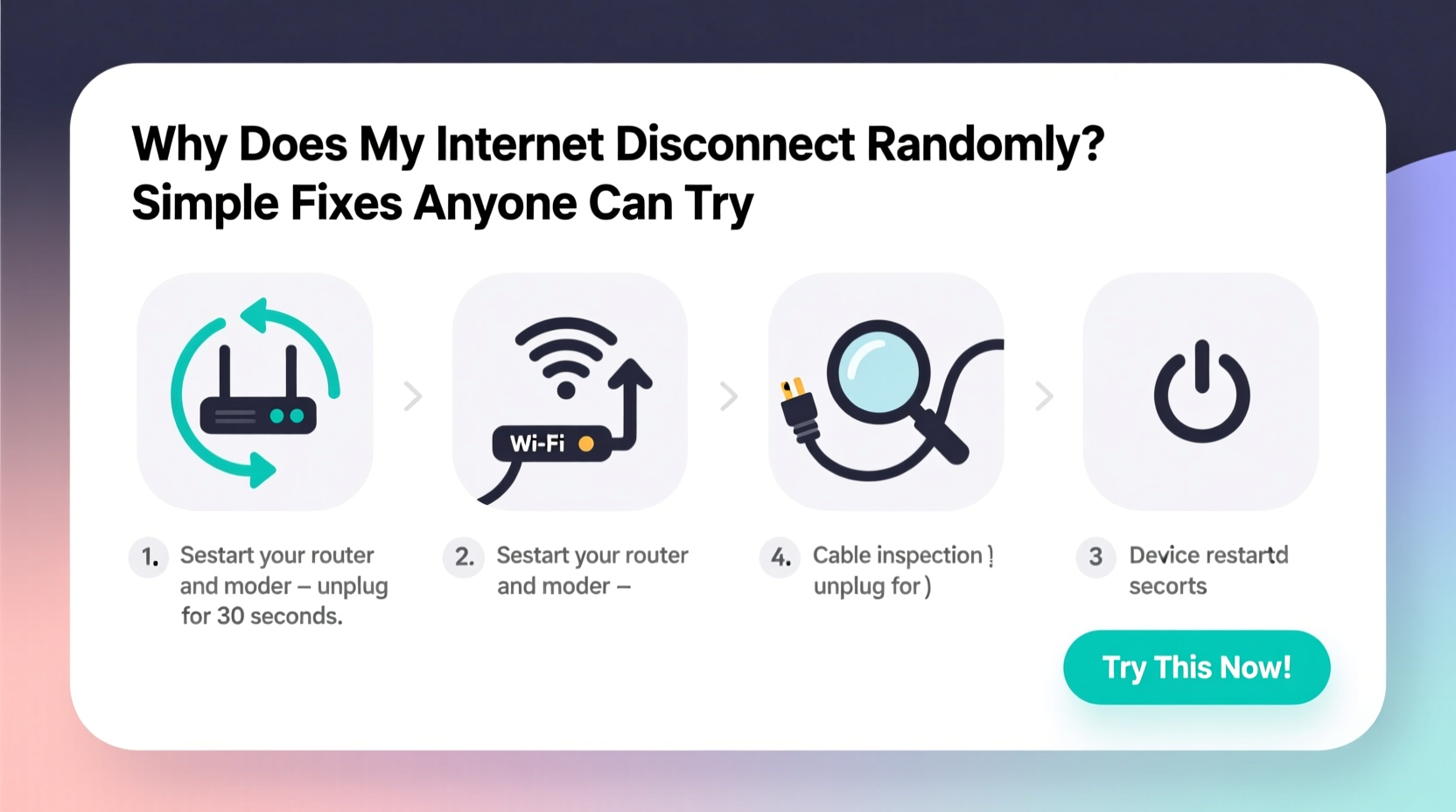
- Restart your router and modem
Unplug both devices from power, wait 30 seconds, then plug them back in. This clears temporary glitches and resets network settings. Wait two minutes for full reboot before testing connectivity. - Check physical connections
Inspect all cables — especially the power cord, Ethernet cable, and coaxial line (if applicable). Ensure they’re securely plugged in and not frayed or bent sharply. - Test with a wired connection
Connect a computer directly to the router using an Ethernet cable. If the wired connection stays stable while Wi-Fi drops, the issue is likely related to wireless signal strength or interference. - Move closer to the router
Distance and obstacles weaken Wi-Fi signals. Try using your device near the router to see if disconnections stop. If so, signal range or obstruction may be the problem. - Disconnect non-essential devices
Temporarily turn off smart TVs, phones, tablets, and IoT gadgets. Reconnect one by one to determine if a specific device is overwhelming the network. - Update router firmware
Log in to your router’s admin panel (usually via 192.168.1.1 or 192.168.0.1) and check for available updates under the “Administration” or “Firmware” section. - Contact your ISP
Report persistent disconnections. They can run line diagnostics, check for outages in your area, and verify signal strength at your premises.
Completing these steps systematically increases your chances of identifying the exact source of instability. Many users find resolution within the first three actions alone.
Common Fixes You Can Try Right Now
Sometimes, quick adjustments make a dramatic difference. Here are five proven fixes that address the most frequent causes of random disconnections:
1. Change Your Wi-Fi Channel
Routers operate on specific channels within the 2.4 GHz or 5 GHz bands. In dense neighborhoods, overlapping channels cause interference. Use a free app like WiFi Analyzer (Android) or NetSpot (Windows/Mac) to find the least crowded channel, then log into your router settings and switch to it.
2. Reduce Interference from Appliances
Microwaves, cordless phones, and Bluetooth speakers often operate on the same 2.4 GHz frequency as older Wi-Fi networks. Avoid placing your router near these devices. For long-term stability, consider switching compatible devices to the less congested 5 GHz band.
3. Enable Auto-Channel Selection
Many modern routers offer an auto-channel feature that scans for the clearest signal path and switches automatically. Turn this on in your router settings to maintain optimal performance as network conditions change.
4. Limit Bandwidth-Hungry Devices
Streaming services, cloud backups, and large downloads consume significant bandwidth. Schedule heavy tasks during off-peak hours or use Quality of Service (QoS) settings in your router to prioritize critical activities like video calls or gaming.
5. Replace Old or Damaged Cables
A single faulty Ethernet or coaxial cable can cause intermittent dropouts. Swap in a known-working cable to test. Even minor internal damage — invisible to the eye — can disrupt data transmission.
“Over 60% of ‘random’ internet outages we see in home networks are resolved by updating firmware or replacing aging Ethernet cables.” — Raj Patel, Senior Network Technician at NetSecure Solutions
Do’s and Don’ts: Best Practices for Stable Internet
| Do | Don't |
|---|---|
| Place your router centrally, elevated, and away from obstructions | Hide your router in a cabinet or basement corner |
| Reboot your router monthly to clear memory leaks | Leave your router running continuously for months without restart |
| Use WPA3 encryption to prevent unauthorized access | Share your Wi-Fi password freely or leave it unsecured |
| Update firmware when notified by the manufacturer | Ignore firmware update prompts assuming “if it works, don’t fix it” |
| Contact your ISP if issues persist after basic troubleshooting | Assume the problem is entirely on your end without verification |
Real-World Example: Fixing a Home Office Connection
Sarah, a freelance graphic designer in Portland, began experiencing frequent internet disconnections during client Zoom calls. Her work suffered, and deadlines were missed. She tried restarting her laptop and moving closer to the router, but the issue persisted.
She followed the step-by-step guide above and discovered that her router was tucked behind a bookshelf next to a cordless phone base station. After relocating it to a central table and switching from 2.4 GHz to 5 GHz Wi-Fi, her connection stabilized immediately. She also enabled QoS to prioritize her video conferencing apps. Within 45 minutes, her internet became consistently reliable — no further dropouts occurred.
Sarah’s case illustrates how environmental factors and outdated settings can combine to create seemingly complex problems — all solvable with basic awareness and adjustment.
Quick Action Checklist
Use this checklist to quickly assess and fix random disconnections:
- ✅ Restart modem and router (unplug, wait 30 sec, replug)
- ✅ Check all cable connections for tightness and damage
- ✅ Test internet with a wired Ethernet connection
- ✅ Move closer to the router or eliminate physical barriers
- ✅ Disconnect unused devices to reduce network load
- ✅ Log into router settings and install firmware updates
- ✅ Switch Wi-Fi channel to a less crowded one (or enable auto-channel)
- ✅ Contact ISP to rule out line or service issues
Go through each item methodically. Most people resolve their issue by step four or five.
Frequently Asked Questions
Why does my internet disconnect only at night?
This often points to network congestion. Many households increase usage in the evening — streaming, gaming, video calls — which can overwhelm your router or ISP’s local node. It could also indicate interference from devices used more frequently at night, like microwaves or smart home gadgets. Try limiting active devices or upgrading your plan if congestion is consistent.
Can a virus cause internet disconnections?
Directly, no — but malware can consume bandwidth in the background (e.g., botnet activity, crypto mining), leading to slow speeds or timeouts that feel like disconnections. Run a full antivirus scan on all connected devices if you suspect unusual behavior.
Should I replace my router if it’s more than three years old?
Possibly. Routers typically last 3–5 years under normal use. Older models may lack support for modern standards (like Wi-Fi 6), have weaker antennas, or struggle with current traffic demands. If you’ve applied all fixes and still face instability, an upgrade could be worthwhile.
Take Control of Your Connection Today
Random internet disconnections are rarely inevitable. More often, they stem from overlooked settings, environmental factors, or simple hardware fatigue — all of which are within your control. By applying the fixes outlined here, from checking cables to optimizing Wi-Fi channels, you can dramatically improve your network reliability.
Start with the basics: reboot, inspect, test. Then move to deeper optimizations like firmware updates and interference management. Most importantly, don’t assume the problem is too complex to solve on your own. With patience and a structured approach, you’ll spend less time frustrated and more time connected.




 浙公网安备
33010002000092号
浙公网安备
33010002000092号 浙B2-20120091-4
Comments
No comments yet. Why don't you start the discussion?