
If your internet slows down or disconnects every night, you're not imagining things. Many households experience the same frustrating drop in connectivity between 7 PM and midnight. While it might seem like a mystery, there are several technical and environmental factors—many tied directly to your router—that explain this recurring problem. Understanding these causes is the first step toward restoring reliable, round-the-clock internet access.
The evening hours are peak usage times for residential networks. Streaming, gaming, video calls, and smart home devices all compete for bandwidth. But beyond congestion, your router may be struggling with heat buildup, outdated firmware, interference, or hardware limitations. This article breaks down the most common reasons your internet fails at night, provides actionable fixes, and helps you diagnose whether the issue lies with your equipment, your provider, or your habits.
Why Evening Internet Outages Happen: The Core Causes
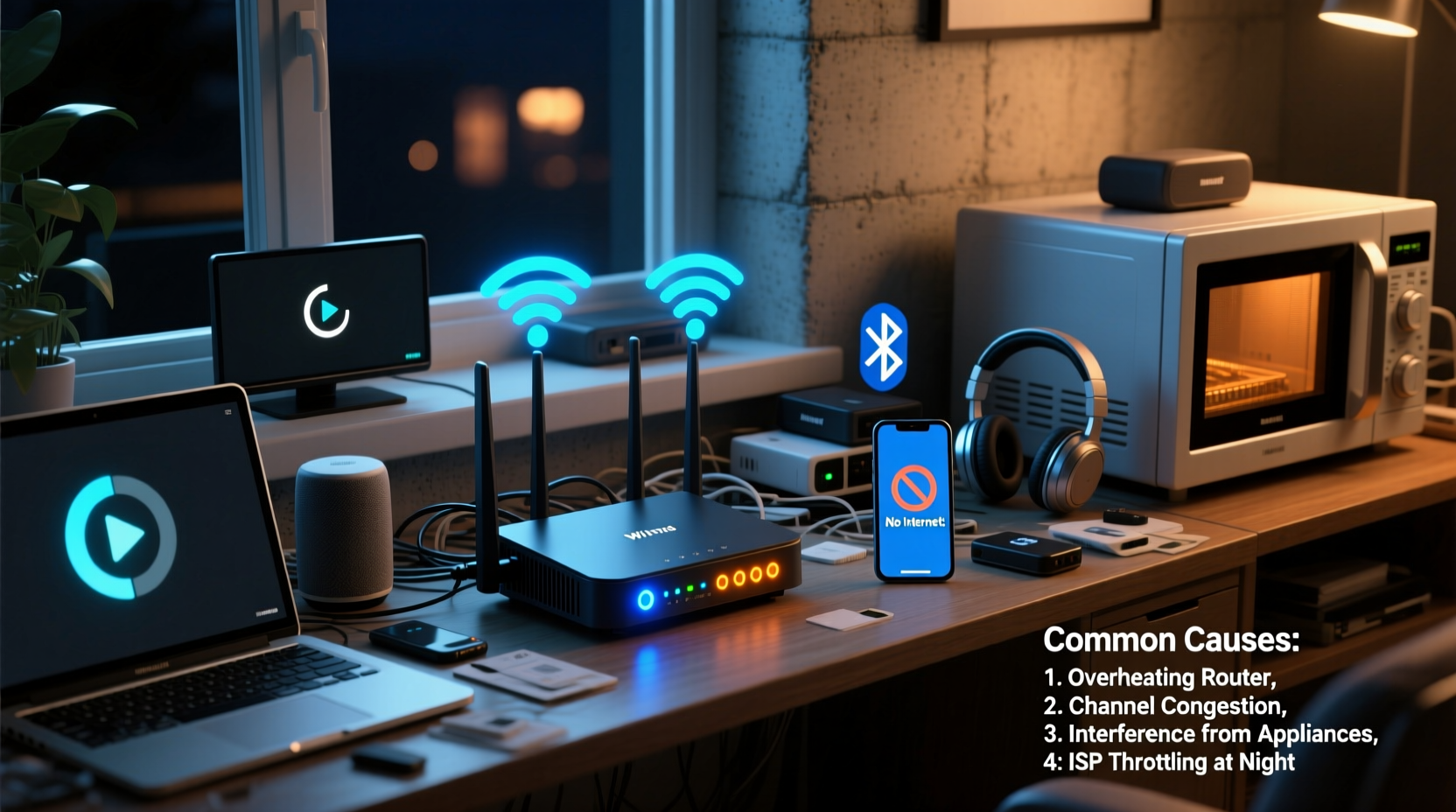
Nighttime internet disruptions aren't random—they follow predictable patterns rooted in network behavior and device performance. Here’s what typically goes wrong when the sun goes down:
- Peak Network Congestion: ISPs manage shared bandwidth across neighborhoods. When everyone comes home and starts using data-heavy services, local nodes become overloaded, slowing speeds or causing timeouts.
- Router Overheating: Routers generate heat during continuous operation. After running all day, many units reach critical temperatures by evening, triggering thermal throttling or automatic reboots.
- Signal Interference: More electronic devices operate at night—microwaves, cordless phones, baby monitors—which emit electromagnetic noise that disrupts Wi-Fi signals on crowded 2.4 GHz bands.
- Outdated Firmware: Older router software may have bugs that worsen under load or fail to handle modern traffic demands efficiently.
- Bandwidth Saturation: Multiple users streaming HD video, downloading large files, or gaming simultaneously can exceed your plan’s capacity, leading to buffering or disconnections.
These factors often compound one another. A slightly overheating router on an outdated firmware version becomes far more likely to crash when hit with heavy nighttime traffic.
“Even a well-configured network can suffer from time-based degradation if the hardware isn’t maintained or upgraded regularly.” — David Lin, Senior Network Engineer at NetSecure Solutions
Common Router-Specific Issues That Worsen at Night
Your router is the central hub of your home network. If it's underperforming, every connected device suffers. Below are the most frequent hardware and configuration problems that manifest—or intensify—after dark.
1. Thermal Throttling Due to Poor Ventilation
Routers contain small processors and radios that heat up over time. Most models lack active cooling (fans), relying instead on passive airflow through vents. When placed inside cabinets, near walls, or stacked with other electronics, they can't dissipate heat effectively.
After hours of use, internal temperatures rise. Once a threshold is reached, routers may throttle performance to protect components—or shut down entirely until cooled. This often results in dropped connections precisely when usage peaks.
2. Inadequate Bandwidth Management
Many consumer routers don’t prioritize traffic intelligently. Without Quality of Service (QoS) settings enabled, a single device downloading updates can consume all available bandwidth, starving others—even high-priority applications like video calls.
At night, when multiple devices are active, this lack of traffic shaping leads to inconsistent performance and perceived \"outages,\" even though the connection remains technically live.
3. Channel Congestion on 2.4 GHz Band
The 2.4 GHz frequency band supports longer range but fewer non-overlapping channels (only three). As neighboring networks activate their routers in the evening, channel overlap increases, creating interference that degrades signal quality.
This is especially problematic in apartments or dense suburban areas where dozens of Wi-Fi networks may be within range.
4. Firmware Bugs Triggered Under Load
Older or unpatched firmware can contain memory leaks or poor session management. These flaws may go unnoticed during light daytime use but cause crashes when handling sustained high loads typical of evenings.
Manufacturers release updates to address stability issues, security vulnerabilities, and compatibility improvements. Failing to install them leaves your router vulnerable to avoidable failures.
5. Aging Hardware Reaching End-of-Life
Routers older than three to five years may struggle with modern demands. They often support outdated Wi-Fi standards (like 802.11n), have weaker processors, and limited RAM. As household device counts grow, aging hardware becomes overwhelmed.
Signs of end-of-life include frequent resets, slow response times, and inability to maintain stable connections with newer devices.
Step-by-Step Diagnosis and Fixes
Follow this systematic approach to identify and resolve the root cause of your nightly internet drops.
- Restart Your Router Daily
Power cycle your router every morning or before peak hours. This clears temporary memory, resets connections, and prevents gradual performance decay. - Check for Overheating
Touch the router case. If it's uncomfortably hot, turn it off for 30 minutes, then relocate it to a cooler, ventilated spot. - Update Firmware
Log into your router’s admin panel (usually via 192.168.1.1 or 192.168.0.1). Navigate to the administration or maintenance tab and check for firmware updates. Install any available patches. - Switch to 5 GHz Band
Connect compatible devices (smartphones, laptops, streaming boxes) to the 5 GHz network, which offers faster speeds and less interference—though shorter range. - Enable QoS Settings
In your router settings, locate Quality of Service options. Prioritize real-time applications like VoIP and video conferencing over background downloads. - Change Wi-Fi Channel
Use a Wi-Fi analyzer app (such as NetSpot or Wi-Fi Analyzer for Android) to find the least congested 2.4 GHz channel. Manually set your router to use that channel. - Limit Connected Devices
Review the list of connected devices in your router dashboard. Disconnect unknown or unused ones. Consider setting up parental controls or schedules to limit usage during peak hours. - Test with Ethernet
Connect a computer directly to the router via Ethernet cable. If the wired connection remains stable while Wi-Fi drops, the issue is wireless-specific—likely interference or router radio failure.
Do’s and Don’ts: Router Care Best Practices
| Do | Don’t |
|---|---|
| Place the router centrally in your home for optimal coverage | Hide the router in a closet, drawer, or behind furniture |
| Elevate the router off the ground (e.g., on a shelf) | Set it on carpeted floors or near metal objects |
| Reboot the router weekly or schedule automatic restarts | Leave the router running continuously for months without reset |
| Use separate SSIDs for 2.4 GHz and 5 GHz bands | Merge both bands under one name (can confuse devices) |
| Monitor data usage through your ISP portal or router app | Assume unlimited data—exceeding caps can trigger throttling |
Real-World Example: Solving Chronic Nightly Drops in a Family Home
The Thompson family in Austin, Texas, experienced daily internet outages starting around 8 PM. Their two teenagers streamed YouTube and played online games, while parents used Zoom for remote work. The Wi-Fi would cut out every few minutes, requiring constant reboots.
A technician discovered the router—a five-year-old model—was placed inside a media cabinet, surrounded by a TV, soundbar, and game console. Surface temperature readings showed it was operating at 158°F (70°C), well above safe limits.
The solution involved three steps: relocating the router to an open shelf, updating its firmware, and enabling QoS to prioritize video calls. Additionally, the family upgraded to a dual-band mesh system six months later. Since then, they’ve had no nighttime outages.
This case highlights how simple environmental fixes—combined with proper configuration—can dramatically improve reliability without immediate hardware replacement.
Troubleshooting Checklist
✅ Nightly Internet Drop Troubleshooting Checklist:
- Restart the router before evening begins
- Feel the router for excessive heat
- Ensure firmware is up to date
- Verify all cables are securely connected
- Check if the outage affects all devices or just one
- Test with a wired connection
- Scan for nearby Wi-Fi congestion
- Review total bandwidth usage vs. your plan limit
- Contact ISP to rule out line issues or neighborhood congestion
- Consider upgrading to a modern Wi-Fi 6 router or mesh system
Frequently Asked Questions
Does my ISP intentionally slow my internet at night?
Not usually—but some providers implement “network management” during peak hours. If many users in your area are online, your speeds may be temporarily reduced to balance load. This is called throttling and is common with capped or lower-tier plans. Check your service agreement for details on fair usage policies.
Can too many devices crash my router?
Yes. Most consumer routers support 20–30 simultaneous connections. Beyond that, performance degrades due to memory and processing constraints. Even if devices aren’t actively transmitting data, maintaining their presence consumes resources. Regularly audit connected devices and consider segmenting your network with guest access.
How do I know if I need a new router?
Replace your router if it’s more than four years old, lacks 5 GHz support, frequently overheats, doesn’t accept firmware updates, or fails to deliver speeds close to your subscribed plan. Modern Wi-Fi 6 (802.11ax) routers offer better efficiency, range, and multi-device handling—ideal for today’s connected homes.
Conclusion: Take Control of Your Home Network
Nightly internet outages are a common but solvable problem. While external factors like ISP congestion play a role, the majority of cases stem from preventable router issues—overheating, outdated software, poor placement, or hardware limitations. By applying consistent maintenance, optimizing settings, and knowing when to upgrade, you can ensure smooth, reliable connectivity long after sunset.
Start tonight: power cycle your router, check its temperature, and log into the admin panel to verify firmware status. Small actions now can prevent hours of frustration later. Your evening streaming, browsing, and gaming sessions deserve better than spotty Wi-Fi.




 浙公网安备
33010002000092号
浙公网安备
33010002000092号 浙B2-20120091-4
Comments
No comments yet. Why don't you start the discussion?