
It’s a familiar frustration: during the day, your internet works smoothly—videos stream without buffering, video calls stay crisp, and downloads finish in seconds. But as soon as evening rolls around, everything grinds to a halt. Pages load slowly, games lag, and even basic browsing becomes a test of patience. You’re not imagining it. Internet slowdowns at night are a widespread issue affecting millions of households. The good news is that they’re often predictable, diagnosable, and fixable—sometimes in minutes. Understanding why this happens and knowing what steps to take can restore your connection speed and peace of mind.
The Hidden Causes Behind Nighttime Internet Slowdowns
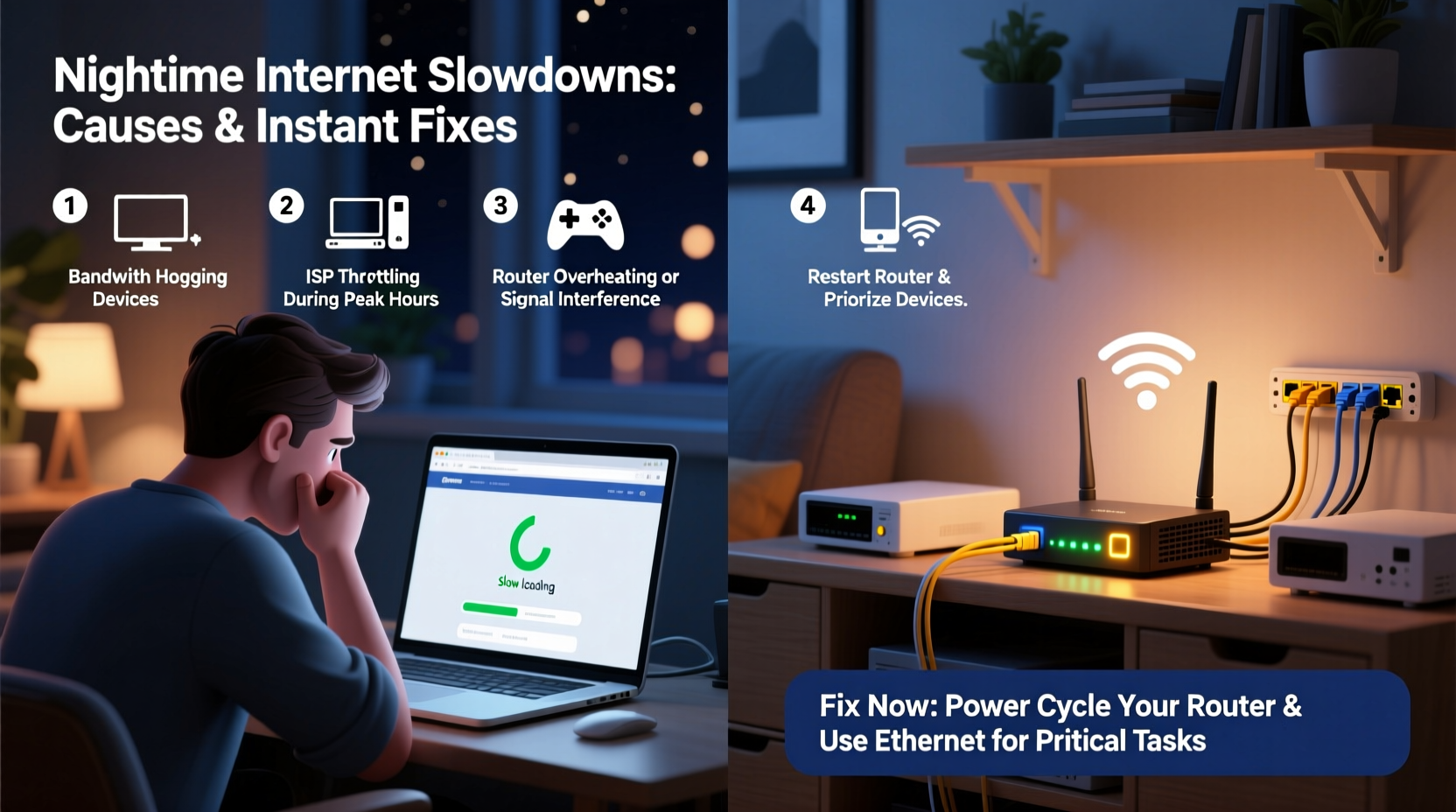
Internet performance doesn’t operate in a vacuum. Your home network shares infrastructure with hundreds or thousands of other users in your neighborhood. During peak hours—typically between 6 PM and 10 PM—network congestion spikes as people return home, turn on smart devices, stream movies, game online, and browse social media. This surge in demand strains local bandwidth, especially on cable internet networks that use shared connections.
Cable internet providers often allocate bandwidth across neighborhoods using a “shared medium” model. Think of it like a highway: during rush hour, too many cars cause traffic jams. Similarly, when everyone in your area goes online simultaneously, data packets move slower due to congestion. Fiber-optic networks are less prone to this because they offer dedicated bandwidth, but they’re still subject to router limitations and internal network issues.
Another overlooked factor is Wi-Fi interference. As more homes activate their routers and smart devices at night, overlapping wireless signals from neighboring networks can degrade your signal quality, especially on crowded 2.4 GHz bands.
“Peak-time slowdowns are often a symptom of network oversubscription. ISPs plan for average usage, not simultaneous spikes.” — Dr. Alan Reeves, Network Infrastructure Analyst
How to Diagnose the Real Culprit Instantly
Before attempting fixes, identify whether the problem lies with your ISP, your router, or your internal network. A quick diagnostic process can save time and prevent unnecessary changes.
- Run a speed test during the day and at night. Use a trusted tool like Speedtest.net or Fast.com. Compare results. If speeds drop significantly only at night, external congestion is likely the cause.
- Bypass your Wi-Fi by connecting via Ethernet. Plug a laptop directly into your router with a cable. If wired speeds remain stable while Wi-Fi lags, the issue is likely wireless interference or router overload.
- Reboot your router and modem. This clears temporary glitches and resets connection states. Wait 60 seconds after powering off before turning them back on.
- Check connected devices. Log into your router’s admin panel (usually via 192.168.1.1 or 192.168.0.1) and review active devices. Unexpected gadgets or background updates may be consuming bandwidth.
- Test multiple devices. If all devices slow down equally, the issue is upstream. If only one device is affected, focus on its settings or software.
Proven Fixes to Restore Speed Within Minutes
You don’t need to wait for your ISP to upgrade infrastructure. Many effective solutions can be applied immediately from your end.
1. Switch to the 5 GHz Wi-Fi Band
If your router supports dual-band (2.4 GHz and 5 GHz), connect your primary devices—like laptops and streaming boxes—to the 5 GHz network. It has shorter range but much higher speed and less interference. The 2.4 GHz band is overcrowded and better suited for smart home devices that don’t require high bandwidth.
2. Enable Quality of Service (QoS) Settings
Most modern routers include QoS features that prioritize certain types of traffic. For example, you can assign higher priority to video conferencing or gaming and lower priority to file downloads or cloud backups. Access your router settings, navigate to QoS or Traffic Control, and configure rules based on device or application.
3. Limit Bandwidth-Hungry Devices
Some devices silently consume large amounts of data. Smart TVs updating apps, security cameras uploading footage, or family members torrenting files can cripple your network. Use your router’s interface to set bandwidth limits or schedule downtime for non-essential devices.
4. Change Your Wi-Fi Channel
Wi-Fi channels can overlap and interfere with neighbors’ networks. Use a free app like Wi-Fi Analyzer (Android) or NetSpot (Windows/Mac) to scan nearby networks and select the least congested channel. On 2.4 GHz, stick to channels 1, 6, or 11—they don’t overlap. On 5 GHz, choose any non-DFS channel with minimal activity.
5. Upgrade DNS Servers
Your ISP’s default DNS servers may be slow or unreliable. Switching to faster alternatives like Google DNS (8.8.8.8 and 8.8.4.4) or Cloudflare (1.1.1.1) can improve page loading and reduce latency. This change can be made in your router settings or individual device network preferences.
| DNS Provider | Primary Server | Secondary Server | Known For |
|---|---|---|---|
| Google DNS | 8.8.8.8 | 8.8.4.4 | Speed and reliability |
| Cloudflare | 1.1.1.1 | 1.0.0.1 | Privacy and low latency |
| OpenDNS | 208.67.222.222 | 208.67.220.220 | Content filtering |
When Hardware Is the Bottleneck: Upgrading Strategically
No amount of tweaking can compensate for outdated hardware. If your router is more than three to four years old, it may lack support for modern standards like Wi-Fi 6 (802.11ax), MU-MIMO (multi-user, multiple-input, multiple-output), or beamforming—technologies that improve efficiency under heavy loads.
Consider upgrading to a Wi-Fi 6 router if you have multiple high-demand devices. These routers handle congestion better, offer faster throughput, and improve battery life on connected devices. Mesh systems like Eero, TP-Link Deco, or Netgear Orbi are ideal for larger homes, eliminating dead zones and balancing load across nodes.
Also, check your modem. If you're renting one from your ISP, it may be outdated. Purchasing a DOCSIS 3.1-compatible modem (for cable internet) can future-proof your setup and reduce monthly rental fees.
Real-World Example: How One Family Fixed Their Evening Lag
The Thompson family in suburban Denver struggled nightly with buffering Netflix streams and dropped Zoom calls. Their kids couldn’t finish homework videos, and remote work became frustrating. After running diagnostics, they discovered their 2017 router was overwhelmed by five smartphones, two tablets, a smart TV, and a gaming console—all active after 6 PM.
They took these steps:
- Switched all high-bandwidth devices to the 5 GHz network.
- Changed their Wi-Fi channel from 6 to 11 after detecting congestion.
- Enabled QoS to prioritize work and school devices.
- Updated DNS to Cloudflare’s 1.1.1.1.
- Scheduled automatic reboots at 5:30 AM to refresh the connection daily.
Within an hour, their nighttime speeds improved by over 60%. They later upgraded to a mesh Wi-Fi 6 system, which eliminated lag entirely—even during movie nights.
Preventive Checklist: Maintain Peak Performance Long-Term
To avoid recurring slowdowns, follow this actionable checklist regularly:
- ✅ Reboot your modem and router weekly.
- ✅ Update router firmware monthly.
- ✅ Audit connected devices every two weeks.
- ✅ Run speed tests weekly at peak and off-peak times.
- ✅ Secure your Wi-Fi with WPA3 encryption to prevent unauthorized access.
- ✅ Position your router centrally, away from walls and appliances.
- ✅ Replace aging hardware (older than 4 years) proactively.
Frequently Asked Questions
Can my neighbors really slow down my internet?
Yes, especially if you're on a cable network. Your ISP divides bandwidth among a neighborhood node. When many users stream or download at once, shared capacity drops, affecting everyone on that segment. Fiber users are less impacted since connections are typically dedicated.
Does turning off devices help improve speed?
Absolutely. Every connected device consumes a small amount of bandwidth for background tasks—software updates, cloud syncs, and service pings. Disconnecting unused devices reduces overhead and frees up resources for critical tasks.
Is it worth switching ISPs to solve nighttime lag?
It depends. If you're on an oversubscribed cable network with no fiber alternative, switching may help. Research local providers and read user reviews focused on evening performance. Some smaller regional ISPs offer better service with lower congestion due to fewer customers per node.
Conclusion: Take Control of Your Connection Tonight
Nighttime internet slowdowns aren’t inevitable. While some factors—like neighborhood congestion—are beyond your control, most bottlenecks can be mitigated with smart configuration, timely upgrades, and proactive maintenance. By understanding the root causes and applying targeted fixes, you can enjoy fast, reliable internet whenever you need it. Don’t accept sluggish speeds as normal. Test, tweak, and optimize your network starting tonight. The difference could be immediate—and lasting.




 浙公网安备
33010002000092号
浙公网安备
33010002000092号 浙B2-20120091-4
Comments
No comments yet. Why don't you start the discussion?