
If you've noticed your streaming buffers, video calls freeze, or downloads crawl every evening, you're not alone. Millions of households experience the same frustrating drop in internet speed after sunset. This isn't just a coincidence — it's often the result of network congestion, outdated hardware, or inefficient usage patterns. Understanding the root causes is the first step toward reclaiming your connection. The good news? Most nighttime slowdowns can be significantly reduced or even eliminated with the right approach.
Understanding Network Congestion: The Prime Culprit
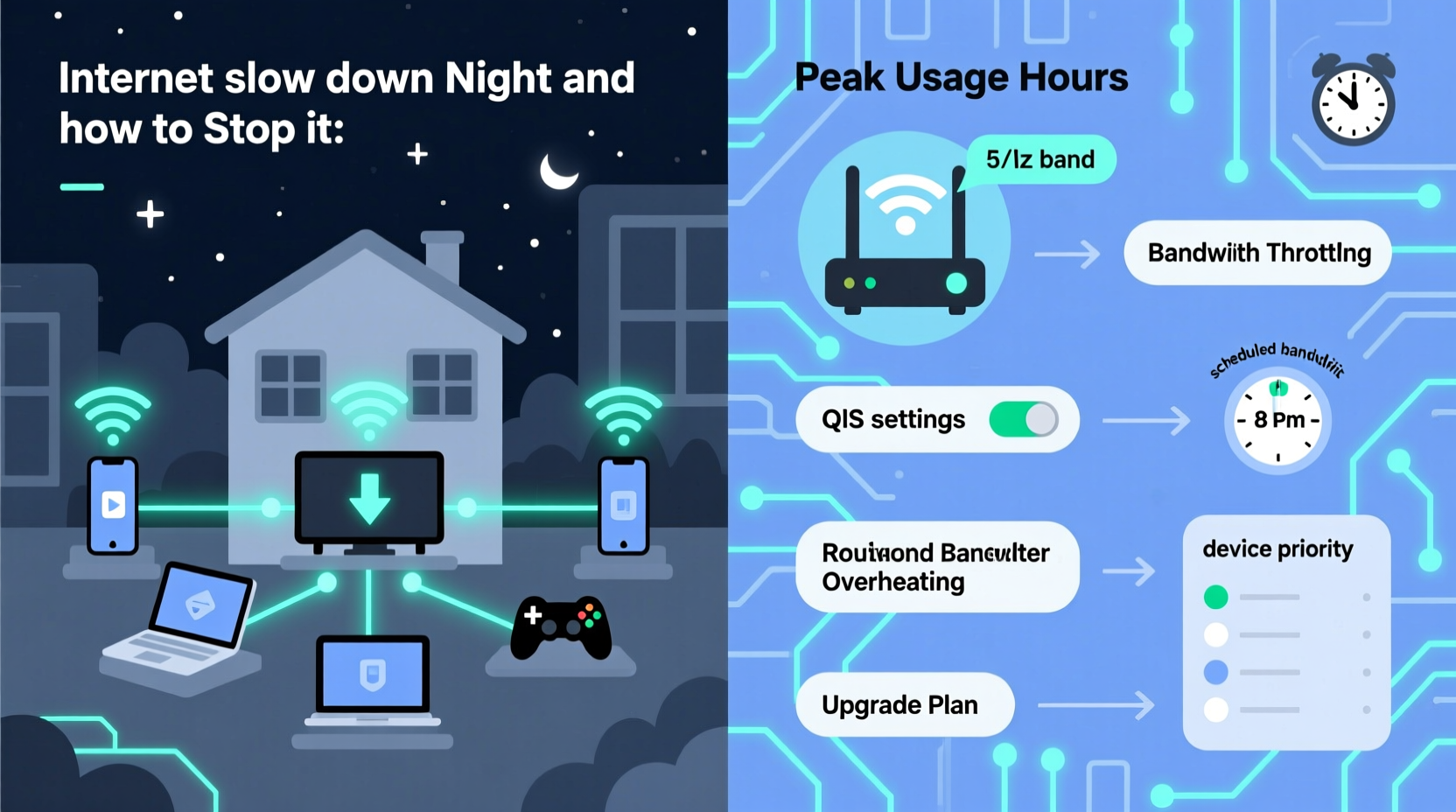
The most common reason for slow internet at night is network congestion. During peak hours — typically between 7 PM and 11 PM — large numbers of people return home and begin using bandwidth-heavy services like Netflix, YouTube, Zoom, online gaming, and cloud backups. Internet Service Providers (ISPs) manage shared infrastructure, meaning your neighborhood’s connection capacity is divided among all users on the same node or local network.
Think of it like rush hour traffic: when too many cars are on the same road, everyone moves slower. Similarly, when dozens of homes in your area stream 4K videos simultaneously, data packets back up, increasing latency and reducing throughput.
ISPs may also employ a practice called \"traffic shaping\" during peak times, where they prioritize certain types of data (like web browsing) over others (like peer-to-peer file sharing), further affecting performance for some users. While this helps balance the load, it can feel like throttling if you're trying to download large files or host multiplayer games.
Hardware and Home Network Issues That Worsen the Problem
While external network congestion plays a major role, internal factors within your own home can amplify the issue. Outdated or underpowered equipment often struggles when multiple devices are active at once.
- Old Router: Routers more than three years old may not support modern Wi-Fi standards (like Wi-Fi 5 or Wi-Fi 6), limiting speed and device-handling capability.
- Overloaded Devices: Running too many smart devices — from phones and laptops to security cameras and voice assistants — strains your router’s processing power.
- Poor Signal Distribution: Thick walls, interference from appliances, or suboptimal router placement can degrade signal strength, especially in larger homes.
Additionally, some routers automatically reduce transmission power at night based on settings or firmware updates designed to reduce radiation or save energy — inadvertently weakening your connection when you need it most.
“Peak-time slowdowns are often a mix of ISP-level congestion and poor in-home network management. Upgrading your router and optimizing placement can yield immediate improvements.” — David Lin, Senior Network Engineer at Broadband Insights Group
Step-by-Step Guide to Diagnose and Fix Nighttime Slowdowns
Follow this structured process to identify and resolve the causes of your evening internet issues:
- Test Your Speed at Different Times
Use tools like speedtest.net or fast.com to run tests at noon, 6 PM, and 9 PM. Compare results to your advertised plan speed. If speeds consistently drop by more than 30% at night, congestion or throttling is likely. - Restart Your Equipment
Power cycle your modem and router. Unplug both for 60 seconds, then plug the modem in first, wait two minutes, then restart the router. This clears temporary glitches and refreshes the connection. - Check Connected Devices
Log into your router’s admin panel (usually via 192.168.1.1 or 192.168.0.1) and review the list of connected devices. Look for unknown devices or those consuming excessive bandwidth. - Update Firmware
Ensure your router is running the latest firmware. Manufacturers release updates to fix bugs, improve stability, and enhance performance. - Switch Wi-Fi Channels
In crowded areas, neighboring networks can interfere with yours. Use a Wi-Fi analyzer app to find the least congested channel and manually set your router to use it (preferably 1, 6, or 11 on 2.4 GHz; higher channels on 5 GHz). - Enable QoS (Quality of Service)
QoS allows you to prioritize specific devices or applications. For example, you can give your work laptop or streaming box higher priority over smartphones or smart fridges.
Effective Strategies to Maintain Fast Internet After Dark
Once you’ve diagnosed the issue, implement these proven strategies to stabilize your connection:
Upgrade Your Equipment Strategically
If your router is outdated, consider upgrading to a Wi-Fi 6 model with MU-MIMO (Multi-User, Multiple Input, Multiple Output) technology. These routers handle multiple devices more efficiently and offer better range and throughput.
Use a Wired Connection When Possible
Ethernet connections are faster, more stable, and less prone to interference than Wi-Fi. For stationary devices like desktop PCs, smart TVs, or gaming consoles, use Ethernet cables to bypass wireless bottlenecks entirely.
Limit Background Data Usage
Many devices update apps, sync photos, or back up data automatically. Configure these tasks to run during off-peak hours:
- Set iOS/Android updates to install only on Wi-Fi and during daytime.
- Pause cloud backups (Google Drive, iCloud, OneDrive) at night.
- Disable automatic game updates on consoles unless scheduled manually.
Consider a Mesh Network System
If your home has dead zones or inconsistent coverage, a mesh Wi-Fi system (like Eero, Google Nest Wifi, or TP-Link Deco) can eliminate weak spots by using multiple nodes to distribute the signal evenly.
Comparison Table: Common Causes & Solutions
| Cause | Symptoms | Solutions |
|---|---|---|
| Network Congestion (ISP Level) | Slow speeds across all devices at night | Switch to an ISP with higher bandwidth capacity; use off-peak scheduling |
| Outdated Router | Weak signal, frequent disconnections | Upgrade to Wi-Fi 6; enable QoS |
| Too Many Connected Devices | Lag during video calls or gaming | Disconnect unused devices; prioritize critical ones via QoS |
| Background App Updates | High upload/download usage without user action | Disable auto-updates; schedule backups for daytime |
| Poor Router Placement | Spotty coverage in certain rooms | Relocate router centrally; use mesh extenders |
Real Example: How the Thompson Family Fixed Their Evening Lag
The Thompsons, a family of four in suburban Denver, struggled nightly with buffering during movie time and dropped Zoom calls for remote school. Their 2018 router couldn’t keep up with simultaneous use from two laptops, a smart TV, and three phones.
After testing speeds, they found their evening download rate dropped from 150 Mbps to 45 Mbps. They discovered several issues: their router was buried in a closet, their kids’ tablets were downloading updates at night, and their ISP plan was capped at 200 GB/month — which they regularly exceeded.
They took the following steps:
- Moved the router to the living room center shelf.
- Installed a Wi-Fi 6 mesh system to cover the basement and bedrooms.
- Enabled QoS to prioritize the smart TV and primary laptop.
- Updated parental controls to restrict app updates after 8 PM.
- Upgraded to an unlimited data plan.
Within a week, their nighttime speeds stabilized at 120+ Mbps. Streaming became seamless, and homework sessions no longer suffered from lag.
Checklist: Stop Nighttime Internet Slowdowns
Use this actionable checklist to optimize your home network:
- ✅ Run speed tests at different times of day
- ✅ Restart modem and router weekly
- ✅ Update router firmware monthly
- ✅ Switch to less congested Wi-Fi channels
- ✅ Enable Quality of Service (QoS) settings
- ✅ Replace outdated routers (older than 3–4 years)
- ✅ Use Ethernet for high-demand devices
- ✅ Install a mesh Wi-Fi system if coverage is poor
- ✅ Disable automatic updates and backups at night
- ✅ Contact ISP about upgrading plan or checking for throttling
Frequently Asked Questions
Does my ISP intentionally slow down my internet at night?
Some ISPs engage in “throttling” during peak hours, especially if you exceed a data cap or use high-bandwidth applications like torrents. However, outright throttling without notice is less common in regions with net neutrality protections. Check your service agreement and monitor speeds to detect patterns. If you suspect unfair throttling, contact your ISP or consider switching providers.
Can turning off Wi-Fi at night help improve speeds?
Turning off Wi-Fi doesn’t improve speed but can help reset your network and reduce background activity. More effective is scheduling device updates and reboots. If no one is using the internet, a nightly reboot can clear cache and prevent memory leaks in your router.
Is upgrading my internet plan worth it?
If you consistently experience slowdowns despite optimizing your network, upgrading to a higher-speed tier — especially fiber-optic or DOCSIS 3.1 cable — can make a dramatic difference. Plans offering 300 Mbps or more provide headroom for multiple users and devices. Compare pricing and availability in your area before upgrading.
Take Control of Your Connection
Nighttime internet slowdowns don’t have to be inevitable. By understanding the interplay between external network demands and internal setup flaws, you can take meaningful steps to protect your bandwidth. From strategic hardware upgrades to smarter usage habits, the solutions are within reach. Start with a speed test, audit your connected devices, and apply the fixes that match your situation. A faster, more reliable evening connection isn’t a luxury — it’s a standard you can achieve with informed action.




 浙公网安备
33010002000092号
浙公网安备
33010002000092号 浙B2-20120091-4
Comments
No comments yet. Why don't you start the discussion?