
If your internet crawls every evening just as you’re ready to stream a show, join a video call, or game online, you're not alone. Millions of users experience the same frustrating drop in speed after sunset. The slowdown isn’t random—it’s often due to network congestion, hardware limitations, or inefficient usage patterns. Understanding the root causes and knowing how to respond can make a dramatic difference in your nightly online experience.
This guide breaks down the technical and behavioral reasons behind nighttime internet lag and provides actionable solutions backed by networking experts and real-world testing.
Why Internet Slows Down at Night: The Core Causes
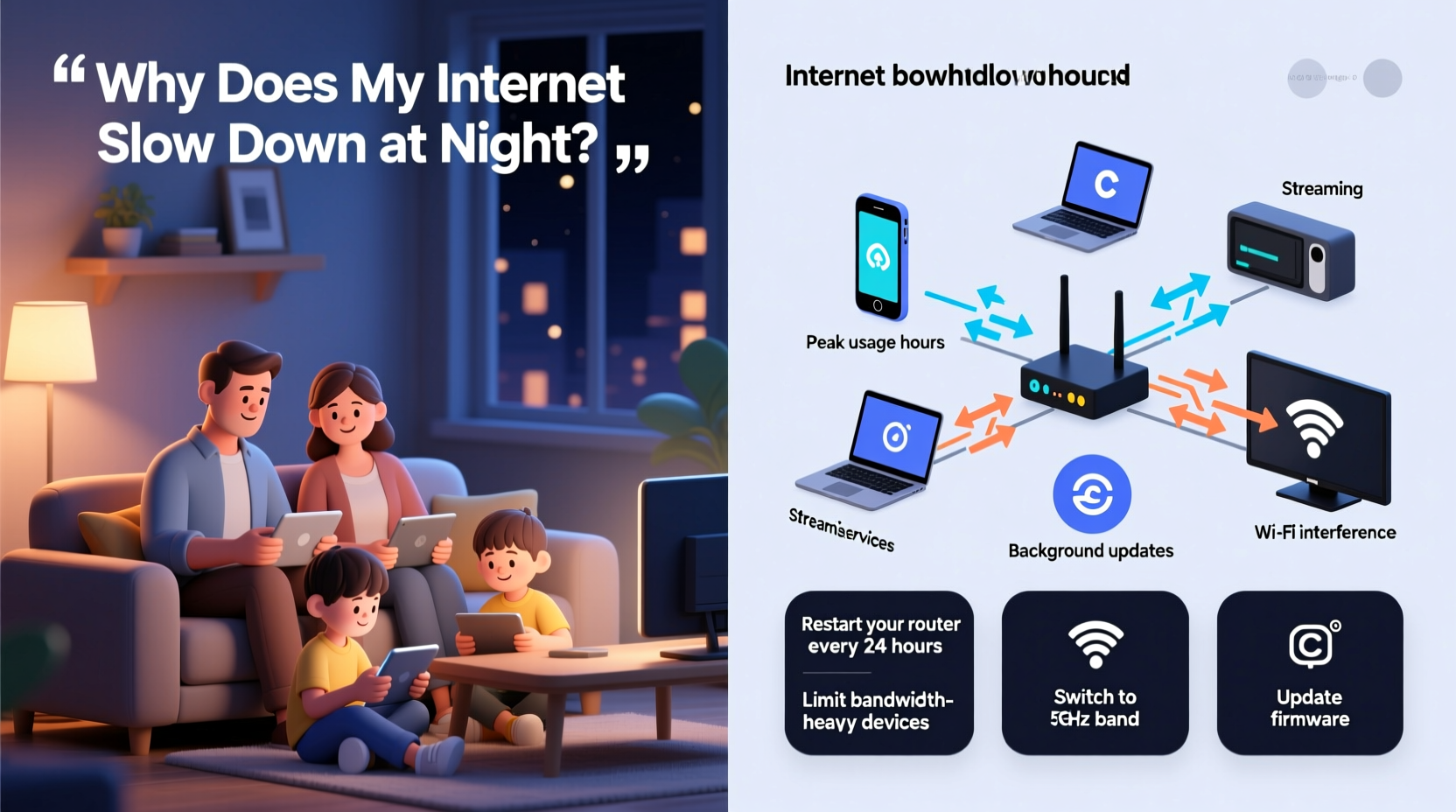
The most common reason for slower internet in the evenings is network congestion. During peak hours—typically between 7 PM and 11 PM—household members are simultaneously using bandwidth-heavy services like streaming platforms, video conferencing, cloud gaming, and file downloads. This collective demand strains both your home network and your Internet Service Provider’s (ISP) infrastructure.
According to the Federal Communications Commission (FCC), average broadband speeds can drop by up to 30% during peak usage times, especially in densely populated areas. In neighborhoods with shared cable internet lines, such as those served by Comcast or Spectrum, all homes on a local node compete for the same bandwidth pool. When everyone goes online at once, that pool shrinks per user.
Other contributing factors include:
- Wi-Fi interference: More devices are active at night, increasing signal competition from smart speakers, phones, tablets, and even microwaves.
- Router overheating: After running all day, routers may overheat, reducing performance.
- Background updates: Operating systems and apps often schedule updates to run overnight, consuming bandwidth without your knowledge.
- Outdated equipment: Older routers or modems may struggle to manage modern traffic loads efficiently.
Step-by-Step Guide to Diagnose and Fix Nighttime Slowdowns
Follow this structured approach to identify and resolve the issue systematically.
- Test Your Speed at Different Times
Use a trusted speed test tool (like Speedtest.net or Fast.com) at various points during the day—morning, afternoon, and evening. Compare results to your ISP’s advertised speeds. If speeds drop significantly only at night, congestion is likely the culprit. - Check How Many Devices Are Connected
Log into your router’s admin interface (usually via 192.168.1.1 or 192.168.0.1) and review the list of connected devices. You might be surprised how many gadgets—from smart TVs to security cameras—are pulling data in the background. - Restart Your Router and Modem
Power cycle both devices by unplugging them for 30 seconds, then restarting. This clears temporary glitches and refreshes your connection to the ISP. - Update Firmware
Check if your router has pending firmware updates. Manufacturers release patches to improve stability, security, and performance. An outdated router can't handle modern demands effectively. - Switch Wi-Fi Channels
If you're on the 2.4 GHz band, neighboring networks might be crowding your channel. Use a Wi-Fi analyzer app to find the least congested channel and adjust your router settings accordingly. - Limit Bandwidth-Hungry Devices
Prioritize critical devices using Quality of Service (QoS) settings in your router. For example, assign higher priority to your work laptop or primary streaming device.
Do’s and Don’ts: Managing Your Home Network Efficiently
| Do | Don’t |
|---|---|
| Use wired Ethernet connections for gaming consoles and desktop PCs | Place your router near thick walls or metal appliances |
| Enable QoS to prioritize important traffic | Run multiple 4K streams simultaneously on an entry-level plan |
| Schedule automatic updates outside peak hours | Ignore firmware update notifications |
| Upgrade to Wi-Fi 6 if you have many connected devices | Assume higher Mbps always means better performance |
| Monitor bandwidth usage through your ISP portal | Leave unused IoT devices permanently connected |
Real-World Example: The Martinez Family’s Streaming Struggles
The Martinez family in Austin, Texas, subscribed to a 200 Mbps cable internet plan but found their Netflix and Zoom calls constantly buffering after dinner. Their two kids were gaming, while one parent worked late on video conferences. Despite having a relatively fast plan, performance collapsed each night.
After testing their speed at 2 PM (195 Mbps) and 8 PM (67 Mbps), they confirmed peak-time throttling. They logged into their router and discovered 14 active devices—including a smart fridge, baby monitor, and forgotten tablet. By setting up QoS rules to prioritize laptops and disabling auto-updates on non-essential devices, they restored smooth streaming. They also switched their router to a less crowded Wi-Fi channel, boosting signal strength in the living room.
Within a week, evening speeds stabilized around 130 Mbps—still below maximum, but sufficient for their needs. They later upgraded to a mesh Wi-Fi system, which further improved coverage and reduced dead zones.
“Peak-time slowdowns aren’t always about your ISP failing you. Often, it’s about how well your network manages competing demands.” — David Lin, Senior Network Engineer at Broadband Insights Group
Expert-Recommended Troubleshooting Checklist
Use this checklist weekly to keep your network running smoothly:
- ✅ Run a speed test before and after 7 PM to track performance drops
- ✅ Restart your modem and router at least once a week
- ✅ Review connected devices and disconnect unused ones
- ✅ Update router firmware monthly
- ✅ Set QoS priorities for work, school, or streaming devices
- ✅ Position your router centrally, away from obstructions and interference sources
- ✅ Switch to the 5 GHz band for high-speed tasks when possible
- ✅ Contact your ISP if consistent slowdowns persist despite troubleshooting
When to Consider Upgrading Your Service or Equipment
Not all slowdowns can be fixed with configuration tweaks. Sometimes, the solution lies in upgrading your internet plan or hardware.
If you consistently run more than five bandwidth-intensive devices (e.g., 4K streamers, gaming rigs, video surveillance), consider:
- Switching to fiber optic internet: Unlike cable, fiber offers symmetrical speeds and is less prone to congestion because it doesn’t rely on shared neighborhood nodes.
- Upgrading to a Wi-Fi 6 or Wi-Fi 6E router: These support higher data rates, better multi-device handling, and improved power efficiency.
- Adding a mesh network system: For larger homes, mesh extenders eliminate weak spots and balance traffic load across access points.
- Boosting your plan to 500 Mbps or higher: Especially if multiple users engage in HD streaming, cloud backups, or remote work simultaneously.
Before upgrading, however, verify that your current setup is optimized. A $300 router won’t fix issues caused by poor placement or outdated firmware.
Frequently Asked Questions
Is my ISP intentionally slowing my internet at night?
Some ISPs use a practice called “traffic shaping” during peak hours to manage network load, but outright throttling without cause is rare and often regulated. If your contract guarantees certain speeds, significant unexplained drops could violate service terms. Contact customer support with your speed test data for clarification.
Can my neighbors really affect my internet speed?
Yes—especially if you're on a cable network. Cable internet uses shared bandwidth within a neighborhood node. If many households in your area stream or download heavily at night, your portion of the bandwidth decreases. Fiber users are largely immune to this issue.
Does turning off Wi-Fi at night help?
Turning off Wi-Fi stops all wireless activity, which prevents background updates and reduces exposure to electromagnetic fields. However, it also disables smart home functions and scheduled backups. A better alternative is to use parental controls or scheduling features to limit bandwidth for non-essential devices during peak hours.
Final Steps Toward Reliable Evening Internet
Nighttime internet slowdowns are a common but solvable problem. While some factors—like neighborhood congestion—are beyond your control, most bottlenecks stem from manageable issues: outdated hardware, misconfigured settings, or unchecked device usage. By applying systematic diagnostics, optimizing your network layout, and leveraging tools like QoS and firmware updates, you can reclaim fast, stable speeds when you need them most.
Start tonight: run a speed test, reboot your router, and review what’s connected. Small changes compound into major improvements. If problems persist, reach out to your ISP with documented evidence—many providers will offer free upgrades or equipment replacements to retain customers.




 浙公网安备
33010002000092号
浙公网安备
33010002000092号 浙B2-20120091-4
Comments
No comments yet. Why don't you start the discussion?