
Your IP address is more than just a digital identifier—it's often used to determine your geographic location for services like weather updates, streaming content, online shopping, and targeted advertising. But what happens when your IP shows you in a city you’ve never visited or even in another country? This mismatch can be confusing, frustrating, and sometimes problematic. The good news is that it’s usually not a sign of anything malicious. Instead, several technical and logistical factors can cause your IP address to display an incorrect location. Understanding these causes—and knowing how to fix them—can help restore accuracy and improve your online experience.
How Geolocation Works with IP Addresses
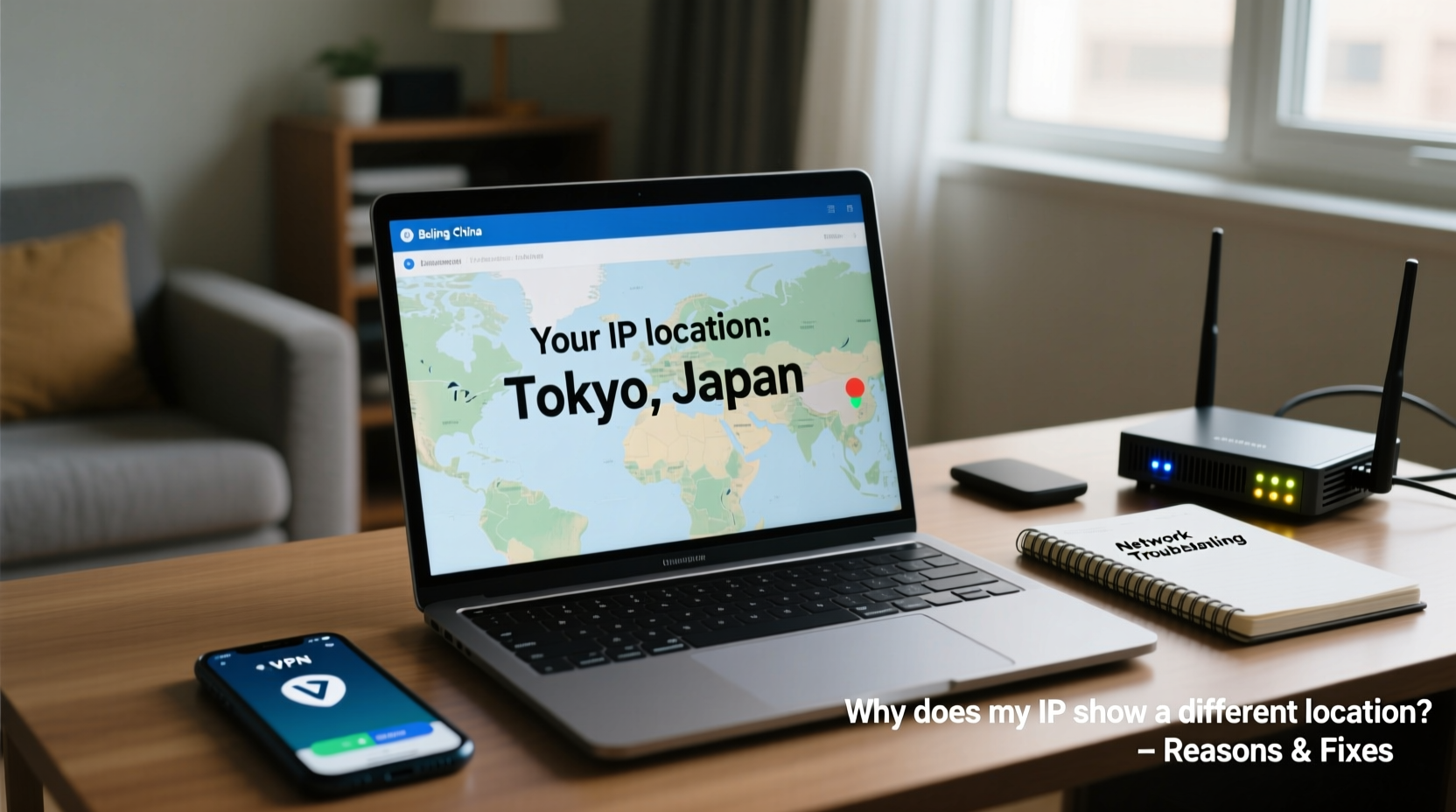
When you connect to the internet, your device is assigned an IP (Internet Protocol) address by your Internet Service Provider (ISP). This IP is then mapped to a physical location using geolocation databases maintained by companies like MaxMind, GeoLite, and Google. These databases compile information from ISPs, GPS data, Wi-Fi networks, and user-submitted locations to estimate where an IP is used.
However, this process is not exact science. Geolocation based on IP addresses is inherently approximate. While it may pinpoint a city or region accurately in many cases, it can also be off by miles—or even continents. The system relies on outdated or incomplete data, routing quirks, and infrastructure limitations, which all contribute to inaccuracies.
“IP-based geolocation is best viewed as an estimation tool, not a GPS-grade locator.” — Dr. Lena Patel, Network Infrastructure Analyst at NetMetrics Group
Common Reasons Your IP Shows the Wrong Location
Several factors can lead to your IP displaying an incorrect location. Some are temporary, while others stem from deeper network configurations. Below are the most frequent causes:
- Outdated Geolocation Databases: Many services rely on third-party databases that aren’t updated frequently. If your ISP recently changed routing or infrastructure, the database might still reflect old information.
- ISP Routing Through Remote Servers: Some ISPs route traffic through centralized hubs located far from users. For example, rural customers might connect through servers in major cities, causing their IP to appear associated with that hub rather than their actual town.
- Use of Proxies or VPNs: If you're using a virtual private network (VPN) or proxy service, your traffic exits through a server in another location, making websites see that server’s IP and location instead of yours.
- Mobile Networks and Carrier Aggregation: Mobile devices often switch between cell towers and backhaul networks managed by large carriers. These networks may assign IPs registered in administrative centers, not near your current position.
- NAT (Network Address Translation): Most home networks use NAT, meaning multiple devices share one public IP. That IP is typically registered to the ISP’s nearest point of presence, which could be dozens of miles away.
- Data Center or Cloud Hosting IPs: If your connection routes through cloud infrastructure (e.g., AWS, Google Cloud), the IP may be tagged to the data center’s location, not your own.
Step-by-Step Guide to Diagnose and Fix Incorrect IP Location
If your IP consistently shows the wrong location, follow this structured approach to identify and resolve the issue:
- Verify Your Current IP and Reported Location
Visit sites like whatismyipaddress.com, iplocation.net, or ipleak.net to see what location your IP is revealing. Note any discrepancies. - Restart Your Router
Unplug your modem/router for 30 seconds and reconnect. This forces your ISP to assign a new IP (in dynamic setups), which may have better location mapping. - Check for Active Proxies or VPNs
Disable any active VPNs, proxy extensions, or privacy tools. Recheck your IP location afterward. If it corrects itself, the tool was the source. - Contact Your ISP
Report the discrepancy. Provide evidence from multiple geolocation checkers. ISPs can update registration data with geolocation providers, though resolution may take weeks. - Submit Updates to Geolocation Databases
Sites like MaxMind allow users or ISPs to submit corrections. Visit https://www.maxmind.com/en/geoip2-services-and-databases and use their correction form. - Test on Multiple Devices and Networks
Compare results across Wi-Fi, mobile data, and different devices. If only one network shows the error, the issue is likely local.
Do’s and Don’ts When Dealing With IP Location Errors
| Do’s | Don’ts |
|---|---|
| Regularly verify your IP location if location-sensitive services matter to you (e.g., banking, streaming). | Assume an incorrect location means your device is hacked. |
| Use reputable geolocation tools to cross-check data. | Rely solely on IP-based location for legal or safety-critical decisions. |
| Update your router firmware to ensure optimal connectivity and IP handling. | Manually spoof your location without understanding the risks (security, compliance). |
| Document inconsistencies and share them with your ISP for faster resolution. | Ignore recurring issues—persistent errors may affect service access. |
Real Example: A Traveler’s Streaming Struggle
Mark, a freelance writer living in Boise, Idaho, began working remotely from a cabin in northern Montana. His internet came through a local wireless ISP that routed all customer traffic through a central server in Billings, Wyoming. When he tried accessing his favorite streaming platform, he was blocked from viewing region-specific content. The service claimed he was in Wyoming and restricted access due to licensing rules.
After testing his IP on three geolocation sites—all showing \"Billings, WY\"—he contacted his ISP. They confirmed the routing setup and agreed to request an update from MaxMind. Within two weeks, the database corrected the location tags, and Mark regained full access. His case highlights how regional routing can disrupt everyday online activities—even without a VPN or technical fault.
Checklist: Ensuring Accurate IP Geolocation
- ✅ Confirm no active VPN or proxy is running
- ✅ Restart your router to refresh your IP
- ✅ Test your IP location on at least three independent sites
- ✅ Compare results across devices and networks
- ✅ Contact your ISP with documented evidence
- ✅ Submit correction requests to major geolocation databases
- ✅ Monitor changes over 7–14 days
Frequently Asked Questions
Can my IP address permanently show the wrong location?
No, it’s almost always a fixable data or routing issue. While some inaccuracies persist for months due to slow database updates, they’re rarely permanent. Persistence with your ISP usually leads to resolution.
Does an incorrect IP location mean I’m being tracked incorrectly?
Not necessarily. Tracking systems that rely on IP geolocation will reflect the same error, but this doesn’t mean you’re under surveillance. It simply means the tool is using flawed data. For precise tracking, apps use GPS, not IP.
Will changing my DNS fix the location issue?
Switching to public DNS (like Google DNS or Cloudflare) improves speed and privacy but won’t change your IP’s registered location. The geolocation is tied to the IP itself, not the DNS resolver.
Conclusion: Take Control of Your Digital Footprint
An IP address showing a different location isn't a glitch in the Matrix—it's a known limitation of how internet infrastructure and geolocation systems interact. While frustrating, especially when accessing region-locked content or verifying identity, most cases are resolvable with patience and the right steps. From restarting your router to collaborating with your ISP, you have tools at your disposal to correct the record.




 浙公网安备
33010002000092号
浙公网安备
33010002000092号 浙B2-20120091-4
Comments
No comments yet. Why don't you start the discussion?