
Video editing on an iPad has become increasingly popular thanks to powerful apps like LumaFusion, iMovie, and DaVinci Resolve. The portability, high-resolution displays, and Apple’s M-series chips make iPads a compelling alternative to laptops for content creators. However, many users report their devices overheating during extended editing sessions. This isn’t just uncomfortable—it can lead to app crashes, reduced performance, or even long-term hardware damage. Understanding the root causes of this issue is essential for anyone relying on their iPad for creative work.
Overheating doesn’t happen randomly. It’s the result of multiple factors converging: intense processor usage, poor thermal design, environmental conditions, and software inefficiencies. By identifying these triggers, you can take meaningful steps to keep your device cool and maintain optimal performance.
How Video Editing Pushes Your iPad’s Hardware to the Limit
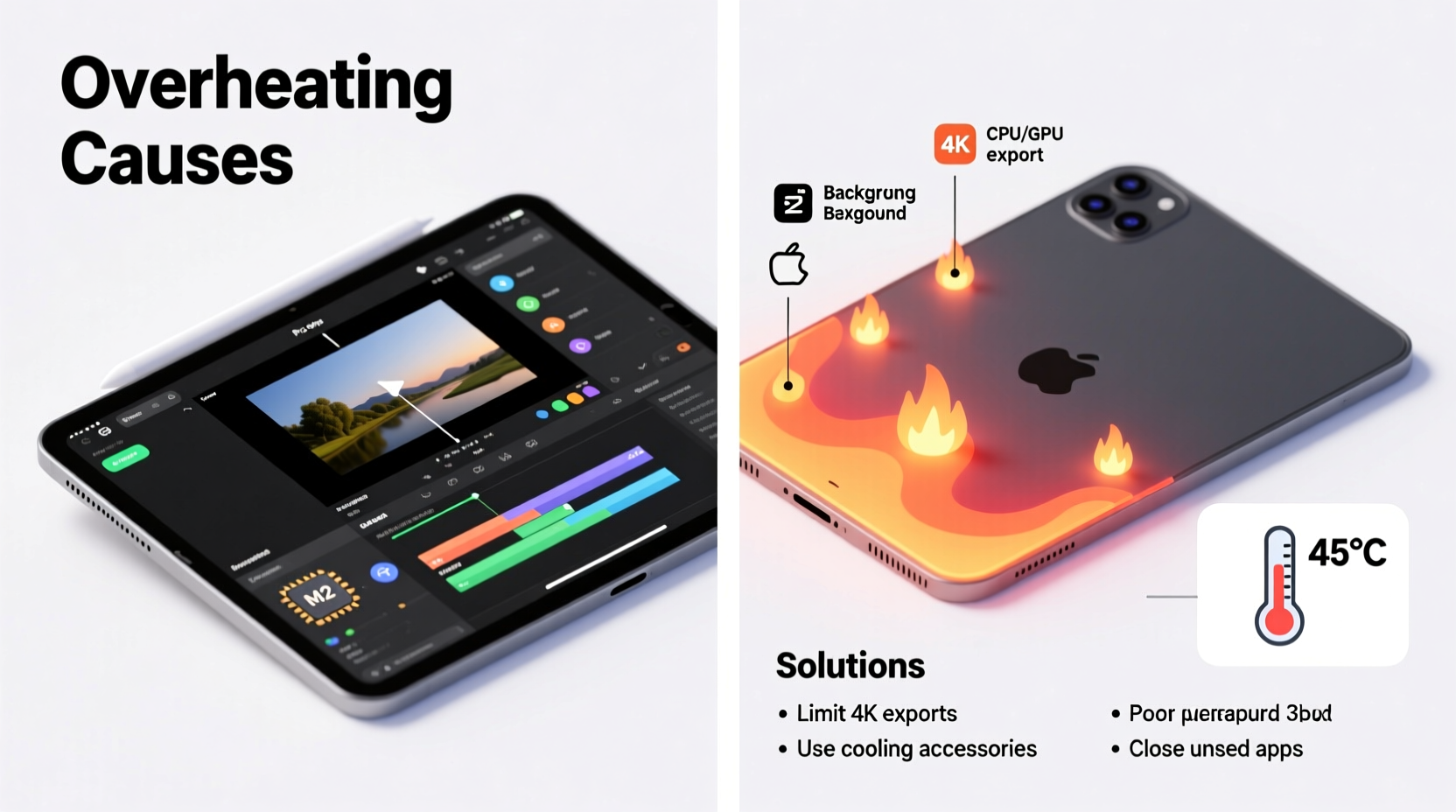
Modern video editing apps demand significant processing power. Tasks such as decoding high-resolution footage (especially 4K or ProRes), applying color grading, rendering transitions, and exporting final videos require continuous use of the CPU, GPU, and Neural Engine. Unlike casual browsing or streaming, which involve intermittent bursts of activity, video editing sustains high workloads for minutes or even hours.
The iPad’s system-on-a-chip (SoC), particularly in newer models like the iPad Pro with M1 or M2 chips, is exceptionally powerful. But even these advanced processors generate substantial heat under load. Unlike desktop computers or laptops, iPads lack active cooling systems—no fans to dissipate heat. Instead, they rely entirely on passive cooling through metal chassis conduction. When heat builds faster than it can escape, internal temperatures rise, triggering thermal throttling or shutdowns.
Additionally, working with large media files increases storage read/write cycles, further contributing to energy consumption and heat generation. The combination of sustained computational load and limited thermal dissipation makes video editing one of the most demanding tasks for any tablet.
Environmental and Usage Factors That Worsen Overheating
Even with efficient hardware, external conditions play a critical role in thermal management. Using your iPad in direct sunlight—such as outdoors or near a sunny window—can significantly raise its base temperature before you even open an app. Similarly, placing the device on soft surfaces like beds or couches blocks airflow and insulates heat, preventing natural dissipation.
Another common mistake is using thick or non-breathable cases while editing. While protective cases are useful, some trap heat around the edges where the processor is located. Silicone or leather cases may look premium but often hinder thermal transfer compared to bare aluminum or ultra-thin polycarbonate shells.
Charging while editing compounds the problem. Power delivery generates additional heat, and when combined with heavy processing, the cumulative effect can push internal sensors past safe thresholds. Apple’s thermal management system will typically respond by reducing performance or displaying a warning message: “iPad needs to cool down before you can use it.”
“Thermal design in fanless devices requires careful balance between performance and sustainability. Sustained peak loads without adequate cooldown periods inevitably lead to overheating.” — Dr. Alan Zhou, Senior Thermal Engineer at Mobile Systems Lab
Software Optimization and App-Specific Challenges
Not all video editing apps manage resources equally. Some are optimized better for Apple’s architecture than others. For instance, LumaFusion is widely praised for its efficiency on iOS, leveraging hardware-accelerated codecs and multithreaded rendering. In contrast, less mature apps may not fully utilize the GPU or may run inefficient background processes that waste CPU cycles.
iPadOS itself, while robust, doesn’t offer granular control over thermal management or background processes. Users cannot manually adjust fan speeds (there are none) or prioritize cooling over performance. Background app refresh, location services, and automatic downloads continue consuming resources unless disabled—adding invisible load during intensive tasks.
Firmware updates also matter. Older versions of iPadOS may lack optimizations for newer chips or display bugs that cause screen brightness to spike unnecessarily, increasing power draw. Keeping your system updated ensures you benefit from Apple’s latest thermal regulation algorithms and power efficiency improvements.
Do’s and Don’ts When Editing Video on iPad
| Do’s | Don’ts |
|---|---|
| Use a flat, hard surface for better heat dissipation | Work on a bed or cushion that traps heat |
| Edit in a climate-controlled room below 75°F (24°C) | Edit in direct sunlight or hot environments |
| Remove thick cases during long sessions | Keep insulated cases on during rendering |
| Update iPadOS and apps regularly | Ignore software update notifications |
| Preprocess clips to lower resolution if possible | Edit full 4K ProRes files on older iPad models |
Step-by-Step Guide to Prevent Overheating During Editing
Follow this practical sequence to minimize heat buildup and maintain stable performance:
- Prepare Your Environment: Choose a cool, shaded workspace with ambient temperatures between 62°F and 72°F (16–22°C). Avoid garages, cars, or sunlit rooms.
- Remove Protective Case: Take off bulky cases before starting. If you must use one, opt for a slim, thermally conductive model.
- Close Background Apps: Swipe up from the bottom (or double-click Home) and close all unnecessary apps to free memory and reduce background load.
- Lower Screen Brightness: Reduce brightness to 50% or less. Auto-brightness can sometimes increase output unnecessarily.
- Disable Unneeded Features: Turn off Bluetooth, Wi-Fi (if offline editing), and Location Services temporarily via Control Center.
- Avoid Charging During Use: If possible, start with a full battery and edit unplugged. Charging adds ~3–5°C to internal temps.
- Break Long Sessions into Chunks: After 30–45 minutes of continuous editing, pause for 5–10 minutes to let the device cool.
- Monitor for Warning Signs: Watch for sluggish response, frame drops, or dimming screen—early signs of thermal throttling.
- Use External Storage Wisely: If using USB-C drives, ensure they’re bus-powered efficiently. Poorly designed peripherals can draw excess current.
- Export Off-Peak: Schedule final renders for times when you’re not actively using the iPad, allowing passive cooling afterward.
Real-World Example: A Travel Vlogger’s Experience
Sophia, a travel content creator based in Bali, frequently edits footage on her iPad Pro while traveling. She noticed recurring overheating issues during beachside edits, despite having the latest M2 model. At first, she assumed it was a hardware defect and considered returning the device.
After consulting online forums and testing variables, she identified three key culprits: direct tropical sun raising ambient temperature to over 90°F (32°C), editing while charging from a portable power bank, and using a padded neoprene case for protection against sand.
She adjusted her workflow: moving editing indoors during midday, removing the case, pre-downscaling 4K clips to 1080p proxies, and scheduling exports for early evening. These changes eliminated overheating warnings entirely. Her experience highlights how user habits and environment often outweigh raw hardware capability.
When Hardware Limits Become the Bottleneck
No amount of optimization can overcome fundamental hardware limitations. Older iPad models—especially those with A12X or earlier chips—struggle with modern 4K workflows. Even iPads with M-series chips have thermal envelopes designed for balanced productivity, not sustained pro-level rendering.
If you consistently work with high-bitrate footage, multi-track timelines, or complex effects, consider offloading rendering to a Mac or cloud service when possible. Some apps support iCloud sync or AirDrop integration, allowing lighter iPads to handle assembly while heavier processing occurs elsewhere.
Apple continues to improve thermal headroom with each generation. The iPad Pro (M4, 2024) features enhanced thermal architecture and more efficient transistor design, reducing heat per operation. Upgrading may be justified for professionals who depend on mobile editing.
Frequently Asked Questions
Can overheating permanently damage my iPad?
Occasional overheating is unlikely to cause lasting harm due to built-in safeguards. However, repeated exposure to extreme temperatures (above 95°F/35°C internally) can degrade battery health over time and shorten component lifespan. Consistently ignoring thermal warnings increases risk.
Why does my iPad get hotter than my MacBook doing the same edit?
MacBooks include active cooling (fans) and larger heat sinks. They also run macOS versions of apps optimized differently. While both use Apple Silicon, the MacBook’s physical size allows better heat distribution and sustained performance without throttling.
Does closing apps help reduce heat?
Yes, partially. Fully closed apps stop background processing. However, iPadOS manages memory aggressively, so simply switching away doesn’t always terminate processes. Manually swiping them out ensures no hidden scripts or audio services continue running.
Action Plan Checklist: Keep Your iPad Cool While Editing
- ✅ Edit in a cool, shaded area
- ✅ Remove thick or insulated cases
- ✅ Disable Bluetooth, Wi-Fi, and Location Services when not needed
- ✅ Lower screen brightness manually
- ✅ Avoid charging during intensive tasks
- ✅ Use proxy files instead of full-resolution originals
- ✅ Take 5-minute breaks every 30–45 minutes
- ✅ Keep iPadOS and editing apps updated
- ✅ Monitor for lag or dimming as heat indicators
- ✅ Consider upgrading hardware if editing is frequent and demanding
Conclusion: Work Smarter, Not Harder—Protect Your Device and Workflow
Your iPad is a capable creative tool, but it operates within physical limits. Overheating during video editing isn't a flaw—it's feedback. By respecting thermal boundaries and adjusting your environment, habits, and settings, you can maintain smooth performance without risking hardware stress.
Start implementing small changes today: remove the case, move to a cooler room, break up long sessions. These simple actions compound into reliable, uninterrupted creativity. Whether you're a hobbyist or a professional, smart thermal management ensures your iPad remains a dependable partner in storytelling.




 浙公网安备
33010002000092号
浙公网安备
33010002000092号 浙B2-20120091-4
Comments
No comments yet. Why don't you start the discussion?