
It’s a common frustration: you eagerly install the latest iOS update, only to notice your iPhone battery vanishing at an alarming rate. What was once a full day of usage now barely lasts half as long. While iOS updates often bring new features, security patches, and performance improvements, they can also introduce unexpected side effects—especially when it comes to battery consumption. The good news is that this issue is usually temporary and fixable. Understanding the root causes and applying targeted solutions can restore your iPhone’s battery efficiency in just a few steps.
Why iOS Updates Affect Battery Life
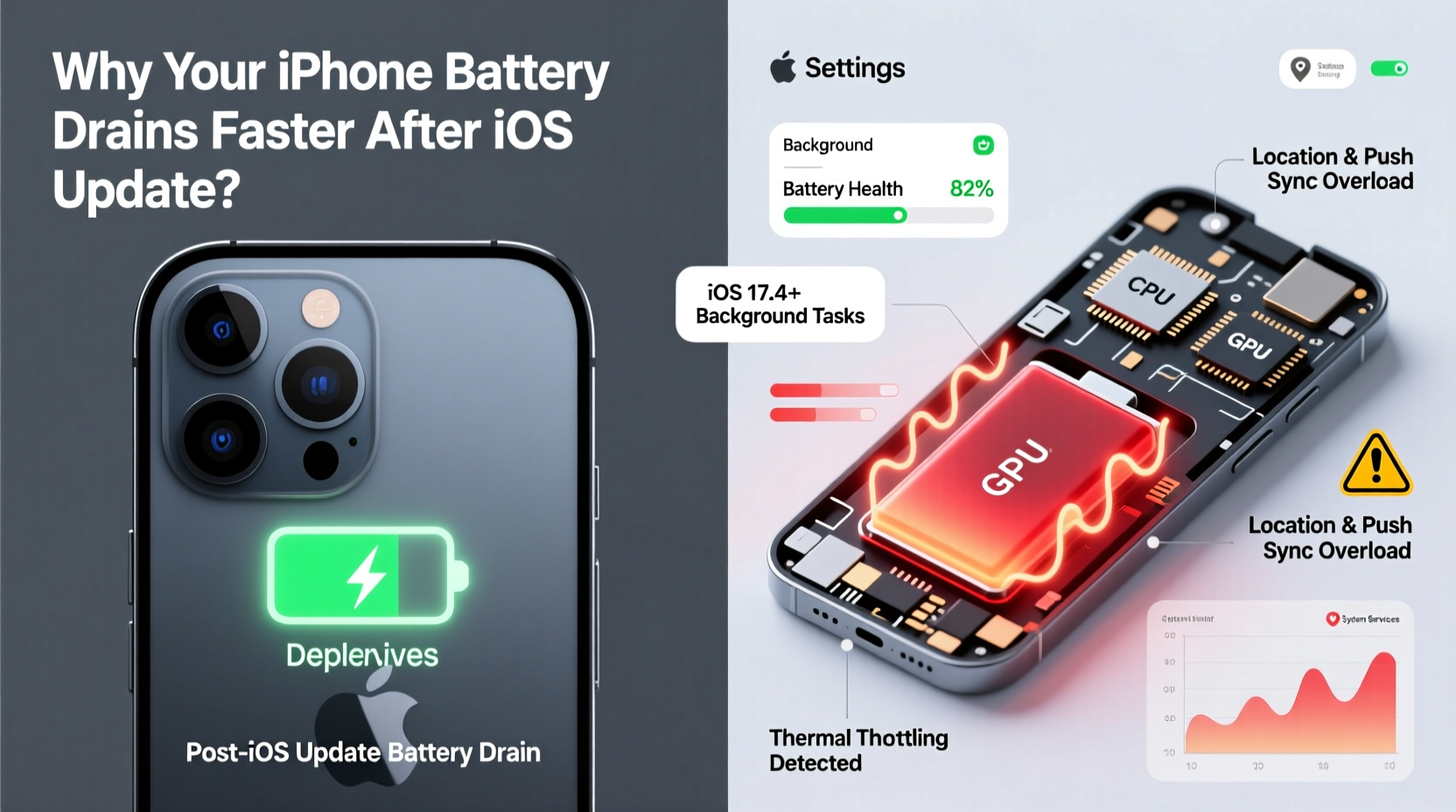
When Apple releases a new iOS version, your iPhone undergoes significant system-level changes. Background processes recalibrate, apps update their compatibility, and settings may reset or shift. During the first 24–72 hours after an update, your device runs intensive tasks like reindexing Spotlight search, optimizing app layouts, and refreshing location services. This surge in activity naturally increases power draw.
Additionally, newer iOS versions sometimes demand more from older hardware. Features designed for the latest iPhones—such as enhanced machine learning models or always-on display logic—can strain processors in previous-generation devices, leading to faster battery depletion.
“iOS updates trigger background recalibration processes that can spike battery usage temporarily. Most users see stabilization within three days.” — Dr. Lena Torres, Mobile Systems Analyst at TechInsight Labs
Common Causes of Post-Update Battery Drain
Battery issues after an iOS update rarely stem from a single factor. Instead, they’re typically the result of overlapping software behaviors and user settings. Below are the most frequent culprits:
- Background App Refresh Overload: After an update, apps restart and may aggressively sync data in the background.
- Location Services Misbehavior: Some apps reset location permissions and begin tracking constantly.
- Push Email and Notifications: Increased server pings due to re-authentication cycles.
- Indexing and Caching: System-wide searches, photo analysis (on-device AI), and Siri suggestions rebuild indexes.
- Software Bugs: Occasionally, iOS updates contain unoptimized code that affects specific device models.
These factors compound on older iPhones (iPhone 8 and earlier), where reduced battery health amplifies any additional strain.
Step-by-Step Fixes to Restore Battery Life
If your iPhone battery is draining too fast after an update, follow this structured approach to diagnose and resolve the issue.
- Wait 24–72 Hours: Allow time for background processes to settle. Avoid making major changes immediately after updating.
- Check Battery Usage: Go to Settings > Battery and review which apps consume the most power. Focus on those with unusually high background usage.
- Disable Unnecessary Background App Refresh: Navigate to Settings > General > Background App Refresh. Turn it off globally or selectively for non-essential apps.
- Reset Location & Privacy Settings: In Settings > Privacy & Security > Location Services, ensure apps aren’t using \"Always\" tracking. Change to \"While Using\" or \"Never\" where appropriate.
- Reduce Push Frequency: For email, go to Settings > Mail > Accounts > Fetch New Data. Set fetch frequency to \"Manually\" or \"Hourly\" instead of \"Push.\"
- Turn Off Motion Effects: Excessive animations increase GPU load. Disable via Settings > Accessibility > Motion > Reduce Motion.
- Enable Low Power Mode Temporarily: This disables background refresh, visual effects, and automatic downloads. It’s safe to use daily if needed.
- Restart Your iPhone: A simple reboot clears cached processes and resets unstable services.
Advanced Optimization: Deep Cleaning System Settings
If basic fixes don’t help, perform a deeper system reset without losing your data.
- Go to Settings > General > Transfer or Reset iPhone > Reset.
- Select Reset All Settings. This restores network, keyboard, privacy, and location settings to default.
- Reconfigure Wi-Fi, Bluetooth, and privacy preferences manually afterward.
This step often resolves hidden conflicts caused by mismatched permissions or corrupted service caches—common after major iOS transitions.
Do’s and Don’ts After an iOS Update
| Do’s | Don’ts |
|---|---|
| Wait 48 hours before troubleshooting | Don’t immediately downgrade iOS |
| Monitor battery usage daily | Don’t disable critical system services (e.g., Health, Find My) |
| Update all apps after the OS update | Don’t ignore app compatibility warnings |
| Use Low Power Mode during initial days | Don’t leave Bluetooth/GPS on unnecessarily |
| Restart your phone once after setup | Don’t install beta versions on primary devices |
Real-World Example: Sarah’s iPhone 12 Experience
Sarah, a freelance designer in Portland, updated her iPhone 12 to iOS 17.5. Within hours, she noticed her battery dropping from 100% to 40% by midday—unusual for her typical workflow. She used messaging, design apps, and music streaming but hadn’t changed her habits.
After checking Settings > Battery, she found that Adobe Creative Cloud and Instagram were consuming over 30% each in background activity. Both apps had updated simultaneously with iOS and restarted their sync engines. She disabled Background App Refresh for both and limited location access to “While Using.” She also turned off “Motion Parallax” in Display settings.
Within two days, her battery life returned to normal. The issue wasn’t faulty hardware or iOS instability—it was misconfigured app behavior amplified by the update cycle.
When to Consider Hardware Issues
While most post-update battery problems are software-related, persistent drain beyond five days may indicate aging hardware. iPhones use lithium-ion batteries that degrade over time. After 500 full charge cycles, capacity typically drops below 80%.
To check your battery health:
- Open Settings > Battery > Battery Health & Charging.
- Review “Maximum Capacity.” If it’s below 80%, the battery may need replacement.
- Look for “Peak Performance Capability.” If it says “Performance Management Applied,” your iPhone is throttling speed to prevent shutdowns.
In such cases, even minor software demands—like those from a new iOS version—can drastically shorten usable time. Apple offers battery replacement services starting at $69 for most models, which often restores near-original endurance.
Frequently Asked Questions
Will downgrading iOS fix battery drain?
Apple typically stops signing older iOS versions within days of a new release, making downgrades impossible without prior preparation. Moreover, reverting isn’t recommended—security vulnerabilities in older versions pose greater risks than temporary battery issues. Focus on optimizing the current version instead.
Does turning off Background App Refresh hurt app functionality?
Only slightly. Apps won’t sync new content automatically when closed, but they’ll update instantly when opened. For most users, the trade-off in battery savings far outweighs the minor delay in receiving notifications or messages.
Can a faulty update permanently damage my battery?
No. iOS updates cannot physically harm your battery. However, prolonged exposure to excessive heat caused by high CPU usage can accelerate long-term degradation. Avoid using your phone under heavy load while charging, especially after updates.
Final Checklist: Regain Control of Your iPhone’s Battery
- ✅ Wait 2–3 days after the update before taking action
- ✅ Check battery usage by app and process
- ✅ Disable Background App Refresh for non-critical apps
- ✅ Adjust location services to “While Using” or “Never”
- ✅ Reduce motion and visual effects in Accessibility settings
- ✅ Restart your iPhone to clear residual processes
- ✅ Reset all settings if problems persist
- ✅ Evaluate battery health and consider replacement if below 80%
Conclusion: Take Charge of Your Device’s Longevity
An iPhone battery draining too fast after an iOS update is a widespread but solvable challenge. Rather than viewing it as a flaw, see it as a signal to reassess your device’s settings and usage patterns. With a methodical approach, most users regain full-day battery life within days. The key is patience during the adaptation phase and precision in adjusting settings that silently consume power.
Your iPhone is designed to evolve with each update—but so should your maintenance habits. By staying proactive about battery health, app permissions, and system optimization, you ensure your device remains reliable, efficient, and ready for whatever comes next.




 浙公网安备
33010002000092号
浙公网安备
33010002000092号 浙B2-20120091-4
Comments
No comments yet. Why don't you start the discussion?