
If you wake up to find your iPhone at 20% after a full night’s charge — or worse, completely dead — you're not alone. Many users assume this means their battery is failing and immediately consider costly replacements. But in most cases, overnight battery drain isn’t due to hardware failure. Instead, it's often caused by software behavior, background processes, or settings that can be easily adjusted. Before spending money on a new device or battery service, try these proven troubleshooting steps. Most take just minutes and could restore your battery health without any expense.
Understanding Normal vs. Abnormal Battery Drain
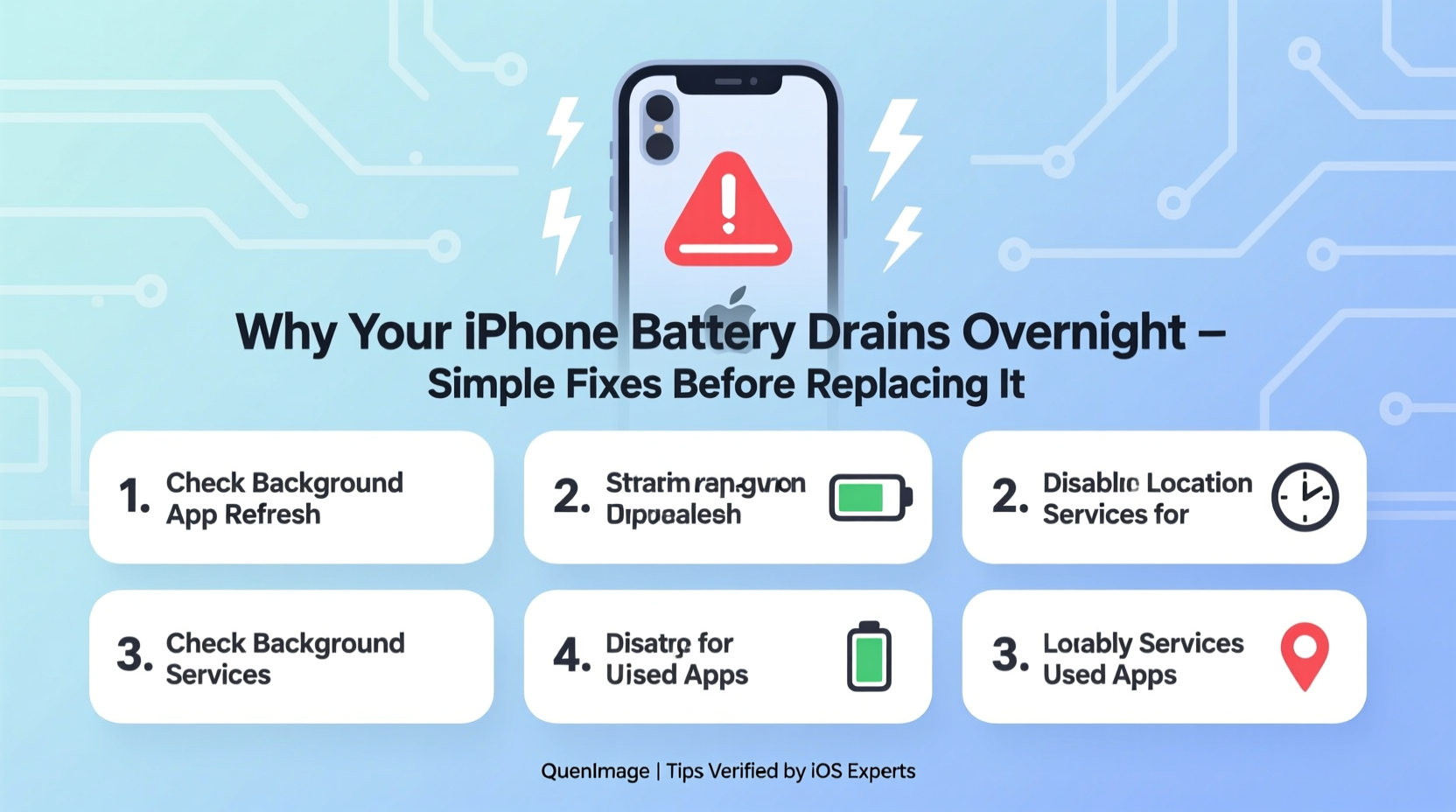
A small amount of battery loss overnight is normal. Even when idle, your iPhone performs essential tasks like checking for messages, updating apps, and maintaining network connections. Apple estimates that under typical conditions, an iPhone might lose 5–10% over eight hours. However, if your battery drops more than 15–20%, something is likely amiss.
Excessive overnight drain usually stems from:
- Background app activity
- Poor cellular or Wi-Fi signal
- Location services running constantly
- Bug-ridden iOS updates
- Faulty third-party apps
- Push email and notifications
The key is identifying which factor affects your device. The good news: most causes are fixable with basic adjustments.
Step-by-Step Guide to Diagnose and Fix Overnight Drain
Follow this structured approach to isolate the cause and apply targeted solutions. This timeline takes less than 30 minutes and doesn't require technical expertise.
- Check Battery Usage (5 min)
Go to Settings > Battery. Wait for data to load, then scroll down to “Battery Usage by App.” Look for apps using significant power between bedtime and wake-up time. If Safari, Facebook, or another app shows high usage despite no active use, it may be misbehaving in the background. - Enable Low Power Mode Overnight (1 min)
Turn on Low Power Mode before bed. It disables background refresh, visual effects, and automatic downloads. To automate: go to Settings > Battery > Scheduled. Set Low Power Mode to turn on automatically during sleep hours. - Disable Background App Refresh (3 min)
Navigate to Settings > General > Background App Refresh. Choose \"Off\" or limit it to Wi-Fi only. Alternatively, disable it per app — especially for social media, streaming, and news apps known to run in the background. - Review Location Services (5 min)
Open Settings > Privacy & Security > Location Services. Scroll through the list and tap any app using “Always” access. Change it to “While Using” or “Never,” unless critical (e.g., Find My). Pay special attention to weather, fitness, and navigation apps. - Reset Network Settings (2 min + restart)
Poor signal forces your iPhone to work harder to maintain connection, draining the battery. Resetting network settings clears corrupted Wi-Fi, Bluetooth, and cellular configurations. Go to Settings > General > Transfer or Reset iPhone > Reset > Reset Network Settings. Note: You’ll need to re-enter Wi-Fi passwords. - Update iOS and Apps (10 min)
Outdated software often contains bugs that affect power management. Go to Settings > General > Software Update to install the latest iOS version. Then open the App Store, tap your profile icon, and update all apps — particularly those flagged in battery usage. - Restart Your iPhone Weekly (1 min)
A simple reboot clears temporary memory and stops rogue processes. Turn off your iPhone, wait 30 seconds, then power it back on. Make this a nightly habit if possible.
Common Culprits Behind Unseen Battery Drain
Some features silently consume energy even when the screen is off. Here are the top offenders and how to manage them:
Email Push and Fetch
If your email is set to “Push,” your iPhone checks for new messages constantly. Switch to “Fetch” manually or every 15–30 minutes. Go to Settings > Mail > Accounts > Fetch New Data. Select “Manually” or a longer interval.
iCloud Syncing and Backups
Large iCloud backups can run overnight and drain power. Check if your iPhone is backing up by going to Settings > [Your Name] > iCloud > iCloud Backup. If backup is active, ensure your device is connected to Wi-Fi and plugged in — but avoid leaving it charging unnecessarily long.
Bluetooth and Wi-Fi Scanning
Even when not connected, your iPhone may scan for networks and devices. Disable Wi-Fi and Bluetooth completely at night unless needed. Use Control Center for quick toggles.
Faulty Third-Party Apps
Some apps continue running location tracking or refreshing content without user knowledge. After checking battery usage, delete suspicious apps temporarily and monitor changes. Reinstall only if necessary.
| Feature | Power Impact | Solution |
|---|---|---|
| Background App Refresh | High | Turn off globally or per app |
| Location Services (Always) | Very High | Change to “While Using” or disable |
| Push Email | Moderate | Switch to Fetch manually or hourly |
| Poor Cellular Signal | Extreme | Enable Airplane Mode or reset network |
| Outdated iOS Version | Moderate to High | Install latest update |
Mini Case Study: Sarah’s 70% Overnight Drain Fixed in One Night
Sarah, a freelance designer in Portland, noticed her iPhone 13 dropped from 100% to 30% each night despite not being used. She assumed the battery was degraded and booked an appointment at the Apple Store. Before going, she followed the diagnostic steps above.
In Battery Usage, she found that a weather app was consuming 40% of power overnight. Upon inspection, it had “Always” access to location services and was refreshing every few minutes. She changed location access to “While Using” and disabled its background refresh. That night, her battery dropped only 8%. No further action was needed — and she canceled her repair appointment, saving $89.
This case highlights how a single misconfigured app can mimic battery failure. Always investigate before assuming hardware issues.
Expert Insight: What Apple Engineers Recommend
While Apple doesn’t publish internal diagnostics publicly, former support engineers and iOS developers have shared insights into common battery issues.
“Most overnight drain cases we saw weren’t battery-related. They were tied to apps abusing background modes or poor signal forcing constant radio use. A reboot and settings review resolved 80% of them.” — Mark Tran, Former Apple Support Technician
Additionally, Craig Federighi, Apple’s Senior Vice President of Software Engineering, emphasized in a 2022 interview that iOS includes advanced power optimization systems — but they rely on proper configuration.
“Our system intelligently manages background tasks, but users need to help by reviewing permissions and keeping software updated.” — Craig Federighi, Apple
Checklist: Overnight Battery Rescue Plan
Use this checklist nightly or weekly to maintain optimal battery performance:
- ✅ Charge iPhone before battery drops below 20%
- ✅ Enable Low Power Mode before bed
- ✅ Disable Background App Refresh for non-essential apps
- ✅ Review Location Services settings monthly
- ✅ Switch email fetch to manual or hourly
- ✅ Restart iPhone at least once a week
- ✅ Keep iOS and apps updated
- ✅ Avoid charging under pillows or thick cases (overheating damages battery)
- ✅ Reset network settings if signal is weak or inconsistent
- ✅ Monitor battery usage weekly for anomalies
When to Consider Hardware Replacement
If you’ve completed all software fixes and still experience excessive drain, it may be time to evaluate hardware. Signs of genuine battery degradation include:
- iPhone shuts down unexpectedly below 30%
- Battery health (Settings > Battery > Battery Health & Charging) shows Maximum Capacity below 80%
- Rapid drain during light use (e.g., dropping 20% in 30 minutes)
Apple considers batteries with less than 80% capacity eligible for replacement under warranty or service programs. Out-of-warranty replacements cost $89 in the U.S. as of 2024. Third-party options exist but may lack calibration accuracy or safety certifications.
Before replacing, however, try one final test: use your iPhone in Low-Interference Mode.
- Turn on Airplane Mode.
- Manually enable Wi-Fi if needed (for alarms or smart home).
- Leave the phone untouched overnight.
If battery drain drops to under 5%, the issue was wireless activity — not the battery. If it still drains significantly, the battery itself may be failing.
FAQ
Can a software update cause battery drain?
Yes. Major iOS updates sometimes introduce bugs affecting power management. For example, iOS 15.4 and iOS 16.0 both had early reports of increased drain. Apple typically releases patches within weeks. If a recent update worsened battery life, wait for the next point release or downgrade temporarily if possible.
Is it bad to leave my iPhone charging overnight?
Modern iPhones include built-in safeguards that stop charging at 100% and resume only when needed. However, consistently charging to 100% and staying plugged in accelerates long-term battery wear. For longevity, enable Optimized Battery Charging (Settings > Battery > Battery Health & Charging), which learns your routine and delays full charge until you wake up.
Does dark mode save battery?
On OLED models (iPhone X and later), dark mode can reduce power consumption because black pixels are turned off. However, the effect is minimal during overnight periods since the screen is off. Dark mode helps more during active use than while sleeping.
Conclusion: Don’t Replace It — Fix It
Your iPhone’s overnight battery drain is rarely a death sentence. More often than not, it’s a solvable software or settings issue hiding in plain sight. By methodically checking background activity, location access, and network behavior, you can reclaim hours of battery life — and avoid unnecessary costs. The fixes outlined here are trusted by technicians, recommended by experts, and proven by thousands of users.
You don’t need a new phone. You just need a better routine.




 浙公网安备
33010002000092号
浙公网安备
33010002000092号 浙B2-20120091-4
Comments
No comments yet. Why don't you start the discussion?