
There’s nothing more frustrating than your iPhone shutting down and restarting on its own—especially when you’re in the middle of an important call, message, or app session. This unpredictable behavior can stem from a variety of causes, ranging from minor software bugs to serious hardware malfunctions. While occasional restarts might seem harmless, frequent or random reboots are not normal and should be addressed promptly.
Understanding the root cause is key to fixing the issue effectively. Whether it's a rogue app, overheating, or a failing battery, each factor requires a different approach. This guide breaks down the most common reasons behind unexpected iPhone restarts and provides actionable, step-by-step solutions to help you regain control of your device.
Common Causes of Random iPhone Restarts
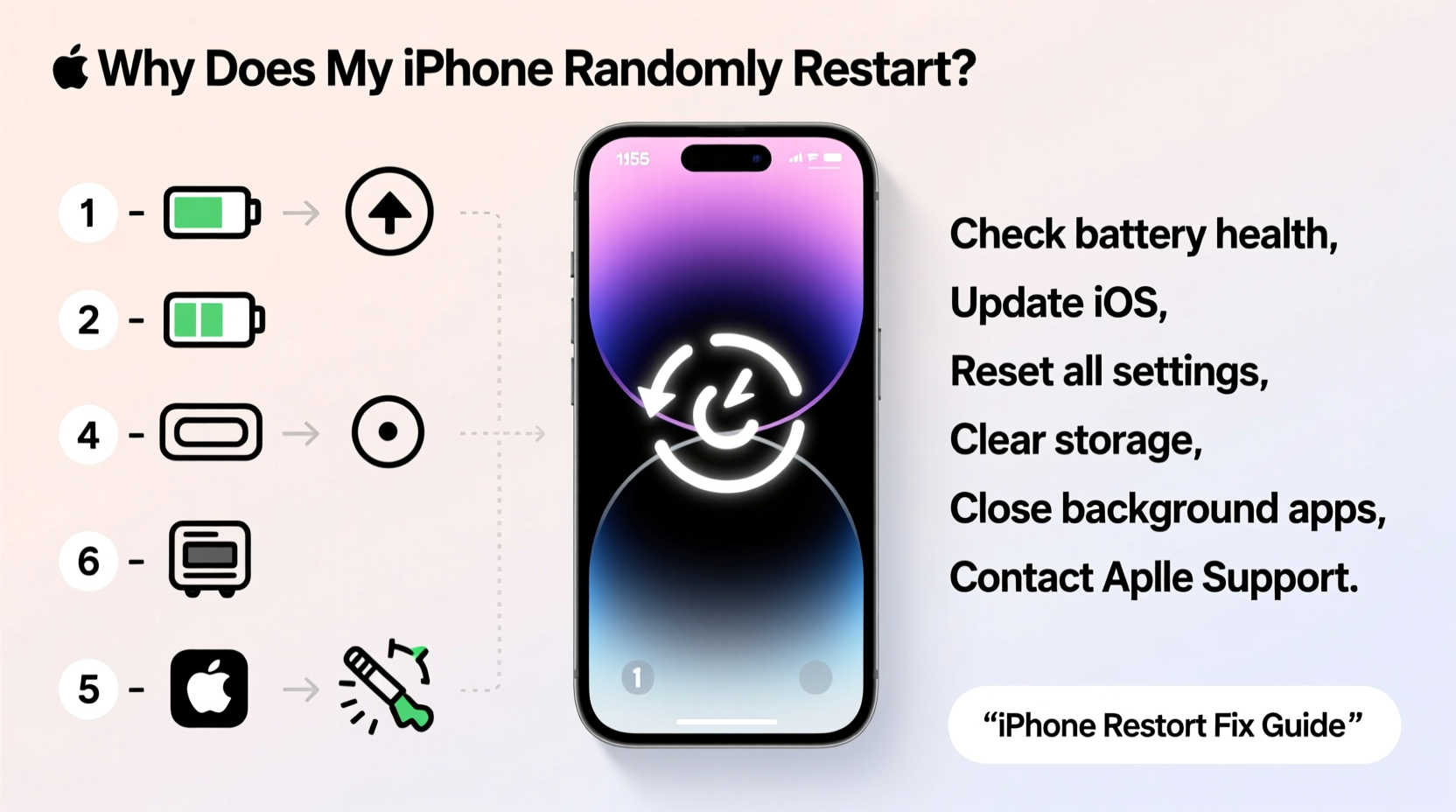
An iPhone that restarts without warning isn’t necessarily broken—but it is signaling that something is wrong. The problem may lie in software, firmware, or physical components. Identifying the likely culprit early can save time and prevent further complications.
- Software Glitches: iOS updates don’t always go smoothly. Bugs in the operating system or conflicts between apps can trigger instability, leading to spontaneous reboots.
- Overheating: iPhones automatically shut down when internal temperatures rise too high. This often happens during intensive tasks like gaming, video editing, or using GPS in hot environments.
- Failing Battery: As lithium-ion batteries age, they lose capacity and voltage stability. A degraded battery may not supply consistent power, causing the phone to cut out unexpectedly.
- Malicious or Misbehaving Apps: Third-party apps with poor coding or background processes can overload system resources, forcing the OS to reboot as a protective measure.
- Hardware Issues: Damaged logic boards, loose internal connections, or water exposure can interfere with power management circuits, resulting in erratic behavior.
- Jailbreaking or Unauthorized Modifications: Devices that have been jailbroken bypass Apple’s security model, making them vulnerable to crashes and instability.
Troubleshooting Steps to Stop Random Restarts
The best way to resolve random restarts is to methodically eliminate potential causes. Start with the simplest fixes before moving to advanced options. Most users find success within the first few steps.
- Check for Overheating
Feel the back and sides of your iPhone. If it's unusually warm, let it cool down in a shaded area. Avoid direct sunlight, heavy cases, and simultaneous use of multiple resource-heavy apps. Once cooled, observe if the restarts continue. - Update iOS to the Latest Version
Apple frequently releases patches for known bugs. Go to Settings > General > Software Update and install any available updates. These often include stability improvements that resolve crash-related issues. - Restart Your iPhone Manually
A simple forced restart clears temporary memory (RAM) and stops any frozen processes. For iPhone 8 and later: press and release Volume Up, then Volume Down, then hold the Side button until the Apple logo appears. For older models, hold Home + Side buttons. - Remove Recently Installed Apps
Uninstall apps you downloaded just before the restarts began. Some third-party apps run aggressive background tasks or contain malware-like behavior that destabilizes the system. - Reset All Settings
This restores network settings, keyboard dictionary, location services, and privacy settings to default without deleting personal data. Navigate to Settings > General > Transfer or Reset iPhone > Reset > Reset All Settings.
When Restarting Doesn’t Help: Advanced Fixes
If basic troubleshooting fails, deeper intervention may be required. Proceed carefully, especially when dealing with data loss risks.
Step-by-Step Guide: Restore iPhone via Recovery Mode
Recovery Mode reinstalls iOS completely, wiping the device clean. Use this only after backing up your data.
- Connect your iPhone to a computer with Finder (macOS Catalina+) or iTunes (older systems).
- Force restart the device using the correct button sequence for your model.
- Continue holding until the recovery mode screen appears (shows cable and iTunes/Finder icon).
- Select “Restore” when prompted—do not choose “Update,” as it may preserve corrupted files.
- Wait for the process to complete. This can take 10–20 minutes.
- Set up the iPhone as new or restore from a backup made before the restarts started.
“Random restarts are one of the top symptoms we see linked to both software corruption and battery degradation. In over 60% of cases, a full restore resolves the issue.” — Mark Tran, Senior Technician at iFix Solutions
Battery Health and Power Management
The battery plays a critical role in system stability. When voltage fluctuates due to wear, the iPhone may shut down even at 20% or higher charge levels. Apple introduced battery health monitoring in iOS 11.3 specifically to address this.
To check your battery health:
- Go to Settings > Battery > Battery Health & Charging.
- Look at “Maximum Capacity.” If it’s below 80%, the battery is significantly degraded.
- Check for “Peak Performance Capability.” If it says “Performance management applied,” your iPhone has already throttled itself to prevent shutdowns.
| Battery Condition | Max Capacity | Action Recommended |
|---|---|---|
| Excellent | 100%–90% | No action needed |
| Fair | 89%–80% | Monitor closely; consider replacement soon |
| Poor | Below 80% | Replace battery immediately |
| N/A or Unavailable | - | Visit Apple Store—battery sensor may be faulty |
Mini Case Study: Resolving Chronic Reboots on an iPhone 12
Sophie, a freelance photographer in Portland, noticed her iPhone 12 Pro would restart every few hours—especially while editing photos in Lightroom. Initially, she assumed it was overheating from prolonged app use. She removed her case and let the phone rest, but the reboots continued.
She tried updating iOS, which didn’t help. After uninstalling Lightroom, the issue persisted. Then she checked Battery Health and found her maximum capacity was 76%. Despite showing 30% charge, the phone couldn’t sustain power under load.
Sophie scheduled a battery replacement at the Apple Store. After the service, her iPhone ran steadily for weeks without a single restart. The root cause wasn’t software—it was a worn-out battery struggling to meet performance demands.
Do’s and Don’ts When Dealing with Random Restarts
Avoid making the problem worse with incorrect actions. Follow this checklist to stay on track.
| Do | Don't |
|---|---|
| Back up your data regularly using iCloud or Finder/iTunes | Ignore repeated restarts—they rarely fix themselves |
| Keep iOS updated to benefit from bug fixes | Install untrusted apps from outside the App Store |
| Monitor battery health monthly if your iPhone is over 2 years old | Expose your iPhone to extreme heat or cold for long periods |
| Use official Apple chargers and cables | Attempt DIY battery replacements unless certified |
| Visit Apple Support if hardware failure is suspected | Jailbreak your device for minor customization gains |
FAQ
Can a virus make my iPhone restart randomly?
iPhones are highly resistant to traditional viruses due to strict sandboxing and app review processes. However, malicious websites or compromised profiles can sometimes trigger instability. True “viruses” are extremely rare, but misbehaving apps or configuration profiles can mimic their effects. Removing suspicious downloads usually resolves the issue.
Will resetting my iPhone delete my photos and messages?
A “Reset All Settings” will not delete personal data. However, restoring via Recovery Mode will erase everything unless you’ve backed up first. Always ensure your photos, contacts, and messages are saved to iCloud or a computer before performing a full restore.
How do I know if it’s a hardware problem?
If your iPhone continues to restart after a clean iOS restore and battery health is good, the issue is likely hardware-related. Signs include frequent black screens, flickering displays, or restarts even when idle. Take it to an Apple Authorized Service Provider for diagnostics.
Final Checklist: What to Do When Your iPhone Keeps Restarting
Follow this concise action plan to systematically address the issue:
- ✅ Check for overheating and allow the device to cool
- ✅ Force restart the iPhone
- ✅ Install the latest iOS update
- ✅ Review recently installed apps and remove suspicious ones
- ✅ Check Battery Health in Settings
- ✅ Back up your data immediately
- ✅ Reset All Settings
- ✅ Restore iPhone via Recovery Mode if necessary
- ✅ Replace the battery if health is below 80%
- ✅ Contact Apple Support if problems persist
Conclusion
Random iPhone restarts are disruptive but rarely permanent. With methodical troubleshooting, most users can identify and resolve the underlying cause—whether it’s a simple software hiccup or a failing battery. The key is acting early, backing up data, and avoiding assumptions. Don’t wait until the problem worsens or leads to data loss.
Your iPhone is designed to last for years with proper care. By understanding how power, software, and hardware interact, you can maintain smooth performance and avoid unnecessary repairs. Apply these steps today, and take control of your device’s reliability.




 浙公网安备
33010002000092号
浙公网安备
33010002000092号 浙B2-20120091-4
Comments
No comments yet. Why don't you start the discussion?