
It’s a common frustration: your laptop ran smoothly for months, offering solid battery life—until you installed the latest system update. Suddenly, the battery plummets from 60% to 20% in under an hour. You’re not imagining it. Many users report accelerated battery drain following OS updates from Microsoft Windows, Apple macOS, or even Linux distributions. These updates often introduce background processes, compatibility issues, or inefficient drivers that silently consume power. The good news? Most of these problems are fixable with the right approach.
This article breaks down the technical and practical reasons behind sudden battery drain post-update and provides actionable solutions. Whether you're using a Windows 11 machine, a MacBook, or another device, understanding what changed—and how to reverse it—can restore hours of productivity.
Why Updates Cause Unexpected Battery Drain
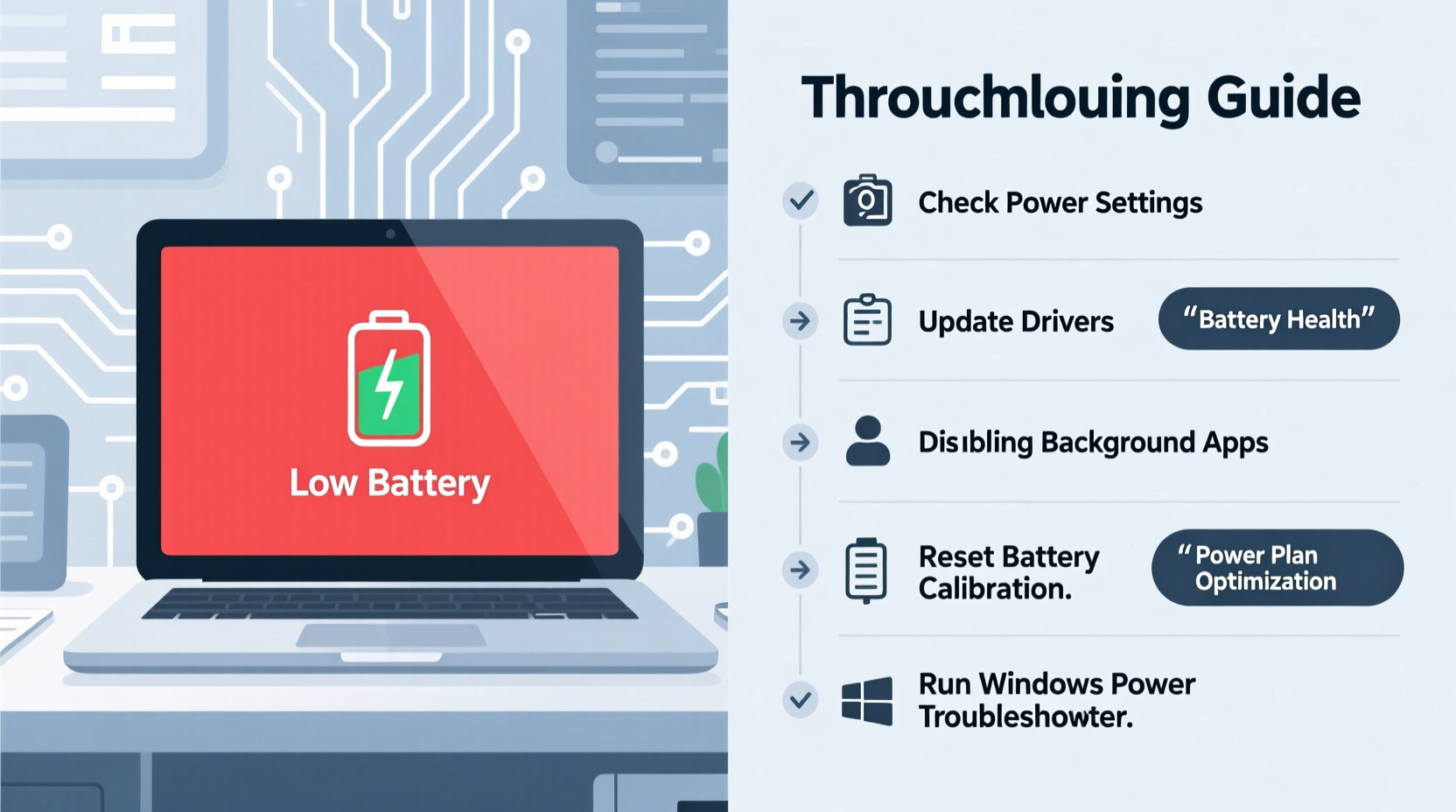
Operating system updates are designed to improve security, add features, and patch vulnerabilities. However, they can also disrupt existing power management settings. Developers may prioritize functionality over efficiency during rushed rollouts, leading to unintended consequences like excessive CPU usage, rogue background apps, or misconfigured drivers.
For example, a Windows 11 update released in early 2023 was found to cause high GPU utilization on certain laptops even during idle states, drastically reducing battery life. Similarly, macOS Sonoma introduced enhanced Spotlight indexing that triggered continuous disk activity on some MacBooks, draining batteries within two hours of unplugging.
These issues stem from several root causes:
- New background services: Updates often install new telemetry tools, cloud sync agents, or real-time monitoring features that run constantly.
- Driver conflicts: Updated graphics or chipset drivers may not be optimized for power efficiency on all hardware configurations.
- Aggressive indexing: File and search indexing processes may restart or intensify after an update, consuming CPU and disk resources.
- Settings reset: Power plans, display brightness, and sleep timers may revert to default (and less efficient) values.
- Firmware bugs: In rare cases, BIOS or UEFI firmware updates bundled with OS patches can interfere with power regulation at the hardware level.
“Software updates are necessary, but they don’t always account for every hardware variation. That’s why post-update battery issues are more common than users realize.” — Dr. Alan Reyes, Senior Systems Engineer at TechPower Labs
Step-by-Step Guide to Diagnose and Fix Battery Drain
Before making major changes, assess the severity and pinpoint the source of the drain. Follow this timeline to identify and resolve the issue systematically.
- Monitor battery usage (first 24 hours): Use built-in tools like Windows Battery Report or macOS Battery Health to establish a baseline.
- Check for abnormal processes: Open Task Manager (Windows) or Activity Monitor (macOS) and sort by energy impact or CPU usage.
- Review recent software changes: Note any new applications, drivers, or services activated after the update.
- Test with minimal load: Disconnect peripherals, close unused apps, and observe battery behavior in a clean state.
- Apply targeted fixes: Based on findings, implement the solutions outlined below.
Key Fixes to Restore Normal Battery Life
Once you’ve confirmed the battery drain began after the update, apply these proven fixes in order of least to most invasive.
1. Reset Power Settings to Optimal Mode
Updates often reset power plans to “Balanced” or “High Performance,” which favor speed over battery life. Switch back to power-saving mode:
- Windows: Go to Settings > System > Power & Battery > Power Mode, and select “Best Power Efficiency.”
- macOS: Navigate to System Settings > Battery > Options, and enable “Low Power Mode” when on battery.
2. Disable Unnecessary Startup Programs
Many apps auto-launch after boot, increasing initial power draw. Prevent them from starting automatically:
- In Windows, press Ctrl+Shift+Esc, go to the Startup tab, and disable non-essential entries (e.g., updaters, chat apps).
- On macOS, go to System Settings > General > Login Items and toggle off unnecessary apps.
3. Update or Roll Back Drivers
If your battery drain started immediately after a driver update (especially graphics), consider rolling back:
- Press Win + X and select Device Manager.
- Expand “Display adapters,” right-click your GPU, and choose “Properties.”
- Go to the Driver tab and click “Roll Back Driver” if available.
Alternatively, visit your laptop manufacturer’s support page and download the latest power-optimized driver version.
4. Limit Background App Refresh
Apps like Slack, Teams, and OneDrive frequently sync in the background. Reduce their impact:
- Windows: Settings > Apps > Background apps > Turn off access for non-critical apps.
- macOS: System Settings > General > Background App Refresh > Disable for selected apps.
5. Adjust Display and Sleep Settings
The screen is one of the biggest power consumers. After an update, brightness and timeout settings may have increased:
- Set screen brightness to 50–70% when on battery.
- Reduce sleep time to 5 minutes for display and 10 minutes for the system.
- Turn off keyboard backlighting if not needed.
Battery Optimization Checklist
Use this checklist to ensure no stone is left unturned when troubleshooting post-update battery drain:
- ✅ Generate a battery usage report (Windows:
powercfg /batteryreport) - ✅ Identify high-energy apps via Task Manager or Activity Monitor
- ✅ Switch to power-saving mode in system settings
- ✅ Disable startup programs and background app refresh
- ✅ Lower screen brightness and shorten sleep timers
- ✅ Update or roll back problematic drivers
- ✅ Disable Wi-Fi/Bluetooth when not in use
- ✅ Check for pending firmware updates from manufacturer
- ✅ Perform a clean boot to isolate software conflicts
- ✅ Consider resetting the OS if issues persist
Real-World Example: A Dell XPS User’s Recovery
Sarah, a freelance writer using a Dell XPS 13, noticed her battery life dropped from 9 hours to just 3.5 after a Windows 11 feature update. She initially assumed her battery had degraded, but diagnostics showed 92% health. Using the powercfg /batteryreport command, she discovered that SearchIndexer.exe was consuming 45% of total energy.
Further investigation revealed that the update had re-enabled Windows Search indexing across her entire Documents folder, including large video files. By excluding non-essential folders from indexing (via Settings > Privacy > Search), disabling Cortana background activity, and switching to “Best Power Efficiency” mode, Sarah restored her battery life to nearly 8 hours. The fix took less than 20 minutes and avoided a costly repair.
This case illustrates how a single misbehaving process—triggered by an update—can dominate power consumption without obvious signs.
Do’s and Don’ts After a System Update
| Do’s | Don’ts |
|---|---|
| Do: Monitor battery usage for 24–48 hours post-update | Don’t: Immediately assume hardware failure |
| Do: Keep your manufacturer’s power management software updated (e.g., Lenovo Vantage, HP Support Assistant) | Don’t: Ignore firmware update notifications—they often include power fixes |
| Do: Create a system restore point before installing major updates | Don’t: Disable critical security updates to save battery |
| Do: Use battery reports to identify energy hogs | Don’t: Leave external devices plugged in unnecessarily |
Frequently Asked Questions
Can a software update permanently damage my laptop battery?
No, a software update cannot physically damage the battery. However, prolonged exposure to high temperatures caused by excessive CPU/GPU usage (due to inefficient software) can accelerate long-term battery degradation. Addressing the software issue promptly helps preserve battery health.
How do I generate a battery report on Windows?
Open Command Prompt as Administrator and type: powercfg /batteryreport. Press Enter. The report will be saved as battery-report.html in your current directory. Open it in a browser to view detailed data on design capacity, full charge capacity, and recent usage patterns.
Should I uninstall the latest update if it’s causing battery drain?
Only as a last resort. Uninstalling updates can leave your system vulnerable to security threats. First, try optimizing settings, updating drivers, and disabling resource-heavy features. If unresolved, Windows allows rollback via Settings > Windows Update > Update History > Uninstall Updates. On macOS, you may need to reinstall the previous version using recovery mode.
Final Steps: When All Else Fails
If none of the above solutions work, consider deeper interventions:
- Clean boot: Start Windows with only essential services to rule out third-party software conflicts.
- Firmware update: Visit your laptop manufacturer’s website and check for BIOS/UEFI updates that address power management.
- System reset: As a final option, reset Windows or reinstall macOS while keeping your files. This removes corrupted system files without losing personal data.
Always back up your data before attempting a reset. Also, contact your manufacturer’s support team—some brands offer remote diagnostics for power-related issues.
Conclusion: Take Control of Your Laptop’s Battery Life
A sudden drop in battery life after an update is frustrating but rarely permanent. Most issues stem from software inefficiencies, not hardware failure. By methodically diagnosing energy usage, adjusting settings, and applying targeted fixes, you can reclaim lost battery performance. The key is acting quickly—don’t let poor optimization sabotage your productivity.




 浙公网安备
33010002000092号
浙公网安备
33010002000092号 浙B2-20120091-4
Comments
No comments yet. Why don't you start the discussion?