
Laptop batteries are designed to last for years, but many users find themselves constantly plugged in—even when the device is barely used. If your laptop loses charge rapidly while sitting idle, you're not imagining things. Modern laptops consume power even in low-activity states due to background processes, hardware inefficiencies, and software behaviors that often go unnoticed. The good news? Most of these issues are fixable with the right approach.
Battery drain during idle periods isn't just inconvenient—it can shorten your battery’s lifespan and reduce mobility. Understanding the root causes and applying targeted solutions can restore hours of unplugged usage and protect your investment.
Common Causes of Fast Battery Drain on Idle
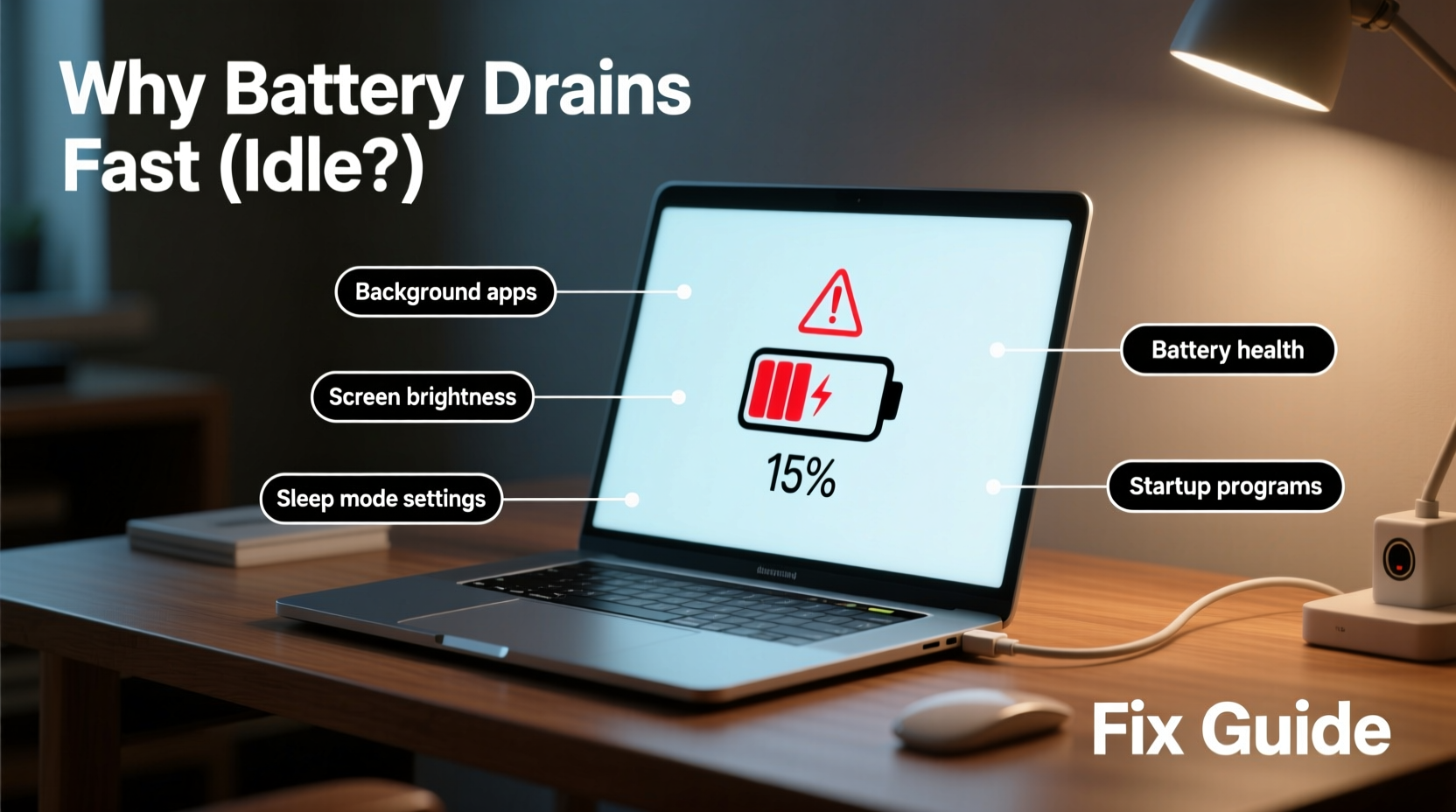
When a laptop is “idle,” it doesn’t mean it’s completely inactive. Many components continue drawing power, and certain software or system settings can keep the machine from entering true low-power states. Below are the most frequent culprits behind excessive idle battery consumption.
- Background applications: Programs like cloud sync tools, updaters, antivirus scanners, and communication apps run continuously and can prevent the CPU from idling.
- Poor power management settings: Incorrect sleep, hibernation, or display timeout settings may leave the system active longer than necessary.
- Wi-Fi and Bluetooth: These radios stay active unless manually disabled, constantly searching for networks or devices.
- Faulty drivers or firmware: Outdated or buggy drivers—especially for GPU, chipset, or network adapters—can cause abnormal power draw.
- Hardware wear: As batteries age, their capacity diminishes, leading to faster perceived drain regardless of usage.
- Fast startup (Windows): While convenient, this feature keeps some system processes alive during shutdown, increasing baseline power use.
How to Diagnose Battery Drain Accurately
Before attempting fixes, confirm whether the issue is real battery degradation or inefficient power usage. Here's how to assess the situation properly.
Step-by-Step Diagnosis Process
- Check battery health: On Windows, generate a battery report by opening Command Prompt and typing
powercfg /batteryreport. This creates a detailed HTML file showing design capacity vs. full charge capacity. A significant drop indicates aging. - Monitor idle power draw: Let your laptop sit with no apps open, screen off, and Wi-Fi/Bluetooth disabled. Observe battery percentage over one hour. More than 5–8% loss suggests an underlying issue.
- Analyze running processes: Open Task Manager → \"Processes\" tab → sort by \"Power usage.\" Look for high or moderate consumers during idle.
- Test in Safe Mode: Boot into Safe Mode (Windows) or Safe Boot (Mac). If battery lasts significantly longer, third-party software is likely responsible.
- Inspect Event Viewer (Windows): Check if scheduled tasks or wake events are interrupting sleep mode under \"System\" logs.
“Many users blame battery age when the real issue lies in misconfigured software. Always diagnose before replacing.” — Dr. Alan Zhou, Power Systems Engineer at TechInsight Labs
Proven Fixes to Stop Excessive Idle Drain
Once you've identified the source of the problem, apply these targeted solutions to regain control over your battery life.
Optimize Power Settings
Default power plans often prioritize performance over efficiency. Switching to a balanced or power-saving plan can make a dramatic difference.
- In Windows: Go to Settings > System > Power & Sleep. Set screen to turn off after 5 minutes and put the PC to sleep after 10–15 minutes.
- Select \"Best power efficiency\" in the Power Mode dropdown.
- Access advanced settings via Control Panel > Power Options > Change plan settings > Change advanced power settings. Adjust:
- PCI Express → Link State Power Management → \"Maximum power savings\"
- USB settings → USB selective suspend → Enabled
- Wireless Adapter Settings → Power Saving Mode → \"Maximum Power Saving\"
Disable Unnecessary Background Apps
Many apps launch at startup and run silently. Disable those you don’t need.
- Windows: Settings > Apps > Startup – toggle off non-essential apps.
- Mac: System Settings > General > Login Items – remove unnecessary entries.
- Uninstall unused software like old updaters (e.g., Adobe Creative Cloud, NVIDIA GeForce Experience) if not actively used.
Turn Off Connectivity Features When Not in Use
Wi-Fi, Bluetooth, and location services are major idle power consumers.
Update Drivers and Firmware
Outdated drivers can prevent proper power throttling. Pay special attention to:
- Chipset drivers (from manufacturer website)
- Graphics drivers (Intel, AMD, or NVIDIA)
- Network and Bluetooth drivers
Use Device Manager (Windows) or the manufacturer’s support portal (e.g., Dell SupportAssist, Lenovo Vantage) to ensure firmware is current.
Manage Windows Fast Startup
Fast Startup speeds boot time but keeps parts of the kernel active during shutdown, increasing idle drain—especially if the laptop is only \"off\" briefly.
To disable:
- Go to Control Panel > Hardware and Sound > Power Options > Choose what the power buttons do.
- Click \"Change settings that are currently unavailable.\"
- Uncheck \"Turn on fast startup.\"
- Save changes.
Dos and Don’ts: Battery Optimization Table
| Do | Don’t |
|---|---|
| Use built-in battery saver modes when unplugged | Leave resource-heavy apps (like Chrome with 50+ tabs) running overnight |
| Enable hibernation instead of sleep for long idle periods | Keep external USB devices plugged in unnecessarily |
| Lower screen brightness to 50% or less | Ignore firmware update notifications from your laptop manufacturer |
| Regularly restart your laptop to clear memory leaks | Store your laptop fully charged or fully drained for long periods |
| Use dark mode on OLED or AMOLED displays | Run full system scans or backups on battery without supervision |
Real-World Example: Fixing a Slow-Draining Business Laptop
Mark, a freelance consultant using a three-year-old HP EliteBook, noticed his battery dropped from 80% to 45% overnight—despite shutting down each evening. He assumed the battery was failing and considered replacement.
Instead, he ran a battery report and discovered his full charge capacity was still 89% of design—a healthy level. Using Task Manager, he found Zoom, OneDrive, and Slack were running at startup and syncing data every few minutes. Additionally, his Wi-Fi adapter was set to \"High Performance\" mode in advanced power settings.
After disabling auto-launch for non-essential apps, switching to a power-saving wireless adapter profile, and turning off Fast Startup, Mark tested again. Overnight drain reduced to just 7%. No hardware replacement needed—just smart configuration.
Expert Checklist: Reduce Idle Battery Drain
Follow this actionable checklist to systematically eliminate unnecessary power consumption:
- ✅ Generate a battery health report (
powercfg /batteryreport) - ✅ Disable non-essential startup programs
- ✅ Switch to a power-saving plan and adjust advanced settings
- ✅ Turn off Wi-Fi, Bluetooth, and camera/mic access when not needed
- ✅ Update all drivers and BIOS/firmware
- ✅ Disable Fast Startup if you frequently shut down
- ✅ Enable hibernation for extended idle periods
- ✅ Reduce screen brightness and enable auto-dim
- ✅ Unplug peripherals when not in use (especially external drives)
- ✅ Perform a monthly reboot to clear system cache and background tasks
Frequently Asked Questions
Is it normal for a laptop battery to lose 1–2% per hour when idle?
Yes, a minimal 1–2% per hour drain is typical due to background system functions, especially if Wi-Fi or Bluetooth remains active. However, anything above 5% hourly during true idle conditions indicates a configuration or software issue.
Does closing the lid stop battery drain?
Closing the lid usually puts the laptop to sleep, which reduces power use significantly—but not to zero. Some systems wake periodically for updates or network activity. Ensure sleep mode is functioning correctly and consider hibernation for longer idle times.
Can malware cause fast battery drain?
Yes. Malware, particularly crypto-mining scripts or spyware, can run hidden processes that max out the CPU and GPU, leading to rapid battery depletion. Run regular scans with updated antivirus software to rule this out.
Final Thoughts and Next Steps
A laptop that drains quickly while idle isn’t necessarily broken—it’s often misconfigured. By diagnosing the real cause and applying precise fixes, you can reclaim hours of battery life without spending a dime on replacements. The key is consistency: regularly review your power settings, manage background apps, and keep your system updated.
Remember, every laptop has a finite battery lifespan, but poor habits and overlooked settings can cut that life in half. With proactive care, even older machines can deliver reliable mobile performance.




 浙公网安备
33010002000092号
浙公网安备
33010002000092号 浙B2-20120091-4
Comments
No comments yet. Why don't you start the discussion?