
If your laptop used to last through a full workday on a single charge but now barely makes it past lunch, you're not alone. A sudden drop in battery life is one of the most common frustrations among laptop users. The issue can stem from software behavior, hardware degradation, or overlooked settings. While some battery wear is inevitable over time, a rapid decline often points to fixable problems. Understanding the root causes—and how to address them—can restore hours of productivity and delay the need for costly replacements.
Understanding Normal vs. Abnormal Battery Drain
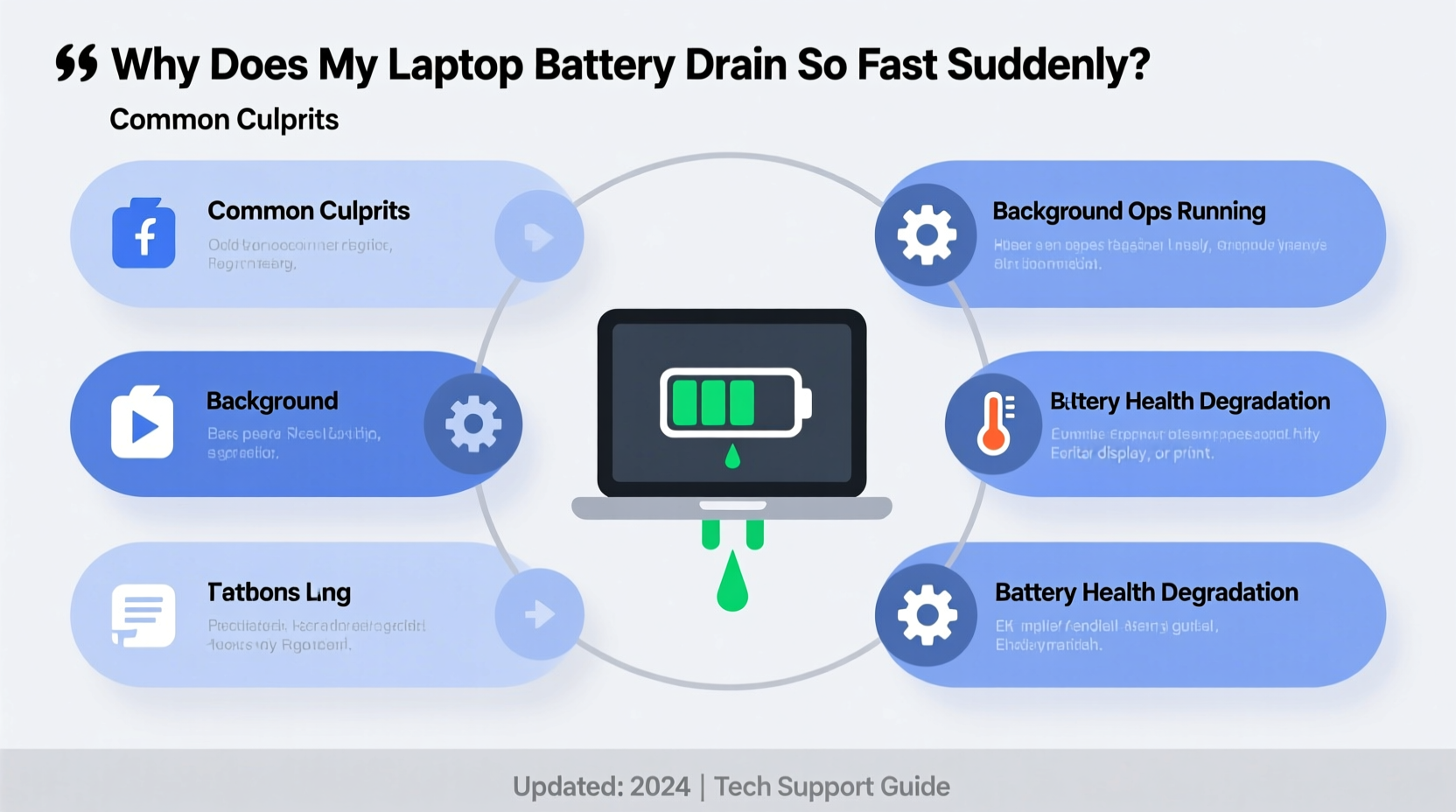
Laptop batteries degrade naturally. Most lithium-ion batteries retain about 80% of their original capacity after 300–500 charge cycles. But if your battery goes from lasting 7 hours to just 2 or 3 overnight, something beyond normal aging is likely at play.
Abnormal drain typically comes from:
- Sudden spikes in background processes
- Software updates that introduce inefficiencies
- Faulty drivers or firmware issues
- Poor power management settings
- Overheating due to dust buildup or poor ventilation
The key is distinguishing between gradual decline (expected) and sudden failure (action required).
“Battery health isn’t just about age—it’s heavily influenced by usage patterns and system optimization.” — Dr. Alan Zhou, Power Systems Engineer at MIT Energy Initiative
Common Culprits Behind Sudden Battery Drain
1. Background Applications and Startup Programs
Modern operating systems allow apps to run silently in the background. Social media tools, cloud sync services, updaters, and communication platforms like Slack or Teams can consume significant CPU and network resources even when minimized.
Check your Task Manager (Windows) or Activity Monitor (macOS) to identify which apps are using the most energy. You may be surprised to find that an outdated updater or forgotten download manager is responsible for 40% of your battery consumption.
2. Display Brightness and Refresh Rate Settings
Your screen is one of the biggest power consumers. Increasing brightness from 50% to 100% can cut battery life by up to 30%. High refresh rate displays (e.g., 120Hz or 144Hz) also draw more power than standard 60Hz panels, especially if enabled all the time.
Auto-brightness helps, but it’s not always accurate. Manually lowering brightness in well-lit environments and switching to 60Hz mode when not gaming or editing video can significantly extend runtime.
3. Outdated or Buggy Software Updates
Operating system updates sometimes introduce bugs that affect power efficiency. For example, Windows 10 version 20H2 had widespread reports of excessive battery drain due to improper sleep states. Similarly, macOS Monterey had known Wi-Fi driver issues that caused constant wake-ups from sleep mode.
These aren't flaws in design—they’re temporary regressions. Staying informed about known issues and applying patches promptly is crucial.
4. Malware and Unauthorized Processes
Crypto-mining malware, spyware, or adware can run hidden processes that max out your CPU. These programs often disguise themselves as legitimate system files and operate continuously, draining your battery rapidly while slowing down your machine.
If your fan runs constantly even when idle, or CPU usage stays above 30% with no active apps, investigate further with antivirus scans.
5. Aging or Failing Battery
Even with perfect care, batteries lose capacity. If your laptop is over two years old, the battery may simply be nearing end-of-life. Modern systems report battery health—check this before assuming software is to blame.
Detailed Troubleshooting Checklist
Follow this step-by-step checklist to diagnose and resolve sudden battery drain:
- Check current battery health: On Windows, generate a battery report (
powercfg /batteryreportin Command Prompt). On macOS, hold Option and click the battery icon in the menu bar. - Review running processes: Open Task Manager (Ctrl+Shift+Esc) and sort by “Power usage” or “Energy Impact” on macOS.
- Disable non-essential startup apps: Remove anything unnecessary from login items or startup tab.
- Lower screen brightness: Set to 40–60% and enable auto-adjust if available.
- Switch to battery saver mode: Activate built-in power-saving profiles.
- Update OS and drivers: Ensure all firmware, graphics, and chipset drivers are current.
- Scan for malware: Run a full system scan using trusted antivirus software.
- Reset power settings: Restore defaults or create a custom balanced plan.
- Monitor temperature: Use tools like HWMonitor or Core Temp to check for overheating.
- Test in Safe Mode: Boot into Safe Mode to see if third-party software is causing the issue.
Battery Health Comparison Table
| Battery Health Level | Expected Runtime | Action Recommended |
|---|---|---|
| 90–100% | Near original specs | Monitor usage; optimize settings |
| 80–89% | ~15–25% reduced life | Consider calibration; review apps |
| 70–79% | ~30–40% reduced life | Plan for replacement; use AC when possible |
| Below 70% | Less than half original | Replace battery soon |
This table helps contextualize whether your battery’s performance aligns with its current health status. A 60% capacity battery shouldn’t be expected to last as long as a new one—even under optimal conditions.
Real-World Example: Sarah’s Unexpected Drain
Sarah, a freelance graphic designer, noticed her MacBook Pro went from lasting 8 hours to shutting down after 2.5 hours—without any changes to her workflow. She first assumed the battery was failing and considered replacement.
Instead of jumping to conclusions, she checked Activity Monitor and found Adobe Creative Cloud’s updater consuming 78% CPU continuously. Despite having uninstalled unused Adobe apps months earlier, the background service remained active and kept trying (and failing) to update missing components.
After removing the leftover Adobe processes using a cleanup tool and disabling automatic updates, her battery life returned to nearly 6 hours. The culprit wasn’t hardware—it was residual software clutter.
This case illustrates why diagnostics matter. Replacing a functional battery would have been expensive and ineffective without addressing the real issue.
Optimizing Power Settings for Maximum Efficiency
Most laptops come with default power plans that favor performance over longevity. Tweaking these settings can yield dramatic improvements.
On Windows:
- Go to Settings > System > Power & battery.
- Select “Best power efficiency” instead of “Best performance”.
- Reduce screen timeout to 3–5 minutes.
- Enable “Battery Saver” to activate automatically at 20%.
- In Advanced Power Settings, set “PCI Express > Link State Power Management” to “Maximum Power Savings”.
On macOS:
- Open System Settings > Battery.
- Turn on “Low Power Mode” when working untethered.
- Use “Display > Automatically adjust brightness”.
- Close unused tabs and apps—especially Chrome, which is notoriously resource-heavy.
- Enable “Optimized Battery Charging” to slow degradation.
When Hardware Might Be the Issue
While software is often the cause, don’t overlook physical factors:
- Dust accumulation: Blocked vents force fans to run longer, increasing power draw.
- Failing battery cells: Swelling or inconsistent voltage output reduces usable capacity.
- Loose charging port: Intermittent connections can cause repeated charging cycles, stressing the battery.
- Old thermal paste: Inefficient heat dissipation leads to throttling and higher energy use.
If you’ve ruled out software and settings, consider professional cleaning or battery replacement. Third-party repair shops can test individual battery cells and determine if partial restoration is possible.
“A clean, well-maintained laptop can gain back 1.5 to 2 hours of battery life—no software changes needed.” — Lisa Tran, Senior Technician at Urban Tech Repair
Frequently Asked Questions
Can closing browser tabs really save battery?
Yes. Each open tab runs JavaScript, loads images, and may autoplay videos—all of which consume CPU and GPU resources. Google Chrome, in particular, treats each tab as a separate process, multiplying the drain. Closing unused tabs, especially those with video or animation, can reduce power usage by up to 20%.
Does turning off Wi-Fi and Bluetooth help?
It depends. If you're not using them, disabling Wi-Fi and Bluetooth prevents constant signal searching and background syncing. This can add 15–30 minutes of life per charge. However, the impact is smaller than reducing screen brightness or killing heavy apps.
Is it bad to keep my laptop plugged in all the time?
Modern laptops manage charging well, but keeping the battery at 100% for extended periods accelerates chemical aging. For best long-term health, aim to keep charge between 40% and 80% when possible. Some manufacturers offer “battery limit” modes (e.g., Lenovo Vantage, ASUS Battery Health Charging) to cap charge at 80%.
Final Steps: Calibrate and Monitor
After making changes, calibrate your battery to ensure accurate reporting:
- Charge to 100% and keep plugged in for at least two hours.
- Unplug and use until the laptop shuts down automatically.
- Leave it off for 5 hours, then charge uninterrupted to 100% again.
This resets the battery gauge and improves the accuracy of remaining time estimates.
Then, monitor improvements over 3–5 typical usage days. Track average runtime and compare it to pre-fix data. Consistent gains confirm your efforts worked.
Conclusion: Take Control of Your Laptop’s Battery Life
A sudden drop in battery life doesn’t mean your laptop is doomed. More often than not, the issue lies in manageable software, settings, or environmental factors. By systematically evaluating background activity, adjusting power plans, and maintaining hardware cleanliness, you can recover lost performance and extend your device’s usability.
Don’t accept short battery life as inevitable. Diagnose, optimize, and reclaim your mobility. Share your own experience or solutions in the comments—your insight could help another user avoid a premature upgrade.




 浙公网安备
33010002000092号
浙公网安备
33010002000092号 浙B2-20120091-4
Comments
No comments yet. Why don't you start the discussion?