
Laptop batteries are engineered to be compact, efficient, and long-lasting. Yet, under certain conditions, they can swell—sometimes dramatically. A swollen battery isn't just a sign of aging; it's a potential safety hazard. Understanding the science behind this phenomenon, recognizing early warning signs, and knowing when to act can protect your device, your data, and even your home.
Battery swelling occurs when gases build up inside the lithium-ion cells due to chemical breakdown. This expansion can warp your laptop’s chassis, damage internal components, and in extreme cases, lead to fire or explosion. While not all laptops will experience this issue, every user should know what causes it, how to detect it, and when replacement is non-negotiable.
What Causes Laptop Battery Swelling?
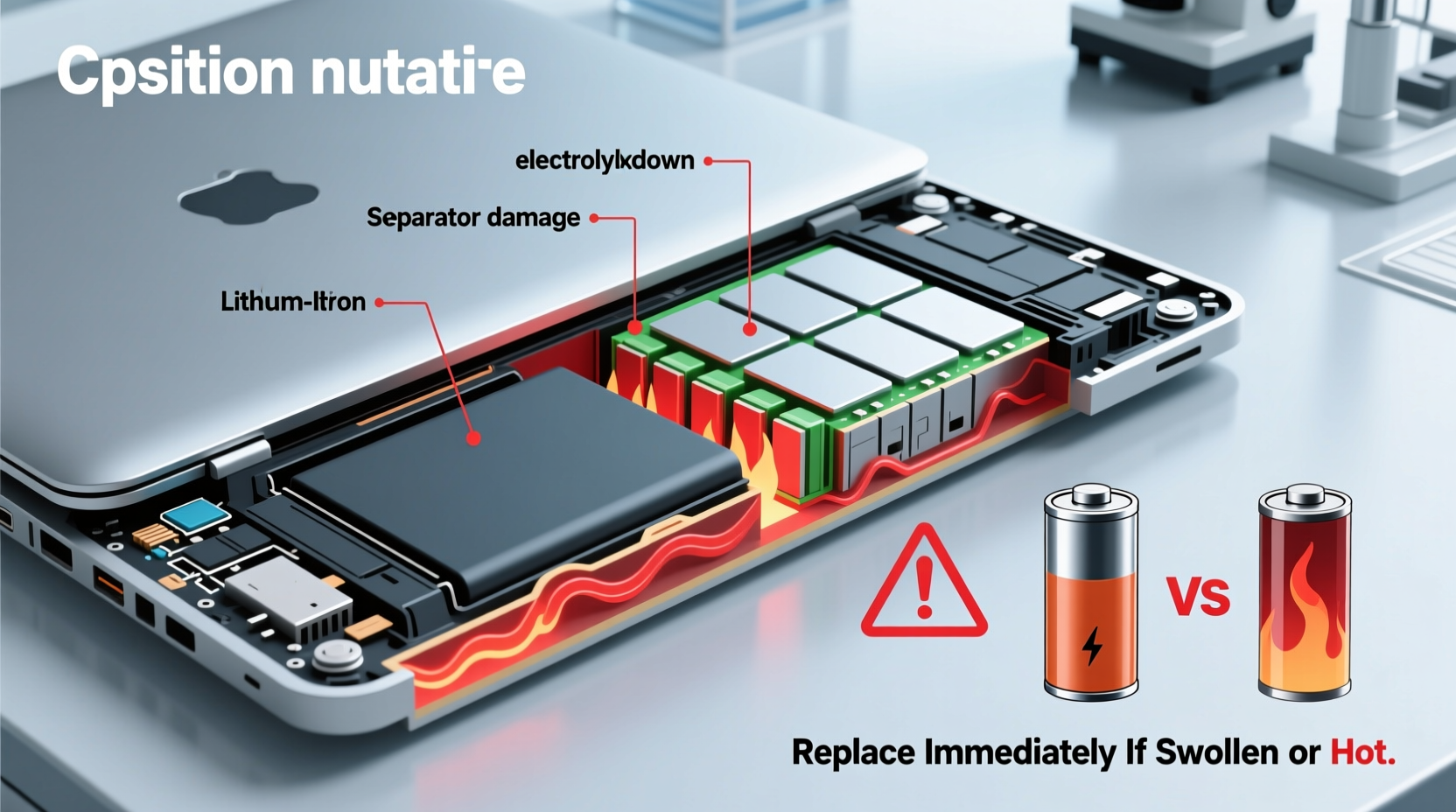
Lithium-ion batteries power most modern laptops because of their high energy density and relatively low weight. However, these advantages come with vulnerabilities. The core reason for swelling lies in the electrochemical processes within the battery itself.
During normal operation, lithium ions move between the anode and cathode through an electrolyte. Over time, especially under stress, side reactions occur. These reactions produce gases like carbon dioxide, methane, and ethylene. In a sealed battery cell, gas accumulation increases internal pressure, causing the soft outer casing to bulge outward—this is what we see as a \"swollen\" battery.
The following factors accelerate this process:
- Overcharging: Leaving your laptop plugged in continuously, even after reaching 100%, stresses the battery chemistry.
- Exposure to heat: Operating or storing a laptop on hot surfaces (like car dashboards or near radiators) speeds up degradation.
- Poor ventilation: Dust-clogged fans or using a laptop on soft surfaces (beds, couches) trap heat.
- Aging: All lithium-ion batteries degrade over time—typically after 300–500 charge cycles.
- Manufacturing defects: Rare but possible flaws in cell sealing or separator integrity can trigger premature failure.
- Physical damage: Dropping or puncturing a laptop may compromise internal battery structure.
“Battery swelling is often the result of cumulative abuse rather than a single event. It’s the body’s way of signaling that internal chemistry has gone unstable.” — Dr. Lena Torres, Electrochemist at Advanced Energy Systems Lab
How to Recognize a Swollen Battery Early
Early detection is critical. Many users ignore subtle signs until the damage becomes irreversible. Watch for these physical and functional indicators:
- Visible bulge in the keyboard or trackpad: If keys feel stiff, don’t depress fully, or pop up unexpectedly, the battery beneath may be expanding.
- Uneven base or lifted corners: When placed on a flat surface, the laptop wobbles or rocks due to distortion from below.
- Casing separation: Gaps appear between the top and bottom shells, particularly around vents or seams.
- Sudden shutdowns despite charge: The system dies at 20% or higher, indicating inconsistent voltage output from damaged cells.
- Overheating without load: The bottom heats up rapidly even during light tasks like browsing.
- Unusual odor: A faint chemical or vinegar-like smell near the battery area suggests off-gassing.
Some models, like older MacBook Airs or Dell XPS units, are more prone to visible deformation because their unibody design offers little room for expansion. In contrast, modular designs might absorb minor swelling temporarily—but this doesn’t make them safer.
When to Replace Your Laptop Battery Immediately
Not all battery issues require urgent action, but certain red flags mean you must stop using the device right away.
| Symptom | Urgency Level | Action Required |
|---|---|---|
| Mild bulge, no case separation | High – Schedule replacement | Back up data, use on AC only, replace within 1 week |
| Keyboard misalignment or trackpad lift | Very High | Power down, remove battery if possible, replace immediately |
| Cracked case or exposed battery | Critical – Stop use now | Do not charge or power on; seek professional help |
| Smoke, heat, or odor | Emergency | Evacuate area, contact fire department if necessary |
If the battery is visibly protruding from the chassis or pushing against the screen hinge, continued use risks short circuits, component damage, or thermal runaway. Even if the laptop still turns on, the structural integrity is compromised.
Mini Case Study: The Delayed Response That Cost $1,200
In 2022, Sarah, a freelance graphic designer in Portland, noticed her MacBook Pro’s trackpad lifting slightly after six months of heavy use. She dismissed it as wear and kept working. Two weeks later, the laptop began shutting down randomly. By the third week, the bottom case had cracked open near the vent, revealing a bloated battery.
She attempted one final backup session before sending it in for repair. Midway through, the machine emitted a popping sound and shut down permanently. An Apple technician confirmed that the swollen battery had warped the logic board and destroyed the SSD connector. Total repair cost: $1,198—more than half the value of the laptop.
Had she acted at the first sign—replacing the battery for under $150—the outcome would have been vastly different.
Step-by-Step Guide to Safe Battery Replacement
Replacing a swollen battery requires caution. Follow this timeline to minimize risk:
- Day 1: Back up all data immediately.
Use an external drive or cloud service. Do not rely on the laptop staying functional. - Day 1: Power down and disconnect from power.
Shut down completely. Unplug the charger. If your model allows, remove the battery manually (e.g., older ThinkPads). - Day 2: Assess replacement options.
Check manufacturer support (Apple, Dell, Lenovo). Third-party replacements are cheaper but vary in quality. Look for UL-certified or OEM-equivalent batteries. - Day 3: Decide between DIY or professional service.
Integrated batteries (common in MacBooks and ultrabooks) require specialized tools and skill. Attempting removal yourself can cause puncture and fire. For such models, use authorized technicians only. - Day 4–5: Schedule and complete replacement.
Book a service appointment or order the part. After installation, calibrate the new battery by charging to 100%, using until 5%, then recharging fully once.
Preventing Future Battery Swelling: A Practical Checklist
Extending battery life isn’t just about convenience—it’s a safety strategy. Use this checklist to reduce the risk of future swelling:
- ✅ Keep your laptop below 85°F (30°C) during use and storage
- ✅ Avoid full discharges; recharge before dropping below 20%
- ✅ Use battery health modes (e.g., macOS Optimized Charging, Windows Adaptive Battery)
- ✅ Clean air vents every 2–3 months with compressed air
- ✅ Remove the battery if storing long-term (only if removable)
- ✅ Store at ~50% charge in a dry, cool place for extended periods
- ✅ Limit continuous AC power use—unplug once charged to 80–90%
- ✅ Update firmware and OS regularly; some updates optimize charging behavior
“Modern laptops are designed to manage battery stress, but user habits override those protections. A disciplined charging routine can add years to battery health.” — Mark Chen, Senior Hardware Engineer at Notebook Review Labs
Frequently Asked Questions
Can I still use my laptop if the battery is slightly swollen?
No. Even minor swelling indicates internal gas buildup and chemical instability. Continued use increases the risk of rupture or fire. Back up your data and replace the battery as soon as possible.
Is a swollen battery covered under warranty?
It depends. Most manufacturers cover defects but exclude damage from misuse, overheating, or physical impact. If the laptop is under two years old and shows no signs of abuse, contact support. Apple, for example, has replaced swollen batteries free of charge in verified cases of premature failure.
How much does it cost to replace a swollen laptop battery?
Prices vary widely. Official replacements range from $90 to $250 depending on brand and model. Third-party options start at $40 but may lack safety certifications. Labor adds $50–$100 if done professionally. Integrated batteries generally cost more due to complexity.
Conclusion: Act Now Before It’s Too Late
A swollen laptop battery is not a minor inconvenience—it’s a ticking risk. The forces at play inside a failing lithium-ion cell are unpredictable. What starts as a small bump under the spacebar can escalate into permanent hardware damage or worse. Ignoring the signs compromises not only your productivity but your personal safety.
You don’t need to be a technician to protect yourself. Pay attention to how your laptop feels, sounds, and performs. At the first hint of warping, heat, or instability, take action. Back up, power down, and replace. Make preventive care part of your routine: manage heat, avoid overcharging, and respect your device’s limits.




 浙公网安备
33010002000092号
浙公网安备
33010002000092号 浙B2-20120091-4
Comments
No comments yet. Why don't you start the discussion?