
Laptop fans roaring to life the moment you plug in the charger is a common frustration. The sudden increase in noise can be startling—especially during quiet work sessions or late-night browsing. While some level of fan activity is normal, excessive noise often signals underlying issues that can affect both comfort and hardware longevity. Understanding why this happens—and how to fix it—can save you from unnecessary stress, battery degradation, and even premature system failure.
The root cause typically lies in how your laptop manages power, heat, and performance when connected to AC power. Unlike battery mode, which conserves energy, charging often triggers higher performance settings and increased thermal output. This combination forces the cooling system into overdrive. But not all loud fans are inevitable. Many cases stem from preventable conditions like dust buildup, outdated drivers, or misconfigured power plans.
Why Charging Triggers Fan Noise: The Science Behind It
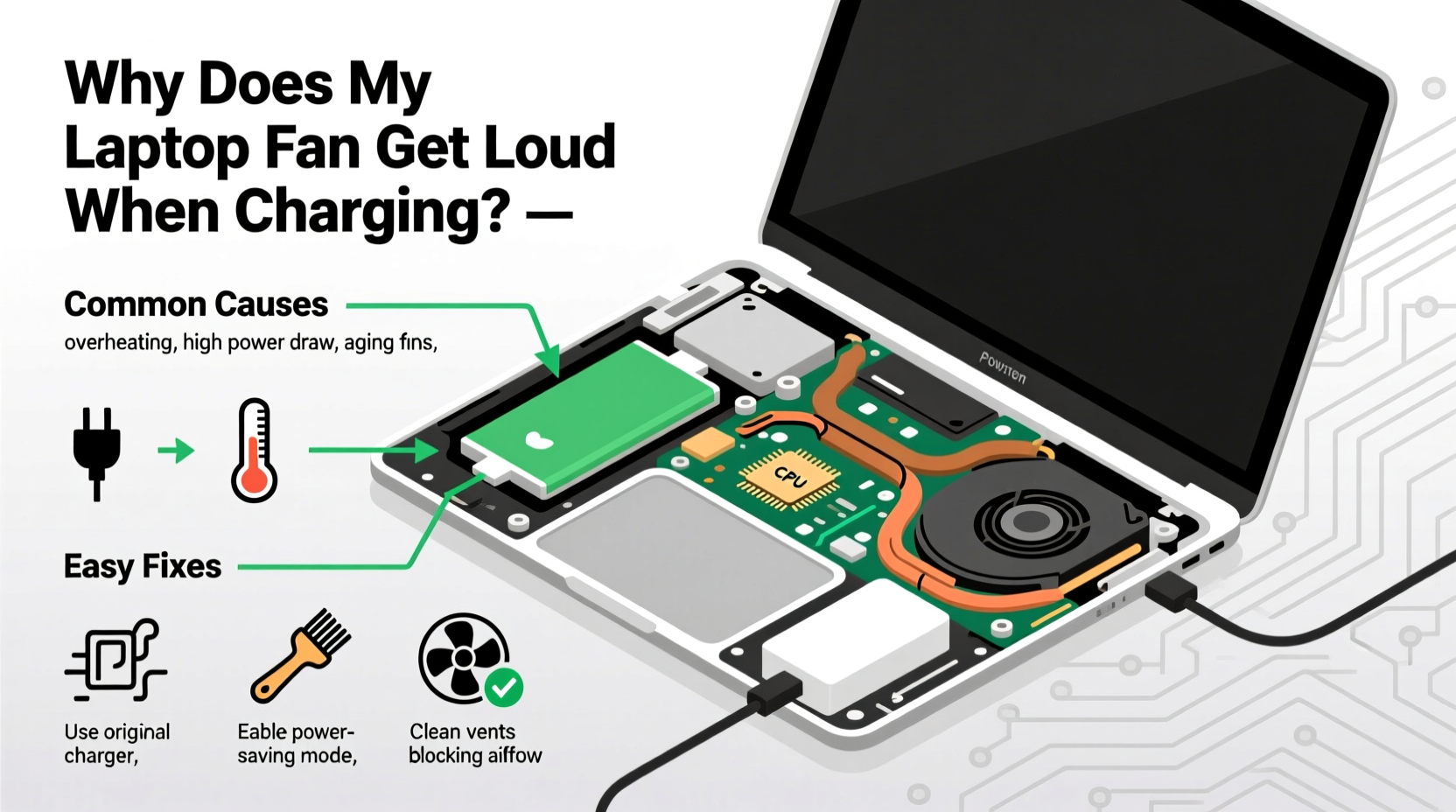
When you plug in your laptop, several internal processes activate simultaneously. The battery begins charging, the processor may shift to high-performance mode, and background tasks sometimes resume. These changes increase electrical load and generate more heat. In response, the thermal management system ramps up fan speed to maintain safe operating temperatures.
Modern laptops use dynamic thermal regulation. Sensors monitor CPU, GPU, and battery temperature in real time. If any component exceeds a threshold—often around 60–70°C—the system instructs fans to spin faster. During charging, especially with fast chargers or under heavy usage, temperatures rise quickly. This is particularly noticeable on ultrabooks and compact models with limited airflow.
Additionally, some manufacturers program their systems to prioritize performance when plugged in. Windows’ “High Performance” power plan, for example, allows the CPU to run at maximum clock speed, increasing heat output significantly. Combine this with a warm room or a surface that blocks ventilation, and the fan has little choice but to work harder.
Common Causes of Loud Fan Noise During Charging
Not every loud fan indicates a failing system. Often, the issue stems from one or more correctable factors. Identifying the exact cause helps target the right solution without unnecessary repairs.
- Dust and debris buildup: Over time, dust clogs air vents and heatsinks, reducing cooling efficiency. Even minor accumulation forces fans to spin faster to compensate.
- Aggressive power settings: Default power plans may favor performance over thermal comfort, causing sustained high CPU usage.
- Background applications: Software updates, cloud syncs, or antivirus scans often trigger during charging, spiking CPU load.
- Failing battery or charger: A degraded battery may draw inconsistent current, creating excess heat during charging cycles.
- Poor ventilation: Using the laptop on uneven or soft surfaces restricts airflow, trapping heat inside the chassis.
- Outdated BIOS or drivers: Firmware bugs can mismanage thermal throttling or fan control logic.
“Thermal design in compact laptops leaves little margin for error. Even small inefficiencies in cooling can lead to significant fan noise.” — Dr. Alan Reyes, Hardware Engineer at Mobile Systems Lab
Step-by-Step Guide to Diagnose and Fix the Issue
Resolving fan noise doesn’t always require technical expertise. Follow this structured approach to identify and eliminate the most likely culprits.
- Check current temperature and CPU usage: Use Task Manager (Ctrl+Shift+Esc) to view CPU, memory, and disk activity. High utilization explains fan behavior. For detailed thermal data, install tools like HWMonitor or Core Temp.
- Clean the ventilation system: Power off the laptop. Use compressed air to blow out dust from side vents and fan exhausts. Do this monthly if used in dusty environments.
- Adjust power settings: Go to Control Panel > Hardware and Sound > Power Options. Switch from “High Performance” to “Balanced” or “Power Saver.” This reduces CPU boost frequency and heat generation.
- Update firmware and drivers: Visit your manufacturer’s support site. Install the latest BIOS, chipset, and fan control drivers. These updates often include improved thermal algorithms.
- Inspect the charger and battery: Try a different compatible charger. If the fan quiets down, the original charger may be faulty. Also, check battery health via Command Prompt:
powercfg /batteryreport. Replace the battery if capacity is below 70% of design. - Elevate the laptop: Use a stand or book to lift the back slightly. This improves airflow and lowers internal temperatures by 5–10°C.
- Reapply thermal paste (advanced): On older laptops, dried thermal paste between the CPU and heatsink reduces heat transfer. Replacing it can dramatically lower operating temperatures—but only attempt if experienced.
Do’s and Don’ts: Quick Reference Table
| Do | Don't |
|---|---|
| Use a hard, flat surface when charging | Place the laptop on blankets or pillows |
| Switch to Balanced power mode | Leave High Performance mode enabled unnecessarily |
| Clean vents every 1–2 months | Ignore persistent dust buildup |
| Update BIOS and drivers regularly | Assume fan noise is \"normal\" without checking |
| Monitor battery health monthly | Continue using a swollen or degraded battery |
Real-World Example: Sarah’s Overheating Laptop
Sarah, a freelance graphic designer, noticed her Dell XPS 13 became extremely loud whenever she plugged it in. Initially, she assumed it was due to rendering software. However, the noise persisted even during idle browsing. After following diagnostic steps, she discovered her power plan was set to “Maximum Performance,” and Adobe Creative Cloud was syncing large files automatically upon charging.
She adjusted her power settings, scheduled syncs for off-hours, and cleaned the side vents with compressed air. Within minutes, fan noise dropped significantly. Temperature readings fell from 82°C to 64°C under light use. The simple changes extended her laptop’s usable life and made her workspace far more comfortable.
Preventive Maintenance Checklist
To keep your laptop quiet and cool during charging, follow this monthly maintenance checklist:
- ✅ Clean air vents with compressed air
- ✅ Check Task Manager for abnormal CPU usage
- ✅ Run
powercfg /batteryreportto assess battery health - ✅ Ensure power plan is set to “Balanced”
- ✅ Verify all system updates are installed
- ✅ Inspect charger for damage or overheating
- ✅ Use a laptop cooling pad if frequently charging under load
When to Seek Professional Help
Some issues go beyond user-level fixes. If you’ve tried all the above and still experience loud fan noise, consider professional intervention. Warning signs include:
- Fans running at full speed even when the system is idle
- Unusual clicking or grinding sounds from the fan
- Visible bulging or heat from the battery
- System shutting down unexpectedly during charging
These symptoms may indicate hardware failure—such as a failing fan motor, damaged heatsink, or shorted circuit in the charging system. Authorized service centers can diagnose with thermal imaging and replace components safely. Attempting internal repairs yourself may void warranty or cause further damage.
Frequently Asked Questions
Is it normal for my laptop fan to run louder when charging?
Some increase in fan noise is expected due to higher power draw and potential performance boosts. However, excessively loud or constant high-speed operation is not normal and usually indicates a fixable issue like dust buildup, poor ventilation, or aggressive power settings.
Can a bad charger make my laptop fan loud?
Yes. A faulty or non-OEM charger may deliver unstable voltage, causing the charging circuit and battery to overheat. This extra heat triggers the cooling system. Always use the manufacturer-recommended charger and avoid cheap third-party alternatives.
Does fast charging cause more fan noise?
Often, yes. Fast charging increases current flow and generates more heat in both the battery and power delivery system. This thermal spike prompts the fan to activate sooner and run longer. If noise is bothersome, disable fast charging in your laptop’s power settings or BIOS, if available.
Final Thoughts and Action Plan
A loud laptop fan during charging isn’t something you should just accept. While modern devices are designed to manage heat dynamically, persistent noise reflects inefficiency—whether from dust, software, or hardware wear. Addressing the root cause improves not only user experience but also system reliability and lifespan.
Start with simple, low-cost actions: clean the vents, adjust power settings, and ensure proper airflow. Monitor changes in temperature and noise levels. If problems persist, dig deeper into battery health and driver updates. Most issues can be resolved without professional help, saving time and money.
Remember, prevention is easier than repair. Incorporate regular maintenance into your routine. A few minutes each month can prevent hours of frustration later. Your laptop works hard for you—give it the care it needs to perform quietly and efficiently.




 浙公网安备
33010002000092号
浙公网安备
33010002000092号 浙B2-20120091-4
Comments
No comments yet. Why don't you start the discussion?