
It’s a common frustration: you plug in your laptop to charge, and suddenly the fan kicks into overdrive, whirring like a jet engine. This isn’t just annoying—it can be concerning. Is your device overheating? Is something wrong with the battery or power system? The truth is, while excessive fan noise during charging can signal underlying issues, it's often caused by normal but manageable processes. Understanding what triggers this behavior—and how to address it—can restore quiet operation and extend your laptop’s lifespan.
Why Laptop Fans Activate During Charging
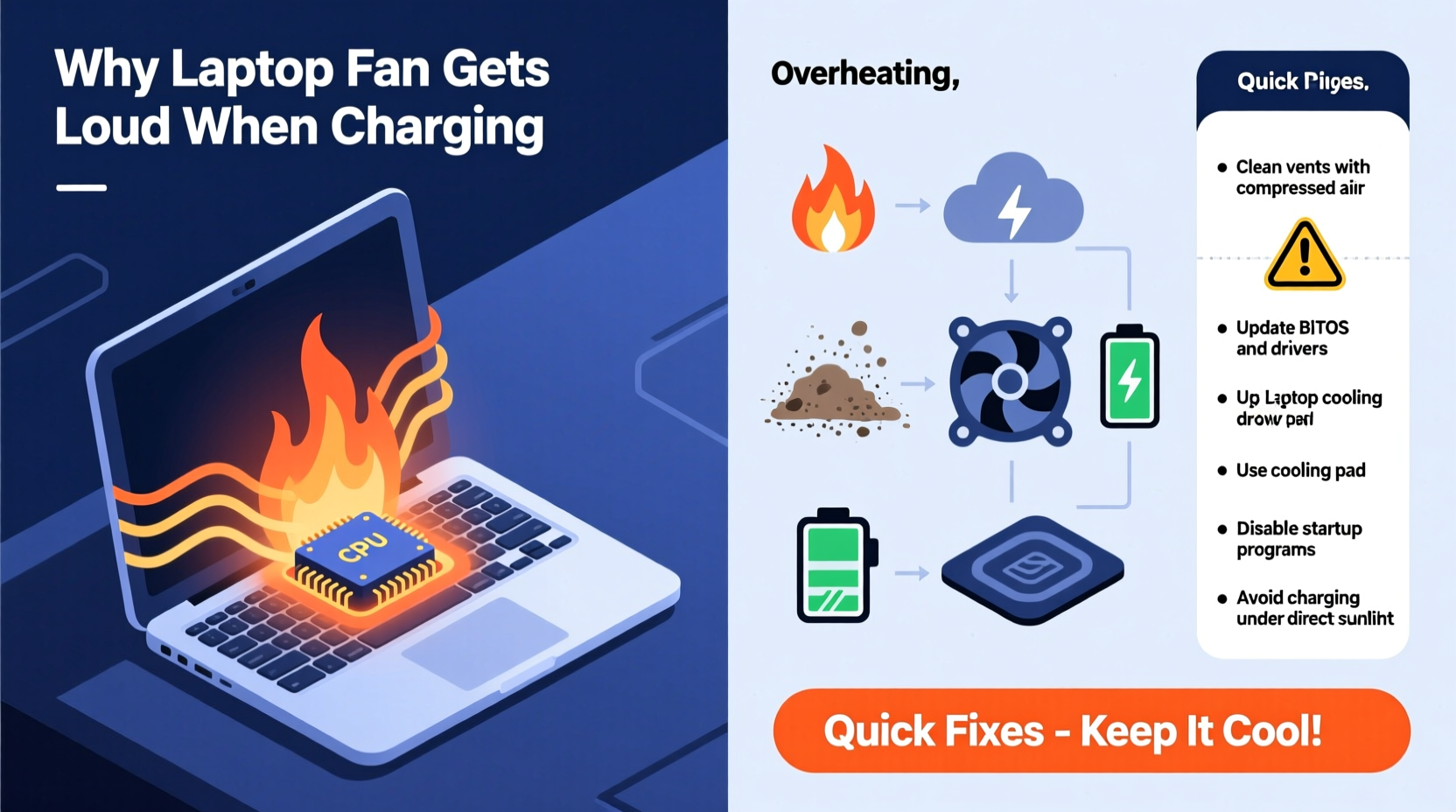
Laptop fans exist to regulate internal temperature. When components like the CPU, GPU, or power circuits generate heat, the cooling system engages. Charging itself doesn’t directly cause high temperatures, but it initiates a chain of events that can increase thermal load:
- Battery charging generates heat – Especially when charging from low levels or using fast-charging technology.
- Power delivery systems work harder – Converting AC to DC power creates additional heat in the motherboard and voltage regulators.
- Background processes ramp up – Some laptops optimize performance when plugged in, increasing CPU usage.
- Dual-load scenario – If you're using the laptop while charging, both the system and battery are drawing power simultaneously, raising overall heat output.
Under ideal conditions, modern laptops manage this efficiently. But when design limitations, dust buildup, or software inefficiencies come into play, the fan must work harder—and louder—to maintain safe operating temperatures.
Common Causes of Loud Fan Noise When Charging
Not all loud fans indicate hardware failure. Here are the most frequent culprits behind increased fan activity during charging:
1. High CPU or Background Activity
Many operating systems boost performance when connected to power. Updates, indexing, cloud syncs, or background apps may start automatically, increasing processor load and triggering aggressive cooling.
2. Dust and Ventilation Blockage
Over time, dust accumulates in vents and heatsinks, reducing airflow efficiency. A clogged fan must spin faster to move the same amount of air, resulting in more noise.
3. Battery Health Degradation
As lithium-ion batteries age, their internal resistance increases. This leads to higher heat generation during charging, especially noticeable in laptops over two years old.
4. Charger Compatibility Issues
Using underpowered or third-party chargers can force the laptop to draw current inefficiently, causing voltage fluctuations and excess heat in the charging circuitry.
5. Thermal Paste Deterioration
Thermal paste between the CPU/GPU and heatsink degrades over time. Poor heat transfer means components run hotter, prompting constant fan use—even during light tasks.
6. Power Plan Settings
Default power settings often prioritize performance over efficiency. On “High Performance” mode, processors run at elevated speeds even when idle, generating unnecessary heat.
“Loud fan noise during charging is rarely an emergency, but it’s a symptom worth investigating. Consistently high temperatures accelerate wear and reduce component longevity.” — Dr. Alan Zhou, Electronics Engineer & Thermal Systems Specialist
Quick Fixes to Reduce Fan Noise While Charging
You don’t need to replace your laptop to fix a noisy fan. Most issues can be resolved with simple adjustments. Try these steps in order:
Step-by-Step Guide: Calm That Fan
- Check for background processes
Open Task Manager (Ctrl+Shift+Esc on Windows, Activity Monitor on macOS) and look for high CPU or disk usage. End unnecessary tasks like updaters, renderers, or cryptocurrency miners. - Switch to Balanced or Power Saver mode
In Windows: Go to Control Panel > Hardware and Sound > Power Options and select \"Balanced.\" On macOS: System Settings > Battery > Power Mode → choose “Low Power Mode.” - Clean the air vents
Use compressed air to blow out dust from intake and exhaust grilles. Do this monthly if used in dusty environments. - Elevate the laptop
Place it on a hard, flat surface. Use a laptop stand or even a book to improve bottom airflow by 30–50%. - Update BIOS and drivers
Manufacturers often release firmware updates that improve thermal management and fan control algorithms. - Reset power management settings
Unplug the charger, shut down the laptop, remove the battery (if removable), hold the power button for 30 seconds, then reassemble. This resets residual power states.
Do’s and Don’ts: Managing Heat and Fan Behavior
| Do’s | Don’ts |
|---|---|
| Use original or certified chargers | Use cheap, unbranded chargers |
| Keep vents clear and clean | Block air intakes with hands or fabric |
| Update OS and firmware regularly | Ignore system update notifications |
| Let the laptop cool before intensive tasks | Start gaming or video editing immediately after plugging in |
| Monitor temperature with tools like HWMonitor or Macs Fan Control | Assume silent = cool; some fans fail quietly |
When to Consider Hardware Intervention
If basic fixes don’t help, deeper maintenance may be needed. Over time, internal components degrade, and user-level cleaning won't suffice.
Reapplying Thermal Paste
After 2–3 years, thermal paste dries out and loses effectiveness. Replacing it with high-quality paste (e.g., Arctic MX-4 or Noctua NT-H1) can drop CPU temperatures by 10–15°C, significantly reducing fan speed.
Fan Replacement
Fans wear out. Worn bearings create noise even at low RPMs. Replacing the fan assembly (available online for most models) is often cheaper than professional repair.
Battery Calibration or Replacement
A swollen or degraded battery not only reduces runtime but also generates abnormal heat. Check battery health via built-in diagnostics (Windows: powercfg /batteryreport, macOS: Hold Option + click battery icon). Replace if capacity is below 80%.
Professional Cleaning
For sealed laptops (e.g., MacBooks, ultrabooks), disassembly requires expertise. A technician can deep-clean heatsinks and inspect for solder fatigue near power circuits.
Mini Case Study: Sarah’s Overheating MacBook Air
Sarah, a freelance writer, noticed her 2020 MacBook Air became extremely loud every time she charged it, especially while using Zoom. She initially assumed it was a software bug. After checking Activity Monitor, she found no unusual CPU spikes. She cleaned the single vent with compressed air, which helped slightly. Then, she checked battery health: cycle count was 890, and condition read “Service Recommended.” Apple replaced the battery under a goodwill program. Post-replacement, fan noise dropped dramatically—even during full charges. The root cause wasn’t the fan or logic board, but a failing battery producing excess heat during charging cycles.
Preventive Maintenance Checklist
To avoid recurring issues, follow this monthly and annual checklist:
- ✅ Monthly: Blow out vents with compressed air
- ✅ Monthly: Check for software updates
- ✅ Monthly: Review startup programs and disable non-essentials
- ✅ Quarterly: Monitor battery health and temperature trends
- ✅ Annually: Consider professional internal cleaning (especially for older models)
- ✅ As needed: Replace thermal paste (every 2–3 years)
- ✅ Immediately: Replace bulging or hot-to-touch batteries
Frequently Asked Questions
Is it normal for my laptop fan to run when charging?
Yes, mild fan activity is normal, especially if the laptop is in use or charging rapidly. However, constant high-pitched noise or vibrations suggest inadequate cooling or excessive heat buildup.
Can a bad charger make my laptop fan loud?
Absolutely. An incompatible or low-quality charger may deliver unstable voltage, forcing the power management system to work harder and generate more heat. Always use manufacturer-approved adapters.
Does fast charging damage my laptop or increase fan noise?
Fast charging increases heat output temporarily, which can trigger fan response. It doesn’t inherently damage the laptop if designed for it, but frequent fast charging accelerates battery aging over time, indirectly contributing to long-term thermal issues.
Conclusion: Take Control of Your Laptop’s Performance and Quiet
A loud laptop fan during charging isn’t something you should just accept. While some noise is expected due to physics and engineering trade-offs, persistent or escalating sounds are signals—not nuisances. By understanding the interplay between power delivery, heat generation, and cooling efficiency, you gain the power to intervene effectively. Simple habits like regular cleaning, smart power settings, and using quality chargers go a long way. For older machines, targeted upgrades like new thermal paste or a fresh battery can breathe new life into your device—quietly and efficiently.




 浙公网安备
33010002000092号
浙公网安备
33010002000092号 浙B2-20120091-4
Comments
No comments yet. Why don't you start the discussion?