
It’s a familiar frustration: you're simply browsing the web, maybe checking email or reading an article, and suddenly your laptop fan kicks into overdrive. The whirring becomes distracting—sometimes even deafening—despite doing nothing intensive. If you’re using Google Chrome, this scenario is especially common. While Chrome is powerful and feature-rich, it’s also one of the most resource-heavy browsers available. When it starts consuming CPU and RAM, your laptop compensates by spinning up the cooling fans. But why does this happen during basic browsing, and what can you do about it?
This article breaks down the technical reasons behind excessive fan noise in Chrome, identifies key contributors, and provides actionable solutions to restore quiet operation and extend your device’s lifespan.
Why Chrome Is a Heavy Resource Consumer
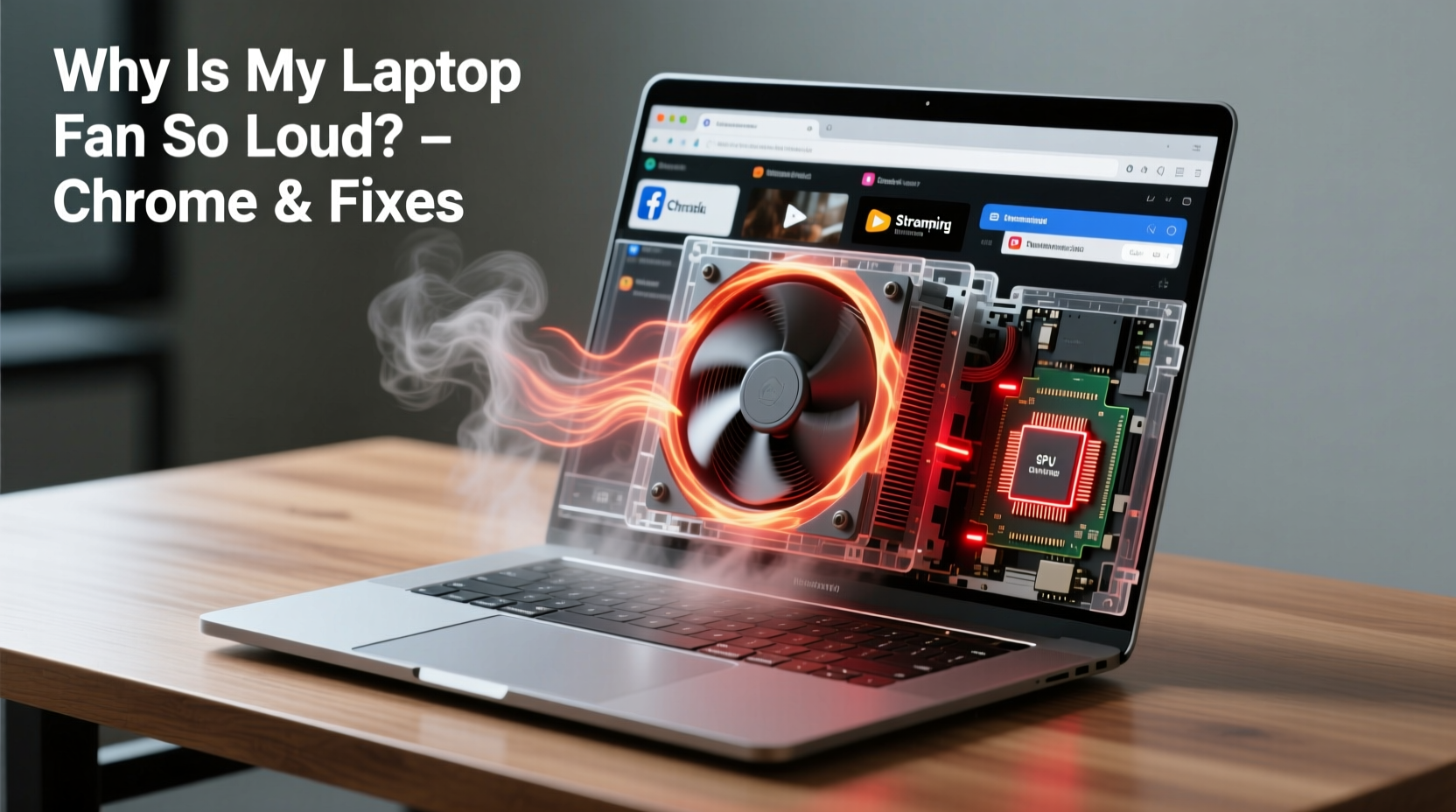
Google Chrome operates on a multi-process architecture. Each tab, extension, and plugin runs as a separate process. This design improves stability—if one tab crashes, it doesn’t bring down the whole browser—but it comes at a cost. Multiple processes mean multiple demands on your CPU and memory (RAM).
In contrast to browsers like Firefox or Safari, which are optimized for efficiency on specific operating systems, Chrome prioritizes speed, compatibility, and cross-platform consistency. This often results in higher baseline resource usage. For example:
- A single YouTube video can spawn 3–4 processes.
- Each active extension runs its own background process.
- Background apps and sync services continue running even when Chrome is minimized.
When these processes collectively push CPU usage above 70–80%, your laptop’s thermal system responds by increasing fan speed to prevent overheating.
Common Causes of Excessive Fan Noise in Chrome
Fan noise isn’t random—it’s a symptom of underlying performance strain. Here are the most frequent culprits when browsing with Chrome:
1. Too Many Open Tabs
Each tab runs JavaScript, loads media, and may auto-play videos or refresh content. Ten open tabs can easily consume over 2GB of RAM and spike CPU usage.
2. Outdated or Malfunctioning Extensions
Ad blockers, password managers, and crypto wallets run continuously. Some poorly coded extensions leak memory or execute scripts unnecessarily, causing constant CPU load.
3. Background Apps and Sync Services
Chrome syncs bookmarks, passwords, history, and settings in the background. If you're logged into multiple Google accounts or have sync errors, these services can become stuck in high-activity loops.
4. Hardware Acceleration Enabled
This feature offloads rendering tasks to your GPU. While helpful on powerful machines, it can overheat older laptops or integrated graphics, triggering aggressive fan response.
5. Accumulated Cache and Bloat
Over time, cached files, cookies, and site data accumulate. Corrupted or oversized caches force Chrome to work harder during page loads.
6. Overheating Due to Poor Ventilation
Dust buildup in vents, use on soft surfaces (like beds or couches), or blocked airflow forces fans to spin faster just to maintain safe temperatures—even under light load.
“Modern browsers like Chrome are essentially operating systems within operating systems. Their resource demands grow silently until thermal throttling begins.” — Dr. Alan Reyes, Systems Performance Analyst at MIT Computer Science Lab
Step-by-Step Guide to Reduce Fan Noise
Follow this systematic approach to diagnose and resolve the root cause of loud fan noise while using Chrome.
- Open Chrome Task Manager: Press Shift + Esc. Sort by “Memory” or “CPU” to identify resource hogs.
- Close High-Usage Tabs: Terminate tabs consuming more than 500MB RAM or consistently over 20% CPU.
- Disable Unnecessary Extensions: Go to
chrome://extensions. Turn off or remove extensions you don’t actively use. - Turn Off Hardware Acceleration: Navigate to
Settings > System, then toggle off “Use hardware acceleration when available.” Restart Chrome. - Clear Browsing Data: Visit
chrome://settings/clearBrowserData. Select “All time” and check Cookies, Cached images, and Hosted app data. Clear data. - Update Chrome: Ensure you’re on the latest version via
chrome://settings/help. - Check for Malware: Run Chrome’s built-in cleanup tool at
chrome://settings/cleanup. - Restart Your Laptop: Clears residual processes and resets thermal thresholds.
After completing these steps, monitor fan behavior during typical browsing. Most users report noticeable improvement within minutes.
Preventive Maintenance Checklist
To keep your laptop quiet and efficient long-term, follow this monthly maintenance routine:
- ✅ Audit and remove unused Chrome extensions
- ✅ Clear cache and browsing history
- ✅ Update operating system and drivers
- ✅ Clean dust from laptop vents using compressed air
- ✅ Monitor CPU temperature with tools like HWMonitor (Windows) or iStat Menus (Mac)
- ✅ Limit open tabs to 5–7 during regular use
- ✅ Use Chrome’s “Tab Freeze” extensions or enable energy-saver modes
Comparison: Chrome vs. Alternatives – Resource Usage
| Browser | Avg. RAM Usage (5 Tabs) | CPU Load (Idle) | Fan Impact | Best For |
|---|---|---|---|---|
| Google Chrome | 1.8 – 2.5 GB | 15–30% | High | Power users, developers, Google ecosystem |
| Mozilla Firefox | 1.0 – 1.6 GB | 8–15% | Low-Moderate | Balanced performance, privacy-focused users |
| Microsoft Edge | 1.2 – 1.8 GB | 10–20% | Moderate | Windows users, battery efficiency |
| Safari | 0.8 – 1.3 GB | 5–12% | Low | Mac users, minimalists |
While Chrome offers unparalleled integration with Google services and robust developer tools, it clearly demands more from your hardware. If fan noise and heat are persistent issues, switching to Firefox or Edge could provide immediate relief—especially on older or low-power laptops.
Real-World Example: Sarah’s Overheating Laptop
Sarah, a freelance writer, noticed her 2020 HP laptop becoming increasingly noisy during client research. She wasn’t running video editors or games—just Chrome with 10–12 tabs open. The fan would ramp up after just five minutes of browsing, making Zoom calls uncomfortable.
She followed the step-by-step guide above. Her Chrome Task Manager revealed that a weather widget extension was using 45% CPU continuously. Another tab hosting a news site was autoplaying hidden videos. After disabling the extension, blocking autoplay, and reducing her tab count, her CPU usage dropped from 85% to 32%. The fan noise decreased dramatically, and her laptop stayed cool throughout the day.
Sarah now uses a tab suspender extension and limits herself to eight tabs at once. Her productivity improved—not just because of quieter operation, but because Chrome runs faster with less bloat.
Frequently Asked Questions
Is it bad if my laptop fan is loud?
Occasional fan noise under heavy load is normal. However, constant loud operation during light tasks indicates poor thermal management or software inefficiency. Prolonged overheating can degrade battery life, throttle performance, and shorten component lifespan.
Can I disable the fan to make it quieter?
No. The fan is essential for preventing hardware damage. Disabling it (via BIOS or software) risks permanent overheating. Instead, address the root cause—usually excessive CPU/GPU load or blocked airflow.
Does closing Chrome stop the fan noise immediately?
Often, yes. Closing Chrome terminates dozens of background processes, instantly reducing CPU load and heat output. Fans typically slow down within 10–30 seconds. However, if the laptop is already hot, it may take a few minutes to cool down fully.
Expert Tips for Long-Term Quiet Operation
Beyond immediate fixes, adopt these habits to maintain optimal performance:
- Use Tab Suspension Tools: Extensions like “The Great Suspender” or “OneTab” freeze inactive tabs, freeing up memory and CPU.
- Enable Dark Mode: On OLED or AMOLED screens, dark themes reduce power draw and heat generation.
- Avoid Auto-Playing Media: Block autoplay videos in Chrome settings (
Settings > Site Settings > Media). - Upgrade RAM if Possible: 8GB is the minimum for smooth Chrome use today. 16GB allows comfortable multitasking without constant swapping.
- Keep Laptop on Hard Surfaces: Avoid beds, pillows, or carpets that block intake vents underneath.
“Thermal stress is cumulative. Even small reductions in average operating temperature can add years to a laptop’s functional life.” — Lin Wei, Senior Hardware Engineer at Dell Technologies
Conclusion: Take Control of Your Browser Experience
Loud fan noise while browsing Chrome isn’t something you should just accept. It’s a clear signal that your system is working harder than necessary. By understanding Chrome’s resource demands and taking proactive steps—from managing tabs to optimizing settings—you can significantly reduce heat, noise, and wear on your hardware.
The fixes outlined here don’t require technical expertise or expensive upgrades. They’re simple, effective, and sustainable. Start today: open Chrome’s Task Manager, close a few tabs, disable one unused extension, and feel the difference.




 浙公网安备
33010002000092号
浙公网安备
33010002000092号 浙B2-20120091-4
Comments
No comments yet. Why don't you start the discussion?