
It’s a common frustration: you're simply browsing the web—reading articles, checking email, or watching a video—and suddenly your laptop fan kicks into overdrive. The whirring sound is distracting, sometimes alarming, and makes you wonder if something is wrong. After all, web browsing isn’t supposed to be demanding. So why does your fan roar like a jet engine when you’re doing such a light task?
The truth is, modern web browsing can be far more resource-intensive than it appears. Behind the scenes, dozens of processes are running simultaneously, consuming CPU power, memory, and energy—all of which generate heat. When your laptop heats up, the cooling system responds by spinning the fans faster. While this is normal to some extent, excessive noise often signals inefficiencies that can be diagnosed and resolved.
Understanding the root causes and knowing how to address them not only reduces noise but also improves performance, extends hardware life, and enhances user comfort.
How Laptop Cooling Systems Work
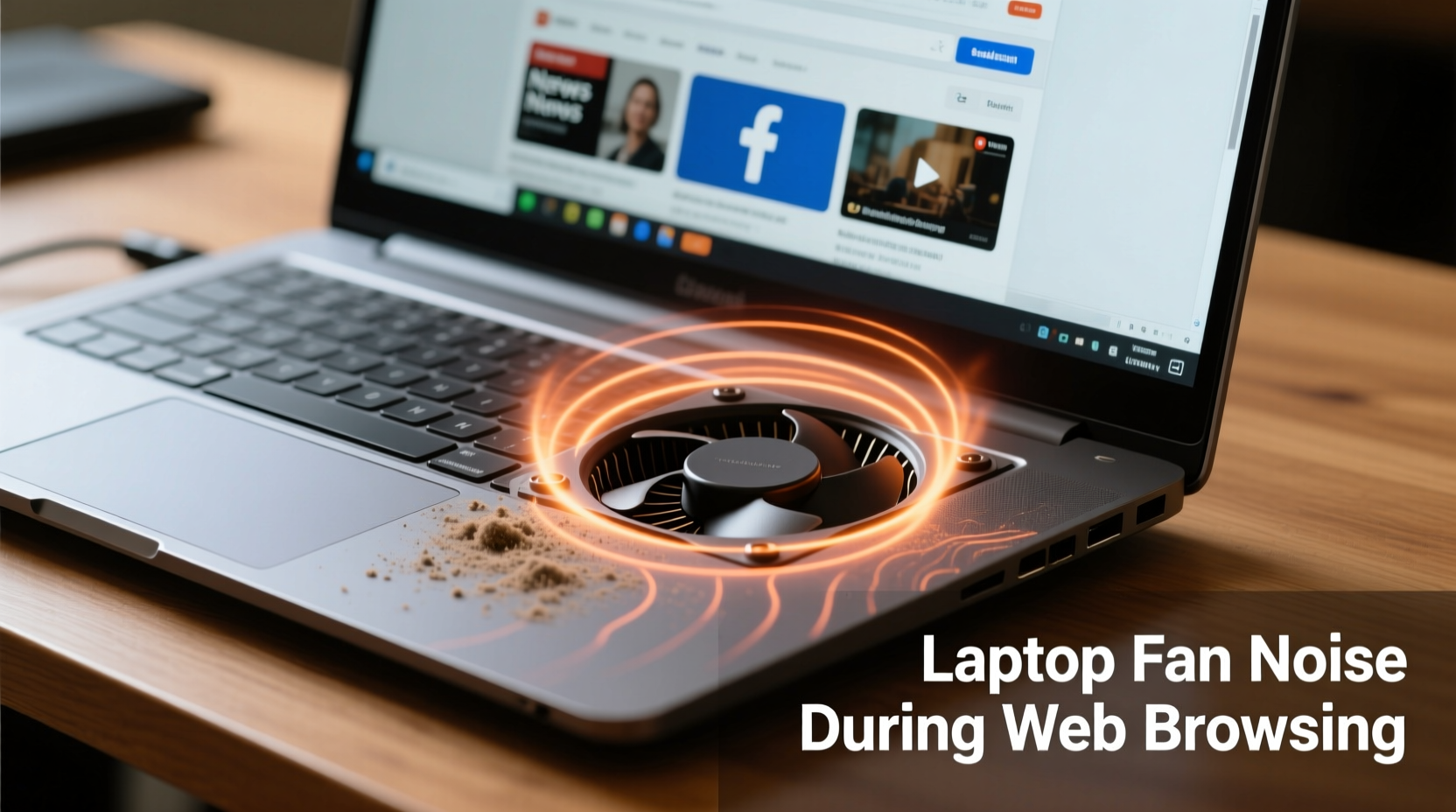
Laptops rely on passive and active cooling mechanisms to manage internal temperatures. Most models use a combination of heat sinks, thermal paste, and one or more fans to draw heat away from critical components like the CPU (central processing unit) and GPU (graphics processing unit). When these components work harder—processing data, rendering graphics, or decoding video—they produce more heat.
The laptop’s thermal sensors monitor temperature in real time. Once a threshold is reached, the fan speed increases automatically to dissipate heat. This process is managed by firmware known as the EC (Embedded Controller), which adjusts fan curves based on workload and ambient conditions.
However, several factors can cause the system to overheat even under light loads. These include dust buildup, poor ventilation, background software, and inefficient browser behavior.
Common Causes of Loud Fan Noise During Web Browsing
Web browsing may seem simple, but today’s websites are complex applications loaded with scripts, trackers, ads, videos, and dynamic content. Each tab you open runs JavaScript, loads images, and communicates with remote servers. Here are the most frequent culprits behind excessive fan activity:
- Multiple tabs with auto-playing media: Videos, especially HD or 4K streams, require significant GPU and CPU usage for decoding.
- Background browser extensions: Ad blockers, password managers, or cryptocurrency miners (even unintentional ones) consume extra resources.
- Outdated or bloated browsers: Older versions may lack optimization or contain memory leaks that increase CPU load.
- Malware or cryptojacking scripts: Some websites run hidden scripts that mine cryptocurrency using your CPU, leading to high utilization.
- Dust accumulation in vents: Over time, dust clogs fans and heat sinks, reducing cooling efficiency.
- Failing thermal paste: On older laptops, dried-out thermal paste between the CPU and heatsink reduces heat transfer, forcing fans to work harder.
- High screen brightness and background apps: Even when browsing, other processes like cloud sync, updates, or antivirus scans contribute to overall load.
“Modern web pages are essentially full-fledged software. A single tab can use as much memory and processing power as a desktop application.” — Dr. Alan Reyes, Computer Systems Engineer at MIT
Step-by-Step Guide to Diagnose and Reduce Fan Noise
If your laptop fan spins loudly during basic browsing, follow this structured approach to identify and resolve the issue.
- Check CPU and GPU usage: Open Task Manager (Windows) or Activity Monitor (Mac). Look for processes consuming high percentages of CPU or GPU. Note any unusual activity.
- Close unnecessary browser tabs: Each tab runs independently. Close unused ones, especially those playing audio/video or running animations.
- Disable or remove problematic extensions: Go to your browser settings > Extensions. Disable them one by one and observe changes in fan behavior.
- Update your browser and OS: Ensure both are up-to-date. Updates often include performance improvements and security patches.
- Scan for malware: Run a full system scan using trusted antivirus software. Also check for browser-based threats like cryptojackers.
- Clean the laptop externally: Use compressed air to blow out dust from cooling vents. Do this monthly if used in dusty environments.
- Evaluate ambient temperature: High room temperatures reduce cooling efficiency. Try using the laptop in a cooler environment.
- Adjust power settings: Set your laptop to “Balanced” or “Power Saver” mode to limit CPU performance and reduce heat output.
- Monitor internal temperatures: Use tools like HWMonitor (Windows) or iStat Menus (Mac) to track component temperatures under load.
- Consider professional servicing: If temperatures remain high despite cleaning and optimization, internal maintenance (e.g., reapplying thermal paste) may be needed.
Browser Optimization: Reducing Resource Load
Your choice of browser and how you configure it plays a major role in system performance. Here are proven strategies to minimize resource consumption:
| Action | Benefit | How to Implement |
|---|---|---|
| Use lightweight browsers | Less memory and CPU overhead | Try Firefox, Brave, or Microsoft Edge instead of Chrome if experiencing lag |
| Enable hardware acceleration | Offloads video rendering to GPU | Go to browser settings > System > Enable “Use hardware acceleration” |
| Limit background processes | Reduces CPU contention | In Chrome, go to Settings > Performance > Turn off “Preload pages” |
| Block autoplaying videos | Prevents unexpected media load | Use site permissions or extensions like “Stop AutoPlay” |
| Clear cache regularly | Improves responsiveness, reduces glitches | Set browser to clear data on exit or schedule weekly cleanup |
Real-World Example: Sarah’s Overheating Laptop
Sarah, a freelance writer, noticed her laptop fan becoming increasingly loud while working on blog posts. She was only using Google Docs and researching on a few sites, yet the fan would spin up every few minutes. Concerned about potential damage, she decided to investigate.
Using Task Manager, she discovered that Chrome was consistently using 70–85% of her CPU, even with just three tabs open. One tab hosted a news article with embedded social media widgets and autoplaying video previews. Another had an extension injecting affiliate links in real time.
She disabled non-essential extensions, switched to Firefox for daily browsing, and started closing tabs after use. She also cleaned the side vents with compressed air. Within days, fan noise dropped dramatically, and her laptop ran cooler and quieter—even during longer sessions.
This case highlights how seemingly minor digital habits can have tangible physical effects on device performance.
Do’s and Don’ts: Managing Heat and Noise
| Do | Don't |
|---|---|
| Use your laptop on hard, flat surfaces | Place it on beds, pillows, or laps without a tray |
| Keep vents clean and unobstructed | Ignore persistent dust buildup |
| Update software regularly | Run outdated browsers or operating systems |
| Close unused tabs and apps | Leave 20+ tabs open overnight |
| Use power-saving modes when possible | Always run in high-performance mode unnecessarily |
FAQ
Is it bad if my laptop fan is always loud?
Consistently loud fan noise can indicate underlying issues such as poor ventilation, excessive workload, or failing hardware. While occasional high speeds are normal under load, constant high RPMs may shorten the fan’s lifespan and suggest inefficient cooling. Investigate the cause and take corrective steps.
Can a website really make my laptop overheat?
Yes. Modern websites often include heavy JavaScript frameworks, embedded videos, and third-party trackers that demand significant processing power. Malicious sites may even run cryptojacking scripts without your knowledge, pushing CPU usage to 100% and generating substantial heat.
Should I buy a cooling pad?
A cooling pad can help, especially if you frequently use your laptop on soft surfaces or in warm environments. However, it’s not a substitute for proper maintenance. Address root causes first—cleaning vents, managing software load, and optimizing settings—before relying on external accessories.
When to Seek Professional Help
If you’ve followed best practices—cleaned the device, optimized software, monitored usage—and the fan remains excessively loud, it may be time for professional intervention. Technicians can perform deeper diagnostics, including:
- Opening the chassis to clean internal components
- Reapplying thermal paste on CPU/GPU
- Replacing worn-out fans or upgrading cooling modules
- Testing for hardware defects or battery swelling affecting airflow
Note that opening your laptop may void the warranty. Always consult the manufacturer or authorized service centers before proceeding.
Conclusion: Take Control of Your Laptop’s Performance
Loud fan noise during web browsing isn’t something you should just accept. It’s a signal—a feedback mechanism telling you that your system is working harder than it should. By understanding the interplay between software demands, hardware limitations, and environmental factors, you can take meaningful steps to restore quiet, efficient operation.
Start small: close unused tabs, update your browser, clean the vents, and monitor CPU usage. Over time, build better digital hygiene habits that protect both your productivity and your device’s longevity. A cooler laptop isn’t just quieter—it’s faster, safer, and built to last.




 浙公网安备
33010002000092号
浙公网安备
33010002000092号 浙B2-20120091-4
Comments
No comments yet. Why don't you start the discussion?