
Laptop fans are designed to keep internal components cool during operation. But when the fan runs constantly at high speed, producing a loud whirring or jet-engine-like noise, it’s more than just annoying—it can signal underlying issues affecting performance, battery life, and long-term hardware health. The good news is that in most cases, you don’t need to open the laptop or visit a repair shop. Many causes of excessive fan noise are software-related, environmental, or due to simple maintenance oversights.
Understanding why your laptop fan is overworking allows you to take targeted action. From background processes consuming CPU to dust buildup blocking airflow, the culprits vary—but so do the solutions. This guide breaks down the most common reasons for loud fan behavior and provides step-by-step, non-invasive fixes anyone can perform.
Common Causes of Loud Laptop Fan Noise
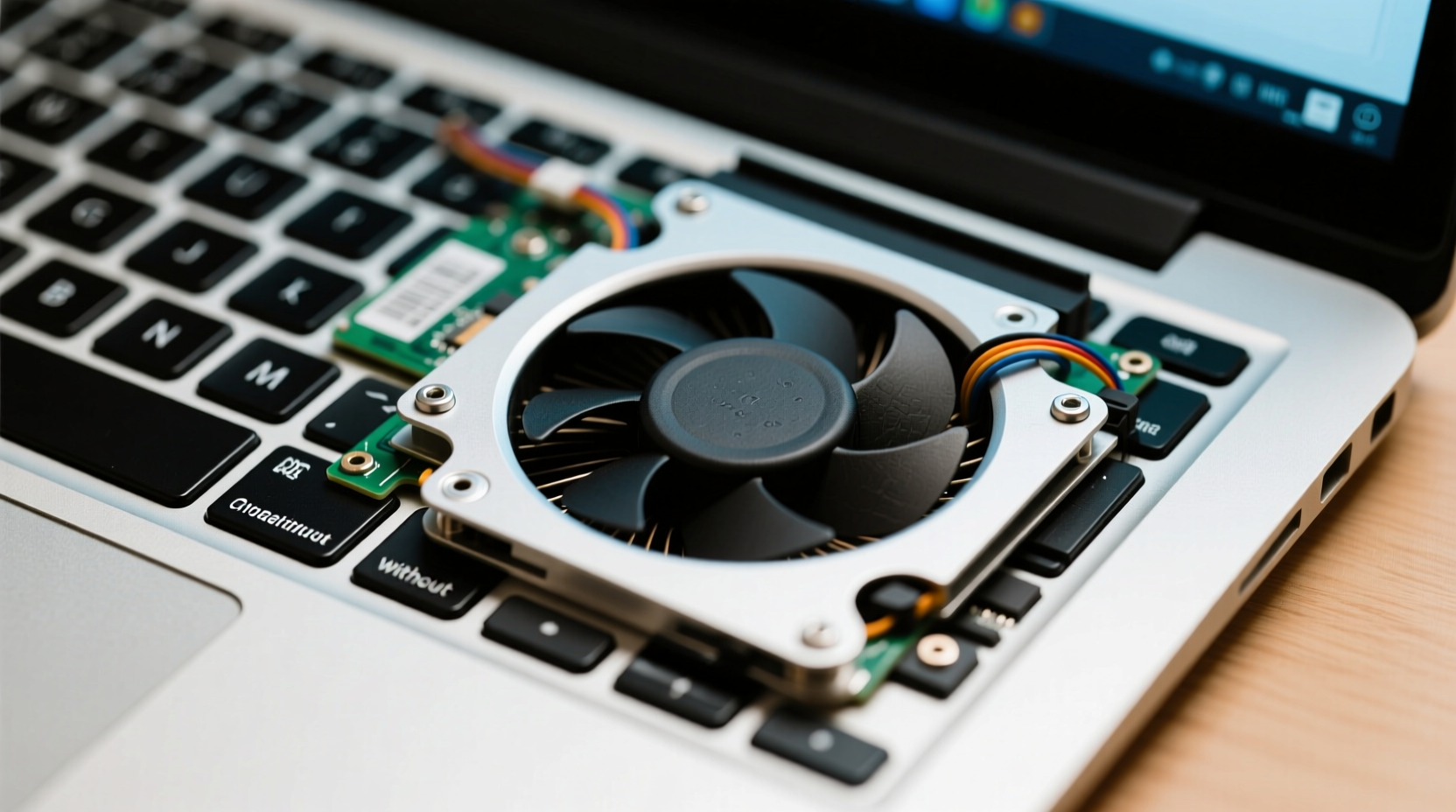
A laptop fan ramps up when the system detects rising internal temperatures. While some noise during intensive tasks like video editing or gaming is normal, persistent loud operation—even during light use—indicates a problem. The following are the most frequent causes:
- High CPU or GPU usage: Background applications, malware, or system updates can push processors to their limits, generating heat.
- Dust and debris buildup: Over time, dust clogs air vents and heatsinks, reducing airflow efficiency.
- Poor ventilation: Using the laptop on soft surfaces like beds or couches blocks intake vents.
- Outdated or corrupted drivers: Faulty graphics or chipset drivers may cause inefficient power management.
- Power settings misconfigured: High-performance modes prevent the CPU from throttling down.
- Failing thermal paste (long-term): Though not user-serviceable without disassembly, degraded paste increases heat transfer resistance over years.
While some factors require hardware intervention, many can be resolved with software tweaks, cleaning techniques, and behavioral adjustments—all without removing a single screw.
Step-by-Step Guide to Reduce Fan Noise
Follow this structured approach to diagnose and resolve the root cause of your laptop’s noisy fan. Each step builds on the previous one, helping you systematically eliminate potential issues.
- Check CPU and GPU usage
Open Task Manager (Windows) or Activity Monitor (Mac). Sort by CPU usage and identify any process consuming more than 20–30% consistently. Common offenders include browser tabs, updaters, or cryptomining malware. End unnecessary tasks. - Scan for malware
Run a full system scan using Windows Defender or a trusted third-party antivirus. Malware often runs hidden processes that max out CPU resources. - Update your operating system and drivers
Outdated system software can lead to inefficient resource management. Go to Settings > Update & Security (Windows) or System Preferences > Software Update (Mac) and install pending updates. Also update graphics drivers via Device Manager or the manufacturer’s website (e.g., NVIDIA, AMD, Intel). - Adjust power settings
Navigate to Control Panel > Hardware and Sound > Power Options (Windows). Switch from “High Performance” to “Balanced” or “Power Saver.” On Mac, go to System Settings > Battery and enable “Optimized Battery Charging” and reduce brightness automatically. - Clean air vents externally
Use compressed air to blow dust from intake and exhaust vents. Hold the can upright and spray in short bursts at a 45-degree angle. Do not use vacuum cleaners—they generate static electricity that can damage components. - Elevate the laptop for better airflow
Prop up the back of the laptop with a small stand, book, or rubber feet. Even a slight incline improves convection cooling. - Limit startup programs
Too many apps launching at boot can spike CPU load. In Task Manager (Windows), go to the Startup tab and disable non-essential programs like cloud sync tools or chat apps. - Reduce screen brightness and background effects
Lower brightness manually or enable adaptive brightness. Disable visual effects: On Windows, type “Adjust the appearance and performance of Windows” in the search bar and select “Adjust for best performance.”
Perform these steps in order, restarting your laptop after major changes like driver updates or power setting adjustments. Monitor fan noise afterward to assess improvement.
Do’s and Don’ts: Managing Laptop Heat and Fan Behavior
| Do’s | Don’ts |
|---|---|
| Use your laptop on hard, flat surfaces | Place it on beds, sofas, or your lap without protection |
| Run regular virus and malware scans | Ignore unknown high-CPU processes |
| Keep vents clean with compressed air every 2–3 months | Use sharp objects to scrape dust from vents |
| Select Balanced or Power Saver power plans | Leave High Performance mode enabled indefinitely |
| Close unused browser tabs and applications | Run multiple virtual machines or render tasks unnecessarily |
Real Example: Sarah’s Overheating Work Laptop
Sarah, a freelance graphic designer, noticed her laptop fan running loudly even when she was only checking email. Initially, she assumed the device was failing and considered replacing it. Instead, she decided to troubleshoot first.
She opened Task Manager and discovered that Adobe Creative Cloud was using 78% of her CPU in the background, syncing large project files automatically. She disabled auto-sync and moved the application to manual update mode. Next, she cleaned the side vents with compressed air and switched her power plan from “High Performance” to “Balanced.”
Within minutes, the fan noise dropped significantly. Her laptop remained quiet during normal use, and battery life improved by nearly 40 minutes. Sarah avoided unnecessary expense and extended her laptop’s usable life—all without opening the chassis.
“Most fan noise issues stem from software inefficiencies or poor airflow—not hardware failure. A methodical diagnostic approach resolves 80% of cases.” — David Lin, Senior Notebook Technician at TechCare Solutions
Preventive Maintenance Checklist
To avoid recurring fan problems, adopt these habits as part of your routine laptop care:
- ✅ Clean air vents every 2–3 months with compressed air
- ✅ Monitor CPU usage weekly using Task Manager or Activity Monitor
- ✅ Disable unnecessary startup programs
- ✅ Update OS and drivers monthly
- ✅ Use a laptop cooling pad if working for extended periods
- ✅ Avoid direct sunlight or hot environments (e.g., cars in summer)
- ✅ Set power plan to Balanced or Power Saver
- ✅ Limit browser tabs and close unused apps
This checklist takes less than 10 minutes per week but can dramatically extend your laptop’s lifespan and comfort during use.
Frequently Asked Questions
Is it bad if my laptop fan runs all the time?
Not necessarily. Fans are designed to run whenever needed. However, constant high-speed operation suggests inefficiency—either due to heat buildup, high workloads, or poor ventilation. Prolonged overheating can degrade internal components over time, so consistent loud noise should be investigated.
Can I clean the inside of my laptop without opening it?
You cannot physically clean the internal heatsink or fan blades without disassembling the device. However, you can significantly improve airflow by regularly cleaning external vents with compressed air. For most users, this is sufficient to maintain performance for several years.
Will resetting my PC stop the fan from being loud?
A reset can help if the issue stems from bloated software, too many background apps, or corrupted system files. A fresh OS installation reduces background overhead and removes hidden malware. However, if the problem is hardware-related (like dust buildup), a reset alone won’t solve it. Combine a reset with physical cleaning and power setting optimization for best results.
Conclusion: Take Control of Your Laptop’s Performance
Loud fan noise doesn’t have to mean expensive repairs or replacement. In most cases, the solution lies in optimizing software, managing heat through smart usage habits, and performing simple external maintenance. By understanding what triggers your laptop’s cooling system, you gain control over its performance and longevity.
The steps outlined here—from monitoring CPU usage to adjusting power settings—are accessible to everyone, regardless of technical skill. Implement them today, and you’ll likely notice immediate improvements in both noise levels and system responsiveness.




 浙公网安备
33010002000092号
浙公网安备
33010002000092号 浙B2-20120091-4
Comments
No comments yet. Why don't you start the discussion?