
A loud laptop fan during idle periods is more than just an annoyance—it’s a sign that something isn’t functioning as it should. While fans are designed to cool internal components, persistent high-speed operation when the system is barely in use indicates inefficiency or underlying issues. Many users assume this is normal wear, but in reality, excessive fan noise often points to fixable problems ranging from software bloat to hardware degradation.
Understanding why your laptop fan runs loudly at idle allows you to take targeted action. Whether you're using a work machine, a gaming rig, or a lightweight ultrabook, consistent background noise can disrupt focus, drain battery life, and shorten your device's lifespan. This guide breaks down the root causes, provides practical solutions, and helps you restore quiet, efficient operation—without needing technical expertise.
Common Causes of Excessive Fan Noise During Idle
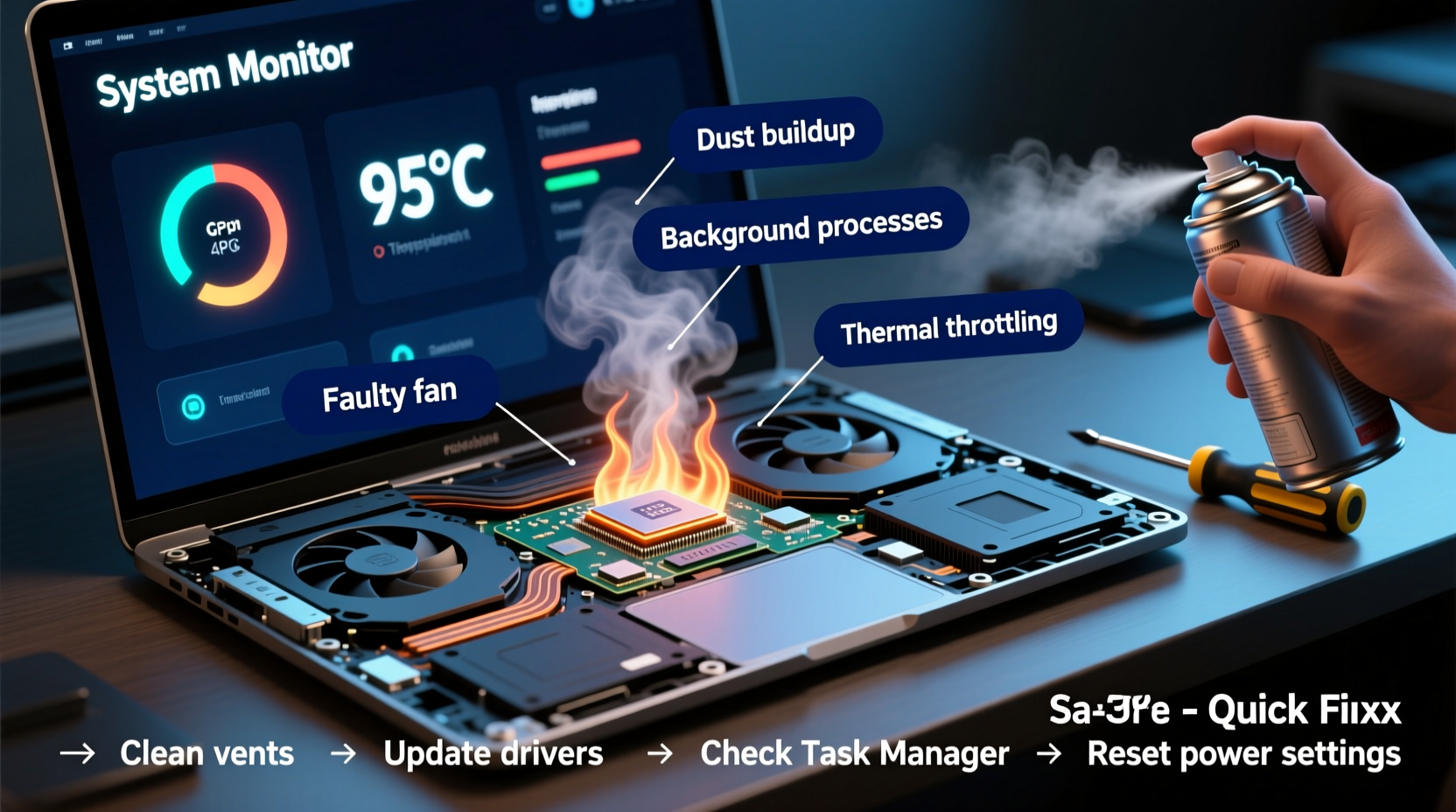
When your laptop appears inactive but the fan continues to spin at high speed, several factors may be responsible. Identifying the cause is essential before attempting any fix. Below are the most frequent culprits behind abnormal fan behavior.
1. Background Processes and High CPU Usage
Even when you’re not actively using your laptop, background processes such as Windows updates, antivirus scans, or third-party applications can consume significant CPU resources. These invisible tasks generate heat, prompting the cooling system to respond aggressively. Task Manager (Windows) or Activity Monitor (macOS) often reveals hidden programs silently maxing out processor usage.
2. Dust Accumulation Inside the Cooling System
Dust buildup inside the heatsink and fan blades restricts airflow and insulates heat-generating components like the CPU and GPU. As a result, the system overheats even under minimal load, forcing the fan to compensate by spinning faster. This issue worsens over time, especially in environments with poor air quality.
3. Outdated or Corrupted Drivers
Faulty graphics drivers, chipset firmware, or BIOS versions can miscommunicate with thermal sensors, leading to incorrect temperature readings. If the system thinks it’s hotter than it actually is, the fan will ramp up unnecessarily. Similarly, power management drivers govern how aggressively the fan responds to thermal changes.
4. Inadequate Power Settings
Power plans set to “High Performance” prioritize speed over efficiency, keeping the CPU clocked higher even during idle states. This increases baseline heat output and triggers continuous fan activity. Conversely, balanced or power-saving modes allow for dynamic frequency scaling, reducing both heat and noise.
5. Failing Hardware Components
Over time, thermal paste degrades, reducing heat transfer efficiency between the CPU and heatsink. A dried-out or improperly applied layer forces the system to run hotter. Additionally, aging fans may develop mechanical resistance or imbalance, causing them to run louder and less efficiently—even if temperatures are normal.
“Many users overlook thermal throttling signs until performance drops become noticeable. Persistent fan noise is often the first warning.” — Dr. Alan Reyes, Hardware Systems Engineer
Step-by-Step Guide to Diagnose and Fix Fan Issues
Resolving loud fan noise requires a methodical approach. Follow this sequence to isolate and correct the issue without unnecessary risk.
- Check Real-Time CPU and Temperature Usage
Open Task Manager (Ctrl+Shift+Esc on Windows) or Activity Monitor (macOS). Sort processes by CPU usage. Look for any application consuming more than 10–15% consistently while idle. Note suspicious entries and research their legitimacy. - Monitor Internal Temperatures
Use tools like HWMonitor, Core Temp (Windows), or iStat Menus (macOS) to check actual CPU/GPU temperatures. Idle temps above 60°C suggest abnormal heat retention. - Inspect Ventilation and External Blockage
Ensure the laptop is on a hard, flat surface. Soft materials like beds or couches block intake vents. Visually inspect exhaust ports for visible dust. - Update System Drivers and BIOS
Visit your manufacturer’s support website. Download and install the latest BIOS, chipset, and graphics drivers. Avoid third-party driver updaters. - Adjust Power Plan Settings
On Windows: Go to Control Panel > Power Options > Select \"Balanced\" plan. Click \"Change plan settings\" > \"Change advanced power settings.\" Set \"Processor power management\" > \"Maximum processor state\" to 90% on battery and 95% plugged in. - Clean Internal Components (if comfortable)
Power off and unplug the laptop. Remove the back panel only if your model allows safe access. Use compressed air to blow dust from fan blades and heatsink fins. Avoid touching circuits with metal tools. - Reapply Thermal Paste (Advanced)
For laptops older than 2–3 years, reapplying high-quality thermal paste (e.g., Arctic MX-4) can lower operating temps by 5–10°C. Only attempt if experienced or assisted by a technician.
Do’s and Don’ts: Managing Laptop Cooling Effectively
| Do | Don't |
|---|---|
| Use a laptop cooling pad with independent fans | Place the laptop on soft surfaces that block airflow |
| Keep ambient room temperature below 25°C (77°F) | Expose the device to direct sunlight or heaters |
| Schedule regular dust cleaning every 3–6 months | Use vacuum cleaners near internal components (risk of static) |
| Close unused browser tabs and background apps | Run multiple resource-heavy programs simultaneously without monitoring load |
| Update OS and drivers regularly | Ignore firmware update notifications from manufacturers |
Mini Case Study: Resolving Fan Noise on a Three-Year-Old Work Laptop
Mark, a remote project manager, noticed his Dell XPS 13 began emitting constant fan noise after returning from travel. Despite having only email and a browser open, the fan ran at full speed within minutes of booting. Initial checks showed no unusual CPU spikes in Task Manager, but HWMonitor revealed CPU temperatures hovering around 72°C at idle.
He first ruled out software causes: disabled startup programs, performed a malware scan, and reset power settings to default. No improvement. Upon inspection, he found the left-side vent clogged with lint from his backpack. Using compressed air, he cleared the exhaust and intake grills. After rebooting, idle temperatures dropped to 51°C, and fan noise reduced significantly.
Six months later, the issue returned. This time, internal dust had accumulated beyond surface level. Mark opened the chassis (under warranty extension) and cleaned the fan assembly thoroughly. The technician also recommended thermal paste replacement, which brought idle temps down to 43°C. Since then, Mark schedules biannual cleanings and uses a ventilated laptop stand.
Tips and Quick Fixes You Can Apply Today
Quick Checklist: Immediate Actions to Reduce Fan Noise
- ✅ Reboot the system to reset thermal and power states
- ✅ Close unused applications and browser tabs
- ✅ Check for pending OS or driver updates
- ✅ Switch to “Balanced” or “Power Saver” mode
- ✅ Use compressed air to clean external vents
- ✅ Elevate the rear of the laptop slightly for better airflow
- ✅ Run a full antivirus scan to rule out crypto-mining malware
Frequently Asked Questions
Is it harmful if my laptop fan runs constantly?
Not inherently, but constant high-speed operation shortens the fan’s lifespan and may indicate poor thermal management. If temperatures remain within safe limits (below 85°C under load), the system is likely protected. However, sustained heat accelerates component aging and reduces battery longevity.
Can malware cause my fan to run loudly?
Yes. Some malicious software, particularly cryptocurrency miners, operate silently in the background and fully utilize CPU resources. This creates excess heat and forces the cooling system into overdrive. Regular security scans and monitoring CPU usage can help detect such threats early.
Should I replace the fan if it’s noisy?
If cleaning and software fixes don’t resolve the issue, and the noise resembles grinding or clicking, the fan bearings may be failing. Replacement is often cost-effective, especially if done under warranty. However, ensure the problem isn’t due to poor ventilation or degraded thermal paste before replacing hardware.
Conclusion: Take Control of Your Laptop’s Performance and Longevity
A loud laptop fan during idle periods isn’t something you should simply tolerate. It reflects inefficiencies that, if ignored, can degrade performance, shorten hardware life, and diminish user experience. By understanding the causes—be it dust buildup, software overload, outdated drivers, or failing components—you gain the power to intervene effectively.
The steps outlined here are accessible to most users, from adjusting power settings to performing basic maintenance. More advanced interventions like thermal paste replacement should be approached carefully or left to professionals. Most importantly, adopt a preventive mindset: regular upkeep saves time, money, and frustration in the long run.




 浙公网安备
33010002000092号
浙公网安备
33010002000092号 浙B2-20120091-4
Comments
No comments yet. Why don't you start the discussion?