
Laptop fans are designed to regulate internal temperature by dissipating heat generated from the CPU, GPU, and other components. While some noise is expected during intensive tasks like gaming or video editing, a persistently loud fan while the system is idle signals an underlying issue. This isn’t just annoying—it can indicate poor thermal management that may shorten your laptop’s lifespan. Understanding the root causes and applying targeted solutions can restore quiet operation and improve overall performance.
Understanding Normal vs. Abnormal Fan Behavior
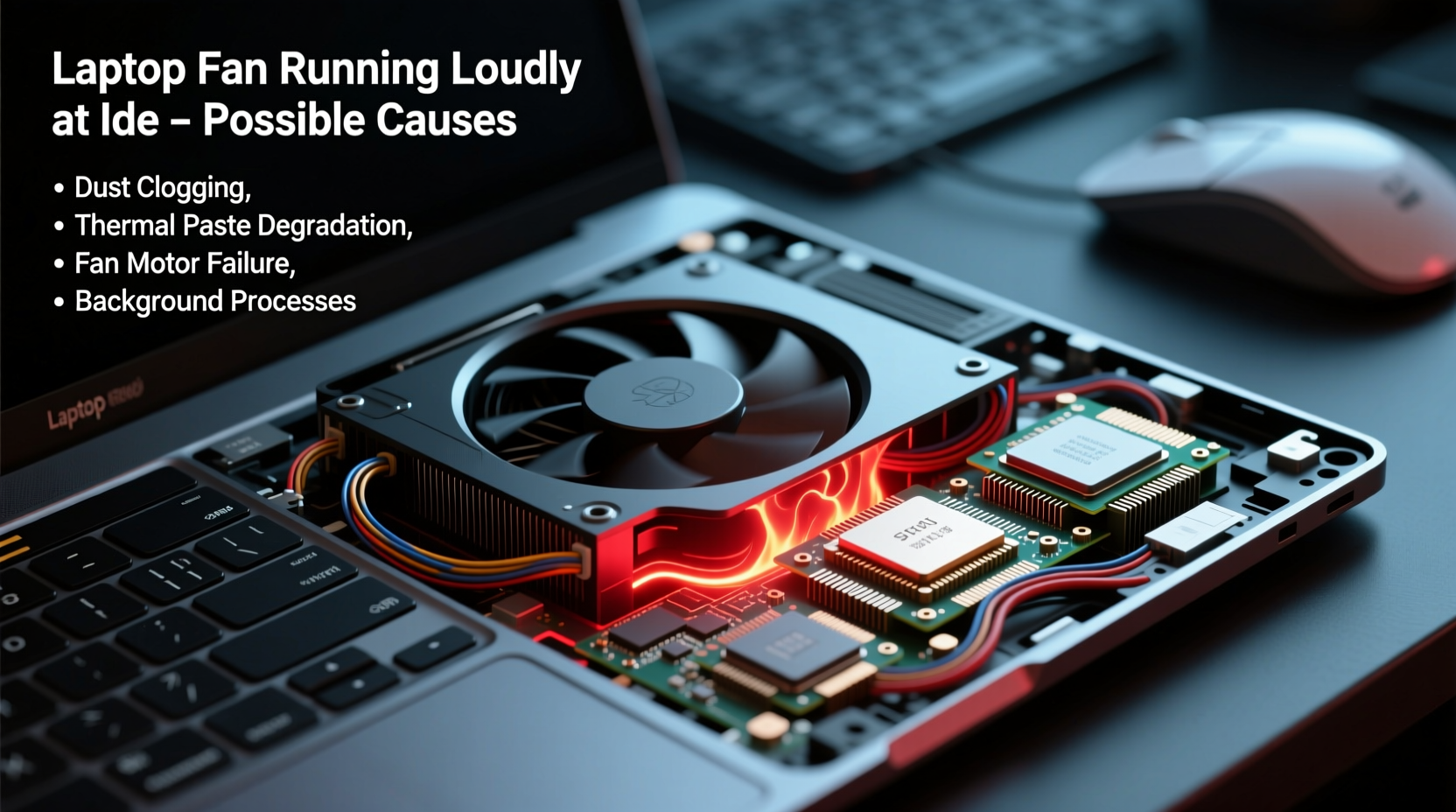
A laptop fan cycling on and off is normal. Modern systems use dynamic thermal throttling: fans activate when internal temperatures rise above a threshold (usually 50–60°C) and slow down as components cool. However, constant high-speed spinning—especially with minimal activity such as browsing or word processing—suggests inefficiency in heat regulation.
Abnormal behavior includes:
- Fan running at full speed immediately after boot
- Noise persists despite low CPU usage (under 10%)
- Laptop feels hot to the touch even when not in active use
- Fan noise doesn’t respond to closing applications
These symptoms often point to software misbehavior, dust buildup, outdated firmware, or failing hardware. Left unaddressed, chronic overheating can trigger thermal throttling, reducing performance, or lead to permanent component damage.
“Persistent fan noise on an idle laptop is rarely ‘normal wear.’ It's usually a symptom of preventable issues ranging from dust accumulation to background process abuse.” — Dr. Rajiv Mehta, Senior Hardware Engineer at TechInsight Labs
Common Causes of Excessive Fan Noise at Idle
The reasons behind loud fan operation when your laptop should be resting fall into two broad categories: software-related and hardware/environmental. Identifying which category applies helps streamline troubleshooting.
Software & System-Level Triggers
Even when you're not actively using your laptop, background processes can consume significant resources. Common culprits include:
- Bloatware and startup programs: Pre-installed apps or updaters that launch automatically can run CPU-intensive checks.
- Malware or crypto-mining scripts: Malicious software may operate silently in the background, maxing out processor usage.
- Outdated or faulty drivers: Graphics or chipset drivers with bugs can cause improper power management.
- Browser tabs with heavy scripts: A single tab running animations, ads, or WebAssembly code can spike CPU load unnoticed.
- Windows Update services: Ongoing patch installations or scans can generate sustained background activity.
Hardware and Environmental Factors
Physical conditions also play a major role:
- Dust-clogged vents and heatsinks: Dust acts as insulation, trapping heat and forcing fans to work harder.
- Degraded thermal paste: Over time, thermal compound between the CPU and heatsink dries out, reducing heat transfer efficiency.
- Blocked airflow: Using a laptop on soft surfaces like beds or couches obstructs intake vents.
- Failing fan motor: Worn bearings or electrical faults can cause erratic speeds or constant high RPM.
- High ambient temperature: Room temperatures above 27°C (80°F) reduce cooling effectiveness.
Step-by-Step Troubleshooting Guide
Follow this systematic approach to identify and resolve the source of excessive fan noise. Begin with non-invasive software checks before progressing to hardware interventions.
- Check Task Manager for resource hogs
Press Ctrl + Shift + Esc, go to the \"Processes\" tab, and sort by CPU usage. Look for any application consistently using more than 10% CPU at idle. Investigate unknown entries via online search. - Disable unnecessary startup programs
In Task Manager, switch to the \"Startup\" tab. Disable items you don’t need at boot (e.g., vendor utilities, cloud sync tools). Reboot and observe fan behavior. - Scan for malware
Run a full system scan using Windows Defender or a trusted third-party antivirus. Pay attention to cryptocurrency miners disguised as legitimate processes. - Update operating system and drivers
Go to Settings > Windows Update and install all pending updates. Visit your laptop manufacturer’s support site to download the latest BIOS, chipset, and graphics drivers. - Adjust power plan settings
Navigate to Control Panel > Power Options. Select \"Balanced\" or create a custom plan limiting maximum processor state to 90% in battery mode to reduce heat output. - Clean ventilation ports
Power off the laptop. Use compressed air to blow dust from exhaust and intake vents. Hold fans still with a toothpick to avoid overspinning during cleaning. - Monitor internal temperatures
Use tools like HWMonitor or Core Temp to check CPU and GPU temps. Idle readings above 60°C suggest cooling inefficiency. - Consider thermal paste reapplication
If temps remain high after cleaning, consider replacing dried thermal paste. This requires partial disassembly and is best done by professionals unless experienced.
Do’s and Don’ts: Laptop Cooling Best Practices
| Action | Recommendation | Rationale |
|---|---|---|
| Using a cooling pad | ✅ Do | Improves airflow, especially on warm surfaces; reduces base temperature by 5–10°C. |
| Blowing into vents | ❌ Don’t | Moisture from breath can corrode internal circuits over time. |
| Running intensive tasks on battery saver mode | ❌ Don’t | Battery saver throttles CPU but may prolong task duration, increasing total heat output. |
| Scheduling regular maintenance | ✅ Do | Biannual cleaning prevents dust buildup and maintains optimal cooling. |
| Ignoring BIOS updates | ❌ Don’t | Firmware updates often include improved fan control algorithms and thermal calibration. |
Real-World Example: Resolving Persistent Fan Noise on a Dell XPS 13
Jessica, a freelance writer, noticed her three-year-old Dell XPS 13 began making jet-engine-like noises even when she was only typing in Google Docs. Despite low CPU usage in Task Manager, the fan never slowed down. She followed standard restarts and updates with no improvement.
After checking online forums, she used HWMonitor and discovered her CPU idled at 72°C—well above the normal 45–55°C range. A visual inspection revealed clogged side vents filled with pet hair (she works near her cat’s favorite chair).
She powered off the laptop, used compressed air to clean the exhaust grille, and placed it on a cooling stand. Post-cleaning, idle temperatures dropped to 51°C, and fan noise reduced significantly. Six months later, she repeated the cleaning and reported stable performance.
This case illustrates how environmental debris—not software errors—can dominate thermal issues, especially in homes with pets or dusty environments.
When to Seek Professional Help
Some problems require expert intervention. Consider professional repair if:
- You hear grinding or clicking sounds from the fan.
- Cleaning and software fixes fail to reduce temperatures below 65°C at idle.
- The laptop shuts down unexpectedly due to overheating.
- You’re uncomfortable opening the chassis or handling internal components.
Technicians can replace faulty fans, reapply thermal paste correctly, or diagnose motherboard-level power delivery issues. Most manufacturers offer diagnostic tools (like HP Support Assistant or Lenovo Vantage) that can detect hardware anomalies remotely.
Preventive Maintenance Checklist
Stay ahead of fan issues with routine care. Use this checklist every 3–6 months:
- ✅ Clean exterior vents with compressed air
- ✅ Check Task Manager for abnormal background processes
- ✅ Update OS, drivers, and BIOS
- ✅ Run antivirus and anti-malware scans
- ✅ Verify fan operation via temperature monitoring tools
- ✅ Inspect physical placement habits (avoid soft surfaces)
- ✅ Reset power plans to default if custom settings caused instability
Frequently Asked Questions
Can a virus really make my laptop fan loud?
Yes. Malware, particularly crypto-mining scripts, can exploit your CPU to mine digital currency in the background. These programs run complex calculations continuously, generating heat and forcing fans to stay active. Signs include sudden fan spikes with no visible app usage and unusually high CPU load.
Is it safe to disable the fan manually?
No. Disabling the fan—even temporarily—is extremely risky. Without active cooling, modern processors can reach dangerous temperatures (over 100°C) within minutes, triggering automatic shutdowns or causing irreversible damage. Never attempt to stop fan operation through software or physical obstruction.
Does using my laptop on battery vs. plug-in affect fan speed?
It can. When plugged in, laptops often allow higher performance states, enabling faster clock speeds that generate more heat. Conversely, battery mode typically limits CPU output, reducing thermal load. However, if the system detects inadequate cooling, it may increase fan speed regardless of power source.
Conclusion: Silence Starts with Smart Habits
A constantly roaring laptop fan isn’t something to ignore. Whether driven by hidden software demands or years of dust accumulation, the root cause is almost always fixable. By combining vigilant monitoring, disciplined maintenance, and informed adjustments, you can reclaim quiet computing and protect your investment.
Start today: open Task Manager, inspect your workspace setup, and schedule a cleaning session. Small actions now prevent costly repairs later. Your ears—and your laptop—will thank you.




 浙公网安备
33010002000092号
浙公网安备
33010002000092号 浙B2-20120091-4
Comments
No comments yet. Why don't you start the discussion?