
A laptop that sounds like a jet engine during simple tasks—or worse, while sitting idle—is more than just annoying. It can signal underlying performance issues, hardware strain, or poor thermal management. While some fan noise is normal, persistent loud whirring without an obvious workload often points to preventable problems. Understanding the root causes empowers you to take action before overheating damages components or shortens your device’s lifespan.
This guide explores the most common reasons behind excessive fan activity on idle laptops, backed by technical insights and real-world solutions. From background processes to dust buildup and power settings, we’ll walk through diagnosis, troubleshooting, and long-term maintenance strategies to restore quiet operation and optimal efficiency.
Common Causes of Excessive Fan Noise at Idle
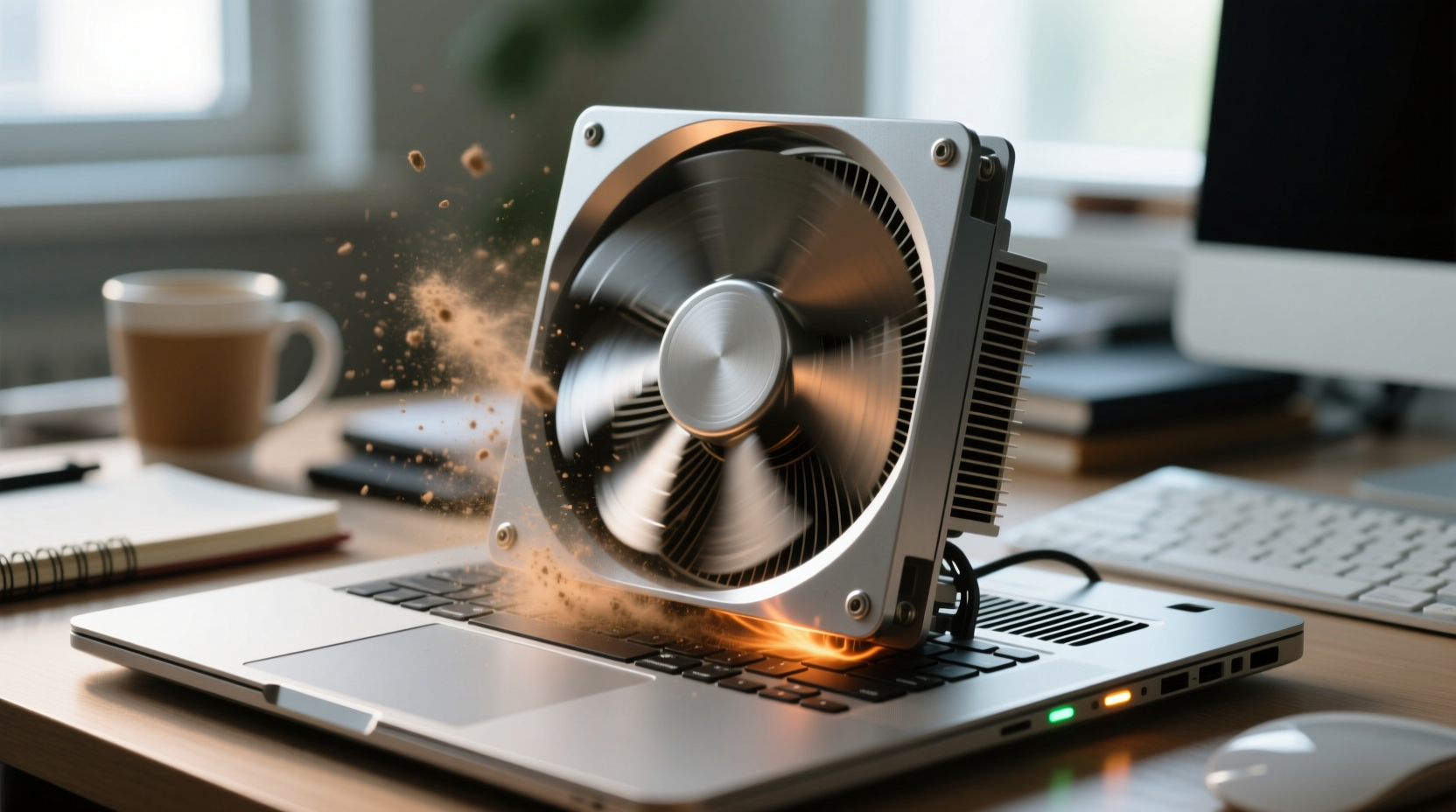
Laptop fans activate to regulate internal temperature. When they run loudly despite minimal user activity, it usually means the system is working harder than it should. Several factors contribute to this behavior:
- Background processes consuming CPU: Hidden applications, system updates, or malware can spike CPU usage without visible signs.
- Dust and debris buildup: Over time, dust clogs air vents and heatsinks, reducing airflow and forcing fans to compensate.
- Poor ventilation: Using a laptop on soft surfaces like beds or couches blocks intake vents, trapping heat.
- Faulty thermal paste: Deteriorated or improperly applied thermal paste between the CPU and heatsink reduces heat transfer efficiency.
- Outdated BIOS or drivers: Firmware bugs or inefficient power management in older versions can cause erratic fan control.
- High ambient temperature: Operating in hot environments increases baseline internal temperatures.
Each of these issues forces the cooling system to work overtime. The key is identifying which factor—or combination—is affecting your device.
Step-by-Step Diagnosis and Troubleshooting
Before disassembling your laptop or making system changes, follow a structured approach to isolate the cause:
- Monitor CPU and GPU usage: Open Task Manager (Ctrl+Shift+Esc) and sort processes by CPU or GPU usage. Look for any app consistently using more than 5–10% at idle.
- Check system temperature: Use tools like HWMonitor, Core Temp, or Macs Fan Control to read actual component temperatures. Sustained readings above 70°C at idle indicate a problem.
- Inspect physical airflow: Examine intake and exhaust vents for dust. Shine a flashlight into the vents—visible blockage requires cleaning.
- Evaluate power plan settings: On Windows, ensure you're not using \"High Performance\" mode unnecessarily. Prefer \"Balanced\" or \"Power Saver.\"
- Test on different surfaces: Place the laptop on a hard, flat surface. Avoid fabric, cushions, or uneven platforms.
- Boot into Safe Mode: Restart in Safe Mode (Windows) or Safe Boot (macOS). If the fan quiets down, third-party software is likely responsible.
If fan noise drops significantly in Safe Mode, the culprit is almost certainly a background application or driver conflict. If temperatures remain high and fans run aggressively, the issue is likely thermal—either due to dust, degraded thermal paste, or hardware design limitations.
Background Processes and Software Culprits
Modern operating systems run numerous background services. Some are essential; others are poorly optimized or malicious. Common offenders include:
- Antivirus scans: Real-time protection tools may perform aggressive background scanning.
- Cloud sync apps: Dropbox, OneDrive, or Google Drive can consume CPU during file indexing.
- Browsers with multiple tabs: Chrome, in particular, spawns multiple processes per tab, increasing CPU load.
- Outdated or buggy drivers: Graphics drivers, especially after updates, sometimes cause GPU spikes.
- Crypto-mining malware: Malicious scripts can hijack CPU resources silently.
In one documented case, a user reported constant fan noise on a two-year-old Dell XPS. After investigation, it was found that Adobe Creative Cloud’s updater was running a continuous background process using 38% CPU—even when no Adobe apps were open. Disabling automatic updates via Services resolved the issue instantly.
“Many users assume their hardware is failing when the real issue is software bloat. Monitoring tools reveal what’s truly happening under the hood.” — Dr. Lena Patel, Systems Engineer at TechReliability Labs
Hardware and Thermal Management Solutions
When software checks out but fans still roar, focus shifts to hardware and thermal health. Here are proven interventions:
1. Clean Internal Components
Dust accumulation is the #1 cause of reduced cooling efficiency. Over months, lint and particles form insulating layers on fans and heatsinks. For best results:
- Power off and unplug the laptop.
- Use compressed air to blow out vents—hold fans steady to prevent overspinning.
- For deep cleaning, open the back panel (if comfortable) and clean heatsinks directly.
2. Reapply Thermal Paste
On laptops over 2–3 years old, factory-applied thermal paste dries out, losing conductivity. Replacing it with high-quality paste (e.g., Arctic MX-4 or Noctua NT-H1) can lower CPU temps by 10–15°C.
3. Use a Laptop Cooling Pad
These external pads provide additional airflow from below, supplementing weak internal cooling—especially useful for thin ultrabooks with limited vent space.
4. Adjust Fan Curves (Advanced)
Some manufacturers (e.g., Lenovo, ASUS) offer utilities to customize fan speed profiles. Third-party tools like NoteBook FanControl allow manual tuning—balancing noise and cooling based on your tolerance.
| Solution | Difficulty | Effectiveness | Cost |
|---|---|---|---|
| Clean Vents with Compressed Air | Easy | ★★★★☆ | $10–$20 |
| Replace Thermal Paste | Moderate | ★★★★★ | $5–$15 |
| Use Cooling Pad | Easy | ★★★☆☆ | $20–$50 |
| Adjust Fan Curve | Advanced | ★★★☆☆ | Free |
| Replace Internal Fan | Difficult | ★★★★☆ | $30–$80 |
Preventive Maintenance Checklist
To avoid recurring fan issues, adopt these habits as part of routine care:
- ✅ Clean air vents every 3–6 months using compressed air.
- ✅ Avoid using the laptop on soft surfaces; invest in a hard desk or tray.
- ✅ Keep the OS, BIOS, and drivers up to date for optimal thermal management.
- ✅ Uninstall unused programs, especially those with background services.
- ✅ Monitor CPU temperature weekly using free tools like Open Hardware Monitor.
- ✅ Disable startup programs that aren’t essential (via Task Manager > Startup tab).
- ✅ Perform full virus scans monthly with updated antivirus software.
Consistent maintenance prevents gradual degradation that leads to chronic overheating. Think of it like changing your car’s oil—small efforts prevent major breakdowns.
Frequently Asked Questions
Is it bad if my laptop fan runs constantly?
Not necessarily. Fans are designed to run frequently, especially in compact devices. However, constant loud operation at idle suggests inefficiency. Prolonged high speeds can wear out the fan motor prematurely and may indicate overheating risks to internal components.
Can a BIOS update fix fan noise issues?
Yes. Manufacturers often release BIOS updates to improve fan control algorithms, correct thermal sensor readings, or optimize power delivery. Check your laptop maker’s support site for updates—and always back up data before flashing BIOS.
Should I replace the fan if it's noisy?
If cleaning doesn’t help and the noise is grinding or rattling (not just aerodynamic whirring), the fan bearings may be failing. Replacement is recommended. A new fan typically costs $30–$80 and can extend your laptop’s usable life by years.
Conclusion: Regain Control of Your Laptop’s Performance
Loud fan noise at idle isn’t something you have to live with. In most cases, it’s a solvable issue rooted in manageable software conflicts or neglected hardware maintenance. By systematically checking CPU usage, cleaning vents, updating firmware, and optimizing system settings, you can restore quiet operation and protect your investment.
Don’t wait until overheating triggers shutdowns or hardware failure. Take action today—start with a quick Task Manager check and a blast of compressed air. Small steps now prevent costly repairs later. A well-maintained laptop runs cooler, lasts longer, and performs better under pressure.




 浙公网安备
33010002000092号
浙公网安备
33010002000092号 浙B2-20120091-4
Comments
No comments yet. Why don't you start the discussion?