
Laptops are designed for portability and performance, but few things are as frustrating as a fan that never stops whirring. A constantly running fan isn’t just noisy—it’s often a warning sign of underlying overheating. Left unchecked, excessive heat can degrade performance, shorten battery life, and even damage internal components like the CPU or GPU. Understanding why this happens—and knowing how to respond—is essential for maintaining both comfort and longevity in your device.
Heat is a natural byproduct of computing. When your processor works hard—rendering video, gaming, or multitasking with dozens of browser tabs—it generates thermal energy. The cooling system, primarily composed of fans and heat sinks, kicks in to dissipate that heat. But when the fan runs nonstop, even during light use, something is likely disrupting this balance. This article breaks down the most common causes of constant fan activity and provides practical, immediate solutions you can apply today.
Common Causes of Constant Fan Operation
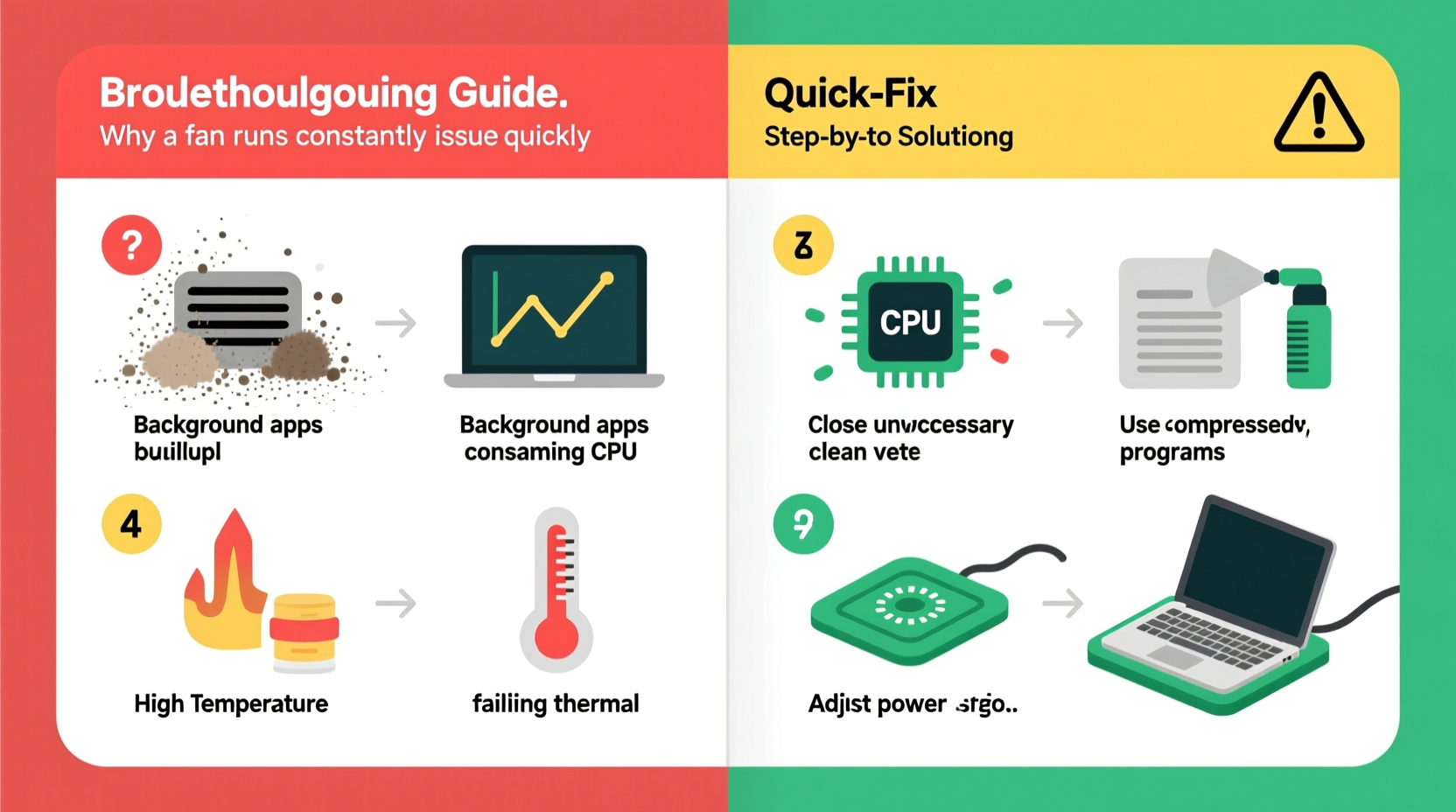
The root cause of a perpetually spinning fan usually lies in either hardware strain, poor ventilation, or software inefficiency. Identifying which factor is at play helps determine the right fix.
- Dust buildup: Over time, dust clogs air vents and heatsinks, reducing airflow and insulation efficiency.
- High CPU/GPU usage: Background processes, malware, or demanding applications can push processors beyond normal loads.
- Poor ventilation: Using a laptop on soft surfaces like beds or couches blocks intake vents, trapping heat.
- Failing thermal paste: On older machines, dried-out thermal paste between the CPU and heatsink reduces heat transfer.
- Ambient temperature: Hot rooms or direct sunlight increase baseline operating temperatures.
- Outdated drivers or firmware: Inefficient power management settings may prevent proper thermal regulation.
Each of these factors can act alone or compound with others. For example, a dusty fan combined with high ambient temperature creates a perfect storm for overheating.
Step-by-Step Guide to Diagnose and Reduce Overheating
Follow this systematic approach to identify and resolve the issue within 30 minutes.
- Check current system load: Open Task Manager (Windows) or Activity Monitor (Mac). Look for processes using more than 20–30% CPU consistently. End unnecessary tasks.
- Inspect physical condition: Turn off the laptop and examine air vents. Are they visibly clogged with dust? Shine a flashlight into intake and exhaust areas.
- Monitor temperature: Download tools like HWMonitor (Windows), iStat Menus (Mac), or Core Temp. Normal idle temps range from 40–50°C; above 70°C under load may indicate problems.
- Evaluate placement: Is the laptop on a soft surface? Move it to a desk or use a cooling stand.
- Update software: Ensure BIOS, chipset drivers, and OS are up to date. Manufacturers often release thermal management improvements.
- Adjust power settings: Set your plan to “Balanced” or “Power Saver.” Avoid “High Performance” unless necessary.
This sequence helps isolate whether the issue is environmental, software-based, or requires deeper hardware attention.
Effective Cooling Strategies and Hardware Maintenance
Once you’ve ruled out simple fixes, consider more involved—but highly effective—solutions.
Cleaning Internal Components
Dust accumulation is one of the top silent killers of laptop cooling systems. Even moderate buildup insulates heat sinks and forces fans to work harder.
To clean safely:
- Power off and unplug the laptop. Remove the battery if possible.
- Use compressed air to blow out vents. Hold cans upright to avoid moisture spray.
- For deep cleaning, open the back panel (check manufacturer guides). Gently brush dust from fan blades and heatsink fins.
Note: Opening your laptop may void warranty. If uncomfortable, seek professional service.
Reapplying Thermal Paste
After 2–3 years, thermal paste degrades and cracks, losing its ability to conduct heat efficiently. Replacing it can drop CPU temperatures by 10–15°C.
You’ll need:
- Isopropyl alcohol (90%+)
- Cotton swabs or lint-free cloth
- High-quality thermal paste (e.g., Arctic MX-4, Noctua NT-H1)
Remove the heatsink, clean old paste thoroughly, apply a pea-sized dot of new paste, then reattach securely.
“Thermal paste replacement is one of the most cost-effective upgrades for an aging laptop. It restores near-original cooling performance.” — David Lin, Hardware Engineer at TechServe Labs
Software Optimization Checklist
Not all overheating stems from hardware. Bloated software and misconfigured settings can overwork your CPU unnecessarily.
Use this checklist to optimize your system:
| Action | Benefit | Platform |
|---|---|---|
| Disable unnecessary startup apps | Reduces boot-time CPU load | Windows, Mac |
| Scan for malware | Removes hidden resource-hogging scripts | All |
| Lower screen brightness | Reduces power draw and heat generation | All |
| Limit browser tabs and extensions | Prevents RAM and CPU bloat | All |
| Enable auto graphics switching | Uses integrated GPU for light tasks | Mac, some Windows laptops |
| Update BIOS/firmware | Improves fan control logic and thermal throttling | Manufacturer-specific |
One overlooked issue is browser-based cryptocurrency mining scripts. These run silently in background tabs and max out CPU usage. Installing ad-blockers like uBlock Origin can prevent such attacks.
Real-World Example: Resolving Persistent Overheating
Consider Sarah, a freelance graphic designer using a three-year-old mid-range laptop. She noticed her fan running constantly, even when editing documents. Her workflow slowed due to unexpected shutdowns.
She began troubleshooting:
- Task Manager revealed Chrome using 75% CPU despite only five tabs open.
- Further inspection showed two outdated extensions injecting crypto-mining code.
- After removal, CPU dropped to 20%, but fan still spun at high speed.
- She used compressed air to clean the side vents—immediate improvement in airflow.
- Finally, she reapplied thermal paste after watching a disassembly guide.
Result: Idle temperature fell from 68°C to 47°C. Fan noise became intermittent and quiet. Her laptop regained stability during Adobe Photoshop sessions.
Sarah’s case illustrates how multiple small issues can combine into a major problem—and how targeted fixes restore performance.
When to Seek Professional Help
Some symptoms suggest deeper hardware failure requiring expert intervention:
- Fan runs at full speed regardless of load
- Laptop shuts down unexpectedly under moderate use
- Fan makes grinding or clicking noises
- No change after cleaning and software optimization
In these cases, the fan itself may be failing, or there could be a malfunctioning temperature sensor sending false readings to the system. A technician can test fan voltage, replace faulty units, or diagnose motherboard-level issues.
Additionally, newer ultrabooks with sealed designs (like MacBook Air or Dell XPS series) are not user-serviceable. Attempting DIY repairs risks permanent damage. Stick to external cooling methods and software tuning for these models.
Frequently Asked Questions
Is it bad if my laptop fan runs all the time?
Yes, continuous high-speed operation indicates inefficient cooling or excessive load. It accelerates wear on the fan motor, increases noise, and may signal overheating that harms internal components over time. Occasional sustained spinning during heavy tasks is normal, but constant operation during idle use needs attention.
Can I disable the fan manually?
No. The fan is critical for preventing thermal damage. Disabling it—even temporarily—risks permanent hardware failure. Instead, address the root cause of overheating. Some advanced tools allow fan curve adjustments, but setting minimum speeds too low is dangerous.
Do laptop cooling pads really work?
They can help, especially on poorly ventilated models. Most provide extra airflow via built-in fans and elevate the laptop for better intake. However, they won’t compensate for internal dust buildup or degraded thermal paste. Use them as a supplement, not a primary fix.
Conclusion: Take Control of Your Laptop’s Temperature Today
A constantly running fan doesn’t have to be the norm. With a methodical approach, most overheating issues can be resolved quickly—often within an hour. Start with simple steps: clean the vents, check for rogue software, and ensure proper placement. Then move to deeper optimizations like updating firmware or refreshing thermal paste.
Regular maintenance prevents long-term damage and keeps your laptop responsive and quiet. Think of it like changing the oil in a car—a small effort now saves costly repairs later.




 浙公网安备
33010002000092号
浙公网安备
33010002000092号 浙B2-20120091-4
Comments
No comments yet. Why don't you start the discussion?