
A laptop fan running nonstop can be more than just an annoyance—it might signal underlying performance or hardware issues. While some fan activity is normal, especially during intensive tasks, constant high-speed operation even at idle raises legitimate concerns. Understanding the causes, distinguishing between normal behavior and warning signs, and knowing how to respond can extend your device’s lifespan and maintain optimal performance.
Laptops rely on thermal management systems to prevent overheating. The cooling fan works in tandem with heat sinks and thermal paste to dissipate heat generated by the CPU, GPU, and other components. When any part of this system is compromised—by dust buildup, software strain, or failing hardware—the fan may compensate by running continuously. This article explores the technical and environmental factors behind persistent fan noise, evaluates whether it indicates damage, and provides actionable solutions.
Common Causes of Constant Fan Operation
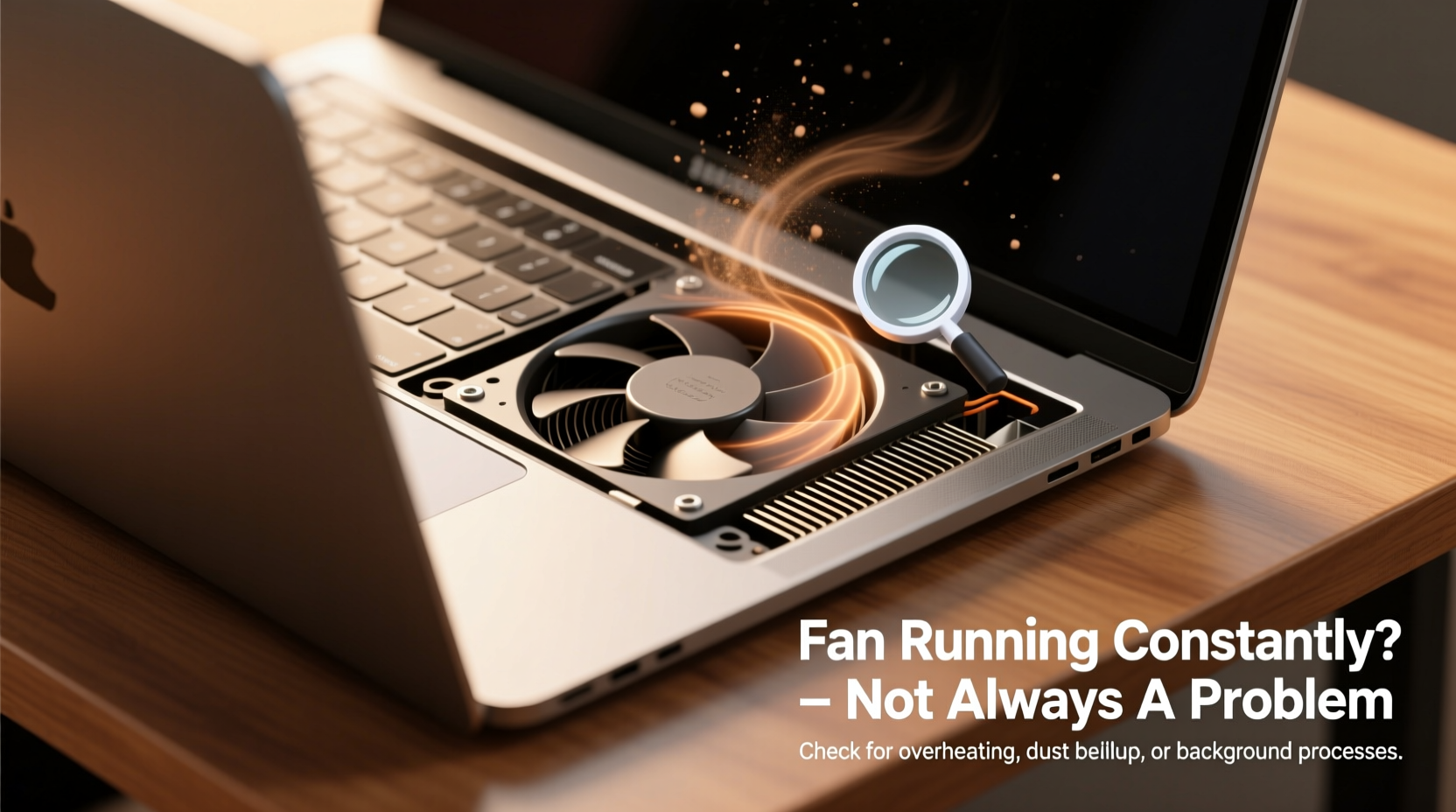
The most frequent reasons a laptop fan runs constantly fall into three categories: software load, environmental conditions, and hardware condition. Identifying which applies helps determine whether intervention is needed.
- High CPU or GPU usage: Background processes, browser tabs, or applications like video editors and games demand significant processing power, increasing heat output.
- Dust accumulation: Over time, dust clogs air vents and heat sinks, reducing airflow efficiency and forcing the fan to work harder.
- Poor ventilation: Using a laptop on soft surfaces like beds or couches blocks intake vents, trapping heat inside.
- Failing thermal paste: On older machines, dried-out or degraded thermal paste between the processor and heatsink reduces heat transfer, causing temperature spikes.
- Outdated BIOS or firmware: Some laptops have inefficient thermal management unless updated to the latest firmware version.
- Malware or background bloatware: Hidden programs consuming resources can cause sustained CPU load without user awareness.
Is Constant Fan Use a Sign of Damage?
Not always. A consistently active fan isn't inherently proof of hardware failure, but it can be a symptom of developing problems. Short-term overuse due to heavy workloads rarely causes harm. However, long-term exposure to elevated temperatures accelerates wear on internal components.
Repeated thermal stress degrades solder joints, weakens battery chemistry, and shortens the life of solid-state drives. According to Dr. Alan Reed, senior hardware engineer at TechInsight Labs:
“While modern laptops are built to tolerate heat cycles, chronic overheating—especially above 90°C—can reduce component longevity by up to 40%. It’s not immediate damage, but cumulative.”
Signs that fan behavior may reflect actual or impending damage include:
- Fan noise remains high even after closing all programs
- Laptop shuts down unexpectedly during use
- Surface near vents feels excessively hot to touch
- Fan emits grinding or clicking sounds, indicating mechanical wear
- System performance slows dramatically (thermal throttling)
If multiple symptoms appear together, especially after basic troubleshooting, hardware inspection is warranted.
Troubleshooting Steps to Reduce Fan Load
Before assuming hardware failure, follow a systematic approach to diagnose and resolve the root cause. These steps apply to Windows, macOS, and Linux-based laptops.
Step 1: Check for Resource-Hogging Processes
Open your operating system’s task manager (Ctrl+Shift+Esc on Windows, Activity Monitor on macOS) and sort processes by CPU usage. Look for applications or background services consuming more than 20–30% consistently. Common culprits include outdated antivirus software, cryptocurrency miners (malware), or misbehaving browser extensions.
Step 2: Clean Air Vents and Internal Components
Power off the laptop and unplug it. Use compressed air to blow dust from intake and exhaust vents. Hold the can upright and use short bursts to avoid moisture buildup. For deeper cleaning, consider opening the bottom panel (if under warranty, consult manufacturer first) to access the fan and heatsink. Gently remove lint and dust with a soft brush or cotton swab.
Step 3: Improve Ventilation Setup
Avoid placing the laptop on soft or uneven surfaces. Instead, use a hard desk or invest in a cooling pad with additional fans. Elevating the back of the laptop slightly improves airflow by creating space beneath the chassis.
Step 4: Update System Software
Check for OS updates, driver upgrades (especially graphics and chipset), and BIOS/firmware patches. Manufacturers often release thermal management improvements through firmware updates. Visit your laptop brand’s support site and enter your model number to find relevant downloads.
Step 5: Reset Power Settings
On Windows, switch to “Balanced” or “Power Saver” mode in Control Panel > Power Options. On macOS, ensure “Automatic graphics switching” is enabled (if available). These settings limit maximum processor speed during light tasks, reducing heat generation.
Step 6: Reapply Thermal Paste (Advanced)
For laptops older than two years showing high idle temperatures (>60°C), reapplying high-quality thermal paste (e.g., Arctic MX-4 or Noctua NT-H1) can restore efficient heat transfer. This requires disassembling the device and should only be attempted if you’re technically confident or can hire a technician.
Do’s and Don’ts of Laptop Cooling Maintenance
| Do | Don’t |
|---|---|
| Use compressed air every 3–6 months for vent cleaning | Blow into vents with your mouth—moisture can damage circuits |
| Keep ambient room temperature below 27°C (80°F) | Leave laptop in direct sunlight or hot cars |
| Close unused browser tabs and background apps | Ignore persistent high CPU usage from unknown processes |
| Update BIOS and drivers regularly | Apply third-party overclocking tools unless experienced |
| Store laptop in a ventilated area when powered off | Cover vents with stickers, tape, or cases that block airflow |
Real-World Example: Recovering Performance on a Stalled Work Laptop
Sarah, a freelance graphic designer based in Austin, noticed her 2020 Dell XPS 13 began running loudly even while checking email. Initially dismissing it as age-related wear, she later experienced random shutdowns during client video calls. Concerned about missing deadlines, she investigated further.
Using Task Manager, she found Chrome was using 78% CPU despite only having four tabs open. One tab hosted a real-time collaboration tool with a memory leak. Closing it reduced CPU usage to 12%, and fan speed dropped noticeably. Encouraged, she cleaned the side vents with compressed air and discovered a thick layer of pet hair blocking airflow—she has two cats at home.
After thorough cleaning and disabling unnecessary startup programs, idle temperature fell from 72°C to 51°C. She also updated her BIOS per Dell’s website, which included improved fan curve logic. The laptop now operates quietly during daily tasks and only ramps up fans during rendering jobs. Sarah avoided costly repairs by addressing both software and physical causes early.
When to Seek Professional Help
Some issues require expert diagnosis and repair. Consider professional service if:
- The fan runs at full speed regardless of workload
- You hear unusual mechanical noises (scraping, grinding)
- Temperature readings exceed 95°C under moderate use
- Screen flickers or system crashes during high-heat scenarios
- You lack tools or confidence to open the device safely
Technicians can inspect for damaged fan motors, replace faulty thermal sensors, or reflow solder connections on overheated motherboards. Most authorized repair centers offer diagnostic services for a nominal fee, often waived if you proceed with repair.
“Many customers come in thinking their laptop is dying, only to find it’s just choked with dust. Simple maintenance restores 80% of cooling performance.” — Maria Lopez, Senior Technician at CityTech Repair
Preventive Checklist for Long-Term Fan Health
Adopt these habits to minimize strain on your laptop’s cooling system:
- ✅ Clean air vents every 3–6 months
- ✅ Avoid using the laptop on soft surfaces
- ✅ Keep at least 2 inches of clearance around all sides
- ✅ Run malware scans monthly using trusted antivirus software
- ✅ Disable unnecessary startup programs
- ✅ Monitor temperatures weekly if used for gaming or design
- ✅ Replace thermal paste every 2–3 years on heavily used devices
- ✅ Store in a cool, dry place when not in use for extended periods
Frequently Asked Questions
Can a dirty fan cause permanent damage?
Yes. Prolonged dust buildup restricts airflow, leading to sustained high temperatures. This accelerates wear on the CPU, GPU, and battery. In extreme cases, thermal stress can warp circuit boards or degrade solder points, resulting in irreversible hardware failure.
Is it safe to use my laptop if the fan never stops?
It depends. If temperatures remain within safe limits (below 85°C under load) and performance is stable, continued use is generally safe—but not ideal. However, if the fan runs at maximum speed constantly, it may indicate a failing sensor or blocked cooling path, which could lead to sudden shutdowns or reduced lifespan.
Why does my fan spin up randomly when I’m not doing anything?
This often occurs due to background system tasks such as Windows Update, cloud sync (OneDrive, Dropbox), indexing, or scheduled antivirus scans. You can identify these via Task Manager. Disabling non-critical background services or scheduling them during off-hours reduces unexpected fan activity.
Conclusion: Take Action Before Heat Takes Its Toll
A constantly running laptop fan isn’t something to ignore—even if your device still functions. It’s often the first audible clue that your system is struggling with heat, inefficiency, or hidden software demands. By understanding the triggers and taking proactive steps, you can restore quiet operation, improve performance, and protect your investment.
Start today: clean the vents, check for rogue processes, and verify your power settings. Small changes yield significant results. If problems persist, don’t hesitate to consult a technician. Your laptop’s longevity—and your peace of mind—depends on how well you manage its thermal health.




 浙公网安备
33010002000092号
浙公网安备
33010002000092号 浙B2-20120091-4
Comments
No comments yet. Why don't you start the discussion?