
If your laptop sounds like a jet engine during takeoff, you're not alone. A constantly running fan is one of the most common complaints among laptop users. While some noise is normal under heavy workloads, persistent fan activity—even when idle—can signal inefficiencies, poor airflow, or deeper system issues. Excessive heat doesn’t just make your device uncomfortable to use; it can also shorten its lifespan and degrade performance over time.
The good news? In most cases, a noisy, overheating laptop isn’t a lost cause. Simple adjustments in usage habits, software management, and physical maintenance can dramatically reduce fan noise and keep temperatures in check. This guide breaks down the root causes of constant fan operation and provides actionable, tested solutions you can apply immediately—no technical expertise required.
Understanding Why Laptop Fans Run Constantly
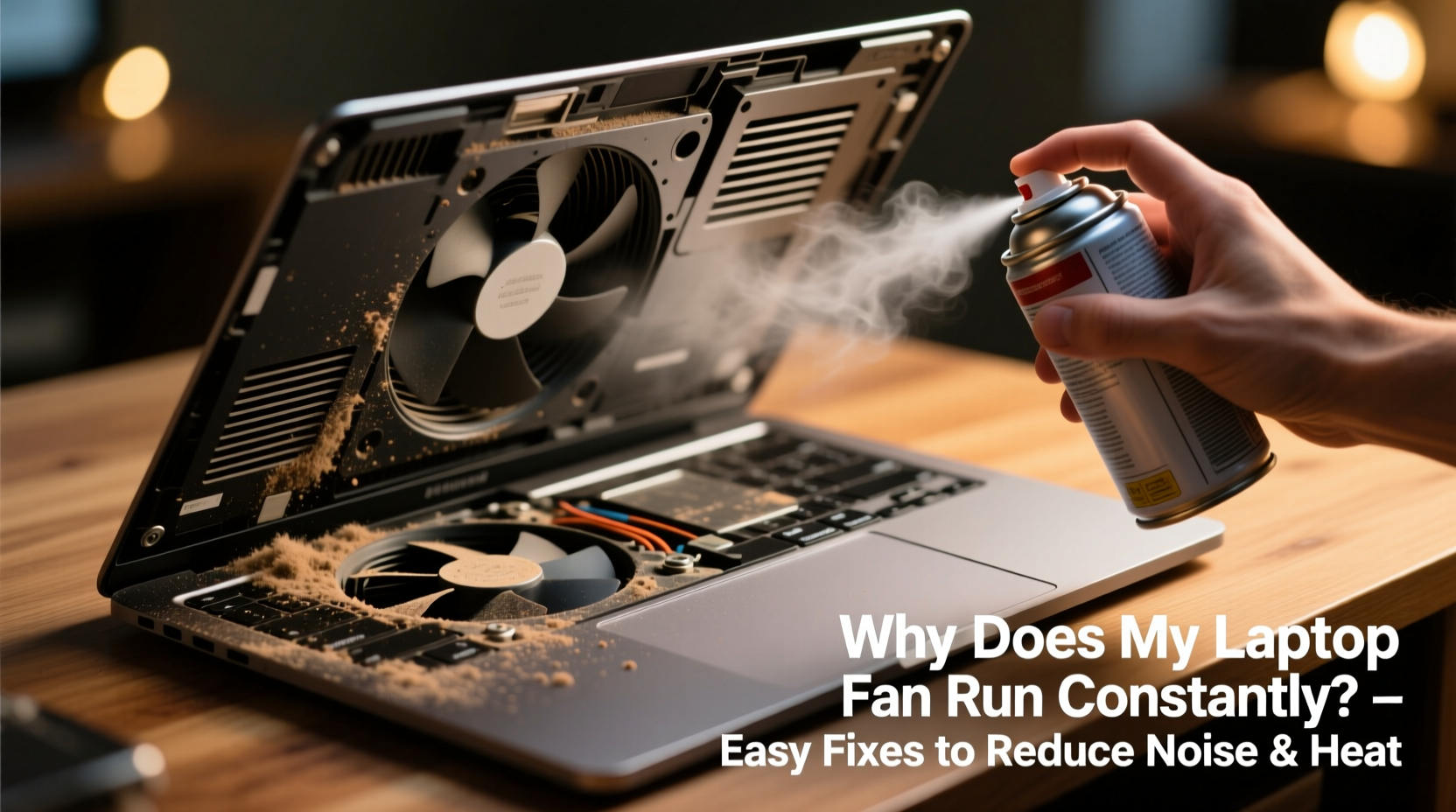
Laptop fans exist to regulate internal temperature by expelling hot air generated by the CPU, GPU, and other components. When these parts heat up due to processing demands, the thermal sensors trigger the fan. However, several factors can cause the fan to run continuously, even when the system isn’t under load:
- Dust buildup: Over time, dust clogs vents and heatsinks, reducing airflow and insulating heat.
- Background processes: Hidden applications or malware may consume CPU resources without your knowledge.
- Poor ventilation: Using a laptop on soft surfaces like beds or couches blocks intake vents.
- Aging thermal paste: On older laptops, dried-out thermal compound between the CPU and heatsink reduces heat transfer efficiency.
- Software misconfiguration: Power settings may be set to “High Performance,” forcing the CPU to run at maximum speed.
- Failing hardware: A malfunctioning temperature sensor or fan control circuit can cause erratic behavior.
Before jumping to conclusions, it’s essential to diagnose whether the issue is thermal, software-related, or mechanical.
Step-by-Step Guide to Diagnose and Reduce Fan Noise
Follow this systematic approach to identify and resolve the source of constant fan activity:
- Check CPU and GPU usage: Open Task Manager (Windows) or Activity Monitor (Mac). Look for processes consuming more than 10–15% CPU while idle. Sort by CPU usage to spot outliers.
- Monitor internal temperatures: Use tools like HWMonitor (Windows), Core Temp, or iStat Menus (Mac) to read real-time CPU/GPU temps. Idle temperatures above 60°C suggest cooling issues.
- Evaluate physical placement: Ensure the laptop is on a hard, flat surface. Avoid using it on pillows, blankets, or laps unless using a cooling pad.
- Listen to fan behavior: Does the fan spin up suddenly and stay loud, or does it pulse rhythmically? Sudden spikes often indicate software triggers; constant high speed points to heat buildup.
- Inspect for dust: Shine a flashlight into the exhaust vents. Visible dust or lint means airflow is likely restricted.
Once you’ve gathered this information, you can target the appropriate fix.
7 Practical Fixes to Stop Constant Fan Operation
1. Clean Vents and Internal Components
Dust accumulation is the number one culprit behind overheating. Even a thin layer on heatsinks acts as insulation, forcing fans to work harder.
“Dust is the silent killer of electronics. A simple cleaning every 6–12 months can prevent 70% of thermal throttling issues.” — Raj Patel, Senior Hardware Technician at TechCare Solutions
To clean safely:
- Power off and unplug the laptop.
- Use compressed air to blow dust from exhaust and intake vents. Hold the can upright and use short bursts.
- For stubborn buildup, gently brush vents with a soft-bristled toothbrush.
- For deep cleaning, consider opening the bottom panel (if comfortable) or taking it to a repair shop.
2. Optimize Power Settings
Default power plans often prioritize performance over efficiency. Switching to a balanced or power-saving mode reduces CPU clock speed and heat output.
On Windows:
- Go to Control Panel > Hardware and Sound > Power Options.
- Select “Balanced” or “Power Saver.”
- Click “Change plan settings” > “Change advanced power settings.”
- Under “Processor power management,” set “Maximum processor state” to 80–90% on battery and plugged in.
On Mac:
- System Settings > Battery > Power Mode.
- Choose “Low Power Mode” when not performing intensive tasks.
3. Close Unnecessary Background Apps
Many programs launch at startup and run silently, consuming CPU cycles. Common offenders include updaters, cloud sync tools, and browser tabs.
Open Task Manager (Ctrl+Shift+Esc) and sort by CPU usage. Right-click any non-essential process using significant resources and select “End Task.” To prevent recurrence:
- Disable startup apps: Task Manager > Startup tab > disable unnecessary entries.
- Limit browser extensions and close unused tabs.
- Uninstall bloatware or trial software that runs background services.
4. Update Software and Drivers
Outdated BIOS, chipset drivers, or firmware can lead to inefficient power management and incorrect thermal readings. Manufacturers often release updates that improve fan control algorithms.
Visit your laptop manufacturer’s support website (e.g., Dell, HP, Lenovo), enter your model number, and check for:
- Bios/UEFI updates
- Chipset drivers
- Fan control or system management utilities
5. Use a Laptop Cooling Pad
Cooling pads provide additional airflow from beneath the laptop, supplementing the internal fans. They’re especially useful for gaming or video editing laptops.
Look for models with adjustable fan speeds and elevated designs that promote natural convection. Avoid ultra-cheap pads with weak airflow—they add noise without meaningful cooling.
6. Repaste the CPU (Advanced)
After 2–3 years, thermal paste dries out and loses effectiveness. Reapplying high-quality thermal compound improves heat transfer from the CPU to the heatsink.
This requires disassembling the laptop, so proceed only if confident or consult a technician. Use reputable pastes like Arctic MX-4 or Noctua NT-H1. Apply a pea-sized dot—too much can insulate rather than conduct.
7. Adjust Fan Curves (If Supported)
Some laptops allow manual fan curve customization through third-party tools like FanControl (Windows) or Macs Fan Control (Mac). You can set specific fan speeds based on temperature thresholds.
Example: Set the fan to start at 50°C and ramp up gradually instead of spiking at 70°C. This prevents sudden noise bursts and maintains consistent cooling.
Do’s and Don’ts: Quick Reference Table
| Do’s | Don’ts |
|---|---|
| Use your laptop on hard, flat surfaces | Place it on beds, sofas, or your lap without a tray |
| Clean vents every 6 months | Ignore visible dust buildup |
| Update BIOS and drivers regularly | Assume all fan noise is normal |
| Close unused browser tabs and apps | Run multiple antivirus scans simultaneously |
| Use power-saving modes for daily tasks | Keep “High Performance” mode enabled 24/7 |
Real Example: Sarah’s Overheating Work Laptop
Sarah, a freelance graphic designer, noticed her 3-year-old laptop fan running nonstop, even when she wasn’t editing images. The device felt hot on her lap, and battery life had dropped sharply. She assumed it was time for a replacement—until she checked Task Manager and found Adobe Creative Cloud Updater consuming 35% CPU continuously.
She disabled the updater from startup, cleaned the side vents with compressed air, and switched her power plan to “Balanced.” Within minutes, CPU temperatures dropped from 78°C to 54°C at idle, and the fan noise reduced by 60%. A $0 fix saved her from spending $1,200 on a new machine.
Essential Maintenance Checklist
Use this checklist monthly or quarterly to keep your laptop cool and quiet:
- ✅ Check Task Manager/Activity Monitor for high CPU usage
- ✅ Clean exterior vents with compressed air
- ✅ Verify power plan is set to Balanced or Power Saver
- ✅ Restart the laptop weekly to clear memory leaks
- ✅ Update operating system and critical drivers
- ✅ Inspect physical placement during use
- ✅ Backup data before attempting internal repairs
Frequently Asked Questions
Is it bad if my laptop fan runs all the time?
Constant fan operation isn’t inherently dangerous, but it indicates inefficiency. Prolonged high RPMs can wear out the fan motor prematurely. More importantly, sustained high temperatures degrade battery health and can throttle CPU performance, slowing down your system.
Can software really cause overheating?
Absolutely. Malware, mining scripts, or buggy applications can max out the CPU, generating excess heat. Even legitimate software like outdated drivers or aggressive antivirus scans can spike usage. Monitoring tools help identify these hidden loads.
How hot is too hot for a laptop?
Idle temperatures should stay below 50–60°C. Under load, up to 85°C is generally safe for modern processors. Sustained temps above 90°C risk thermal throttling or long-term damage. If your laptop shuts down unexpectedly, overheating is likely the cause.
Take Control of Your Laptop’s Performance Today
Your laptop doesn’t have to sound like a vacuum cleaner to function well. With a few smart habits and periodic maintenance, you can eliminate unnecessary fan noise, reduce heat, and extend your device’s usable life. Start with the simplest fixes—cleaning vents, managing background apps, and adjusting power settings. Most users see noticeable improvements within an hour.
Remember, heat is the enemy of electronics. Every degree you save helps preserve battery capacity, component integrity, and overall reliability. Whether you're working, studying, or streaming, a cooler laptop performs better and lasts longer.




 浙公网安备
33010002000092号
浙公网安备
33010002000092号 浙B2-20120091-4
Comments
No comments yet. Why don't you start the discussion?