
A laptop that runs quietly during light tasks is a sign of efficient performance. When the fan kicks into high gear—even while you're doing nothing more than browsing a static webpage—it's not just annoying, it could signal underlying issues. Constant fan activity on idle isn't normal behavior for most modern laptops. While some airflow is expected, continuous loud spinning suggests something is amiss. The good news: this problem is usually fixable without costly repairs or replacements. Understanding the root causes and applying targeted solutions can restore quiet operation and protect your hardware from long-term damage.
Common Causes of Persistent Fan Activity
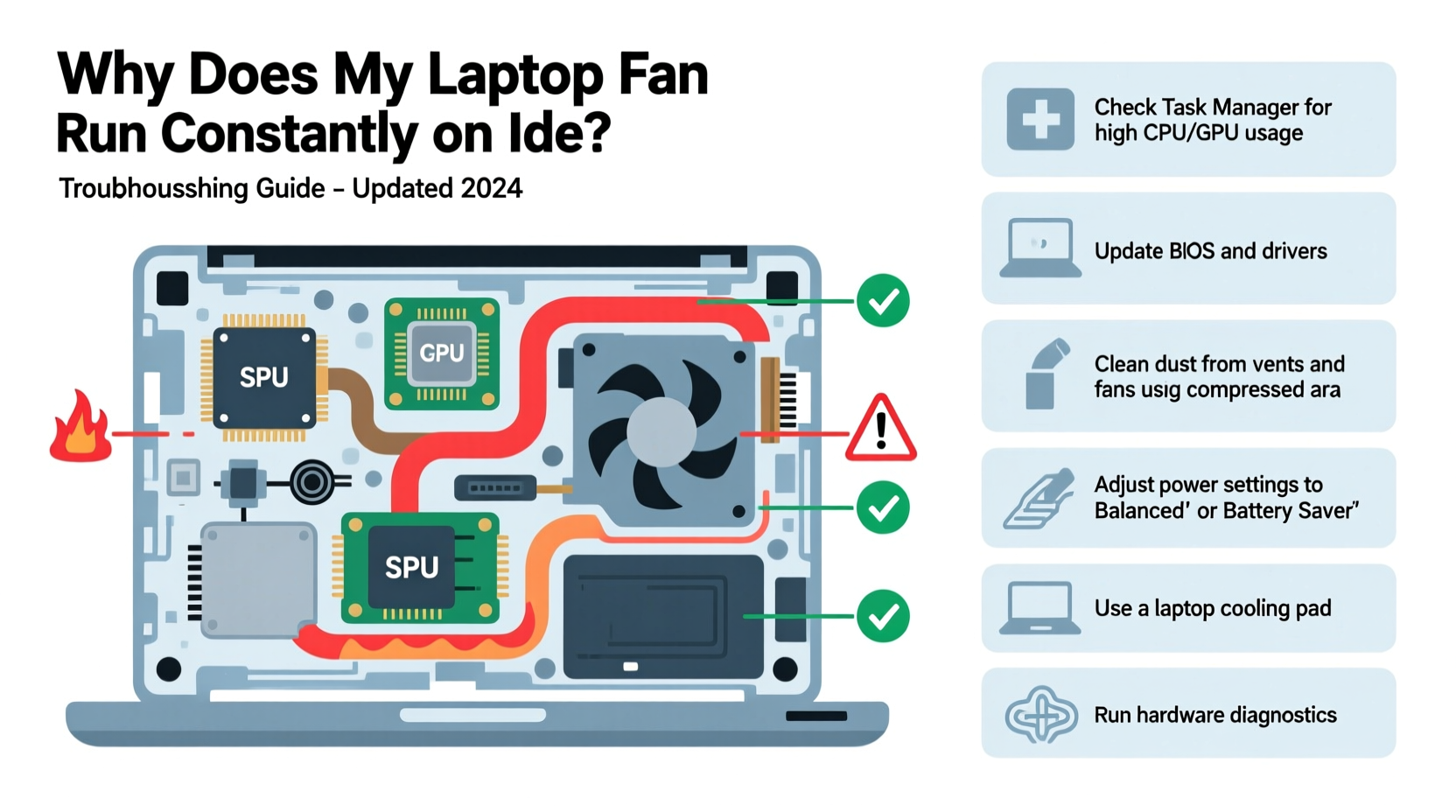
Laptop fans are designed to activate when internal temperatures rise. Their job is to cool critical components like the CPU and GPU. However, if the fan runs nonstop despite minimal usage, several factors may be at play. Identifying these early helps prevent overheating, throttling, and reduced system lifespan.
- Background processes consuming CPU: Hidden applications or system services may be using significant processing power without your knowledge.
- Dust buildup in vents and heatsinks: Over time, dust blocks airflow, reducing cooling efficiency and forcing fans to work harder.
- Outdated or corrupted drivers: Graphics and chipset drivers influence thermal management; bugs can misreport temperatures or disable dynamic scaling.
- Faulty temperature sensors: A malfunctioning sensor might report falsely high readings, triggering unnecessary fan activation.
- Power plan settings: High-performance modes keep CPU clocks elevated, generating more heat even during inactivity.
- Malware or crypto-mining software: Malicious programs often run hidden computations that max out CPU resources.
- Aging thermal paste: On older laptops, dried-out thermal compound between the CPU and heatsink reduces heat transfer efficiency.
Step-by-Step Diagnostic Process
To resolve constant fan noise, follow a structured approach that isolates the cause rather than applying random fixes. Begin with software checks before moving to hardware inspection.
- Check CPU and GPU usage: Open Task Manager (Ctrl+Shift+Esc) and sort by CPU usage. Look for any process consistently above 10% on idle.
- Monitor system temperature: Use tools like HWMonitor, Core Temp, or SpeedFan to read actual component temperatures. Idle CPU temps should be 35–50°C.
- Scan for malware: Run a full system scan using Windows Defender or a trusted third-party antivirus.
- Review startup programs: In Task Manager’s Startup tab, disable non-essential apps that launch automatically.
- Update BIOS and drivers: Visit your laptop manufacturer’s support site to download the latest BIOS, chipset, and graphics drivers.
Real Example: Office Worker’s Overheating Laptop
Sarah, a remote project manager, noticed her three-year-old laptop running loudly even when closed and plugged in overnight. She initially assumed it was aging, but after checking Task Manager, she discovered a background indexing service from an old backup program consuming 70% CPU. Disabling the app via Services.msc stopped the excessive load. The fan returned to normal within minutes. No hardware cleaning or replacement was needed—just identifying a rogue process.
“Over 60% of ‘always-on’ fan cases I see in diagnostics stem from software misbehavior, not hardware failure.” — Rajiv Mehta, Senior Technician at TechCare Pro
Hardware Maintenance: When Software Isn’t the Issue
If software checks don’t resolve the issue, turn attention to physical components. Dust accumulation is one of the top culprits in sustained overheating.
Cleaning Your Laptop’s Cooling System
Dust clogs air intakes and coats heatsinks, acting as insulation. Even small amounts can significantly reduce heat dissipation. Cleaning should be done carefully to avoid damaging fans or dislodging connections.
- Power off and unplug the laptop. Remove the battery if possible.
- Use compressed air to blow through intake and exhaust vents at a 45-degree angle.
- For deeper access, open the bottom panel (refer to your model’s service manual).
- Carefully clean the fan blades and heatsink fins with short bursts of air.
- Reassemble and test under idle conditions.
Thermal Paste Replacement
After 2–4 years, thermal paste dries out and cracks, losing its ability to conduct heat. Reapplying fresh paste between the CPU/GPU and heatsink can lower temperatures by 10–15°C. This requires technical skill and precision. If uncomfortable, seek professional help.
| Component | Normal Idle Temp | Warning Threshold | Action Required |
|---|---|---|---|
| CPU | 35–50°C | 70°C+ | Inspect cooling, clean vents |
| GPU | 40–55°C | 75°C+ | Update drivers, check workload |
| SSD | 30–45°C | 60°C+ | Rarely causes fan spin-up |
Power Settings and System Optimization
Your laptop’s power plan directly influences fan behavior. Many users unknowingly leave their systems in “High Performance” mode, which disables CPU throttling and keeps clock speeds high.
Optimize Power Plan Settings
Switching to a balanced or power-saving plan can dramatically reduce idle heat output.
- Navigate to Control Panel > Hardware and Sound > Power Options.
- Select “Balanced” or “Power Saver.”
- Click “Change plan settings,” then “Change advanced power settings.”
- Under “Processor power management,” set “Maximum processor state” to 90% on battery and 95% when plugged in.
- Set “System cooling policy” to “Passive” for both states to allow throttling before fans ramp up.
Disable Unnecessary Features
Some features increase background activity:
- Windows Search Indexing: Can spike CPU temporarily. Delay if not frequently used.
- OneDrive Sync: Large file syncs may run silently in the background.
- Graphics-intensive apps on integrated GPUs: Some browsers or video players default to discrete GPUs unnecessarily.
“Modern laptops are built for efficiency, but default settings often prioritize speed over silence. Tweaking them restores balance.” — Dr. Lena Torres, Systems Efficiency Researcher, MIT Media Lab
Troubleshooting Checklist
Use this actionable checklist to methodically address constant fan operation:
- ✅ Restart the laptop to clear temporary processes
- ✅ Open Task Manager and identify high-CPU processes
- ✅ Run a full malware scan
- ✅ Update operating system and drivers (especially graphics and chipset)
- ✅ Check BIOS for updates and reset thermal settings if available
- ✅ Clean air vents with compressed air
- ✅ Monitor temperatures using HWMonitor or similar tool
- ✅ Switch to Balanced power plan
- ✅ Disable unnecessary startup programs
- ✅ Consider reapplying thermal paste if temps exceed 70°C at idle
Frequently Asked Questions
Is it bad if my laptop fan runs all the time?
Constant fan operation increases wear and shortens motor life. More importantly, it indicates inefficient cooling, which can lead to thermal throttling, reduced performance, and long-term component degradation. Occasional fan use is normal, but continuous high-speed spinning is a red flag.
Can I disable the laptop fan manually?
No, and you shouldn’t. The fan is essential for preventing overheating. Disabling it—even temporarily—risks permanent hardware damage. Instead, fix the root cause of the excessive heat or fan trigger.
Why does my fan run loudly even after cleaning?
If cleaning didn’t help, consider other factors: outdated firmware, failing fan bearings, incorrect fan curves in BIOS, or a defective temperature sensor. Some laptops allow fan curve adjustments via third-party tools like NoteBook FanControl, but proceed with caution.
Preventive Measures for Long-Term Quiet Operation
Maintaining consistent, quiet performance requires ongoing care. Incorporate these habits into your routine:
- Elevate your laptop: Use a stand or risers to improve airflow underneath.
- Avoid soft surfaces: Never place your laptop on beds, couches, or pillows—these block intake vents.
- Limit multitasking: Running too many browser tabs and apps simultaneously increases heat generation.
- Schedule monthly maintenance: Quick checks of CPU usage and vent cleanliness prevent major issues.
Conclusion
A constantly running laptop fan on idle is not something to ignore. It’s a symptom, not a sentence. Whether caused by hidden software processes, dust-clogged vents, outdated drivers, or degraded thermal materials, most issues are diagnosable and resolvable with patience and the right steps. By monitoring system behavior, optimizing settings, and performing regular maintenance, you can restore quiet operation and extend your laptop’s functional life. Don’t wait for performance drops or shutdowns—act now while the solution is still simple.




 浙公网安备
33010002000092号
浙公网安备
33010002000092号 浙B2-20120091-4
Comments
No comments yet. Why don't you start the discussion?