
Laptop fans are essential for maintaining safe operating temperatures, but a fan that runs nonstop—even when the system appears idle—can be more than just annoying. It may signal underlying issues with hardware, software, or thermal design. Persistent fan noise can disrupt focus, reduce battery life, and sometimes indicate impending hardware failure. The good news is that in most cases, excessive fan activity is fixable. Whether through simple settings adjustments, cleaning, or deeper system optimizations, you can often restore quiet operation without compromising performance.
Why Laptop Fans Run Constantly at Idle
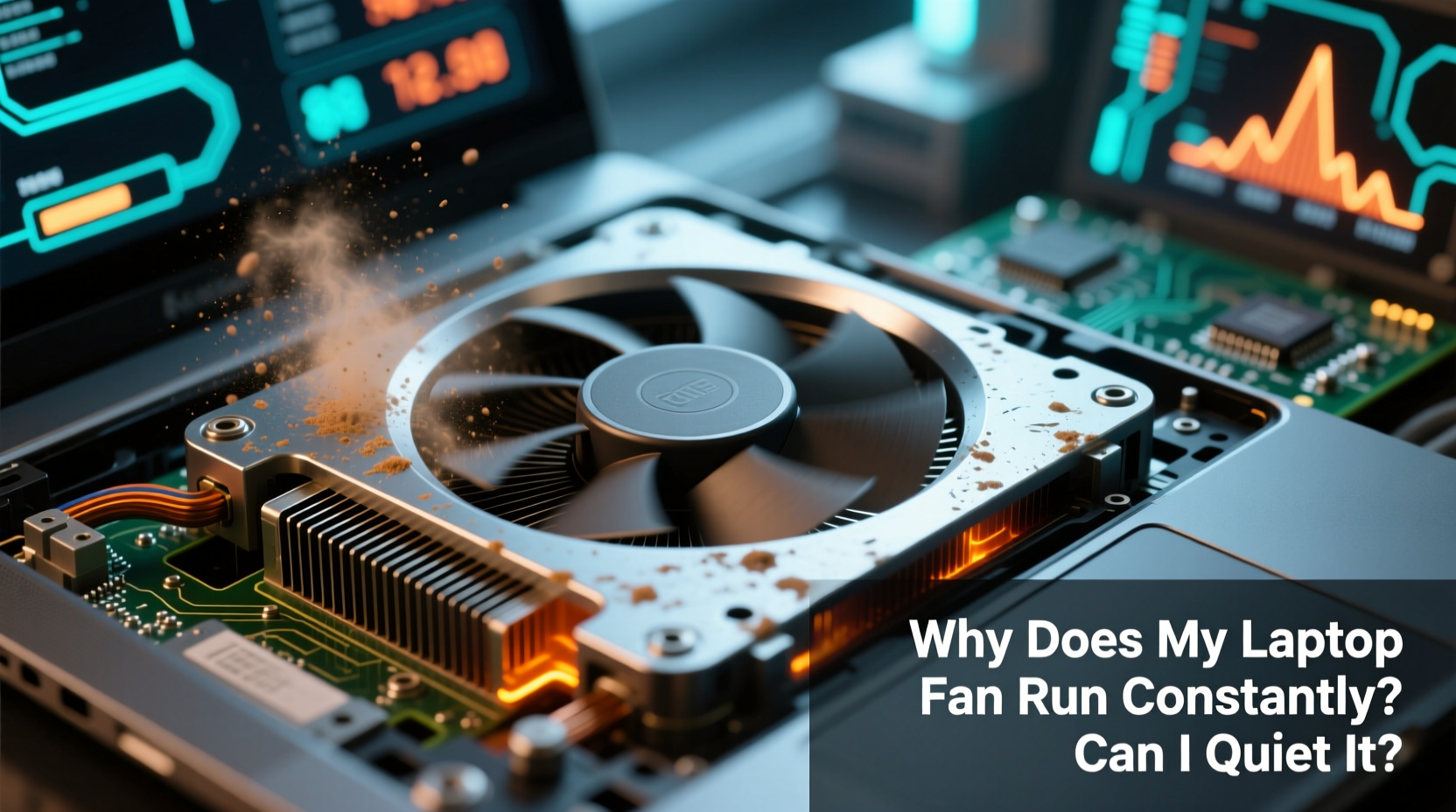
A laptop fan spinning constantly during idle periods defies expectations. After all, if you’re not running demanding programs, why should the cooling system work overtime? Several factors contribute to this behavior, ranging from background processes to physical obstructions.
Modern laptops are designed with thermal sensors and dynamic fan control. In theory, fans should only activate when internal temperatures rise above a certain threshold. However, real-world conditions often interfere with this ideal behavior.
- Background Processes: Even when you're not actively using your laptop, numerous background services—such as Windows Update, antivirus scans, or cloud sync tools—can consume CPU resources.
- Dust Accumulation: Over time, dust clogs air vents and heatsinks, reducing airflow efficiency and causing the system to overheat prematurely.
- Faulty Thermal Sensors: If temperature sensors report incorrect data, the fan controller may respond by ramping up cooling unnecessarily.
- Power Settings: Aggressive performance power plans keep CPU cores active longer, generating heat even during light use.
- Driver or BIOS Issues: Outdated firmware or malfunctioning drivers can mismanage thermal policies.
Step-by-Step Guide to Diagnose and Reduce Fan Noise
Before attempting fixes, diagnose what’s actually driving the fan. A systematic approach helps isolate the root cause and avoid unnecessary interventions.
- Check CPU and GPU Usage: Open Task Manager (Ctrl+Shift+Esc on Windows) or Activity Monitor on macOS. Look for processes using more than 5–10% CPU while idle. Sort by CPU usage to spot culprits.
- Monitor Internal Temperatures: Use tools like HWMonitor, Core Temp (Windows), or iStat Menus (macOS) to read actual CPU/GPU temps. Normal idle range is 35–50°C. Above 60°C suggests a problem.
- Inspect Air Vents: Visually examine intake and exhaust grills for dust buildup. Shine a flashlight inside; if you see fluff or dark residue, cleaning is likely needed.
- Test on Battery vs. AC Power: Some laptops increase fan activity when plugged in due to higher performance modes. Try unplugging and observing changes.
- Boot into Safe Mode: Restart in Safe Mode (hold Shift while clicking Restart on Windows). If the fan quiets down, third-party software is likely responsible.
Real Example: The Case of the Overheating Ultrabook
Sarah, a freelance writer, noticed her slim Dell XPS 13 fan running loudly even when she was only browsing emails. She assumed it was normal—until she checked Task Manager and found “Antimalware Service Executable” using 35% CPU. After researching, she learned this process was scanning files in real time. By adjusting Windows Defender’s scan schedule and excluding her document folders, CPU usage dropped to 3%, and the fan noise ceased within minutes. This case highlights how seemingly benign background tasks can create significant thermal load.
Effective Ways to Quiet Your Laptop Fan
Once you’ve identified the source, apply targeted solutions. Not all fixes require technical expertise—some take less than five minutes.
Optimize Power and Performance Settings
Default power plans often favor performance over efficiency. Switching to a balanced or power-saving mode reduces CPU clock speed and heat output.
- On Windows: Go to Settings > System > Power & Sleep > Additional Power Settings. Select “Balanced” or customize an existing plan to limit maximum processor state to 80–90%.
- On macOS: Navigate to System Settings > Battery > Power Mode and choose “Low Power Mode” when on battery.
Clean Internal Components
Dust acts as insulation, trapping heat inside the chassis. Cleaning the fan and heatsink can dramatically improve cooling efficiency.
“Even a thin layer of dust can raise internal temperatures by 10–15°C, forcing fans to run faster and longer.” — Dr. Rajiv Mehta, Electronics Thermal Engineer
To clean safely:
- Power off and unplug the laptop.
- Use compressed air to blow out vents. Hold cans upright to avoid moisture spray.
- For deep cleaning, open the back panel (if comfortable) and gently wipe fan blades with a cotton swab.
- Reassemble carefully and test.
Update Software and Firmware
Manufacturers release BIOS updates to improve thermal management and fan curves. Check your laptop brand’s support site for available updates.
Similarly, outdated graphics drivers may cause inefficient rendering or memory leaks that stress the GPU. Use official tools like NVIDIA GeForce Experience or AMD Adrenalin to update drivers.
Apply Thermal Paste (Advanced)
Over years of use, factory-applied thermal paste between the CPU and heatsink can dry out, reducing heat transfer efficiency. Reapplying high-quality thermal paste (e.g., Arctic MX-4) improves cooling—but only attempt this if you're experienced with hardware disassembly.
Do’s and Don’ts: Managing Fan Behavior
| Do | Don’t |
|---|---|
| Use compressed air every 3–6 months to clear dust | Blow into vents with your mouth (moisture damages components) |
| Keep your laptop on hard, flat surfaces for proper airflow | Use it on beds, pillows, or carpets that block intake vents |
| Adjust power plans to prioritize energy efficiency | Disable fans entirely via software (risks overheating) |
| Close unused browser tabs and background apps | Ignore persistent high idle temperatures (>60°C) |
| Use a cooling pad for extended work sessions | Place magnets near the laptop (can interfere with sensors) |
When Hardware May Be Failing
Sometimes, constant fan noise points to hardware degradation. Common signs include:
- Fan whirring increases gradually over weeks despite cleaning.
- Unusual grinding or clicking sounds.
- Laptop shuts down unexpectedly under light load.
If the fan itself is worn out, replacement may be necessary. While modern laptops often have proprietary fan units, many models allow user-replacement with the right screwdrivers and guides from sites like iFixit.
In rare cases, the motherboard’s voltage regulator modules (VRMs) overheat due to faulty capacitors or poor board design. This typically affects older laptops or budget models with inadequate cooling solutions.
Expert Insight on Fan Longevity
“A well-maintained laptop fan should last 4–6 years. But continuous high-speed operation accelerates wear. Addressing thermal issues early extends both fan and system lifespan.” — Lin Zhao, Senior Technician at TechCare Labs
FAQ: Common Questions About Laptop Fan Noise
Can I disable my laptop fan?
No. Disabling the fan—even temporarily—is extremely risky. Without active cooling, CPUs and GPUs can overheat in seconds, leading to throttling, crashes, or permanent damage. Instead, address the root cause of excessive fan use.
Is it normal for fans to turn on briefly at startup?
Yes. Most laptops perform a fan check during boot-up (POST). A short burst of fan activity is normal and indicates the system recognizes the hardware. Continuous spinning after login is not.
Will undervolting reduce fan noise?
Yes, but cautiously. Undervolting reduces CPU voltage, lowering heat output without sacrificing performance. Tools like Intel XTU (for compatible processors) can help. However, improper settings may cause instability. Only attempt this if you understand the risks.
Conclusion: Take Control of Your Laptop’s Cooling
A constantly running laptop fan isn’t something you have to live with. More often than not, it’s a symptom of manageable issues—excessive background load, dust buildup, or suboptimal settings. By diagnosing the cause systematically and applying practical fixes, you can restore quiet operation and extend your device’s lifespan.
Start with simple steps: monitor your CPU usage, clean the vents, adjust power settings, and ensure your software is up to date. For persistent problems, consider deeper maintenance like thermal paste replacement or professional servicing. Remember, a cooler laptop is not only quieter but also more reliable and efficient.




 浙公网安备
33010002000092号
浙公网安备
33010002000092号 浙B2-20120091-4
Comments
No comments yet. Why don't you start the discussion?