
If your laptop fan runs nonstop even when the system appears idle—no heavy applications open, no downloads in progress—it’s more than just annoying. It can signal underlying inefficiencies or potential hardware stress. While some fan activity is normal during active computing, persistent high-speed spinning without apparent cause often points to deeper issues. This article breaks down the real reasons behind constant fan operation, evaluates common \"fixes\" that fall short, and delivers proven, actionable solutions to restore balance and extend your device’s lifespan.
Understanding Laptop Cooling Systems
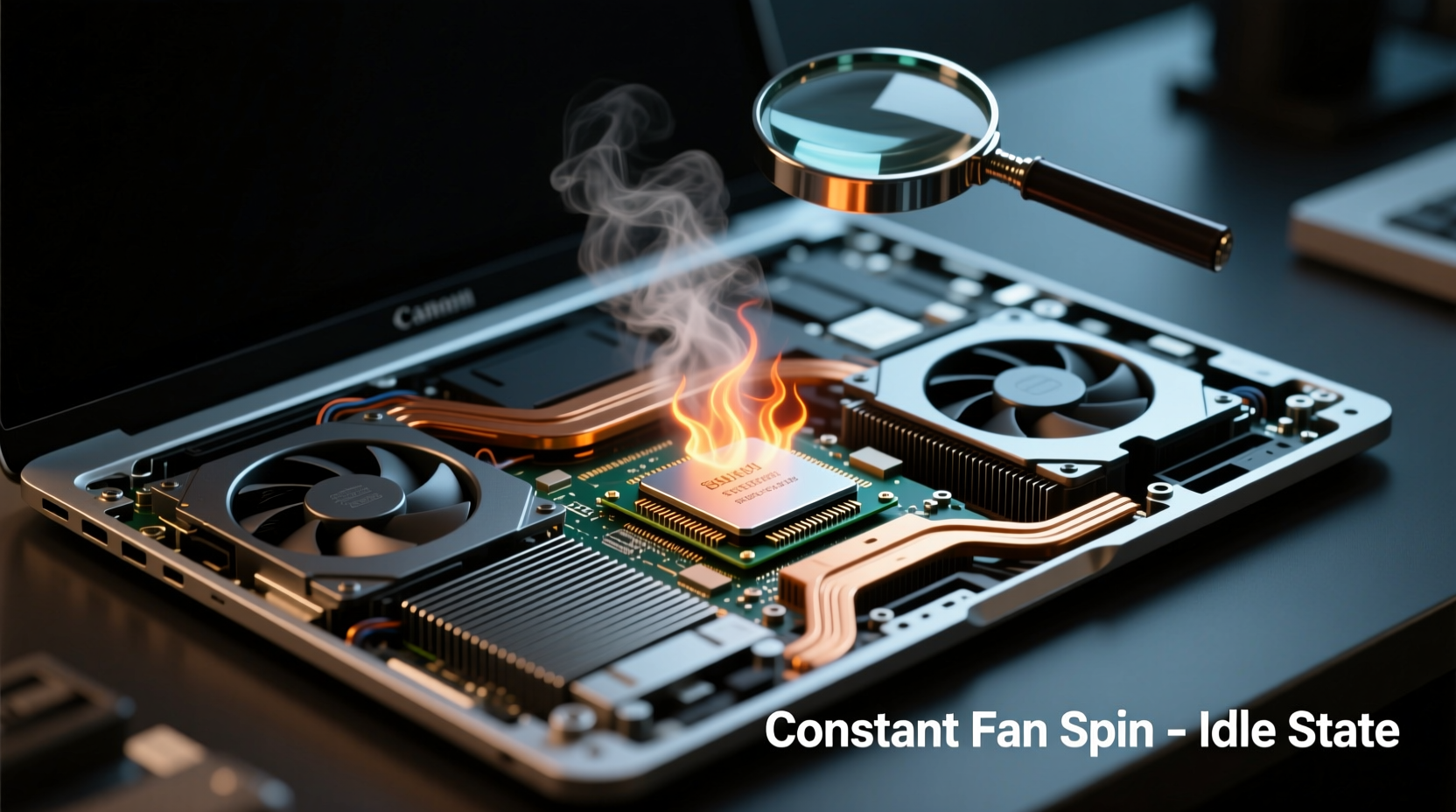
Laptop fans are part of a thermal management system designed to prevent overheating. When components like the CPU or GPU generate heat, sensors detect rising temperatures and trigger the fan to expel hot air through vents. Modern systems use dynamic fan curves—adjusting speed based on thermal load—but misconfigurations or failures can disrupt this balance.
Even during light usage (web browsing, document editing), background processes may spike CPU usage unexpectedly. If thermal paste has degraded, dust has clogged vents, or power settings favor performance over efficiency, the fan may respond aggressively—even when you’re not actively using the machine.
Common Causes of Constant Fan Operation
Before assuming hardware failure, consider these frequent culprits:
- Dust accumulation: Over time, dust blocks air intake grills and coats internal heatsinks, reducing airflow efficiency.
- Faulty thermal paste: Dried or improperly applied paste between the CPU and heatsink reduces heat transfer, causing false temperature spikes.
- Background software: Malware, crypto-mining scripts, or resource-heavy updaters can run silently in the background.
- Power plan settings: High-performance modes keep CPUs at elevated clock speeds, increasing heat output unnecessarily.
- Driver or BIOS bugs: Outdated firmware may misreport temperatures or fail to regulate fan curves properly.
- Failing fan or sensor: A malfunctioning temperature sensor might report incorrect readings, triggering continuous fan activation.
“Many users assume their laptop is broken when it's actually running inefficient software or suffering from poor ventilation.” — Dr. Alan Reyes, Hardware Systems Engineer at TechReliability Labs
Step-by-Step Diagnostic Process
To isolate the root cause, follow this structured approach:
- Check CPU and GPU usage: Open Task Manager (Windows) or Activity Monitor (Mac). Sort by CPU usage. Look for processes consuming more than 5–10% without user input.
- Monitor temperatures: Use tools like HWMonitor, Core Temp, or Macs Fan Control to read actual component temperatures. Idle CPU temps should be 35–50°C; anything above 70°C under no load is concerning.
- Inspect fan behavior: Listen closely. Is the fan running at full speed continuously, or pulsing? Use SpeedFan or similar tools to see if fan RPM matches thermal load.
- Review startup programs: Disable unnecessary apps from launching at boot via System Configuration (msconfig) or Startup tab in Task Manager.
- Test with minimal OS: Boot into Safe Mode (Windows) or Safe Boot (Mac). If the fan quiets down, third-party software is likely responsible.
- Examine power settings: Ensure the power plan is set to “Balanced” or “Power Saver,” not “High Performance.”
- Physically inspect vents: Use a flashlight to check for visible dust buildup near intake and exhaust areas.
Tested Cooling Solutions That Actually Work
Not all cooling methods are equally effective. Below is an evaluation of popular approaches, ranked by real-world results.
| Solution | Effectiveness | Cost | Longevity | Notes |
|---|---|---|---|---|
| Compressed air cleaning | High | Low ($10–$20) | 3–6 months | Immediate improvement if dust was blocking airflow. |
| Thermal paste reapplication | Very High | Medium ($15–$30 + labor) | 2–5 years | Best for older laptops (3+ years). Requires disassembly. |
| External cooling pad | Moderate | Medium ($30–$80) | 1–3 years | Helps but doesn’t fix root cause. Can increase noise. |
| BIOS update | Variable | Free | Potential permanent fix | May resolve fan control bugs. Check manufacturer support site. |
| Undervolting CPU | High (on supported models) | Free | Ongoing | Reduces heat generation without performance loss. Advanced users only. |
| Software optimization | High | Free | Persistent | Disabling bloatware, malware scans, managing startup items. |
Real Example: The Case of the Overheating ThinkPad
A freelance writer reported her Lenovo ThinkPad T480 ran loudly all day despite only using Google Docs and email. Initial checks showed 85°C CPU temps at idle. Using Task Manager, she found Adobe Creative Cloud updater consuming 30% CPU continuously. After uninstalling unused Adobe apps, temps dropped to 48°C and fan noise became intermittent. A follow-up compressed air cleaning reduced fan speed further. No hardware repair was needed—just software cleanup and basic maintenance.
This case highlights how background processes, not hardware failure, often drive excessive fan use.
When Hardware Repair Is Necessary
If diagnostics show consistently high temperatures (>80°C at idle) after software fixes and cleaning, internal hardware intervention may be required.
- Reapplying thermal paste: Especially critical for laptops over two years old. Factory-applied paste degrades over time, creating thermal resistance.
- Fan replacement: If the fan makes grinding noises or fails to spin up/down appropriately, it may need replacement.
- Heatsink realignment: In rare cases, physical impacts can dislodge heatsinks from the CPU/GPU die.
While DIY repairs are possible, improper handling can void warranties or damage components. For users uncomfortable opening their device, professional service is recommended. Expect costs between $75–$150 depending on model and labor rates.
Preventive Maintenance Checklist
Keep your laptop cool and quiet with regular upkeep. Follow this checklist every 3–6 months:
- ✅ Clean air vents with compressed air
- ✅ Update operating system and drivers
- ✅ Run antivirus and anti-malware scan
- ✅ Review and disable unnecessary startup programs
- ✅ Check for BIOS/firmware updates
- ✅ Verify power plan settings (use Balanced mode)
- ✅ Monitor CPU temperature baseline monthly
- ✅ Avoid using laptop on soft surfaces (beds, couches)
FAQ: Frequently Asked Questions
Is it bad if my laptop fan runs all the time?
Constant fan operation isn’t inherently dangerous, but it indicates inefficiency. Prolonged high RPMs can wear out the fan motor prematurely and suggest thermal stress on internal components. Address the cause rather than ignoring it.
Can malware cause my fan to run constantly?
Yes. Malware, especially cryptocurrency miners, can hijack your CPU and run complex calculations in the background, generating significant heat. A sudden increase in fan noise without increased workload should prompt a security scan.
Does closing the laptop lid affect cooling?
On most models, closing the lid triggers sleep mode, stopping most processes. However, if your laptop is set to “Do nothing” when the lid closes, it continues running—and if placed in a bag or confined space, ventilation is blocked, leading to heat buildup and maximum fan speed.
Expert Recommendations for Long-Term Cooling Health
According to thermal design specialists, the key to minimizing fan noise lies in proactive thermal hygiene and smart usage habits.
“The best cooling system is one you don’t hear. Regular maintenance and intelligent power management reduce strain more than any aftermarket cooler.” — Lena Patel, Senior Thermal Architect at MobileCompute Dynamics
Experts recommend setting custom fan curves where possible (via tools like Argus Monitor or Macs Fan Control), allowing quieter operation at moderate temperatures. Additionally, avoiding direct sunlight and using hard, flat surfaces improves passive cooling significantly.
Conclusion: Take Control of Your Laptop’s Cooling
Your laptop’s constant fan noise isn’t something you have to live with. Whether caused by dust, outdated thermal paste, rogue software, or misconfigured settings, the solution is usually within reach. Start with simple software checks and cleaning, then escalate to hardware interventions only if necessary. By understanding what drives thermal load and taking consistent preventive steps, you can restore quiet operation, improve system longevity, and regain focus without the distraction of a jet-engine-like hum.




 浙公网安备
33010002000092号
浙公网安备
33010002000092号 浙B2-20120091-4
Comments
No comments yet. Why don't you start the discussion?