
If your laptop fan is running nonstop—even when you're not doing anything intensive—it’s more than just an annoyance. Constant fan noise can signal underlying issues that affect performance, battery life, and hardware longevity. While some fan activity is normal during high-load tasks, persistent spinning during idle periods indicates a problem worth addressing.
The root causes vary widely: from background software consuming CPU cycles to dust-clogged vents or degraded thermal paste. The good news is that most of these issues are fixable with the right approach. This guide breaks down why your laptop fan runs constantly and delivers practical, tested cooling solutions that deliver real results.
Understanding Laptop Cooling Systems
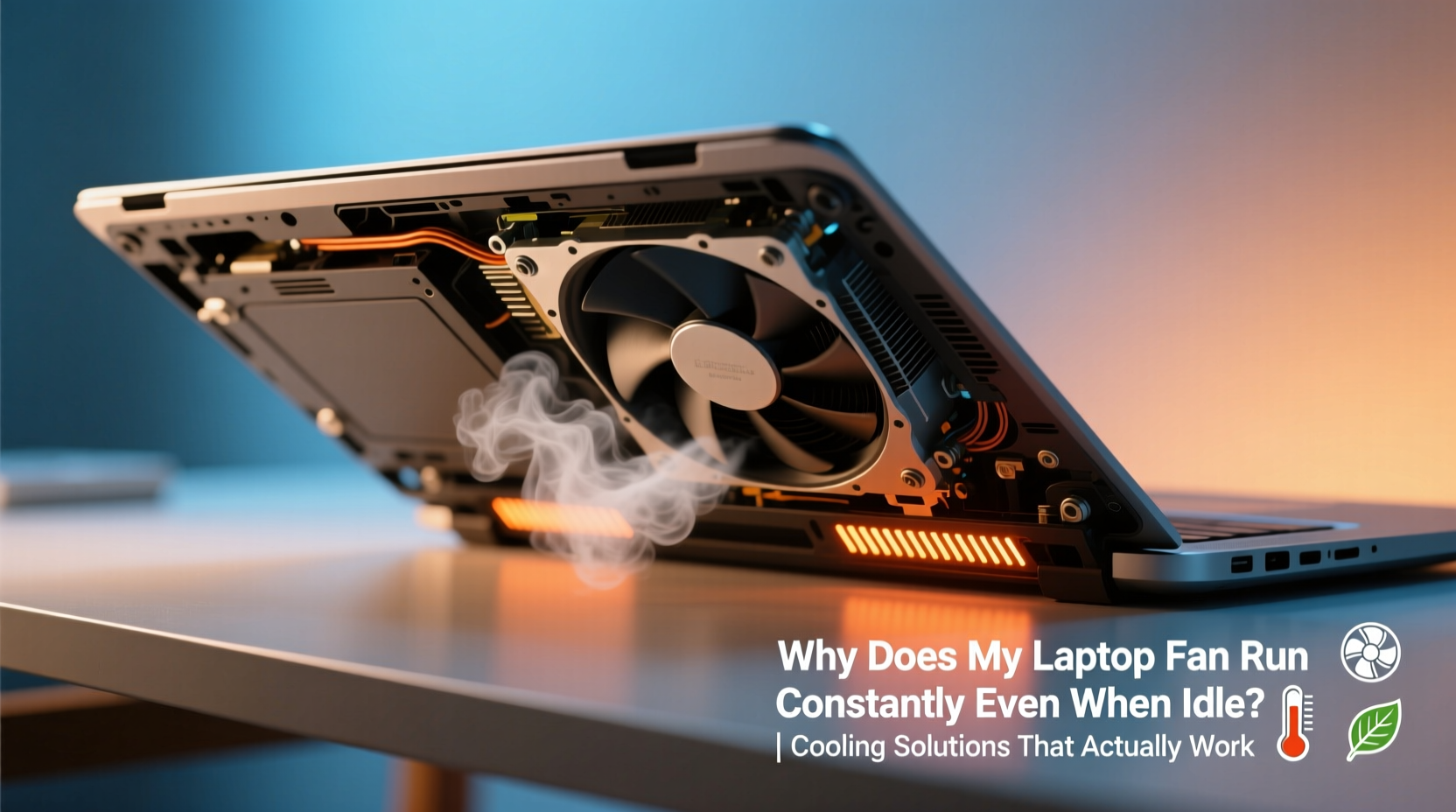
Laptops rely on active and passive cooling mechanisms to manage heat generated by the CPU, GPU, and other components. Most models use a combination of heat sinks, thermal paste, and one or more fans to dissipate heat through exhaust vents. When internal temperatures rise, sensors trigger the fan to spin faster. Ideally, fan speed adjusts dynamically—quiet during light use, louder under load.
However, if the system detects sustained high temperatures—even at low usage—the fan may remain active. This behavior suggests either excessive heat generation or inefficient heat dissipation. Common culprits include:
- Dust accumulation blocking airflow
- Aging or dried-out thermal paste
- Background processes using CPU resources
- Poor power settings causing CPU throttling
- Faulty temperature sensors or fan control firmware
“Many users assume constant fan noise is normal, but it's often a sign of preventable inefficiencies in thermal management.” — Dr. Alan Zhou, Hardware Engineer at TechTherm Labs
Common Causes of Constant Fan Operation at Idle
Before jumping into fixes, it’s essential to identify what’s triggering the fan. Below are the most frequent reasons your laptop fan runs constantly despite minimal activity.
1. Background Processes and High CPU Usage
Even when you’re not actively using your laptop, background applications can consume significant processing power. Antivirus scans, software updates, browser tabs with autoplay videos, and cloud sync tools (like OneDrive or Dropbox) often run silently but heavily.
To check for this, open Task Manager (Windows) or Activity Monitor (Mac). Sort by CPU usage and look for any process consistently above 10–15% while the system is idle.
2. Dust and Debris Blocking Airflow
Over time, dust accumulates in air intakes, fans, and heat sinks. Even a thin layer can insulate heat, forcing the fan to work harder. Laptops used on beds, couches, or carpeted floors are especially prone to clogging.
Restricted airflow means poor heat transfer, so components stay hot longer. This leads to sustained fan operation—even when CPU load is low.
3. Degraded Thermal Paste
Thermal paste sits between the CPU/GPU and the heat sink, ensuring efficient heat conduction. Over 2–3 years, this paste can dry out or crack, reducing its effectiveness. As a result, heat builds up faster, and the cooling system compensates with continuous fan use.
4. Inadequate Power Management Settings
Some laptops default to “High Performance” mode, which keeps the CPU clocked higher than necessary. This increases power consumption and heat output, prompting constant fan activity. Switching to “Balanced” or “Power Saver” can reduce idle temperatures significantly.
5. Faulty Fan Control or BIOS Issues
In rare cases, the fan control logic in the BIOS or embedded controller malfunctions. This can cause the fan to run at full speed regardless of temperature. Updating the BIOS or resetting EC settings may resolve this.
Proven Cooling Solutions That Work
Addressing constant fan noise requires both immediate fixes and long-term maintenance. The following solutions are ranked by effectiveness and ease of implementation.
Step-by-Step Guide: Diagnose and Fix Fan Issues
- Monitor CPU and Temperature: Use tools like HWMonitor (Windows), Core Temp, or iStat Menus (Mac) to track CPU usage and core temperatures. Idle temps should be 40–55°C; above 70°C indicates a problem.
- Check Background Processes: Open Task Manager and end unnecessary high-CPU tasks. Consider uninstalling bloatware or auto-updating apps that run constantly.
- Clean Internal Components: Power off the laptop, disconnect the battery (if possible), and use compressed air to blow out dust from vents and fans. For deep cleaning, disassemble the unit carefully or take it to a technician.
- Reapply Thermal Paste: If your laptop is over two years old, consider replacing the thermal paste. Use high-quality paste like Arctic MX-4 or Noctua NT-H1. This task requires precision and confidence in hardware handling.
-
: On Windows, go to Control Panel > Power Options and select “Balanced.” On Mac, enable automatic graphics switching and reduce display brightness. - Elevate the Laptop: Use a stand or risers to improve airflow underneath. Avoid flat surfaces like beds or pillows that block intake vents.
- Update Firmware and Drivers: Check the manufacturer’s website for BIOS, chipset, and fan control driver updates. These often include thermal management improvements.
External Cooling Accessories: Do They Help?
Laptop cooling pads are widely available, but their effectiveness varies. Here’s a breakdown of popular options:
| Solution | Effectiveness | Best For | Limitations |
|---|---|---|---|
| Passive Aluminum Pad | Moderate | Light users, short sessions | No fan; relies on conduction only |
| Active Cooling Pad (Dual Fans) | High | Gaming, video editing | Noisy; adds bulk |
| USB-Powered Ventilated Stand | Good | Office/work use | Requires USB port; limited cooling depth |
| None (Laptop on Desk) | Low | Newer, well-maintained laptops | Risk of overheating on soft surfaces |
While external coolers help, they’re supplementary. They won’t fix internal issues like clogged heatsinks or dried thermal paste.
Mini Case Study: Resolving Persistent Fan Noise on a 3-Year-Old Dell XPS
A freelance graphic designer reported that her Dell XPS 13 began running its fan constantly after two years of daily use. She noticed no performance drops, but the noise made remote meetings uncomfortable.
Initial checks revealed:
- Idle CPU temperature: 78°C
- Background Chrome process using 22% CPU
- Vent intake visibly dusty
The solution followed three steps:
- Disabled Chrome extensions and set browser to sleep inactive tabs.
- Used compressed air to clean the left-side intake vent and fan housing.
- Updated BIOS to version 1.16.0, which included fan curve optimizations.
Result: Idle temperature dropped to 54°C, and fan noise became nearly inaudible. The fix cost nothing and took under 30 minutes.
Preventive Maintenance Checklist
Stay ahead of cooling problems with this actionable checklist:
- ✅ Clean air vents every 1–2 months with compressed air
- ✅ Monitor CPU temperature weekly using free tools
- ✅ Disable unnecessary startup programs
- ✅ Keep the laptop on hard, flat surfaces
- ✅ Replace thermal paste every 2–3 years (especially for heavy-use devices)
- ✅ Update BIOS and drivers quarterly
- ✅ Use power-saving mode during light tasks
- ✅ Avoid covering exhaust vents (e.g., near walls or cushions)
Frequently Asked Questions
Is it bad if my laptop fan runs all the time?
Constant fan operation isn't inherently damaging, but it indicates inefficiency. Over time, sustained high RPMs can wear out the fan motor. More importantly, it often points to heat buildup that can degrade internal components like the battery or solder joints.
Can software cause the fan to run constantly?
Yes. Malware, poorly optimized apps, or browser tabs with infinite loops can spike CPU usage without visible signs. Always check Task Manager or Activity Monitor if the fan runs loudly during apparent inactivity.
Should I replace the fan if it’s always on?
Not necessarily. Replacing the fan is a last resort. First, rule out dust, thermal paste, and software issues. A new fan won’t solve the root cause if the system is still overheating due to poor heat transfer.
Conclusion: Take Control of Your Laptop’s Cooling
A constantly running laptop fan is a warning sign few pay attention to—until performance suffers or hardware fails. But with a methodical approach, most causes are easily diagnosable and fixable. From managing background processes to physically cleaning dust and refreshing thermal interfaces, the solutions are within reach of most users.
Don’t accept noisy operation as inevitable. Implement regular maintenance, optimize your settings, and intervene early when temperatures rise. Your laptop will run cooler, quieter, and last longer.




 浙公网安备
33010002000092号
浙公网安备
33010002000092号 浙B2-20120091-4
Comments
No comments yet. Why don't you start the discussion?