
If your laptop fan is spinning loudly even when you're not doing anything intensive, it's more than just an annoyance—it could signal deeper issues affecting performance, battery life, and hardware longevity. While some fan activity is normal, constant high-speed operation during idle periods suggests something is amiss. The good news is that most causes are fixable without costly repairs. From background processes to dust buildup and outdated drivers, a range of factors can trigger excessive cooling demands. Understanding the root cause allows you to take targeted action and restore quiet, efficient operation.
Common Causes of Constant Fan Operation
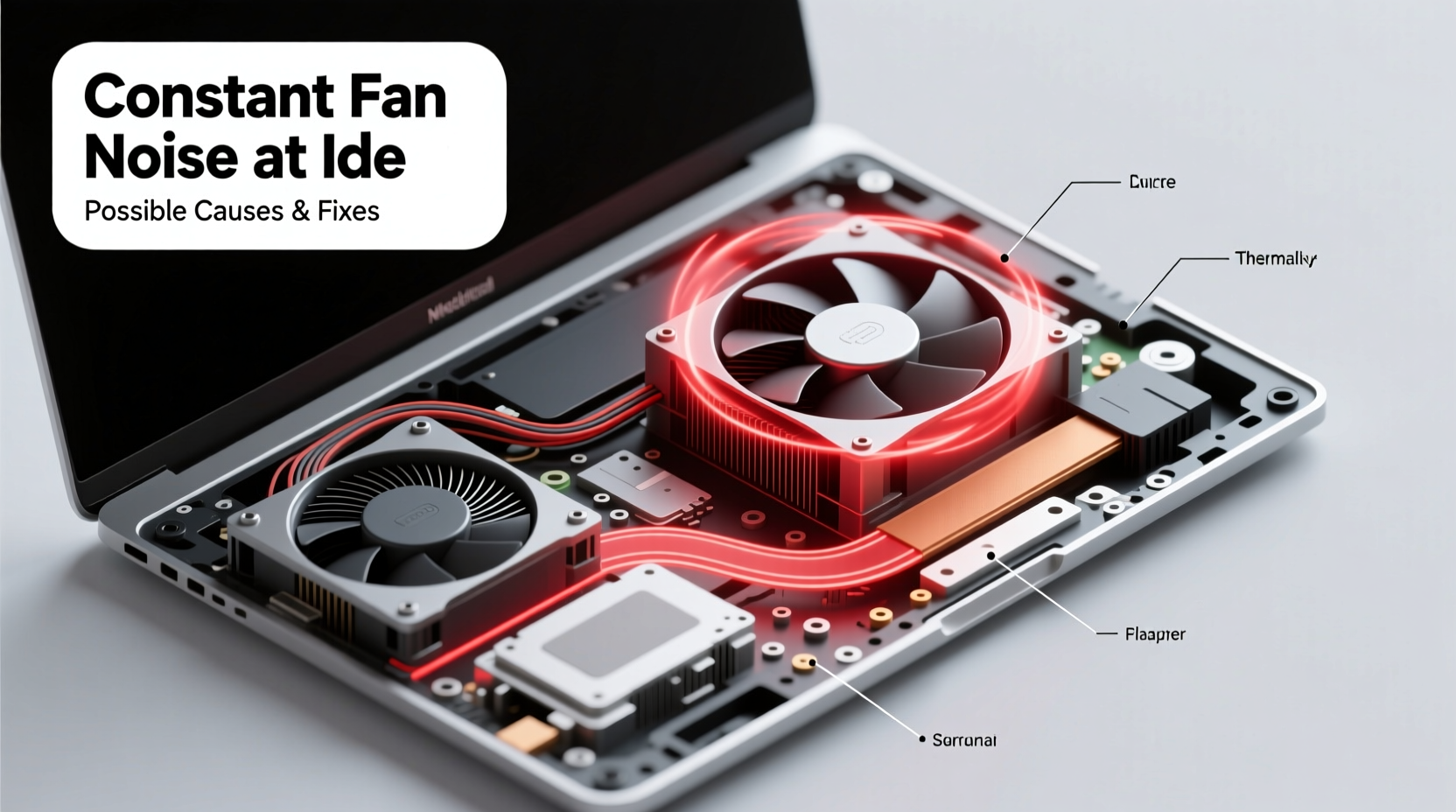
Laptop fans respond to internal temperature. When components like the CPU or GPU heat up, the system ramps up fan speed to dissipate heat. However, persistent fan noise when the machine appears idle usually points to hidden thermal stress or software inefficiencies. Below are the most frequent culprits:
- Background processes consuming CPU: Apps running silently in the background—especially updaters, antivirus scans, or cloud sync tools—can spike CPU usage without visible signs.
- Dust accumulation in vents and heatsinks: Over time, dust blocks airflow, reducing cooling efficiency and forcing fans to work harder.
- Faulty thermal paste: On older laptops, dried-out or degraded thermal paste between the CPU and heatsink reduces heat transfer, leading to higher temperatures.
- Outdated BIOS or drivers: Firmware bugs or incompatible power management settings can misreport temperatures or fail to regulate fan curves properly.
- Power plan misconfigurations: High-performance power plans keep CPU clocks elevated, generating unnecessary heat even at rest.
- Malware or crypto-mining scripts: Malicious software may run hidden computations, driving up CPU load and heat output.
Step-by-Step Diagnosis and Fixes
Resolving constant fan noise requires methodical troubleshooting. Follow this sequence to identify and eliminate the underlying issue.
- Monitor CPU and GPU usage: Use Task Manager (Windows) or Activity Monitor (Mac) to check real-time resource consumption. Look for processes using disproportionate CPU cycles despite inactivity.
- Check internal temperatures: Download a tool like HWMonitor, Core Temp, or Open Hardware Monitor. Idle CPU temperatures should be between 40°C and 55°C. Sustained readings above 70°C indicate abnormal heat buildup.
- Inspect fan behavior: Listen closely—is the fan running at full speed continuously, or pulsing? Continuous high RPM suggests thermal throttling; pulsing may point to software-based fan control glitches.
- Review startup programs: Disable unnecessary apps from launching at boot via Task Manager > Startup tab. Reducing background load often lowers idle temperatures.
- Update operating system and drivers: Install pending OS updates and refresh graphics, chipset, and fan control drivers from your manufacturer’s support site.
- Adjust power settings: Switch to “Balanced” or “Power Saver” mode in Windows Control Panel or macOS Energy Saver preferences to reduce baseline CPU performance and heat.
When Software Isn't the Issue
If software checks don’t resolve the problem, focus shifts to hardware and environmental factors. A clean software environment with persistently high temps almost always indicates a physical limitation.
Dust Buildup and Ventilation Problems
Dust is one of the most common—and overlooked—reasons for poor thermal performance. Over months or years, fine particles clog air intakes, coat heatsinks, and insulate critical components. This insulation effect traps heat, forcing fans to spin faster to compensate.
A study by the IEEE on consumer electronics maintenance found that devices cleaned every 6–12 months experienced up to 18% lower average operating temperatures compared to neglected units.
“Even a thin layer of dust on a heatsink can increase thermal resistance by over 30%. Regular cleaning isn’t optional—it’s essential for longevity.” — Dr. Rajiv Mehta, Thermal Systems Engineer, Dell Technologies (ret.)
How to Safely Clean Your Laptop
Cleaning requires care to avoid damaging sensitive components. Never use household vacuums, which generate static electricity. Instead:
- Power off and unplug the laptop. Remove the battery if possible.
- Use compressed air to blow out vents. Hold cans upright and use short bursts to prevent liquid propellant discharge.
- Focus on intake grills (usually along the sides or bottom) and exhaust ports (typically near hinges).
- For advanced users: Open the back panel (check manufacturer guides), then gently brush heatsink fins with a soft-bristle toothbrush before applying compressed air.
- Reassemble and test under idle conditions.
Thermal Paste Degradation and Repasting
Thermal paste, the grayish compound applied between the CPU/GPU and the metal heatsink, degrades over time. Most standard pastes last 3–5 years before drying out and losing effectiveness. When this happens, heat transfer becomes inefficient, causing CPUs to run hotter even under light loads.
Repasting is a moderate-difficulty DIY task but can reduce idle temperatures by 10–15°C in aging laptops. Use high-quality thermal compounds like Arctic MX-4 or Noctua NT-H1. Avoid thermal pads unless replacing OEM ones.
Signs You May Need to Reapply Thermal Paste
- Laptop is over three years old and has never been opened.
- Fan runs loudly within minutes of booting, even before login.
- Temperatures exceed 80°C at idle after cleaning and software optimization.
Note: Some ultrabooks have soldered heatsinks or sealed designs that make repasting impractical. In such cases, professional service may be required—or consider replacement if the device is heavily degraded.
BIOS, Drivers, and Firmware Considerations
Sometimes, the fan runs constantly due to incorrect firmware logic rather than actual overheating. Manufacturers occasionally release BIOS updates that correct faulty temperature sensors, improve fan curve algorithms, or patch power management bugs.
To check for updates:
- Identify your laptop model (e.g., “Dell XPS 13 9310” or “Lenovo ThinkPad T490”).
- Visit the official support page for your brand.
- Download and install the latest BIOS, chipset, and EC (Embedded Controller) firmware.
After updating, reset BIOS settings to default and retest fan behavior. Some systems allow manual fan control via third-party tools (e.g., ThinkPad风扇控制 via thinkfan), but proceed with caution—incorrect settings can lead to overheating.
| Issue | Diagnostic Method | Solution |
|---|---|---|
| High CPU usage at idle | Task Manager → CPU column | End task, uninstall problematic app, scan for malware |
| Dust-clogged vents | Visual inspection + temp monitoring | Compressed air cleaning or internal service |
| Outdated BIOS | Check version in System Information | Update via manufacturer utility |
| Failed temperature sensor | Inconsistent or extreme reported temps | Professional diagnosis or motherboard repair |
| Worn thermal paste | High temps despite clean hardware | Repaste CPU/GPU with quality compound |
Mini Case Study: Resolving Fan Noise on a 4-Year-Old HP Pavilion
Mark, a freelance writer, noticed his HP Pavilion laptop had become increasingly loud over several weeks. Despite only using it for web browsing and document editing, the fan spun at maximum speed shortly after startup. Initial checks showed no unusual CPU usage in Task Manager.
He downloaded HWMonitor and discovered his CPU idled at 78°C—well above the expected range. After cleaning the side vents with compressed air, temperatures dropped slightly to 72°C but remained high. Suspecting internal dust, he opened the back panel (guided by an iFixit tutorial) and found a thick layer of lint coating the heatsink.
After carefully brushing and blowing out the fins, idle temps fell to 51°C, and the fan returned to near-silent operation. Mark now schedules biannual cleanings and uses a laptop cooling pad during long writing sessions. His machine, once considered for replacement, continues to perform reliably.
Preventive Maintenance Checklist
To avoid recurring fan issues, follow this routine:
- ✅ Clean air vents externally every 2–3 months
- ✅ Run a full malware scan monthly
- ✅ Check for BIOS and driver updates quarterly
- ✅ Monitor system temperatures weekly (if prone to overheating)
- ✅ Avoid using the laptop on soft surfaces like beds or couches
- ✅ Replace thermal paste every 3–5 years (for user-serviceable models)
- ✅ Keep ambient room temperature below 25°C (77°F) when possible
Frequently Asked Questions
Is it bad if my laptop fan runs all the time?
Constant low-speed fan operation isn’t harmful, but sustained high-RPM spinning can wear out the motor prematurely and indicate inefficient cooling. It also drains battery faster and creates distraction. Investigate if it occurs during light usage.
Can I turn off my laptop fan manually?
No—and you shouldn’t. Fans are critical for preventing thermal damage. Disabling them risks permanent hardware failure. Instead, address the root cause of excessive heat.
Does using a cooling pad help reduce fan noise?
Yes, especially on desks or hard surfaces. Cooling pads improve airflow beneath the laptop, lowering base temperatures by 5–10°C. Choose models with variable speed controls and adequate fan coverage for best results.
Conclusion: Take Control of Your Laptop’s Performance
A constantly running laptop fan isn’t something you should ignore or simply get used to. It’s a warning sign that your device is working harder than necessary, potentially shortening its lifespan and degrading user experience. By systematically checking software activity, cleaning ventilation paths, updating firmware, and addressing aging thermal materials, you can restore quiet, cool operation and extend your laptop’s usable life by years.
Most fixes require minimal cost and moderate technical effort. Start with simple steps like reviewing startup apps and cleaning vents. If problems persist, dig deeper into temperature monitoring and hardware maintenance. Your laptop was designed to run efficiently—don’t let preventable issues undermine its performance.




 浙公网安备
33010002000092号
浙公网安备
33010002000092号 浙B2-20120091-4
Comments
No comments yet. Why don't you start the discussion?