
Laptop fans are designed to regulate internal temperature by expelling heat generated by the processor, graphics card, and other components. While occasional fan activity is normal—even expected—constant high-speed spinning when the system appears idle can be frustrating, noisy, and concerning. This behavior often signals underlying inefficiencies or issues that, if ignored, may shorten your laptop’s lifespan or degrade performance over time.
The root causes vary widely: from software processes running in the background to dust-clogged vents or outdated thermal paste. The good news is that most of these problems are diagnosable and fixable without professional help. By understanding what triggers excessive fan use and applying targeted solutions, you can restore quiet operation and maintain optimal thermal performance.
Understanding Laptop Cooling Systems
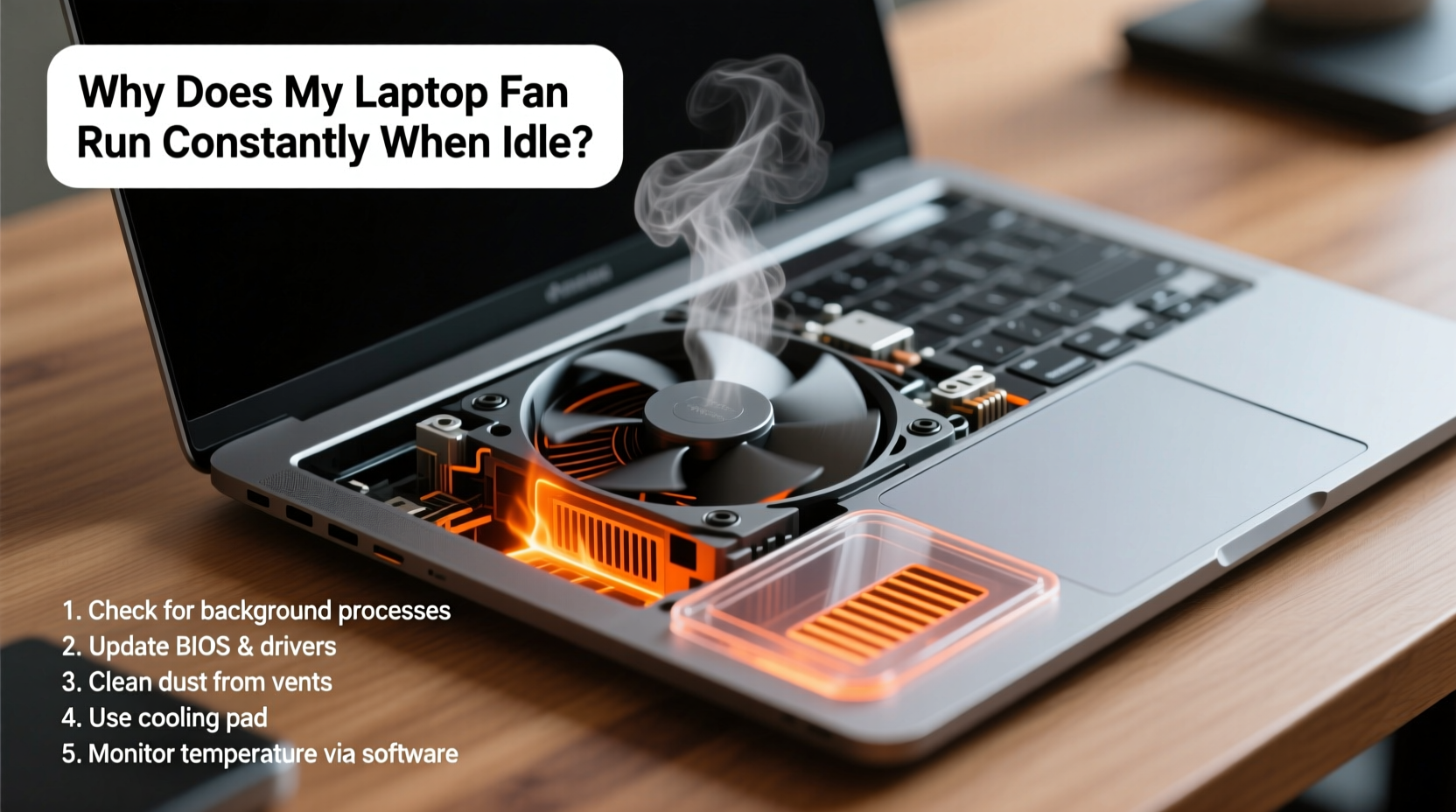
Modern laptops rely on a combination of heat sinks, thermal paste, and one or more fans to manage internal temperatures. When the CPU or GPU works hard—rendering video, gaming, or multitasking with heavy applications—they generate heat. Sensors detect rising temperatures and signal the fan(s) to spin faster. Once the load decreases, cooling demand should drop, and the fan should slow or stop.
However, persistent fan noise during low-activity periods suggests the system is either misreading temperature data, struggling to dissipate heat efficiently, or handling unseen workloads. Unlike desktops, laptops have limited airflow and compact designs that make them prone to overheating, especially as they age.
“Thermal throttling due to poor heat dissipation is one of the top reasons for premature performance decline in laptops.” — Dr. Alan Reyes, Hardware Systems Engineer
Common Causes of Constant Fan Activity
Before jumping into fixes, it’s essential to identify the likely culprit. Here are the most frequent reasons your laptop fan runs nonstop, even when seemingly idle:
- Background Processes & Malware: Hidden software—especially malware or resource-heavy apps like crypto miners—can consume CPU cycles without visible signs.
- Dust Accumulation: Over time, dust blocks air intakes and coats internal components, reducing heat transfer efficiency.
- Faulty or Dried-Out Thermal Paste: The paste between the CPU/GPU and heat sink degrades, impairing heat conduction.
- Outdated BIOS or Drivers: Firmware bugs or inefficient power management settings can cause incorrect thermal responses.
- Ambient Temperature & Placement: Using your laptop on soft surfaces like beds or couches restricts airflow.
- Power Settings: High-performance modes keep CPU clocks elevated, generating unnecessary heat.
- Failing Fan or Sensor: A malfunctioning temperature sensor might report false highs, triggering constant fan use.
Step-by-Step Guide to Diagnose and Fix the Issue
Follow this systematic approach to pinpoint and resolve the cause of your laptop’s overactive fan.
- Monitor System Resources
Open Task Manager (Ctrl+Shift+Esc) and sort processes by CPU usage. Look for any app consistently using more than 5–10% CPU while idle. Investigate unknown entries via a quick web search. - Scan for Malware
Run a full system scan using Windows Defender or a trusted third-party antivirus. Some malware disguises itself as legitimate processes but runs cryptomining scripts silently. - Check Internal Temperatures
Use tools like HWMonitor, Core Temp, or Open Hardware Monitor to view real-time CPU and GPU temps. Idle temperatures above 60°C (140°F) suggest a cooling problem. - Review Power Settings
Navigate to Control Panel > Power Options. Switch from “High Performance” to “Balanced” or “Power Saver.” Disable aggressive processor power management in advanced settings. - Clean Air Vents and Fans
Power off the laptop. Use compressed air to blow out dust from intake and exhaust vents. Do not use vacuum cleaners, which can generate static. - Evaluate Physical Placement
Always use your laptop on hard, flat surfaces. Consider a cooling pad with independent fans for long sessions. - Update BIOS and Drivers
Visit your manufacturer’s support site, enter your model number, and install the latest BIOS, chipset, and fan control drivers. These updates often include thermal management improvements. - Reapply Thermal Paste (Advanced)
If temps remain high after cleaning, consider re-pasting the CPU/GPU. This requires disassembling the laptop and is best done every 3–4 years on heavily used machines.
Do’s and Don’ts of Laptop Cooling Maintenance
| Action | Do | Don't |
|---|---|---|
| Cleaning Vents | Use short bursts of compressed air at a 45-degree angle. | Blow moisture-laden air or insert sharp objects into vents. |
| Software Management | Disable startup bloatware via Task Manager > Startup tab. | Ignore background apps like updaters or cloud sync tools consuming CPU. |
| Thermal Paste Replacement | Use high-quality paste like Arctic MX-4 or Noctua NT-H1. | Apply too much paste; a pea-sized amount is sufficient. |
| Usage Environment | Keep ambient room temperature below 25°C (77°F). | Leave laptop in direct sunlight or hot cars. |
| Firmware Updates | Back up data before updating BIOS. | Skip updates claiming to improve thermal behavior or fan logic. |
Real-World Example: Resolving Persistent Fan Noise on a 4-Year-Old MacBook Pro
A freelance graphic designer noticed her 2019 MacBook Pro’s fan spinning loudly even when only browsing email. She initially assumed it was aging hardware, but decided to investigate before considering costly repairs.
Using Activity Monitor, she found a process called “kernel_task” consistently using 70% CPU. Research revealed this is macOS’s way of throttling performance to reduce heat—but only when actual overheating occurs. Further inspection showed dust clogging the left-side vent. After carefully cleaning the intake with compressed air and elevating the laptop on a stand, temperatures dropped from 89°C to 62°C at idle. The fan noise reduced significantly within minutes.
This case highlights how physical maintenance can resolve software-level symptoms. Ignoring the issue could have led to sustained thermal throttling, slowing her design software and reducing productivity.
Essential Tips to Prevent Future Overheating
- Limit Background Apps: Disable auto-launch features for Slack, Dropbox, Spotify, and similar tools unless needed immediately.
- Use Browser Extensions Wisely: Ad blockers and cryptocurrency wallets can increase CPU load. Remove unused extensions.
- Enable Fan Control Software (if available): Tools like Macs Fan Control (Mac) or SpeedFan (Windows) allow manual adjustment based on temperature thresholds.
- Monitor Ambient Humidity: High humidity encourages condensation inside the chassis, which can corrode components and insulate heat.
- Upgrade to SSD if Still Using HDD: Mechanical drives generate more heat and slow system responsiveness, indirectly increasing CPU workload.
Troubleshooting Checklist
Use this checklist to methodically address constant fan issues:
- ✅ Check CPU usage in Task Manager / Activity Monitor
- ✅ Run a full antivirus scan
- ✅ Clean all air vents with compressed air
- ✅ Ensure laptop is on a hard, flat surface
- ✅ Update operating system, drivers, and BIOS
- ✅ Change power plan to Balanced or Power Saver
- ✅ Monitor idle temperatures with HWMonitor or similar tool
- ✅ Disable unnecessary startup programs
- ✅ Consider thermal paste replacement if older than 3 years
- ✅ Test with a cooling pad to assess airflow improvement
Frequently Asked Questions
Is it bad if my laptop fan runs all the time?
Not necessarily—if the laptop remains cool and performs well, continuous low-speed fan operation may be part of normal thermal regulation. However, constant high-speed spinning usually indicates inefficiency or a problem needing attention. Prolonged stress on the fan motor can lead to mechanical failure over time.
Can software really cause the fan to run constantly?
Absolutely. Background processes such as automatic updates, cloud backups, browser tabs with autoplay videos, or even malicious software can drive CPU usage without obvious visual cues. A single misbehaving tab in Chrome can spike CPU to 30%+, triggering aggressive cooling.
How often should I clean my laptop’s internals?
For most users, cleaning external vents every 3–6 months is sufficient. A full internal cleaning—including fan and heat sink—is recommended every 18–24 months for average use, or every 12 months in dusty environments or homes with pets.
Conclusion: Take Control of Your Laptop’s Thermal Health
A constantly running laptop fan isn’t something you should just accept. It’s a warning sign that your device is working harder than necessary to stay cool—often due to preventable issues. From simple software tweaks to periodic hardware maintenance, the steps to restore quiet, efficient operation are within reach for most users.
By monitoring system behavior, keeping your machine physically clean, and optimizing power and performance settings, you can significantly extend your laptop’s usability and comfort. Don’t wait until overheating causes crashes or permanent damage. Apply these fixes today and enjoy a cooler, quieter, and more reliable computing experience.




 浙公网安备
33010002000092号
浙公网安备
33010002000092号 浙B2-20120091-4
Comments
No comments yet. Why don't you start the discussion?