
Laptop fans are designed to regulate internal temperature by expelling heat generated during operation. However, when the fan runs nonstop—even while the system appears idle—it signals something is off. Persistent fan noise doesn’t just disrupt focus; it can indicate underlying performance issues, hardware strain, or inefficient software behavior. Ignoring it may lead to reduced battery life, thermal throttling, or long-term component damage.
This article dives deep into why your laptop fan might be spinning relentlessly despite minimal usage. From common culprits like background processes to overlooked factors such as BIOS settings or dust accumulation, we’ll explore both immediate troubleshooting steps and long-term preventive strategies. Whether you're using a Windows PC, MacBook, or Chromebook, understanding these dynamics helps preserve your machine’s health and usability.
Common Causes of Constant Fan Operation
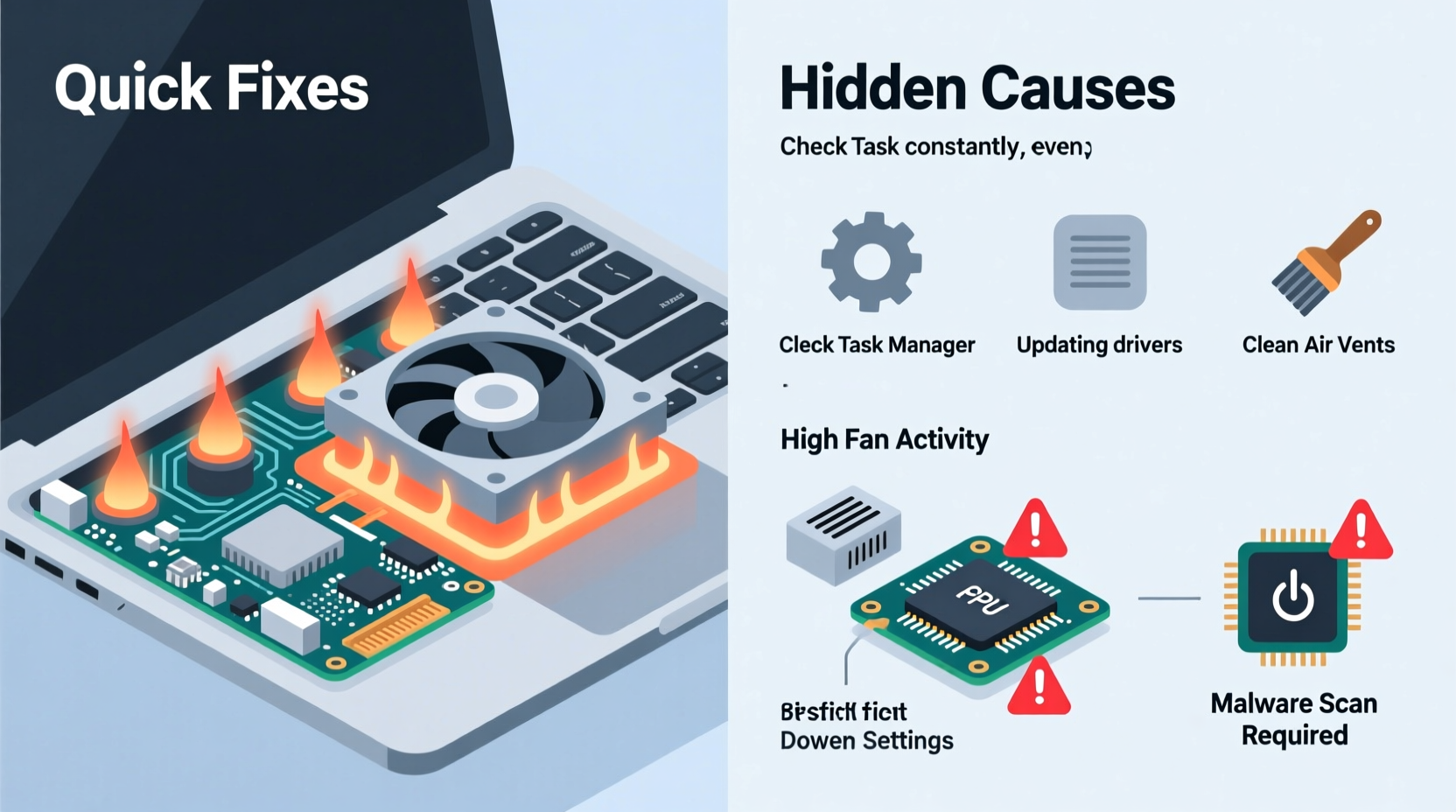
The most obvious assumption is that high CPU or GPU usage triggers fan activity. While often accurate, constant fan running at idle suggests subtler or hidden contributors. Here are the primary reasons:
- Background processes and startup apps: Applications launching automatically at boot—like cloud sync tools, updaters, or antivirus scanners—can consume resources silently.
- Dust and debris buildup: Over time, dust clogs air vents and heatsinks, reducing airflow efficiency and forcing fans to compensate.
- Faulty thermal sensors or drivers: Misreporting temperatures due to outdated or corrupted drivers can trick the system into overcooling.
- Power plan misconfigurations: Aggressive performance settings keep processors active even during inactivity.
- Malware or crypto-mining scripts: Malicious software may run intensive tasks without visible indicators.
- Aging thermal paste: On older laptops, dried-out thermal paste between the CPU and heatsink reduces heat transfer, increasing operating temperatures.
Step-by-Step Diagnostic Process
Before making hardware changes, perform a structured diagnosis to identify the root cause. Follow this sequence:
- Check Task Manager (Windows) or Activity Monitor (macOS): Look for any process consuming more than 10–15% CPU consistently at idle. Sort by CPU usage and investigate unfamiliar entries.
- Monitor system temperature: Use tools like HWMonitor (Windows), iStat Menus (macOS), or Open Hardware Monitor to read actual CPU/GPU temps. Idle should typically be 40–55°C.
- Inspect power settings: Ensure your power plan isn’t set to “High Performance.” Switch to “Balanced” or “Power Saver” to reduce baseline CPU frequency.
- Disable unnecessary startup programs: In Task Manager > Startup tab, disable non-essential apps like Skype, Spotify Updater, or Adobe Creative Cloud.
- Update OS and drivers: Install pending updates for your operating system, chipset, and graphics drivers. Outdated firmware can cause inefficient power management.
- Run a malware scan: Use built-in tools like Windows Security or third-party antivirus software to rule out malicious background activity.
“Over 60% of fan noise complaints stem from unoptimized background services rather than hardware failure.” — Dr. Alan Reyes, Senior Systems Engineer at TechCare Labs
Hidden Culprits Behind Persistent Fan Noise
Beyond standard diagnostics, several less obvious issues contribute to continuous fan operation:
BIOS Settings and Fan Curves
Some laptops come with aggressive default fan curves in BIOS/UEFI firmware. These settings prioritize cooling over acoustics, causing fans to spin up early and stay on longer. Access your BIOS (usually by pressing F2, Del, or Esc during boot) and look for “Fan Control,” “Thermal Management,” or similar options. If available, switch from “Performance” to “Silent” or “Balanced” mode.
Display Refresh Rate and Graphics Switching
Modern laptops with dual GPUs (integrated + discrete) sometimes fail to switch back to the low-power integrated GPU after demanding tasks. Check your graphics driver panel (NVIDIA Control Panel or AMD Radeon Software) to ensure applications aren’t defaulting to the dedicated GPU unnecessarily. Also, high refresh rate displays (e.g., 120Hz or 144Hz) generate more heat even during basic browsing.
Charging and Battery Calibration
During charging—especially fast charging—laptops produce additional heat from both the battery and power circuitry. Some models maintain higher fan speeds throughout the charge cycle. Additionally, inaccurate battery calibration can cause the system to miscalculate thermal load.
Environmental Factors
Surface type matters. Using a laptop on a bed, pillow, or couch blocks bottom intake vents. Even ambient room temperature above 27°C (80°F) forces fans to work harder. Always use your device on hard, flat surfaces.
Quick Fixes Checklist
Use this actionable checklist to resolve fan issues quickly:
| Action | Expected Outcome | Difficulty |
|---|---|---|
| Reboot the system | Clears stuck processes and resets thermal sensors | Easy |
| Close unused browser tabs and apps | Reduces CPU load and memory pressure | Easy |
| Switch to Balanced power plan | Lowers base processor speed and heat output | Easy |
| Clean exterior vents with compressed air | Removes surface dust blocking airflow | Moderate |
| Update BIOS and drivers | Fixes known thermal management bugs | Moderate |
| Reset SMC (MacBooks) | Restores proper fan control logic | Moderate |
| Reapply thermal paste (advanced) | Improves heat conduction on aging units | Hard |
Real-World Case: The Office Worker’s Overheating Dilemma
Jamal, a project manager using a three-year-old Dell Latitude, complained about constant fan noise during video calls—even when no other apps were open. Initial checks showed CPU usage below 10%, yet temperatures hovered around 78°C. After ruling out malware and updating drivers, he discovered Microsoft Teams was triggering the discrete GPU due to hardware acceleration settings. Disabling GPU acceleration in Teams reduced CPU load and dropped temperatures to 52°C, silencing the fan within minutes.
This case illustrates how modern applications with poorly optimized rendering engines can indirectly drive thermal output. It also highlights the importance of reviewing app-specific settings beyond system-level controls.
When to Consider Hardware Intervention
If software fixes don’t resolve the issue, consider physical maintenance. Internal components degrade over time, especially in laptops used daily for two years or more.
Cleaning Internal Components
Opening your laptop allows direct access to fans, heatsinks, and ventilation channels. Use compressed air to blow out dust, followed by a soft brush for stubborn particles. Avoid vacuum cleaners, which can generate static electricity. Reassemble carefully, ensuring all connectors are secure.
Thermal Paste Replacement
Thermal paste degrades after 2–4 years, losing its ability to transfer heat efficiently. Replacing it with high-quality paste (e.g., Arctic MX-4 or Noctua NT-H1) can lower CPU temperatures by 5–15°C. This requires disassembling the laptop and removing the heatsink—a task best done with a service manual and precision tools.
Fan Replacement
If the fan spins erratically, makes grinding noises, or fails to respond to temperature changes, replacement may be necessary. OEM parts are recommended for compatibility and correct RPM profiles.
“Cleaning and repasting a laptop every 18–24 months can extend its quiet operation lifespan by up to three years.” — Lena Park, Laptop Repair Technician, FixHub NYC
Frequently Asked Questions
Is it bad if my laptop fan runs all the time?
Not necessarily—if the system stays cool and performs well, continuous fan operation may just reflect conservative thermal design. However, if accompanied by high temperatures, lag, or noise, it indicates inefficiency or malfunction that should be addressed.
Can I turn off my laptop fan manually?
No, and you shouldn’t attempt it. Fans are critical for preventing overheating. Disabling them risks permanent hardware damage, including CPU/GPU failure. Instead, address the root cause of excessive fan use.
Does closing the laptop lid affect fan behavior?
Yes. Many laptops increase fan speed briefly when closing the lid if set to “Do nothing” or “Stay awake” in power settings. When the system enters sleep mode, fans should stop. If they continue running, check for background tasks preventing full sleep state.
Conclusion: Take Control of Your Laptop’s Cooling System
A constantly running laptop fan is more than an annoyance—it’s a signal. Addressing it promptly preserves performance, extends device longevity, and improves user comfort. Start with simple software checks: monitor resource usage, adjust power settings, and eliminate unnecessary startup items. Then progress to environmental and hardware evaluations, including cleaning and thermal maintenance.
Most cases resolve with basic optimization, but knowing when to escalate to deeper intervention separates temporary fixes from lasting solutions. By understanding both the obvious and hidden causes, you gain control over your device’s behavior—not the other way around.




 浙公网安备
33010002000092号
浙公网安备
33010002000092号 浙B2-20120091-4
Comments
No comments yet. Why don't you start the discussion?