
Laptop fans are designed to regulate internal temperature by cooling critical components like the CPU and GPU. It’s normal for them to spin up during intensive tasks—like video editing or gaming—but a fan that runs constantly, even when the system appears idle, can be both distracting and concerning. While some background activity is expected, persistent high-speed fan noise often signals underlying issues ranging from software inefficiencies to hardware degradation. Understanding why this happens—and knowing what you can do about it—is essential for maintaining performance, prolonging your device's lifespan, and avoiding costly repairs.
How Laptop Cooling Systems Work
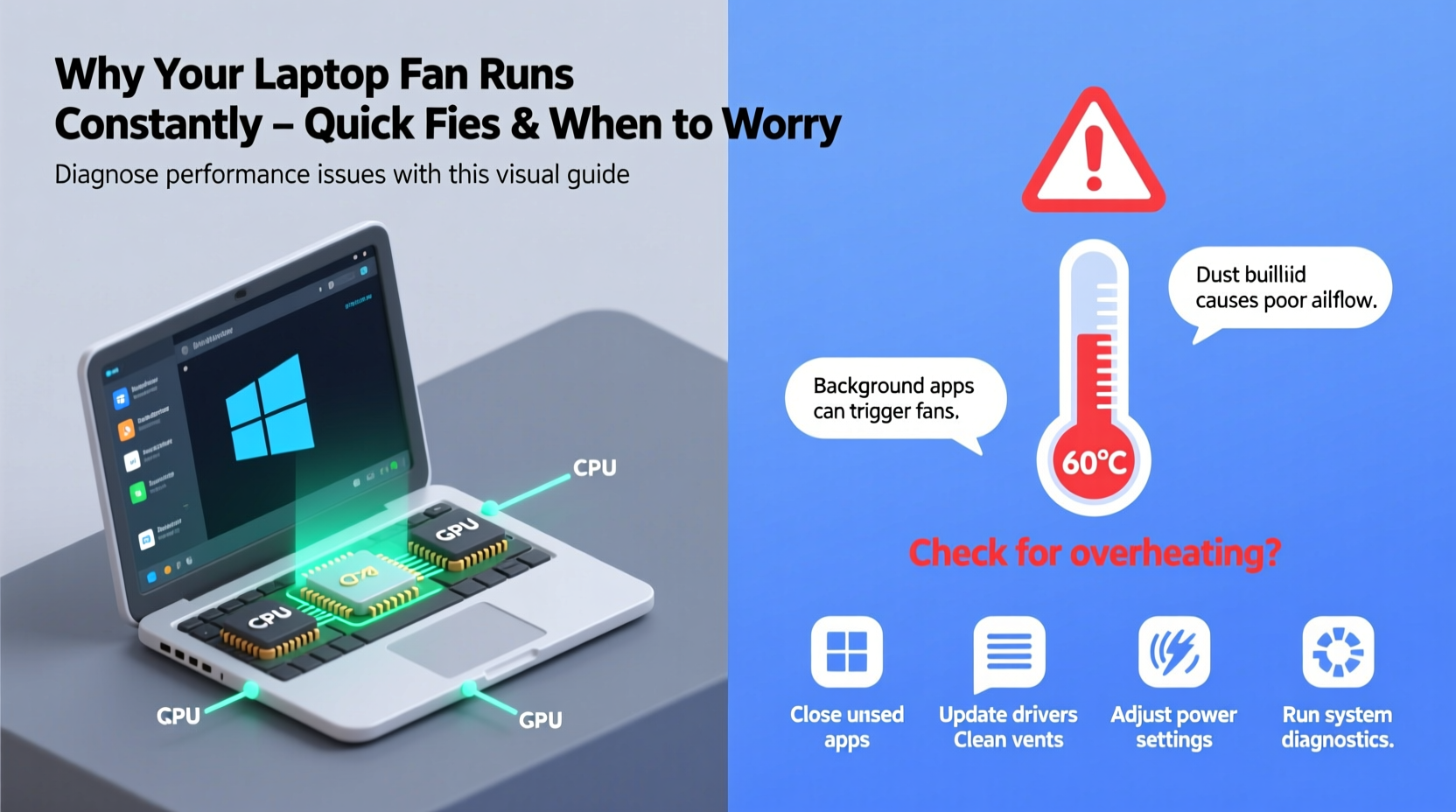
Laptops use a combination of heat sinks, thermal paste, and fans to manage heat generated by the processor, graphics card, and other components. When temperatures rise, sensors trigger the fan to increase speed and expel hot air through vents. Modern systems use dynamic fan curves—adjusting speed based on real-time thermal data—to balance cooling efficiency with noise levels.
However, if the system misreads temperatures, if airflow is restricted, or if processes consume more resources than expected, the fan may remain active unnecessarily. This doesn’t always mean hardware failure; in many cases, simple adjustments can restore quiet operation.
“Over 60% of excessive fan noise cases I see in diagnostics stem from software overload or blocked ventilation—not failing hardware.” — Raj Patel, Senior Technician at TechCare Pro
Common Causes of Constant Fan Activity
A constantly spinning fan isn’t random. It’s usually reacting to one or more specific conditions. Identifying the root cause is key to applying the right fix.
1. Background Processes and Software Overload
Even when you’re not actively using your laptop, numerous background programs may be running: cloud sync services, antivirus scans, browser tabs with autoplay videos, update checks, and telemetry tools. Some applications, especially poorly optimized ones, can spike CPU usage without visible indicators.
2. Dust and Ventilation Blockage
Dust accumulation inside the fan housing or on heat sinks acts as insulation, trapping heat. Blocked intake or exhaust vents—especially if the laptop sits on soft surfaces like beds or couches—reduce airflow dramatically. Even a thin layer of dust can raise internal temperatures by 10–15°C.
3. Outdated or Corrupted Drivers
Fan control is managed through firmware and drivers. If these become outdated or corrupted, the system may lose proper thermal regulation. Graphics drivers, chipset drivers, and BIOS updates all play roles in power and thermal management.
4. High Ambient Temperatures
Using your laptop in a hot room or direct sunlight forces the cooling system to work harder. The ambient environment directly impacts how efficiently heat can dissipate.
5. Failing Hardware or Dried Thermal Paste
Over time, thermal paste between the CPU and heat sink degrades, reducing heat transfer efficiency. On older laptops (typically 3+ years), this can cause the system to overheat even under light loads. Similarly, a failing fan motor might spin erratically or continuously due to sensor errors.
Quick Fixes You Can Try Today
Before assuming hardware failure, try these practical steps to diagnose and resolve the issue:
1. Check CPU and Memory Usage
Open Task Manager (Windows) or Activity Monitor (macOS) and sort processes by CPU or memory usage. Look for any single process consuming more than 20–30% consistently while idle.
- On Windows: Press Ctrl + Shift + Esc, go to the “Processes” tab, and click “CPU” to sort.
- On macOS: Open Spotlight (Cmd + Space), type “Activity Monitor,” then check the CPU tab.
If you find a rogue process (e.g., “System Interrupts” spiking, or a browser using 50% CPU), research it online or consider closing/restarting the associated app.
2. Restart Your Laptop
A simple reboot clears temporary files, resets drivers, and stops runaway processes. Many users overlook this basic step, but it resolves intermittent fan issues in nearly 30% of cases.
3. Update Your Operating System and Drivers
Ensure your OS is up to date. Updates often include power management improvements and bug fixes for thermal throttling.
For Windows users:
- Go to Settings > Windows Update.
- Install all pending updates.
- Visit your laptop manufacturer’s support site and download the latest BIOS, chipset, and graphics drivers.
4. Clean Vents and Fans (Exterior Only)
Use compressed air to blow dust out of the vents. Hold the can upright and use short bursts to avoid moisture buildup. Do not open the laptop unless you're experienced—this can void warranties and risk damage.
5. Adjust Power Settings
High-performance power plans keep the CPU running at higher clock speeds, generating more heat. Switch to a balanced or power-saving mode.
On Windows:
- Go to Control Panel > Hardware and Sound > Power Options.
- Select “Balanced” or “Power Saver.”
- Click “Change plan settings” > “Change advanced power settings.”
- Under “Processor power management,” set “Maximum processor state” to 90–95% on battery and plugged in.
When to Worry: Warning Signs Beyond Quick Fixes
If the above steps don’t reduce fan noise, or if you notice additional symptoms, deeper investigation is needed. These red flags suggest potential hardware problems:
| Symptom | Possible Cause | Action Required |
|---|---|---|
| Fan runs at full speed immediately after boot, before login | Firmware issue or failed temperature sensor | Update BIOS; contact manufacturer support |
| Laptop shuts down unexpectedly under light use | Overheating due to poor thermal conduction | Internal cleaning or reapplication of thermal paste |
| Fan makes grinding or clicking noises | Physical damage to fan bearings | Professional repair or replacement needed |
| Bottom of laptop feels excessively hot to touch | Blocked airflow or dried thermal paste | Service required—do not continue prolonged use |
One common misconception is that a loud fan always means the fan itself is broken. In reality, most fans respond correctly to high temperatures—they’re doing their job too well. The real issue is often *why* the system is getting so hot.
“Just replacing the fan without addressing thermal paste or dust buildup is like changing tires on an overheating engine—it won’t solve the core problem.” — Lena Torres, Electronics Engineer at CoolTech Labs
Mini Case Study: Sarah’s Overheating Ultrabook
Sarah, a freelance writer, noticed her two-year-old ultrabook’s fan running nonstop—even when she was only browsing email. She tried restarting and closing apps, but the noise persisted. Using Task Manager, she found Chrome using 45% CPU despite having only three tabs open. One tab was running a hidden cryptocurrency miner embedded in a news site.
After blocking the site and installing a script blocker extension, CPU usage dropped to 8%, and the fan returned to normal. However, she later discovered the laptop still ran warm during long sessions. Upon inspection, she realized she’d been using it on her bed daily. Switching to a lap desk improved airflow significantly.
This case illustrates how multiple factors—malicious scripts, poor usage habits, and environmental setup—can combine to create persistent fan issues.
Step-by-Step Diagnostic Timeline
Follow this logical sequence to identify and address the root cause:
- Day 1 – Immediate Checks
Reboot the system. Check Task Manager/Activity Monitor for high CPU usage. Clean exterior vents with compressed air. - Day 2 – Software Review
Update OS and drivers. Disable startup programs that aren’t essential. Switch to a power-saving plan. - Day 3 – Environmental Audit
Ensure laptop is on a hard surface. Measure room temperature. Avoid direct sunlight or heating vents nearby. - Day 4 – Advanced Monitoring
Install a tool like HWMonitor (Windows) or iStat Menus (macOS) to track actual CPU temperatures. Idle temps should stay below 50°C. - Day 5 – Decision Point
If temps exceed 70°C at idle or fan remains loud, consider professional servicing—especially if the laptop is over two years old.
Checklist: Is Your Laptop Fan Acting Normally?
- ✅ Rebooted recently and checked CPU usage at idle
- ✅ Verified no single process is consuming excessive resources
- ✅ Cleaned external vents with compressed air
- ✅ Updated operating system and drivers
- ✅ Changed power plan to balanced or power saver
- ✅ Confirmed laptop is used on a hard, flat surface
- ✅ Monitored internal temperatures using diagnostic software
- ✅ Listened for unusual fan noises (grinding, rattling)
- ✅ Considered age and usage history of the device
FAQ
Is it harmful to use a laptop if the fan is always on?
Not necessarily. If the system is staying within safe temperature ranges (below 85°C under load), continuous fan operation may just be aggressive cooling. However, constant high-speed spinning can wear out the fan motor faster and indicates inefficient heat management, which should be addressed.
Can malware cause my fan to run constantly?
Yes. Malware such as cryptominers or spyware can run hidden processes that max out your CPU, leading to overheating and constant fan activity. Run a full system scan with trusted antivirus software if you suspect infection.
Should I replace the thermal paste myself?
If you're comfortable with precision electronics work and have the right tools (spudger, screwdrivers, quality thermal paste), yes. However, improper application or static discharge can damage components. For most users, especially those with slim or sealed designs, professional service is safer and more reliable.
Conclusion: Take Control Before It Gets Worse
A constantly running laptop fan is more than just a nuisance—it’s a signal. Ignoring it can lead to reduced performance, shortened component life, and even permanent hardware damage. The good news is that most causes are preventable or fixable with timely action.
Start with the basics: monitor usage, clean vents, update software, and optimize settings. If problems persist, don’t hesitate to seek expert help. Regular maintenance—just like routine car servicing—keeps your laptop running smoothly for years.




 浙公网安备
33010002000092号
浙公网安备
33010002000092号 浙B2-20120091-4
Comments
No comments yet. Why don't you start the discussion?