
If your laptop fan runs nonstop—even when you're not doing anything intensive—it’s more than just annoying. It can signal underlying performance or hardware issues, reduce battery life, and shorten your device's lifespan. While fans are designed to cool internal components, constant high-speed operation during idle periods isn’t normal. The good news is that most causes are fixable with simple diagnostics and maintenance. This guide breaks down the common reasons behind persistent fan activity and provides actionable steps to restore quiet, efficient operation.
Understanding Laptop Cooling Systems
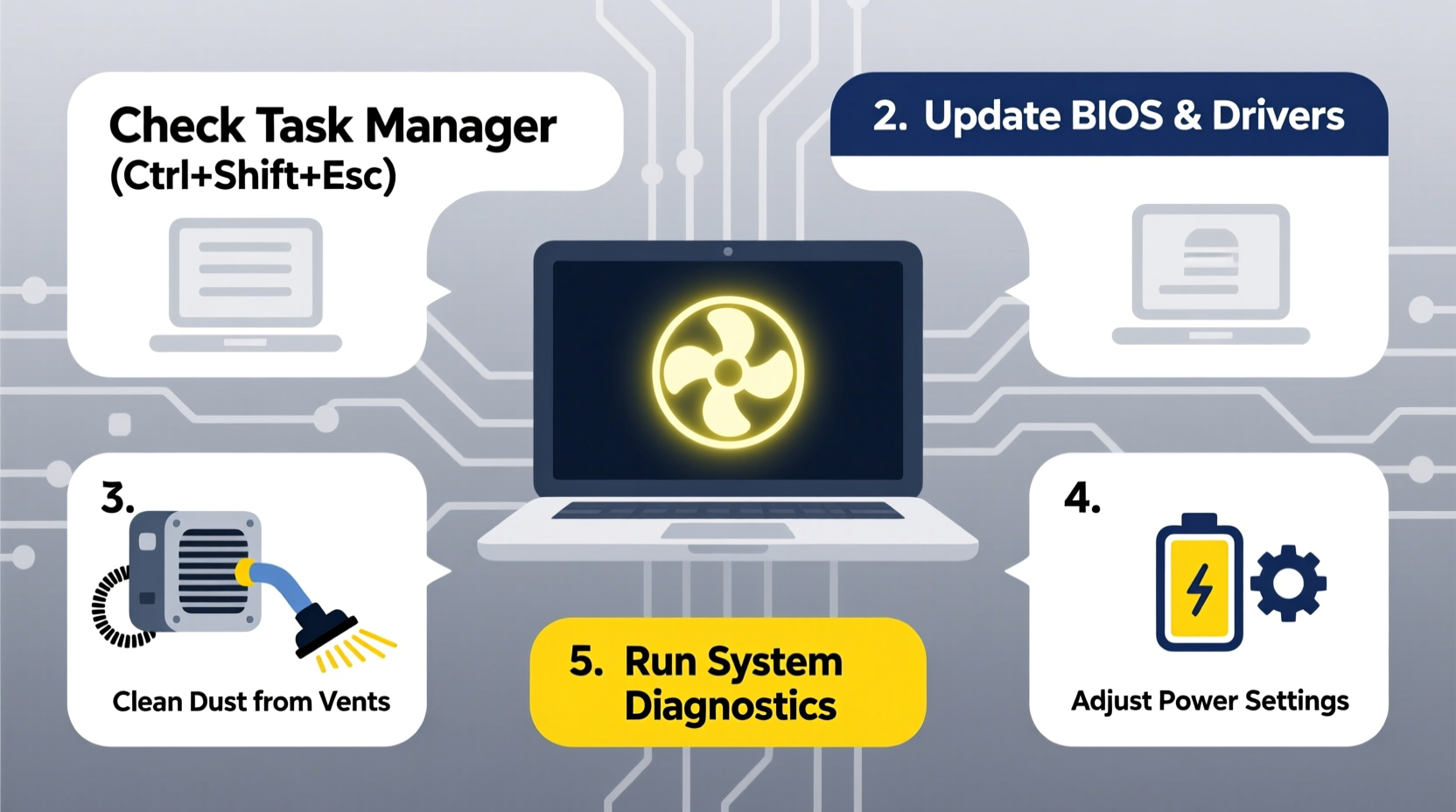
Laptops rely on passive and active cooling mechanisms to manage heat generated by the CPU, GPU, and other components. The fan pulls cool air in and expels hot air through vents. Under normal conditions, fan speed adjusts dynamically based on system load and temperature. When the processor is idle, fan speeds should drop significantly or stop altogether.
However, several factors can disrupt this balance. Dust buildup, background processes, outdated drivers, or failing hardware may cause the system to misread temperatures or generate excess heat. As a result, the thermal management system keeps the fan running at high RPMs unnecessarily.
“Persistent fan noise during low usage often points to software inefficiencies or poor airflow—both of which are preventable with routine care.” — Dr. Alan Zhou, Hardware Engineer at TechSys Diagnostics
Common Causes of Constant Fan Operation
Before jumping into fixes, it helps to identify what might be triggering the issue. Here are the most frequent culprits:
- Dust and debris blocking air vents: Over time, dust accumulates inside fans and heatsinks, restricting airflow and reducing cooling efficiency.
- Background applications consuming CPU: Malware, browser tabs, updaters, or syncing tools can silently max out CPU usage.
- Outdated BIOS or firmware: Older versions may lack proper thermal regulation logic or compatibility with current power states.
- Failing thermal paste: On older laptops, dried-out thermal paste between the CPU and heatsink reduces heat transfer, causing overheating.
- High ambient temperature: Using your laptop on soft surfaces like beds or couches blocks intake vents and traps heat.
- Graphics driver conflicts: Incorrect or outdated GPU drivers can force integrated or discrete graphics into high-performance mode unnecessarily.
- Power plan settings: A \"High Performance\" power profile prevents the CPU from entering low-power idle states, keeping temperatures elevated.
Step-by-Step Troubleshooting Guide
Follow this logical sequence to isolate and resolve the root cause of constant fan noise:
- Check CPU and GPU usage: Open Task Manager (Ctrl+Shift+Esc) and sort processes by CPU usage. Look for any app using more than 5–10% while idle.
- Monitor system temperature: Use free tools like HWMonitor, Core Temp, or Open Hardware Monitor to check real-time CPU and GPU temps. Idle readings above 60°C suggest a problem.
- Verify power settings: Go to Control Panel > Power Options and select “Balanced” instead of “High Performance.” Adjust advanced settings to allow processor throttling.
- Clean air vents and fans: Turn off the laptop. Use compressed air to blow dust from exhaust and intake vents. For deep cleaning, consider professional disassembly.
- Update drivers and BIOS: Visit your manufacturer’s support site (e.g., Dell, HP, Lenovo) and install the latest chipset, graphics, and BIOS updates.
- Scan for malware: Run a full system scan using Windows Defender or a trusted antivirus tool to rule out crypto-mining scripts or hidden threats.
- Reset or reinstall OS (if needed): If all else fails, a clean Windows installation eliminates software bloat and corrupted system files.
Mini Case Study: Resolving Fan Noise on a 3-Year-Old Business Laptop
A marketing manager reported her Lenovo ThinkPad X1 Carbon was running loud even after closing all programs. Initial checks showed CPU idling at 75°C with the fan spinning at 5,800 RPM. Using Task Manager, no single process exceeded 3% usage. However, HWMonitor revealed the GPU temperature was abnormally high.
Further investigation uncovered that an outdated NVIDIA driver was forcing the dedicated GPU to remain active despite using integrated graphics. After downloading and installing the latest driver from Lenovo’s support portal, GPU idle temp dropped to 48°C, and fan speed reduced to 2,200 RPM—near silent. This case highlights how outdated drivers can create invisible thermal loads.
Do’s and Don’ts: Maintaining Optimal Cooling
| Do’s | Don’ts |
|---|---|
| Use compressed air every 3–6 months to clean vents | Don’t use vacuum cleaners—they generate static and lack blowing force |
| Keep your laptop on a desk or lap desk with ventilation | Don’t place it directly on fabric or carpeted surfaces |
| Set power plan to “Balanced” for everyday use | Don’t leave “High Performance” mode enabled permanently |
| Update BIOS and drivers regularly | Don’t ignore firmware update notifications from OEMs |
| Monitor temps occasionally with lightweight tools | Don’t overload startup programs or run unnecessary background apps |
When Hardware Repair Might Be Necessary
Sometimes, software fixes aren’t enough. If your laptop continues to overheat despite thorough troubleshooting, the issue may be hardware-related:
- Damaged fan motor: A grinding noise or intermittent spinning indicates mechanical failure.
- Clogged internal heatsink: Dust deeply embedded in fin arrays requires disassembly and brushing.
- Dried thermal paste: Common in laptops over 3 years old. Reapplication can lower CPU temps by 10–20°C.
- Faulty temperature sensor: Rare but possible—may report false highs, tricking the system into aggressive cooling.
For these cases, professional service is recommended. Attempting DIY repairs without proper tools or experience can void warranties or damage components. Most manufacturers offer diagnostic utilities (like HP Support Assistant or Dell Diagnostic Tools) that can detect fan errors and thermal faults automatically.
Expert Insight: Knowing When to Upgrade
“If your laptop is consistently hitting thermal throttling limits and the fan never rests, it’s not just noisy—it’s underperforming. In systems older than four years, investing in a new machine often makes more sense than repeated repairs.” — Maria Tran, Senior Technician at Urban Tech Repair
Troubleshooting Checklist
Use this checklist to methodically address fan issues:
- ✅ Check Task Manager for high CPU/GPU usage at idle
- ✅ Install a temperature monitoring tool (e.g., HWMonitor)
- ✅ Clean exterior vents with compressed air
- ✅ Switch power plan to “Balanced”
- ✅ Disable unnecessary startup programs
- ✅ Update graphics drivers and BIOS
- ✅ Run a full malware scan
- ✅ Verify ambient temperature and laptop placement
- ✅ Test with a different power adapter (faulty chargers can increase heat)
- ✅ Consider professional servicing if temps exceed 80°C at idle
Frequently Asked Questions
Is it bad if my laptop fan runs all the time?
Constant fan operation under load is normal, but continuous high-speed spinning during idle periods can indicate poor thermal management. Prolonged stress may lead to premature fan wear, increased power consumption, and potential component degradation due to inconsistent cooling cycles.
Can software really cause overheating?
Yes. Background processes like cryptocurrency miners, bloated browsers, or malfunctioning services can push CPU usage to 80–100% without visible signs. These create heat just as much as gaming or video editing would. Monitoring tools help expose such hidden demands.
How do I know if my thermal paste needs replacing?
If your laptop is over two years old and shows higher-than-normal CPU temperatures (e.g., idle above 65°C), especially after cleaning and driver updates, degraded thermal paste is likely. A noticeable improvement after re-pasting confirms the diagnosis. However, this requires partial disassembly and should be done carefully or by a technician.
Final Thoughts and Action Plan
A constantly running laptop fan isn’t something to ignore. While some noise is expected during heavy tasks, persistent whirring during downtime reflects inefficiency, potential hardware strain, or overlooked software issues. The solutions range from simple behavioral changes—like adjusting power settings and cleaning vents—to deeper interventions such as driver updates or professional maintenance.
Start with the basics: monitor your system’s behavior, eliminate unnecessary background load, and ensure physical cleanliness. Most users see significant improvements within minutes of applying these steps. If problems persist, escalate to firmware updates or seek expert evaluation.




 浙公网安备
33010002000092号
浙公网安备
33010002000092号 浙B2-20120091-4
Comments
No comments yet. Why don't you start the discussion?