
If your laptop fan is spinning nonstop—even when you're not doing anything intensive—it's more than just annoying. It can signal underlying issues affecting performance, battery life, and hardware longevity. While some fan activity is normal for heat management, constant high-speed operation during idle periods often points to avoidable problems. The good news? Most causes are fixable without technical expertise or expensive repairs.
This guide breaks down the common reasons behind persistent fan noise, separates myths from facts, and provides practical, tested solutions. Whether you're using a Windows laptop, Chromebook, or Mac, these fixes apply across platforms and models.
Understanding Laptop Cooling Systems
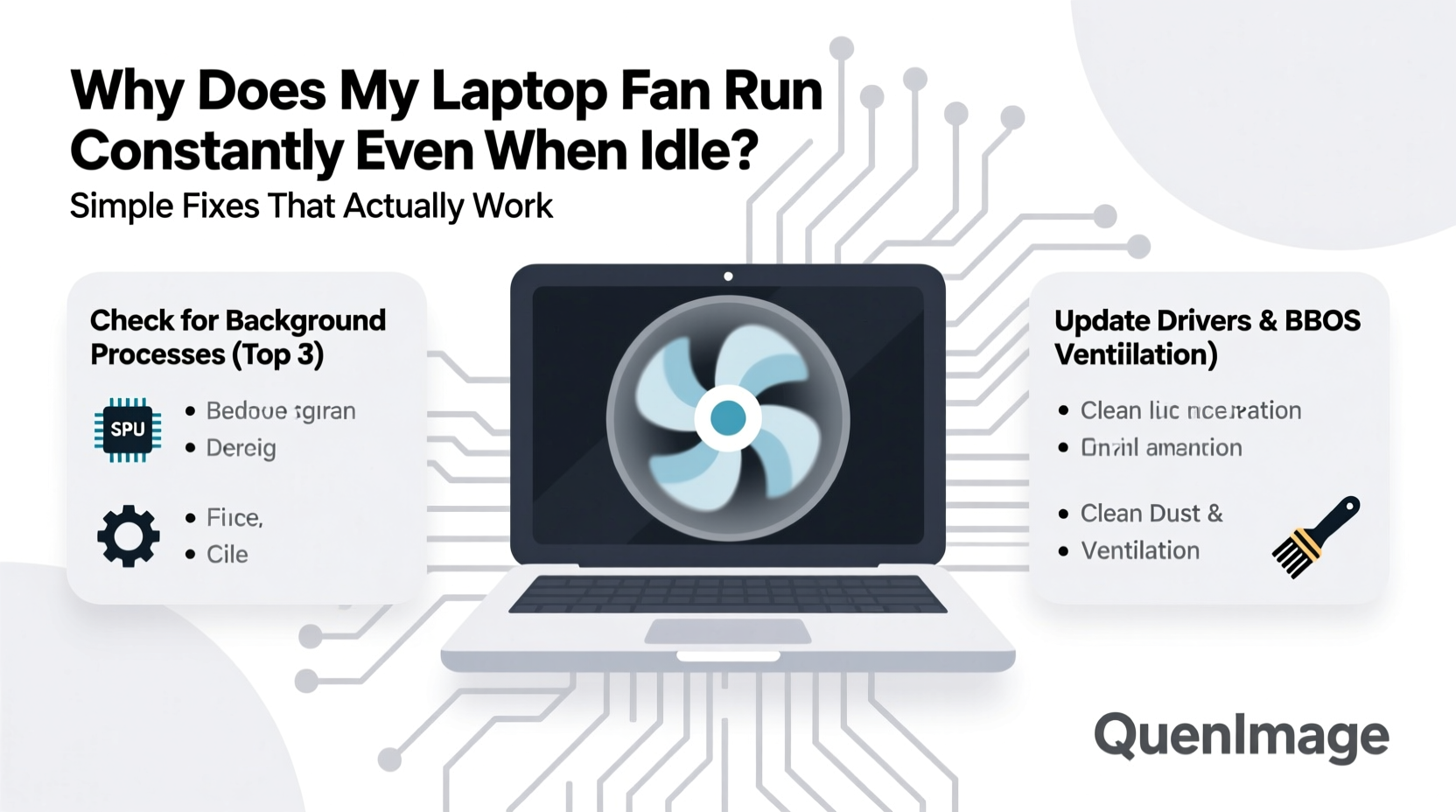
Laptops rely on passive and active cooling to manage heat generated by the CPU, GPU, and other components. When temperatures rise, thermal sensors trigger the fan to spin faster. Under normal conditions, fans ramp up during heavy tasks—like video editing or gaming—and slow down when the system cools.
However, if your fan runs at full speed while the device is idle (e.g., browsing a single web page or viewing a document), something is disrupting this balance. Possible culprits include software overload, dust buildup, outdated drivers, or incorrect power settings.
“Persistent fan noise on an idle laptop usually indicates inefficient resource use or poor airflow—not necessarily hardware failure.” — Dr. Alan Reyes, Computer Hardware Engineer
Common Causes of Constant Fan Operation
Before jumping into fixes, identify what’s triggering the fan. Here are the most frequent causes:
- Background processes consuming CPU: Hidden apps or services may be using excessive processing power.
- Dust and debris in vents: Over time, dust blocks airflow, forcing the fan to work harder.
- Outdated BIOS or drivers: Firmware bugs can misreport temperature or fail to regulate fan curves.
- High ambient temperature: Using your laptop on a bed or couch traps heat underneath.
- Malware or crypto-mining scripts: Malicious software can silently run CPU-intensive operations.
- Faulty thermal paste: On older laptops, dried thermal paste reduces heat transfer efficiency.
- Power plan misconfiguration: High-performance settings keep the CPU running hot even when idle.
Step-by-Step Fixes That Work
Follow this sequence of troubleshooting steps to diagnose and resolve the issue systematically.
- Check CPU and GPU usage
Open Task Manager (Ctrl+Shift+Esc on Windows) or Activity Monitor (Mac). Sort processes by CPU usage. If any app exceeds 20–30% while idle, investigate further. Common offenders include browser tabs with autoplay videos, update services, or sync tools. - Close unnecessary background apps
Disable startup programs via Task Manager > Startup tab. Prevent apps like Skype, Spotify, or cloud storage tools from launching automatically unless needed. - Scan for malware
Run a full system scan using Windows Defender or a trusted third-party antivirus. Some malware operates stealthily, mining cryptocurrency in the background. - Clean air vents and fans
Use compressed air to blow out dust from side vents and the bottom grille. Do this monthly if used in dusty environments. Never use a vacuum—it can generate static electricity. - Update operating system and drivers
Ensure your OS, chipset drivers, and BIOS are up to date. Visit the manufacturer’s support site (e.g., Dell, HP, Lenovo) and enter your model number to download the latest firmware. - Adjust power settings
On Windows: Go to Control Panel > Power Options > Change Plan Settings > Change Advanced Power Settings. Set “Processor Power Management” > “Maximum Processor State” to 90–95% on battery and 95% when plugged in. This limits CPU throttling and reduces heat. - Reset SMC (MacBooks only)
For Intel-based Macs, reset the System Management Controller: Shut down, press Shift+Control+Option + Power for 10 seconds, then restart. This resets thermal and fan controls. - Reapply thermal paste (advanced)
If your laptop is over 3 years old and still overheats after cleaning, consider replacing the thermal paste between the CPU and heatsink. Only recommended if comfortable disassembling hardware.
Do’s and Don’ts: Cooling Best Practices
| Do’s | Don’ts |
|---|---|
| Use a laptop cooling pad with quiet fans | Place laptop on pillows, blankets, or laps |
| Keep vents elevated for airflow | Block exhaust ports with walls or objects |
| Restart your laptop weekly to clear memory leaks | Ignore persistent high fan speeds for weeks |
| Update BIOS cautiously through official sources | Flash BIOS without backup or stable power |
| Monitor temps with tools like HWMonitor or Core Temp | Assume fan noise always means hardware failure |
Real-World Example: Fixing a Overheating Lenovo ThinkPad
Mark, a freelance writer, noticed his 4-year-old Lenovo ThinkPad T480 was constantly loud, even when writing in Google Docs. He assumed it was aging hardware until he opened Task Manager and found Chrome using 45% CPU with 12 open tabs—three of which were streaming music or videos in the background.
After closing unused tabs and disabling auto-play in Chrome settings, CPU usage dropped to 8%. The fan slowed within minutes. He then cleaned the side vents with compressed air and adjusted his power plan to “Balanced.” Result? Near-silent operation during light work, and battery life improved by 1.2 hours.
Mark’s case shows how multiple small inefficiencies combine to create major thermal stress. Addressing just one factor might not solve the problem—systematic optimization is key.
Essential Maintenance Checklist
Use this checklist monthly to prevent overheating and maintain optimal performance:
- ✅ Check Task Manager/Activity Monitor for abnormal CPU usage
- ✅ Clean external vents with compressed air
- ✅ Update OS, drivers, and firmware
- ✅ Review and disable unnecessary startup programs
- ✅ Verify power plan settings (avoid “High Performance” mode)
- ✅ Run antivirus scan (especially after downloading files)
- ✅ Ensure laptop is on a hard, flat surface during use
- ✅ Monitor internal temperatures using free software
“Most fan issues stem from software or environmental factors, not hardware defects. Simple maintenance prevents 80% of cooling problems.” — Sarah Lin, IT Support Specialist
Frequently Asked Questions
Is it bad if my laptop fan runs all the time?
Not always. Low-speed fan operation is normal for heat regulation. However, constant high-pitched noise or fan speeds above 70% at idle indicate a problem. Prolonged overheating can reduce component lifespan and cause unexpected shutdowns.
Can I turn off the laptop fan manually?
No, and you shouldn’t. Fans are controlled by thermal sensors and firmware. Disabling them risks severe overheating and permanent damage. Instead, address the root cause of excess heat.
How hot is too hot for a laptop CPU?
Idle temperatures should stay below 50–60°C. Under load, up to 85–90°C is acceptable for modern processors. Sustained temperatures above 95°C trigger throttling or shutdowns. Use monitoring tools to verify readings.
When to Seek Professional Help
While most fan issues are fixable at home, certain signs require expert attention:
- Fan runs loudly but the laptop feels cool—possible faulty temperature sensor.
- Grinding or clicking noises—indicative of bearing wear or debris in the fan.
- Overheating persists after thorough cleaning and software fixes—may need internal inspection or thermal paste replacement.
- Recent liquid spill or physical damage—risk of short circuits or corrosion.
In such cases, visit an authorized service center. Technicians can disassemble the unit safely, inspect the heatsink, replace the fan if needed, and reapply thermal compound.
Conclusion: Take Control of Your Laptop’s Cooling
A constantly running laptop fan isn’t something you have to live with. In most cases, the fix lies in simple adjustments—closing rogue apps, cleaning dust, updating software, or tweaking power settings. These actions not only reduce noise but also improve system responsiveness, extend battery life, and protect your investment.
Start with the basics: monitor your CPU usage, clean the vents, and optimize your power plan. Small habits make a big difference over time. Don’t wait for warning signs like shutdowns or screen flickering. Proactive care keeps your laptop running cooler, quieter, and longer.




 浙公网安备
33010002000092号
浙公网安备
33010002000092号 浙B2-20120091-4
Comments
No comments yet. Why don't you start the discussion?