
If your laptop fan is spinning loudly even when you're not running heavy applications, it can be both distracting and concerning. You might assume your device is malfunctioning or nearing failure. In reality, constant fan activity—even at idle—is often a symptom of deeper thermal management behaviors, software inefficiencies, or hardware conditions. Understanding why this happens requires more than just checking task manager; it involves grasping how modern laptops balance performance, heat dissipation, and power efficiency.
Laptops are engineered with compact internal layouts where components like the CPU, GPU, and voltage regulators generate heat during operation. To prevent damage from overheating, manufacturers integrate sophisticated thermal regulation systems. These include temperature sensors, heat sinks, thermal paste, and fans that activate based on real-time thermal feedback. But sometimes, these systems overcompensate—or respond to false triggers—leading to persistent fan noise despite minimal workload.
How Laptop Thermal Management Works
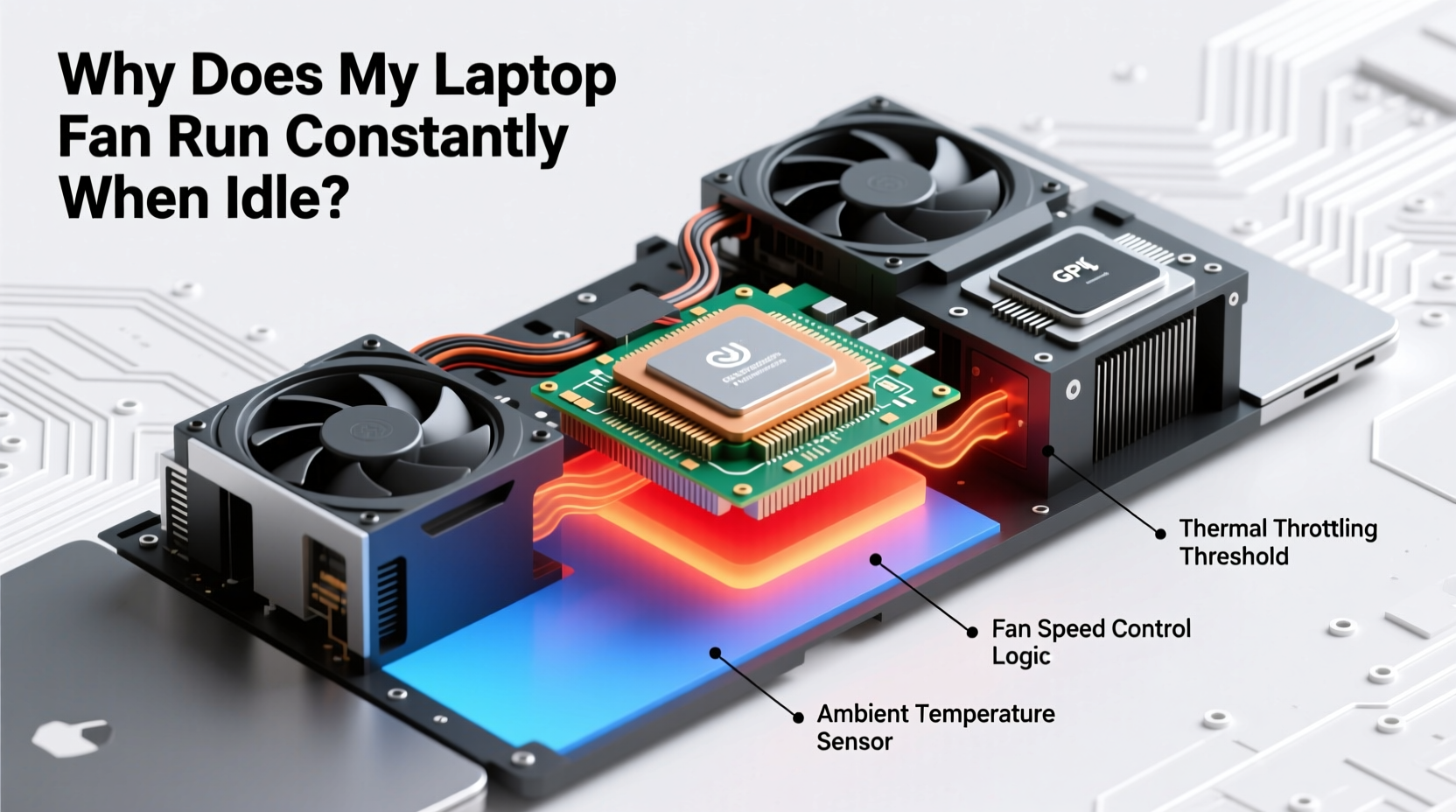
Thermal management in laptops isn’t simply about turning fans on when things get hot. It’s a dynamic process involving firmware (BIOS/UEFI), operating system input, and embedded controller logic. The goal is to maintain optimal internal temperatures while balancing acoustics, battery life, and performance.
Modern processors use technologies like Intel’s Dynamic Platform and Thermal Framework (DPTF) or AMD’s PowerTune to adjust clock speeds and voltages in response to temperature changes. When the CPU detects rising temperatures, it may throttle performance to reduce heat output—a protective measure known as “thermal throttling.” Simultaneously, the fan ramps up to cool the system before critical thresholds are reached.
The key point: fans don't only react to current heat levels—they anticipate future increases. This predictive behavior means fans may spin up preemptively if recent usage patterns suggest an upcoming spike in load, even if the system is currently idle.
“Effective thermal design ensures reliability and longevity. A well-managed cooling system doesn’t wait for overheating—it prevents it.” — Dr. Lin Zhao, Senior Hardware Engineer at Mobile Systems International
Common Causes of Constant Fan Operation at Idle
While some fan activity is normal, continuous high-speed operation without apparent cause points to specific underlying issues. Below are the most frequent culprits:
- Background processes consuming CPU: Even when no apps are open, background services such as Windows Update, antivirus scans, cloud sync tools (OneDrive, Dropbox), or browser tabs with autoplay videos can drive CPU usage.
- Degraded thermal interface material (TIM): Over time, thermal paste between the CPU/GPU and heatsink dries out or cracks, reducing heat transfer efficiency. This forces fans to work harder to compensate.
- Dust accumulation: Dust clogs air vents and coats heat sinks, acting as insulation that traps heat inside the chassis.
- Outdated BIOS or fan control firmware: Older firmware versions may lack optimized fan curves or misinterpret sensor data, leading to aggressive cooling responses.
- High ambient temperature: Using your laptop in a warm room or direct sunlight raises baseline internal temps, prompting earlier fan activation.
- Power plan settings: High-performance power modes keep CPU voltage and frequency elevated, generating more heat even during low activity.
- Failing hardware: A malfunctioning temperature sensor can report incorrect readings, tricking the system into thinking it's hotter than it actually is.
Step-by-Step Guide to Diagnose and Reduce Fan Noise
Follow this structured approach to identify and resolve excessive fan activity:
- Check CPU and GPU usage: Open Task Manager (Ctrl+Shift+Esc) and sort by CPU, Memory, and Disk usage. Look for any non-system process using more than 5–10% consistently at idle.
- Update your operating system and drivers: Ensure Windows/macOS is up to date. Install the latest chipset, graphics, and BIOS updates from your manufacturer’s support site.
- Adjust power settings: Switch to \"Balanced\" or \"Power Saver\" mode. On Windows, go to Control Panel > Power Options and customize processor power management to limit maximum processor state to 90–95%.
- Clean ventilation ports: Use compressed air to blow dust from exhaust grilles and intake vents. Do this monthly if used in dusty environments.
- Monitor internal temperatures: Use tools like HWMonitor (Windows), iStat Menus (macOS), or Core Temp to check real-time CPU/GPU temps. Anything above 60°C at idle warrants investigation.
- Reapply thermal paste (advanced): If your laptop is over two years old and runs hot, consider replacing dried thermal paste. Only attempt if comfortable disassembling your device.
- Reset BIOS defaults: Enter BIOS setup (usually F2 or Del at boot), load optimized defaults, and disable any overclocking or performance boost features unless needed.
Mini Case Study: Sarah’s Overheating Ultrabook
Sarah, a freelance writer, noticed her slim 2020 Dell XPS 13 began whirring constantly, even when typing in Google Docs. She assumed it was failing hardware. After testing, she found Chrome had 17 background tabs open—including one streaming music—and Adobe Creative Cloud was syncing large files silently. Closing unused tabs and pausing sync dropped CPU usage from 38% to 6%, and fan speed decreased by 40%. Cleaning the side vent with compressed air further reduced idle temperature from 64°C to 51°C. No hardware repair was needed—just awareness and maintenance.
Do’s and Don’ts of Laptop Cooling
| Do’s | Don’ts |
|---|---|
| Use your laptop on hard, flat surfaces for optimal airflow | Place it on soft materials like beds or couches that block intake vents |
| Keep vents clean with regular compressed air cleaning | Use canned air too close or upside down, risking liquid discharge |
| Apply quality thermal paste during reassembly (e.g., Arctic MX-4) | Use excessive amounts of thermal paste—pea-sized drop is sufficient |
| Update BIOS and EC firmware regularly | Flash BIOS without proper power backup (risk of bricking) |
| Enable automatic fan control through OEM utilities (e.g., Lenovo Vantage, HP Command Center) | Manually lock fans at high speed permanently—it accelerates wear |
Tips for Long-Term Thermal Health
Maintaining consistent thermal performance isn’t a one-time fix—it requires ongoing attention. Consider these long-term strategies:
- Limit background bloat: Disable unnecessary startup programs via Task Manager > Startup tab. Tools like CCleaner or Autoruns can help identify hidden auto-launchers.
- Optimize browser usage: Use extensions like The Great Suspender or OneTab to freeze inactive tabs, reducing memory and CPU load.
- Use external cooling sparingly: While laptop cooling pads can help, they’re rarely necessary unless gaming or rendering. Most gains come from keeping internal airflow unobstructed.
- Avoid extreme environments: Never leave your laptop in a car on a sunny day. Surface temperatures can exceed 70°C within minutes, degrading internal components over time.
- Track thermal trends: Periodically record idle and load temperatures. A gradual increase over months indicates deteriorating thermal interfaces or dust buildup.
Frequently Asked Questions
Is it bad if my laptop fan runs all the time?
Not necessarily. Fans are designed to run frequently, especially in thin laptops with limited散热空间. However, constant *high-speed* operation may indicate poor airflow, dust buildup, or inefficient software. If accompanied by high temperatures (>75°C at idle) or system slowdowns, intervention is recommended.
Can malware cause my fan to run constantly?
Yes. Malware such as crypto-mining scripts can hijack your CPU or GPU, running intensive computations silently in the background. This spikes power consumption and heat output, forcing fans to stay active. Run a full system scan with updated antivirus software if you suspect malicious activity.
Should I replace my laptop if the fan never stops?
No—this is rarely a reason for replacement. In most cases, cleaning, software optimization, or minor hardware servicing (like repasting) restores normal behavior. Only consider replacement if there’s physical fan damage, recurring overheating after repairs, or degraded performance due to age.
Action Checklist: Silence Your Fan in 7 Steps
- ✅ Check Task Manager for abnormal CPU/GPU usage
- ✅ Close unnecessary browser tabs and background apps
- ✅ Clean air vents and exhaust ports with compressed air
- ✅ Update OS, drivers, and BIOS firmware
- ✅ Switch to Balanced power plan and limit max processor state
- ✅ Monitor temperatures using HWMonitor or similar tool
- ✅ Reapply thermal paste if temps remain high after other steps
Conclusion: Take Control of Your Laptop’s Thermal Behavior
Your laptop’s fan isn’t broken just because it runs often. It’s responding to real or perceived thermal demands shaped by software, environment, and hardware condition. By understanding the principles of thermal management and taking proactive steps, you can restore quiet operation, extend component lifespan, and maintain peak performance.
Don’t accept constant fan noise as inevitable. Investigate the root causes, apply targeted fixes, and establish simple maintenance habits. A cooler, quieter laptop isn’t just more pleasant to use—it’s also more reliable and efficient.




 浙公网安备
33010002000092号
浙公网安备
33010002000092号 浙B2-20120091-4
Comments
No comments yet. Why don't you start the discussion?