
It’s common to assume that a laptop should be quiet when not actively in use. Yet many users notice their fans spinning loudly even when the device is idle—displaying only a desktop or a blank browser tab. This behavior isn’t always normal, and persistent fan activity can signal underlying issues ranging from software inefficiencies to hardware degradation. Over time, constant fan operation can reduce battery life, increase wear on internal components, and create an annoying background hum. Understanding the root causes and knowing how to address them can restore your laptop’s efficiency and extend its lifespan.
Common Causes of Constant Fan Activity on Idle
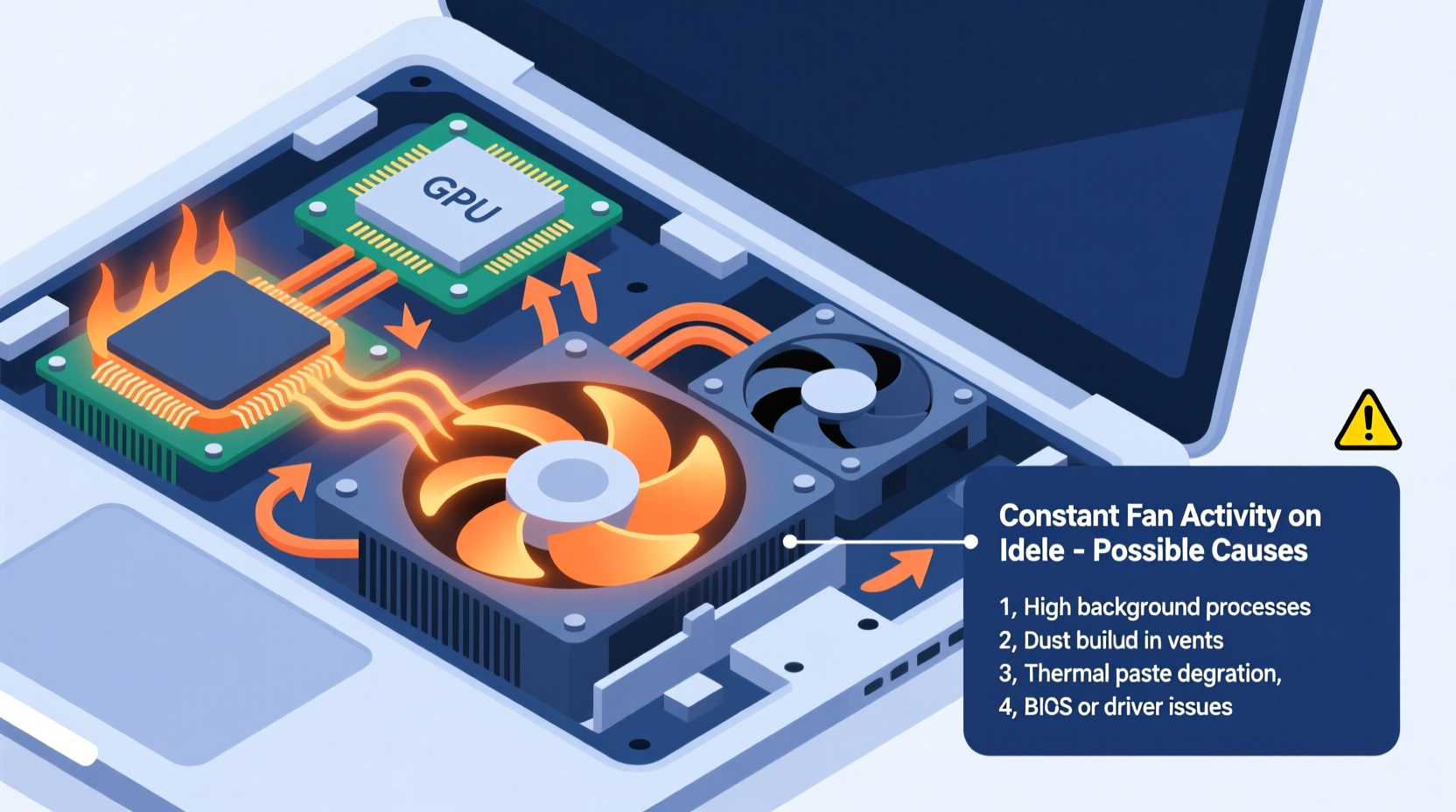
Laptop fans are designed to regulate temperature by cooling critical components like the CPU, GPU, and power circuits. When these parts generate heat—whether from active tasks or background processes—the thermal management system activates the fan. However, if the fan runs nonstop despite minimal usage, several factors may be at play.
- Background Processes: Hidden applications and system services often consume CPU cycles without user awareness. Antivirus scans, software updates, cloud sync tools, and browser tabs with autoplay media can all contribute to elevated CPU usage.
- Dust Accumulation: Over months or years, dust clogs air vents and heatsinks, reducing airflow and insulation efficiency. This forces the cooling system to work harder, even under light loads.
- Faulty Thermal Sensors: If temperature sensors malfunction or report inaccurate data, the system may overestimate heat levels and trigger unnecessary fan activation.
- Power Settings: Aggressive performance plans in operating systems prioritize speed over energy efficiency, keeping processors in high-performance states longer than needed.
- Outdated BIOS or Drivers: Firmware bugs or incompatible drivers can mismanage thermal policies or cause hardware conflicts that lead to excessive fan noise.
- Ambient Temperature: Using a laptop in a hot environment or on soft surfaces like beds or couches blocks ventilation, increasing internal temperatures.
Step-by-Step Guide to Diagnose and Reduce Fan Noise
Before considering hardware repairs or replacements, follow this structured troubleshooting process to pinpoint and resolve the issue.
- Monitor System Resource Usage
Open your system’s performance monitor. On Windows, press Ctrl+Shift+Esc to launch Task Manager; on macOS, open Activity Monitor from Applications > Utilities. Sort processes by CPU usage. Look for any single process consistently using more than 10–15% CPU while the system is idle. - Close Unnecessary Background Apps
Disable startup programs that aren’t essential. In Windows, go to Task Manager > Startup tab and disable items like updaters, chat clients, or third-party utilities. On macOS, navigate to System Settings > General > Login Items and remove unwanted entries. - Check for Malware
Run a full system scan using trusted antivirus software. Some malware, such as cryptocurrency miners, operate silently and heavily tax the CPU. - Update Operating System and Drivers
Ensure your OS is up to date. Check for BIOS updates via your laptop manufacturer’s support site. Also update graphics, chipset, and fan control drivers, which often include thermal management improvements. - Adjust Power Plan Settings
Switch to a balanced or power-saving mode. In Windows, go to Control Panel > Hardware and Sound > Power Options and select “Balanced.” Avoid “High Performance” unless necessary. On macOS, enable “Automatic” switching under Battery settings. - Clean Internal Components
Turn off the laptop, disconnect the power, and carefully open the bottom panel (if comfortable). Use compressed air to blow dust from vents, fans, and heatsinks. Focus on intake and exhaust areas. For stubborn grime, use a soft brush or cotton swab lightly dampened with isopropyl alcohol. - Reapply Thermal Paste (Advanced)
If your laptop is older than two years and frequently overheats, consider replacing dried-out thermal paste between the CPU/GPU and heatsink. This requires disassembly and technical confidence but can significantly lower operating temperatures.
Do’s and Don’ts: Laptop Cooling Best Practices
| Do’s | Don’ts |
|---|---|
| Use your laptop on hard, flat surfaces to ensure proper airflow. | Place your laptop on pillows, blankets, or your lap where vents get blocked. |
| Invest in a cooling pad with adjustable fan speeds. | Rely solely on cooling pads to compensate for internal dust buildup. |
| Schedule monthly cleanings with compressed air. | Use household vacuums to clean internals—they generate static electricity. |
| Keep ambient room temperature below 25°C (77°F). | Leave your laptop in direct sunlight or hot cars. |
| Enable automatic driver and OS updates. | Ignore firmware update notifications from manufacturers. |
Real Example: A Case of Silent Overheating
Consider the case of Sarah, a freelance writer who began noticing her Dell XPS 13 running hot and loud after six months of use. Despite writing in a plain text editor with only one browser tab open, the fan never stopped. She initially assumed it was a hardware defect. After checking Task Manager, she discovered that Adobe Creative Cloud—a program she installed briefly for a project—was running continuously in the background, syncing large files. Disabling the app from startup reduced CPU usage from 22% to 5% at idle, and the fan noise dropped dramatically within minutes. No hardware changes were needed. This illustrates how seemingly minor software choices can have major impacts on thermal performance.
“Many users overlook background processes because they don’t appear on screen, but they’re often the real culprits behind constant fan noise.” — Dr. Raj Mehta, Senior Systems Engineer at TechCare Labs
When Hardware May Be the Issue
If software fixes fail, the problem may lie deeper in the hardware. Mechanical wear, aging components, or design flaws can all contribute to poor thermal regulation.
For example, some ultrabooks use vapor chamber cooling systems with limited redundancy. If the fan bearing wears out or the motor fails partially, it may spin inefficiently, forcing it to run longer to achieve minimal cooling. Similarly, degraded batteries can emit excess heat during charging cycles, indirectly triggering fan activity.
In laptops with dual-fan setups, uneven dust distribution might cause one fan to compensate for the other, leading to imbalanced and continuous operation. In rare cases, solder joints on the motherboard can crack due to thermal cycling, creating intermittent connections that confuse sensor readings.
Manufacturers sometimes release service advisories for specific models known to have cooling defects. For instance, Apple issued a repair program for certain MacBook Pro units from 2016–2017 due to fan noise caused by logic board issues. Always check your model number against official recall or support bulletins.
Preventive Maintenance Checklist
To avoid recurring fan problems, adopt a proactive maintenance routine. Follow this checklist every three to six months:
- ✅ Clean air vents and fan intakes with compressed air
- ✅ Review startup programs and disable non-essential ones
- ✅ Update operating system, BIOS, and device drivers
- ✅ Run a full malware scan using updated antivirus software
- ✅ Verify power plan settings are set to “Balanced” or “Power Saver”
- ✅ Check CPU temperature at idle using tools like HWMonitor (Windows) or iStat Menus (macOS)
- ✅ Inspect physical placement habits—ensure laptop is on a firm, elevated surface
- ✅ Replace thermal paste if laptop is over two years old and runs hot
Frequently Asked Questions
Is it bad if my laptop fan runs all the time?
Constant fan operation isn’t inherently damaging, but it indicates inefficiency. Prolonged high-speed spinning increases mechanical wear and may shorten the fan’s lifespan. More importantly, it often points to preventable issues like dust buildup or software bloat. Addressing the root cause improves both comfort and long-term reliability.
Can I turn off my laptop fan manually?
No, and you shouldn’t attempt it. The fan is controlled automatically by the system’s Embedded Controller (EC) based on real-time temperature data. Manually disabling it—even through third-party tools—risks severe overheating, throttling, or permanent hardware damage within minutes.
Why does my fan run even when the battery is fully charged?
Charging circuits generate heat even after reaching 100%, especially if the laptop is performing background tasks. Additionally, modern systems often continue drawing power directly from the adapter while running, so load-dependent heat generation persists regardless of charge level.
Conclusion: Take Control of Your Laptop’s Performance
A constantly running laptop fan on idle is more than just a nuisance—it’s a warning sign your system isn’t operating efficiently. Whether the cause is a rogue background app, accumulated dust, or outdated firmware, most issues are diagnosable and fixable with basic tools and knowledge. By monitoring resource usage, maintaining clean internals, and optimizing power settings, you can restore quiet operation and protect your investment. Don’t wait until performance degrades or hardware fails. Apply these insights today to keep your laptop cool, quiet, and reliable for years to come.




 浙公网安备
33010002000092号
浙公网安备
33010002000092号 浙B2-20120091-4
Comments
No comments yet. Why don't you start the discussion?