
Laptop fans are essential for maintaining optimal internal temperatures, but when they kick in during periods of inactivity, it raises concerns. A constantly spinning fan can be noisy, drain battery life, and sometimes indicate underlying hardware or software issues. While some fan activity is normal, persistent high-speed operation while the system appears idle suggests something is amiss. Understanding why this happens—and how to fix it—can save you from premature wear, thermal throttling, or even long-term damage.
The root cause isn't always obvious. It might stem from background processes consuming resources, dust buildup inside the chassis, outdated drivers, or poorly optimized power settings. This guide breaks down the most frequent reasons behind excessive fan use during idle states and provides practical, step-by-step solutions to restore quiet, efficient operation.
Common Causes of Excessive Fan Activity at Idle
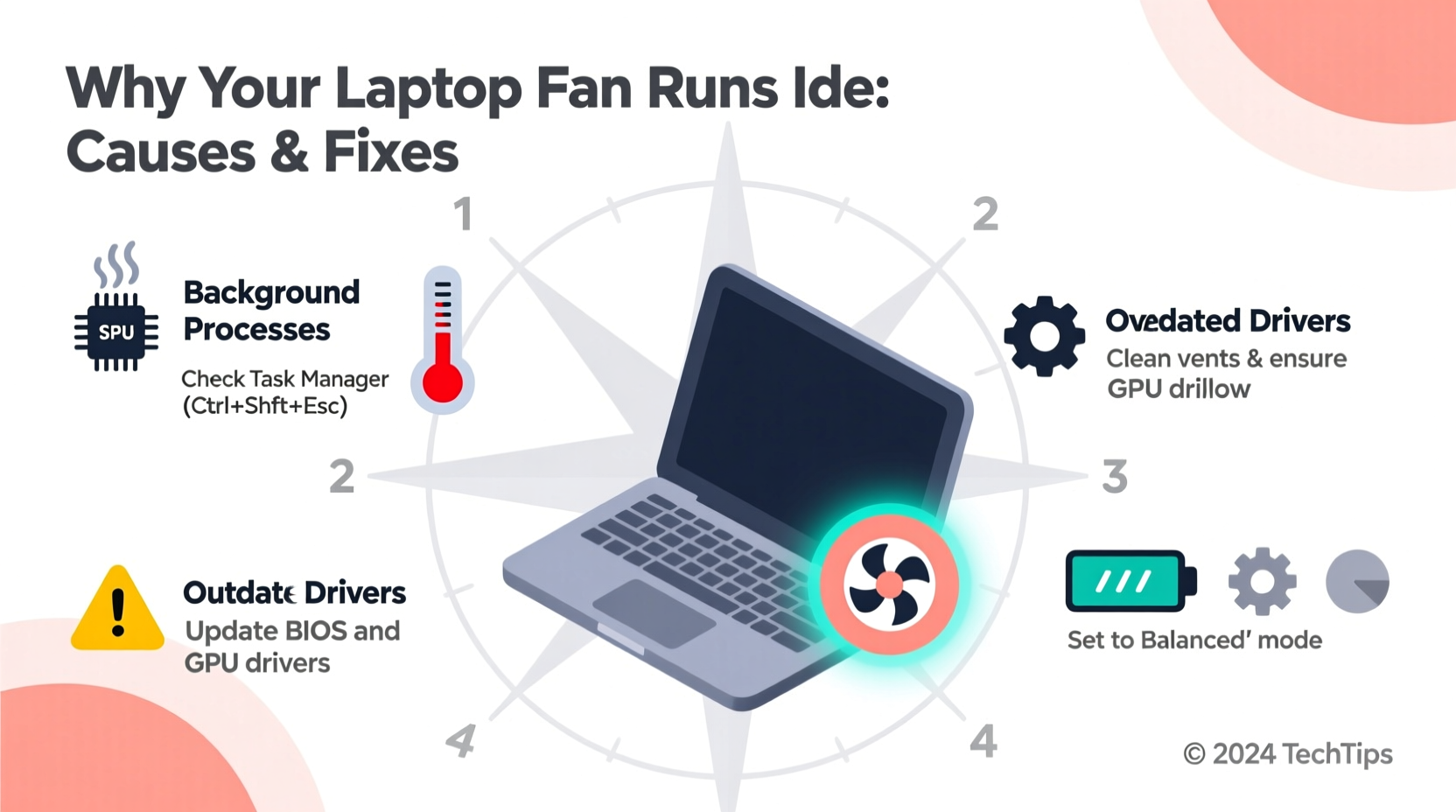
When your laptop fan runs loudly despite minimal user activity, several factors could be responsible. Identifying the source is crucial before attempting any fixes.
- Background Processes and Malware: Hidden applications, system updates, or malicious software may consume CPU cycles without visible indicators.
- Dust and Ventilation Blockage: Over time, dust accumulates in vents and heat sinks, reducing airflow and forcing fans to work harder.
- Faulty Thermal Sensors: Incorrect temperature readings due to sensor errors can trigger unnecessary cooling responses.
- Outdated BIOS or Drivers: Firmware and driver bugs can mismanage power states and thermal regulation.
- High Ambient Temperature: Using a laptop on soft surfaces like beds or couches restricts airflow, increasing internal heat.
- Power Plan Settings: Aggressive performance plans keep CPU clocks elevated, generating more heat even during low usage.
Step-by-Step Diagnosis: Finding the Real Culprit
Before making changes, confirm whether your system is truly idle. Many users assume no open programs mean low resource usage—but that’s often not the case.
- Open Task Manager (Windows) or Activity Monitor (Mac): Look for processes with high CPU or disk usage. Sort by “CPU” to identify top consumers.
- Check GPU Usage: Some background apps (e.g., updaters, renderers) use the graphics card heavily, contributing to heat.
- Monitor Temperatures: Use tools like HWMonitor, Core Temp, or Open Hardware Monitor to view real-time CPU/GPU temps. Idle should typically stay below 50°C.
- Unplug Peripherals: Faulty USB devices or external drives can cause interrupt storms, spiking CPU usage.
- Boot into Safe Mode: Restart in Safe Mode to see if the fan still runs aggressively. If it quiets down, the issue is likely software-related.
If fan noise persists in Safe Mode, the problem may involve hardware—such as dust accumulation, failing thermal paste, or a defective fan control circuit.
Effective Fixes to Reduce Unnecessary Fan Noise
Once you've diagnosed the issue, apply targeted solutions. Start with the least invasive and progress to deeper interventions.
1. Optimize Power and Cooling Settings
Modern laptops allow fine-tuning of thermal behavior through power plans and manufacturer utilities.
| Setting | Action | Expected Outcome |
|---|---|---|
| Power Plan | Switch from \"High Performance\" to \"Balanced\" or \"Power Saver\" | Reduces CPU clock speed and heat output |
| Fan Mode (if available) | Set to \"Silent\" or \"Cooling Preference: Passive\" | Delays fan activation until higher thresholds |
| Startup Programs | Disable non-essential apps via Task Manager > Startup tab | Lowers background load at boot |
2. Clean Internal Dust Buildup
Dust acts as an insulator, trapping heat around critical components. Even moderate buildup forces fans to compensate.
For most users, a partial cleaning is feasible:
- Power off and unplug the laptop.
- Use compressed air to blow out intake and exhaust vents.
- Aim at a 45-degree angle to avoid pushing debris deeper.
- Clean every 3–6 months depending on environment.
For thorough internal cleaning (e.g., heatsink and fan blades), disassembly may be required. This is best done by professionals unless you’re experienced.
3. Update System Firmware and Drivers
Manufacturers regularly release BIOS and EC (Embedded Controller) updates that improve thermal management logic.
- Visit your laptop brand’s support website (e.g., Dell, HP, Lenovo).
- Enter your model number to find the latest BIOS version.
- Download and follow installation instructions carefully—do not interrupt the process.
Also update:
- Chipset drivers
- Graphics drivers (Intel/NVIDIA/AMD)
- Fan control utilities (e.g., Lenovo Vantage, Dell Power Manager)
4. Reapply Thermal Paste (Advanced)
Over time, factory-applied thermal paste degrades, especially in older laptops (3+ years). Poor heat transfer between CPU/GPU and heatsink leads to overheating—even under light loads.
Reapplication involves:
- Disassembling the laptop to access the CPU/GPU.
- Removing old paste with isopropyl alcohol and lint-free cloth.
- Applying a pea-sized drop of high-quality thermal compound (e.g., Arctic MX-4, Noctua NT-H1).
This task requires technical confidence. If unsure, consult a repair technician.
Mini Case Study: Sarah’s Overheating MacBook Pro
Sarah, a freelance writer, noticed her 2018 MacBook Pro running hot and loud even when writing in a simple text editor. She wasn’t running video editors or browsers with dozens of tabs—just Notes and Spotify.
After checking Activity Monitor, she found a background process called “kernel_task” using over 70% CPU. Research revealed this is macOS’s way of throttling performance to protect against overheating—often triggered by faulty temperature sensors or poor heat dissipation.
She reset the SMC (System Management Controller), cleaned the side vents with compressed air, and discovered significant dust near the fan. After cleaning, kernel_task dropped to 5%, and fan noise decreased dramatically. The fix took 20 minutes and cost nothing.
Sarah now cleans her laptop every four months and avoids using it on her bed—a habit that previously blocked airflow.
Expert Insight on Thermal Management
“Many users overlook the cumulative effect of small inefficiencies—background apps, degraded paste, clogged vents. Together, they force fans to run unnecessarily. Regular maintenance isn’t just about longevity; it’s about daily usability.” — Dr. Rajiv Mehta, Electronics Engineer & Laptop Design Consultant
Quick Action Checklist
Follow this checklist to systematically address fan issues:
- ✅ Open Task Manager / Activity Monitor and sort by CPU usage
- ✅ Disable unnecessary startup programs
- ✅ Switch to a balanced or power-saving plan
- ✅ Blow out vents with compressed air
- ✅ Check for BIOS, driver, and OS updates
- ✅ Reset power management settings (e.g., SMC on Mac, EC on Windows)
- ✅ Monitor temperatures with diagnostic tools
- ✅ Avoid soft surfaces; use a hard, flat desk or cooling pad
- ✅ Consider professional cleaning or thermal paste replacement if over 2 years old
Frequently Asked Questions
Is it normal for my laptop fan to run all the time?
Some low-level fan activity is normal, especially on thin-and-light models with limited散热空间. However, constant high-speed spinning during inactivity is not typical and usually indicates an underlying issue such as dust, software load, or failing hardware.
Can malware cause my fan to run constantly?
Yes. Cryptocurrency miners and other malicious software often run hidden processes that max out CPU usage, generating heat and triggering continuous fan operation. Run a full antivirus scan if suspicious activity is detected.
Does closing the lid affect fan behavior?
It depends on power settings. By default, many laptops enter sleep mode when the lid closes, halting most processes. However, if set to “Do nothing” or “Stay awake,” the system may continue running tasks and generating heat, keeping the fan active—especially if ventilation is blocked.
Conclusion: Take Control of Your Laptop’s Performance
A laptop fan running persistently at idle isn’t something to ignore. While occasional bursts are expected, constant noise signals inefficiency that impacts both comfort and hardware lifespan. The good news is that most causes are fixable with basic troubleshooting, regular maintenance, and smart usage habits.
You don’t need advanced tools or technical expertise to make meaningful improvements. Start with software checks, optimize settings, clean vents, and stay updated. For older machines, consider professional servicing to refresh thermal interfaces. These steps not only reduce noise but also enhance battery life, responsiveness, and overall reliability.




 浙公网安备
33010002000092号
浙公网安备
33010002000092号 浙B2-20120091-4
Comments
No comments yet. Why don't you start the discussion?