
Laptop fans spinning at full speed while the system appears idle is a common frustration. It’s not just annoying—it can signal underlying performance or hardware issues. While some fan activity is normal, persistent high-speed operation during inactivity often points to software inefficiencies, dust buildup, or misconfigured settings. Ignoring it can lead to reduced battery life, thermal throttling, and even long-term component damage. The good news: most causes are fixable with targeted troubleshooting. This guide walks through real-world solutions that actually work, from simple checks to deeper diagnostics.
Understanding Normal vs. Abnormal Fan Behavior
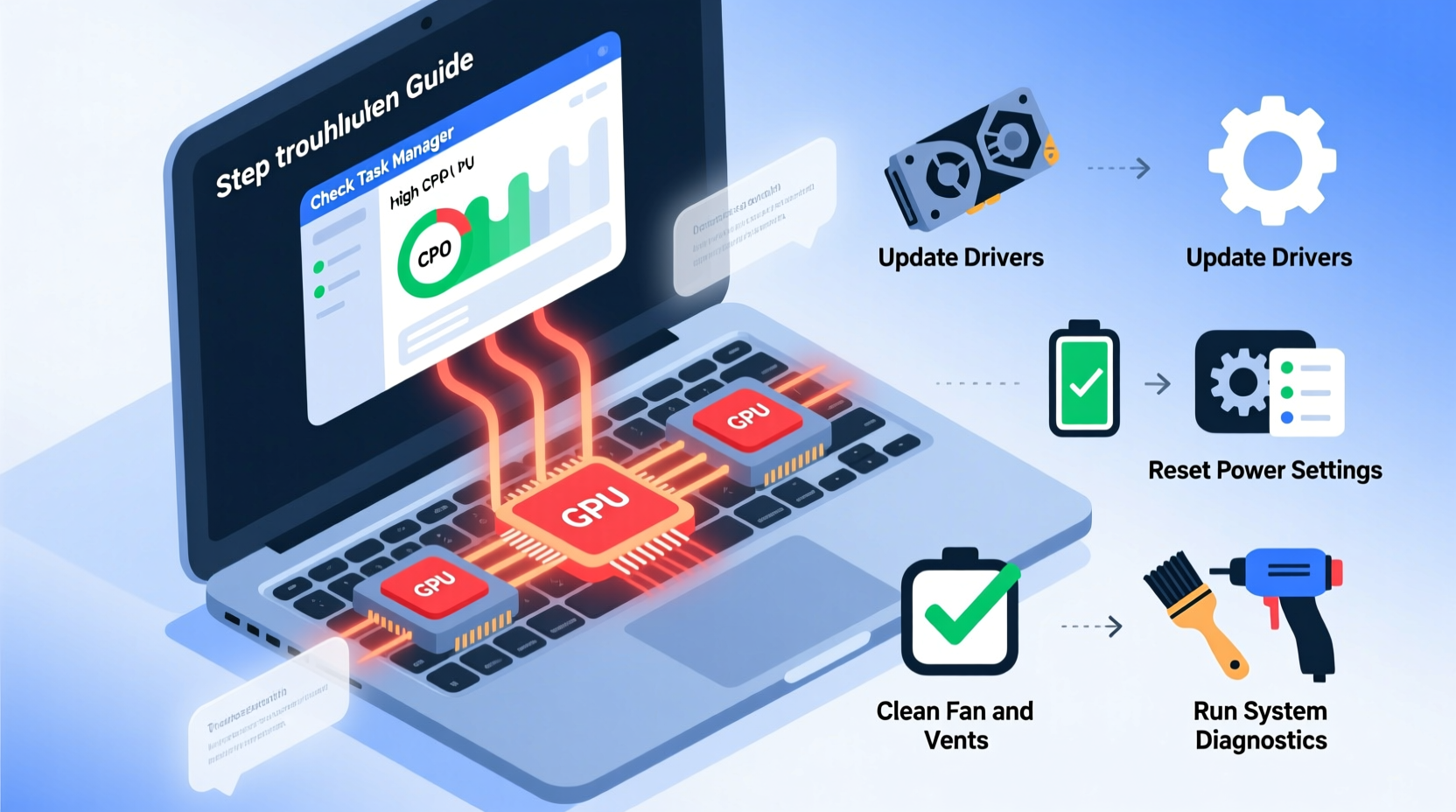
Fans activate to regulate internal temperature. When the CPU, GPU, or other components heat up during tasks like video editing or gaming, increased airflow is expected. However, if the fan runs loudly when you’re only browsing emails or reading documents, something is amiss. Modern laptops use dynamic fan curves—adjusting speed based on load and temperature. A consistently active fan at idle suggests either inaccurate sensor readings, background processes consuming resources, or physical obstructions.
Before assuming hardware failure, assess whether the behavior is truly abnormal. Some ultrabooks with compact cooling systems may have fans that cycle on briefly every few minutes. This is typically fine. But continuous high-pitch whirring, especially accompanied by warmth on the palm rest or keyboard, indicates a problem worth addressing.
Common Causes of Constant Fan Activity at Idle
- Background applications – Hidden programs using CPU or disk resources
- Dust accumulation – Clogged vents or heatsinks reducing airflow efficiency
- Outdated or corrupted drivers – Especially BIOS, chipset, or graphics drivers
- Malware or cryptominers – Unauthorized software running silently
- Power plan misconfiguration – High-performance settings keeping CPU clocks elevated
- Faulty temperature sensors – Sending incorrect data to the fan control system
- Thermal paste degradation – In older laptops, dried paste reduces heat transfer
Step-by-Step Troubleshooting Guide
Follow this structured approach to isolate and resolve the root cause. Each step builds on the previous one, starting with non-invasive checks before moving to hardware-level fixes.
- Check Task Manager for resource hogs
Press Ctrl+Shift+Esc, go to the “Processes” tab, and sort by CPU, Memory, and Disk usage. Look for any process using more than 5–10% CPU consistently while idle. Common culprits include updaters (e.g., Adobe, Nvidia), cloud sync tools (Dropbox, OneDrive), or browser tabs with autoplay videos. - Scan for malware
Run a full system scan using Windows Defender or a trusted third-party antivirus. Cryptominers often disguise themselves as legitimate services and can cause sustained CPU load without visible symptoms. - Update operating system and drivers
Outdated firmware can mismanage thermal controls. Visit your laptop manufacturer’s support site (e.g., Dell SupportAssist, Lenovo Vantage) to install the latest BIOS, chipset, and fan control drivers. - Adjust power settings
Go to Control Panel > Hardware and Sound > Power Options. Select “Balanced” or “Power Saver.” Avoid “High Performance,” which keeps CPU voltage and clock speeds elevated even at rest. - Clean the ventilation system
Shut down the laptop, unplug it, and use compressed air to blow out dust from exhaust grills and intake vents. Do this outdoors or over a trash can to avoid spreading debris. - Reset BIOS/UEFI settings
Restart the laptop and enter BIOS (usually by pressing F2, F12, or Del during boot). Look for an option like “Load Setup Defaults” or “Reset to Factory Settings.” Save and exit. - Monitor temperatures
Use tools like HWMonitor, Core Temp, or Open Hardware Monitor to track CPU and GPU temps. Idle temperatures should be between 35°C and 50°C. Anything above 60°C at rest warrants investigation. - Reapply thermal paste (advanced)
If temperatures remain high after cleaning and driver updates, consider reapplying thermal paste between the CPU and heatsink. This requires disassembling the laptop and is best done by professionals unless you're experienced.
Real-World Example: Sarah’s Overheating MacBook Pro
Sarah, a freelance graphic designer, noticed her 2018 MacBook Pro’s fan running constantly, even when closed and unplugged. She initially assumed it was age-related wear. After checking Activity Monitor, she found a rogue Adobe Creative Cloud updater consuming 78% CPU. Disabling automatic updates and manually managing them reduced idle CPU usage from 45% to 3%. The fan noise dropped significantly within minutes. A month later, after cleaning dust from the side vents with a soft brush and compressed air, the fan cycled off completely during light use. This case highlights how software and maintenance combine to impact thermal performance.
“Many users jump to hardware conclusions, but over 60% of persistent fan issues stem from software inefficiencies or outdated drivers.” — Dr. Alan Zhou, Senior Systems Engineer at TechCare Labs
Do’s and Don’ts: Managing Laptop Cooling
| Do | Don't |
|---|---|
| Use a hard, flat surface for optimal airflow | Place the laptop on beds, pillows, or blankets |
| Clean vents every 3–6 months | Use vacuum cleaners directly on vents (can generate static) |
| Set power plan to “Balanced” for daily use | Leave “High Performance” mode enabled indefinitely |
| Close unused browser tabs and background apps | Ignore persistent high CPU usage in Task Manager |
| Monitor temperatures monthly with free tools | Disassemble the laptop without proper guidance or warranty consideration |
Advanced Diagnostics and Tools
When basic steps fail, deeper analysis is required. These tools help uncover hidden issues:
- Process Explorer (Windows) – More detailed than Task Manager, shows child processes and handles.
- HWInfo – Provides real-time sensor data including fan RPM, voltage, and power draw.
- SpeedFan (Windows) – Allows manual fan control and temperature logging over time.
- Intel Power Gadget – Monitors CPU frequency, power consumption, and thermal headroom.
For example, if HWInfo shows CPU package temperature at 75°C while idle but no process exceeds 8% CPU usage, suspect a sensor error or inefficient power state transitions (C-states). In such cases, updating BIOS often resolves the discrepancy.
When Hardware Repair Is Necessary
If all software and cleaning efforts fail, hardware intervention may be needed. Signs include:
- Fan runs at maximum speed regardless of load
- Laptop shuts down unexpectedly under light use
- Uneven fan noise (grinding, clicking)
- Visible damage to fan blades or heatsink
In these cases, the fan itself may be failing, or the motherboard’s fan controller could be malfunctioning. Replacing the fan module is usually affordable ($30–$80 part cost), but requires technical skill. For soldered fans or complex designs (e.g., MacBooks), professional service is recommended.
FAQ: Common Questions About Laptop Fan Noise
Is it bad if my laptop fan runs all the time?
Not necessarily—if the laptop stays cool and performs well, occasional fan use is normal. However, constant high-speed operation can shorten fan lifespan and indicate inefficiency. Investigate if accompanied by heat or noise.
Can I turn off the fan manually?
No, and you shouldn’t. Fans are critical for preventing overheating. Disabling them risks permanent damage to the CPU, GPU, or battery. Some BIOS settings allow fan curve adjustments, but complete shutdown isn’t safe or supported.
Does closing the lid stop the fan?
It depends on power settings. By default, closing the lid puts the laptop to sleep, which stops the fan. If the fan continues running, check Power Options to ensure “When I close the lid” is set to Sleep or Hibernate, not “Do nothing.”
Final Checklist: Stop Excessive Fan Noise
- Open Task Manager and end high-CPU processes
- Run a full antivirus scan
- Update BIOS, chipset, and graphics drivers
- Switch to Balanced power plan
- Clean air vents with compressed air
- Reset BIOS to default settings
- Monitor temperatures with HWMonitor or Core Temp
- Consider professional cleaning or thermal paste replacement if over 18 months old
Conclusion: Take Control of Your Laptop’s Performance
A constantly running laptop fan isn’t something you have to live with. Most issues stem from preventable causes—background bloat, dust, or outdated firmware—and can be resolved with systematic troubleshooting. By understanding what drives fan behavior and applying the right fixes, you restore quiet operation, extend hardware life, and improve overall efficiency. Start with software checks, move to cleaning, and escalate only when necessary. Your laptop’s longevity and usability depend on proactive care.




 浙公网安备
33010002000092号
浙公网安备
33010002000092号 浙B2-20120091-4
Comments
No comments yet. Why don't you start the discussion?