
It’s a familiar frustration: you’re not running heavy software, barely using the laptop, yet the fan kicks into overdrive with a loud whirring sound. This isn’t just annoying—it can signal deeper issues affecting your device’s longevity and efficiency. While some fan activity is normal during intensive tasks, persistent high-speed operation under idle conditions points to underlying problems that need addressing.
The root causes vary—from dust buildup and background processes to outdated firmware or hardware wear. The good news is most of these issues are diagnosable and often fixable without professional help. Understanding why your laptop fan runs loud even when doing nothing is the first step toward restoring quiet, efficient performance.
Common Causes of Excessive Fan Noise at Idle
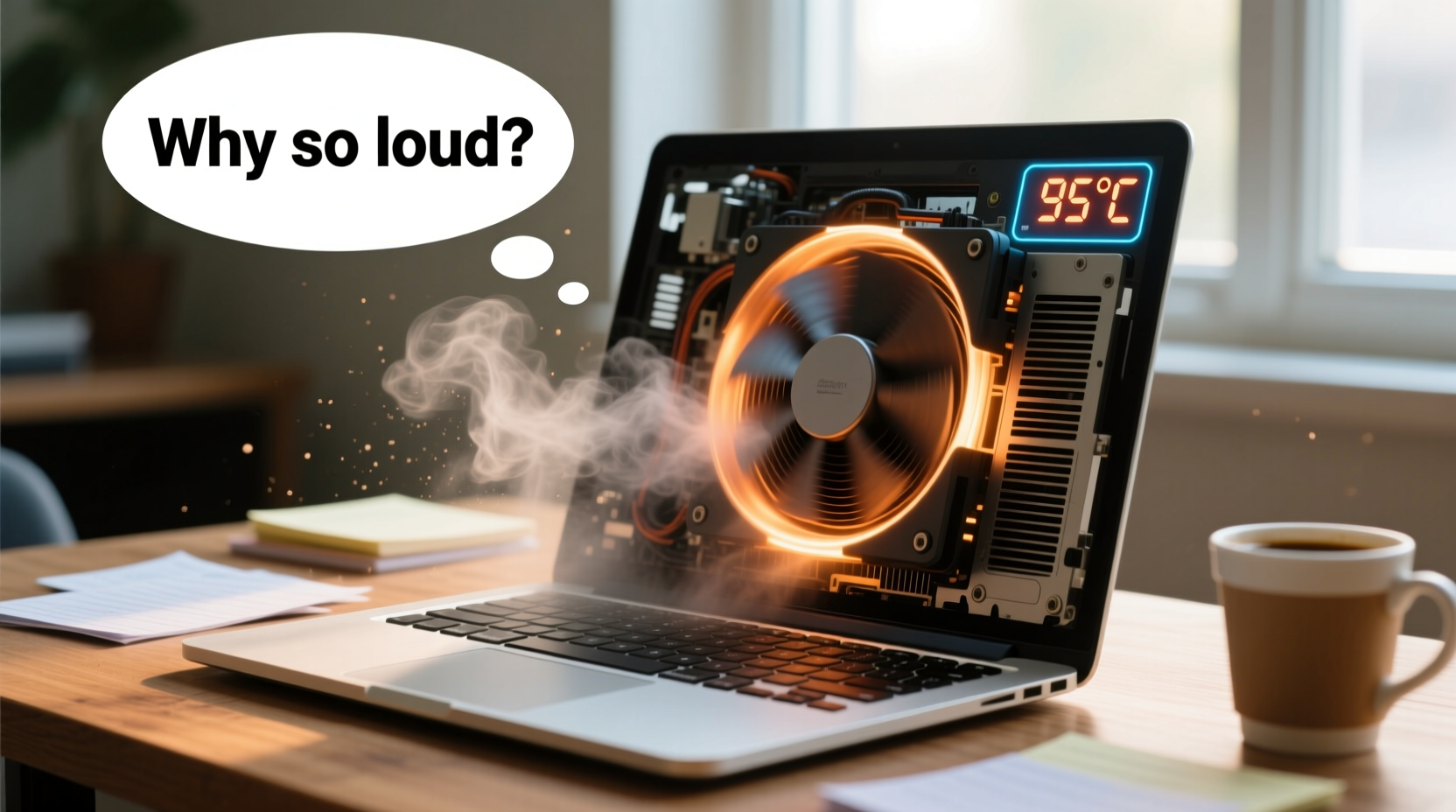
Laptop fans respond to internal temperature changes. When sensors detect rising heat, they increase fan speed to cool critical components like the CPU and GPU. However, if the fan runs loudly despite minimal workload, one or more of the following factors may be responsible:
- Dust and debris buildup: Over time, dust accumulates in vents and around cooling fins, restricting airflow and reducing cooling efficiency.
- Background processes consuming resources: Hidden applications or system tasks may be using significant CPU power without your knowledge.
- Outdated or faulty drivers: Graphics or chipset drivers that aren't optimized can cause unnecessary thermal load.
- Failing thermal paste: On older laptops, dried-out thermal paste between the processor and heatsink reduces heat transfer, forcing the fan to work harder.
- Ambient temperature and placement: Using your laptop on soft surfaces like beds or couches blocks intake vents, increasing internal temperatures.
- Malware or crypto-mining scripts: Malicious software can silently run resource-heavy operations in the background.
Step-by-Step Guide to Diagnose and Fix Loud Fan Issues
Resolving excessive fan noise requires a methodical approach. Follow this timeline to identify and eliminate the source of the problem.
- Check CPU and GPU usage (5 minutes): Open Task Manager (Windows) or Activity Monitor (Mac). Look for processes consuming more than 10–15% CPU while idle. End suspicious or non-essential tasks.
- Scan for malware (10–15 minutes): Run a full system scan using trusted antivirus software such as Windows Defender, Malwarebytes, or Bitdefender.
- Clean air vents (10 minutes): Use compressed air to blow out dust from side vents and fan exhausts. Do not use household vacuums—they generate static electricity.
- Update drivers and BIOS (15 minutes): Visit your laptop manufacturer’s support site. Download and install the latest BIOS, chipset, and graphics drivers.
- Monitor internal temperatures (ongoing): Install a tool like HWMonitor (Windows) or iStat Menus (Mac) to track real-time CPU/GPU temps. Idle temps above 60°C indicate an issue.
- Adjust power settings (5 minutes): Switch to “Balanced” or “Power Saver” mode in your OS settings to limit CPU performance and reduce heat generation.
- Consider internal cleaning or repasting (optional, 30+ minutes): For advanced users, opening the laptop to clean heatsinks or reapply thermal paste can restore cooling efficiency.
Do’s and Don’ts: Laptop Cooling Best Practices
| Do | Don’t |
|---|---|
| Use your laptop on hard, flat surfaces | Place it on pillows, blankets, or your lap directly |
| Clean vents every 3–6 months | Ignore visible dust buildup near fans |
| Keep ambient room temperature moderate | Use your laptop in hot environments (e.g., direct sunlight) |
| Install only necessary software | Allow too many apps to launch at startup |
| Use a laptop cooling pad if needed | Rely solely on cooling pads instead of fixing root causes |
Real-World Example: Sarah’s Overheating Work Laptop
Sarah, a freelance graphic designer, noticed her three-year-old laptop had become increasingly noisy, especially during video calls—even though she wasn’t editing files at the time. The fan would ramp up unexpectedly, sometimes accompanied by slight lag.
She began troubleshooting by checking Task Manager and discovered that Adobe Creative Cloud was constantly syncing large project files in the background, using 25–30% of her CPU. After pausing auto-sync and removing the app from startup, her idle CPU usage dropped to 5%, and the fan noise decreased significantly.
Next, she used compressed air to clean the side vents, which were partially clogged with pet hair (she works from home with two cats). Internal temperatures fell from a steady 68°C at idle to 52°C. Finally, she updated her Intel graphics driver, resolving a known bug causing unnecessary GPU wake-ups.
Within an hour of targeted fixes, Sarah restored her laptop to quiet, responsive performance—proving that small adjustments can yield big results.
Expert Insight: What Engineers Say About Fan Behavior
“Many users assume fan noise means hardware failure, but in 70% of cases, it's either software-driven load or preventable dust accumulation. Thermal management systems are designed to react aggressively because overheating risks permanent damage.” — Dr. Alan Zhou, Senior Hardware Engineer at TechInsight Labs
“The biggest misconception is that ‘doing nothing’ means zero CPU usage. Background updates, cloud syncs, browser tabs with autoplay videos—they all contribute to heat. Monitoring tools are essential for accurate diagnosis.” — Lisa Tran, System Performance Analyst
Essential Checklist to Stop Loud Fan Noise
Use this checklist to systematically address fan noise issues. Complete each item and observe whether fan behavior improves.
- ✅ Check Task Manager/Activity Monitor for high CPU/GPU usage at idle
- ✅ Close unnecessary browser tabs and background apps
- ✅ Disable startup programs that aren’t essential
- ✅ Run a full malware and virus scan
- ✅ Update operating system and all drivers (especially graphics and chipset)
- ✅ Clean external vents with compressed air
- ✅ Ensure proper laptop positioning (on a desk, not soft surfaces)
- ✅ Monitor internal temperatures using HWMonitor or similar tools
- ✅ Adjust power plan to “Balanced” or “Power Saver”
- ✅ Consider professional servicing for internal cleaning or thermal paste replacement if over two years old
When to Seek Professional Help
While many fan issues can be resolved at home, certain signs indicate the need for expert intervention:
- Persistent high temperatures (>70°C at idle) after cleaning and software optimization.
- Unusual noises like grinding or clicking, which may indicate a failing fan motor.
- Frequent thermal throttling or shutdowns, suggesting inadequate heat dissipation.
- Laptop is over 3–4 years old and has never had internal maintenance.
Professionals can disassemble the unit safely, clean the heatsink thoroughly, replace worn thermal paste, and test fan functionality. Attempting deep cleaning without proper tools or experience risks damaging delicate connectors or voiding warranties.
Frequently Asked Questions
Is it bad if my laptop fan runs loudly all the time?
Consistently loud fan operation can indicate poor thermal management. While not immediately dangerous, prolonged overheating degrades battery life, slows performance due to thermal throttling, and shortens the lifespan of internal components. It should be investigated and corrected.
Can I disable the fan to stop the noise?
No. The fan is a critical safety component. Disabling it—even temporarily—risks catastrophic overheating and permanent hardware damage. Instead, address the root cause of the heat buildup.
How often should I clean my laptop’s cooling system?
For most users, cleaning the external vents every 3–6 months is sufficient. A full internal cleaning (including heatsink and fan) is recommended every 18–24 months, especially in dusty environments or homes with pets.
Conclusion: Take Control of Your Laptop’s Performance and Quiet
A loud laptop fan when doing nothing isn’t something you have to live with. It’s a warning sign—and an opportunity. By taking a few deliberate steps, you can reclaim quiet operation, extend your device’s lifespan, and enjoy smoother performance. Most fixes require no special tools, just attention to detail and a bit of technical curiosity.
Start today: open your task manager, check what’s running, clean the vents, and adjust your settings. Small actions compound into lasting improvements. Your laptop works hard for you—return the favor with regular care.




 浙公网安备
33010002000092号
浙公网安备
33010002000092号 浙B2-20120091-4
Comments
No comments yet. Why don't you start the discussion?